
1. Introduction
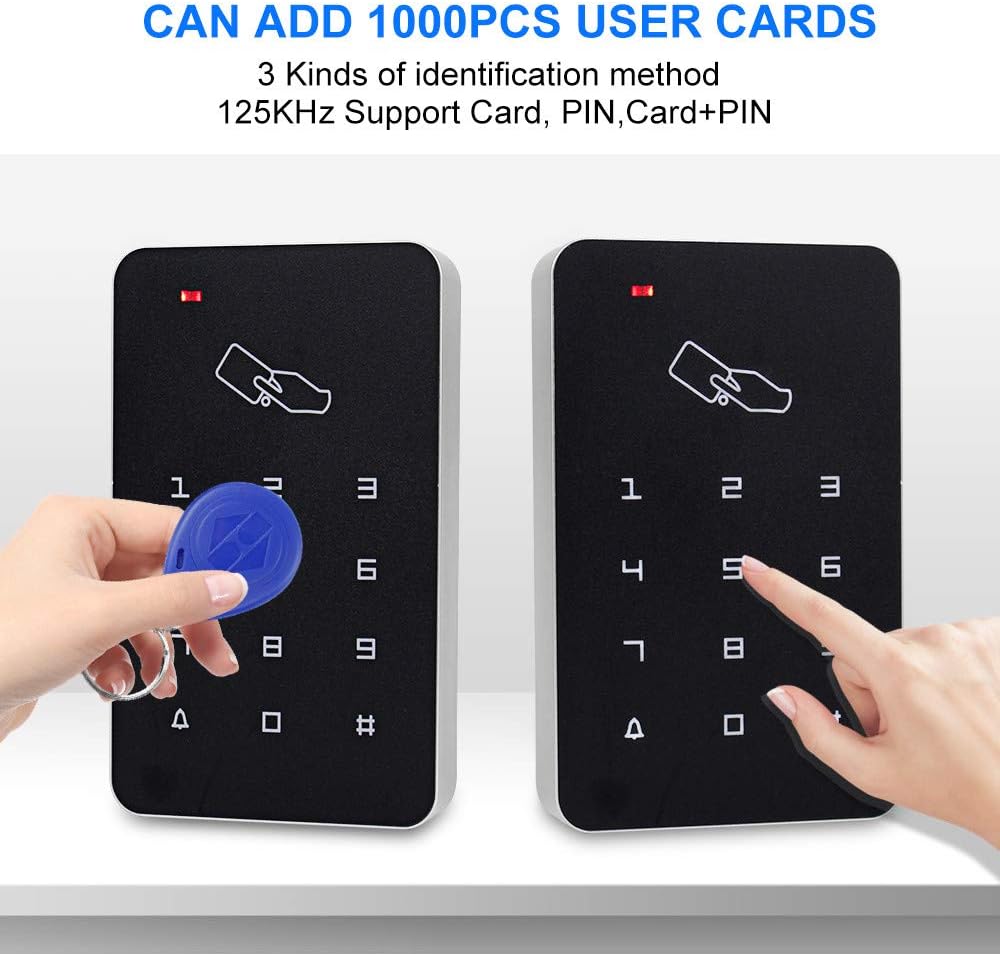
This manual provides detailed instructions for the installation, operation, and maintenance of your OBO HANDS RFID Door Access Control System Keypad T22. This comprehensive kit includes a stand-alone access control keypad, an electric drop bolt lock, a power supply, a door exit button, and 10 RFID key fobs. The system is designed for secure access management in various environments such as homes, hotels, offices, apartments, and factories.
The system supports multiple access methods including password, RFID card, or a combination of card and password, allowing for flexible security configurations. The electric drop bolt lock is a fail-safe (NC) type, meaning it locks when powered and unlocks upon power loss, ensuring safety during emergencies.
2. System Components
- Stand-alone Access Control Keypad: Supports up to 1000 users with card, password, or card+password access modes. Full programming is possible directly from the keypad without a computer.
- Power Supply: Stabilized DC12V/3A output. Features NC/NO outputs for various electric locks and automatic protection against short circuits.
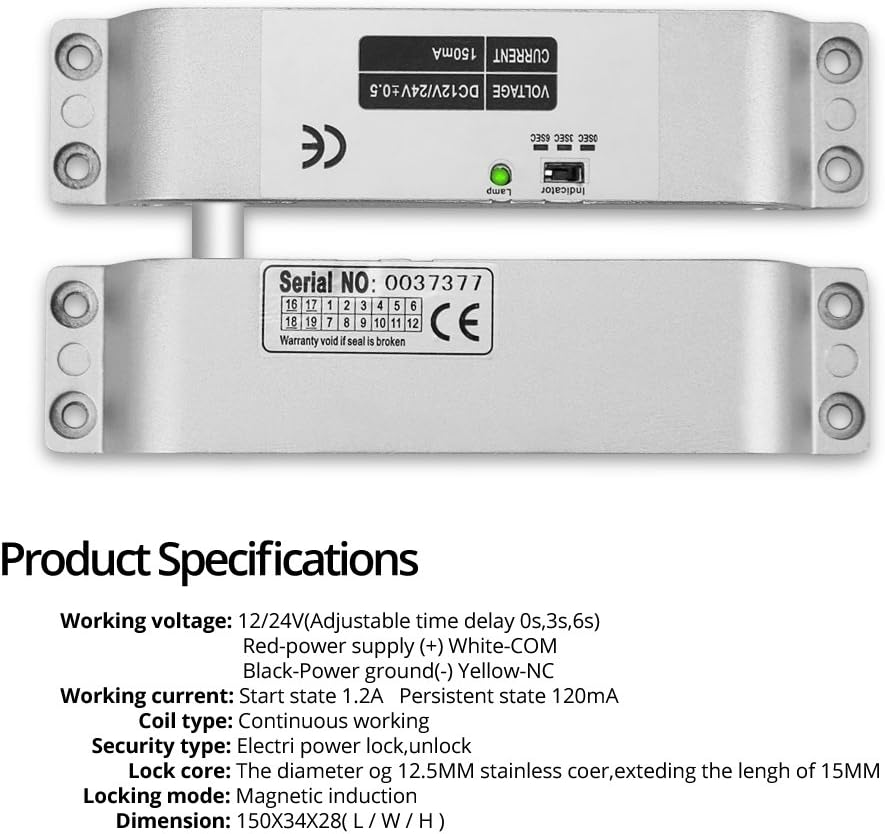
- Electronic Drop Bolt Lock: NC mode (Fail-Safe) - locks with power, unlocks without power. Surface-mounted installation with adjustable time delay (0s, 3s, 6s). Constructed with durable, wear-resistant materials.
- Door Exit Button: Hard plastic material, 36V DC 3A-5A output. Supports both NC (Fail Safe) & NO (Fail Secure) modes.
- RFID Keyfobs/Cards: 10 blue 125KHz waterproof RFID key cards, each pre-programmed with a unique identity number. Detection range of 1-10cm.


3. Setup and Installation
Proper wiring and installation are crucial for the correct functioning and security of the access control system. It is recommended to consult a qualified technician for installation if you are unfamiliar with electrical wiring.
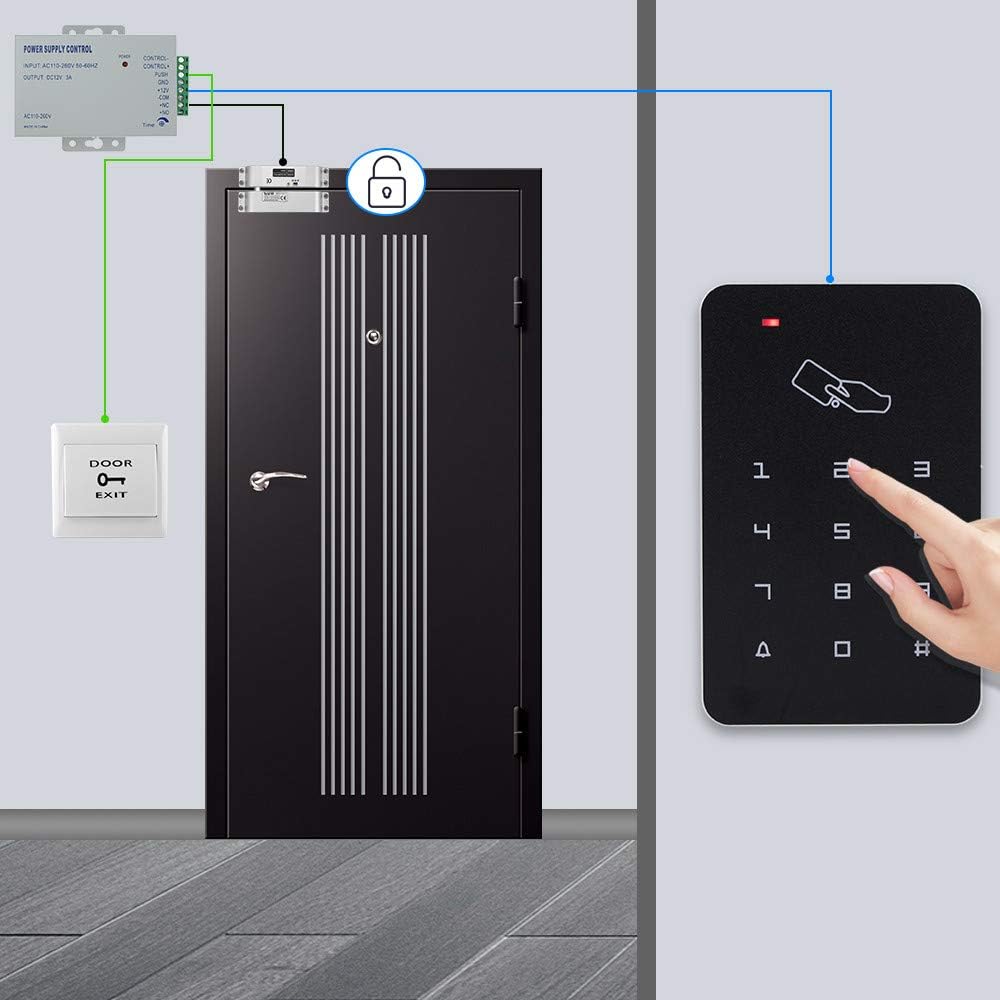
3.1 Wiring Diagram
Refer to the following video for a detailed wiring and programming guide. Ensure all connections are secure and correctly matched to avoid damage or malfunction.
3.2 Electric Drop Bolt Lock Installation
The electric drop bolt lock is designed for surface-mounted installation. Ensure the mortised block with the "detector position" sticker is aligned and in proximity to the bolt block for proper engagement. Only the red and black wires of the bolt mechanism are typically used; white/yellow wires are not connected for standard operation.
4. Operating Instructions
4.1 Basic Access Methods
- PIN Code: Enter your programmed PIN code followed by '#'.
- RFID Card: Present your enrolled RFID card to the keypad reader.
- Card + PIN: Present your RFID card, then enter your PIN code followed by '#'.
- Exit Button: Press the 'DOOR EXIT' button from the inside to unlock the door.
- Remote Control: Use the provided remote control to lock or unlock the door.
4.2 Tuya APP Integration and Management
The access control keypad can be integrated with the Tuya APP for remote management and advanced features.
- Add Device to Tuya APP: Turn on the Tuya APP. Enter '* 123456 # 041 #' on the keypad. Add the device in the app and enter your Wi-Fi password.
- Remote Unlock: Press the unlock icon in the Tuya APP to remotely unlock the door.
- Set Temporary Password: Generate temporary passwords valid for a specific duration or single use via the app.
- Member Management: Add administrators and ordinary members, assign private passwords, and enroll cards through the app's member management section.
- Door Keep Open Mode: Configure specific time periods for the door to remain unlocked automatically.
- View Unlock Records: Access a log of all unlock events, including method and user, directly from the app.
4.3 Programming Keypad (Direct)
The keypad can be programmed directly without the Tuya APP for various functions.
- Set Management Card: Power on and short the OPEN and GND wires. Release after three "di di di" sounds. The red/green light will prompt. Swipe the first card to add it as an administrator card (for adding users) and the second card to delete users.
- Add User Card (Method 1): Enter '# programming password # 1 swipe card #'.
- Add User Card (Method 2): Enter '# programming password # 1 user code # swipe card #'.
- Delete User Card (Method 1): Enter '# programming password # 3 swipe card #'.
- Delete User Card (Method 2): Enter '# programming password # 3 card number #'.
- Delete User Card (Method 3): Enter '# programming password # 3 user code #'.
- Delete All Users: Enter '# programming password # 4 programming password #'.
- Modify Public Unlocking Password: Enter '# programming password # 2 new password # new password #'.
- Modify Programming Password: Enter '# programming password # 9 new programming password # new programming password #'.
- Turn on Combined Door Opening Method (Card + PIN): Enter '* programming password # 0 21 #'.
- Turn off Combined Door Opening Method: Enter '* programming password # 0 20 #'.
- Turn on Normally Open Mode: Swipe a card to open the door, then press '0 #'.
- Turn off Normally Open Mode: Swipe a card or press a password to open the door, then exit normally open mode.
- Restore Factory Settings: Enter '* new programming password # 6 new programming password #'. Alternatively, power on and short the OPEN and GND wires. Release after two "di di" sounds.
5. Specifications
| Component | Specification |
|---|---|
| Access Control Keypad | User Capacity: 1000 users Material: Plastic Proximity Reader Frequency: 125KHz Compatible Cards: EM or EM compatible card Access Modes: Card, password, Card + password External Reader: Not supported Programming: Full programming from keypad, works alone |
| Power Supply | Material: Metal DC Output: Stabilivolt DC12V/3A Outputs: NC/NO (configurable) Remote Control Function: Yes Protection: Automatic short circuit protection |
| Electronic Drop Bolt Lock | Mode: NC (Normally Closed) - locks with power, unlocks without power Installation: Unfold install (surface mounted) Time Delay: 0s, 3s, 6s Surface: Scrub treatment, durable and wear-resistant Lock Body: Hexagon screw, fixed panel, anti-theft |
| Door Exit Button | Material: Hard Plastic Maximum Power Rating: 36V DC 3A-5A output Modes: Supports both NC (Fail Safe) & NO (Fail Secure) Dimension: 86X86MM |
| RFID Keyfobs/Cards | Quantity: 10pcs Blue RFID frequency key cards Waterproof: Yes Operating Frequency: 125kHz Detection Range: 1-10cm Unique ID: Each card pre-programmed with a unique identity number |
| General | Item Weight: 1.09 Kilograms (2.4 pounds) Voltage: 12 Volts Control Method: Touch Connectivity Technology: Wired |
6. Maintenance
- Regularly clean the keypad surface with a soft, dry cloth. Avoid abrasive cleaners or solvents.
- Inspect wiring connections periodically for any signs of wear or damage.
- Ensure the electric drop bolt lock mechanism is free from obstructions and operates smoothly.
- For remote controls, replace batteries as needed to ensure consistent performance.
7. Troubleshooting
- Door not locking/unlocking: Check all wiring connections, especially to the electric drop bolt lock and power supply. Ensure the lock's mortised block is correctly aligned with the bolt. Verify power supply is active.
- Keypad not responding: Check power supply to the keypad. Ensure no buttons are stuck.
- RFID card not working: Ensure the card is correctly enrolled in the system. Check the card's operating frequency (125KHz).
- PIN code not working: Verify the correct PIN code is being entered. Ensure the programming password has not been inadvertently changed.
- System unresponsive after power outage: The electric drop bolt lock is fail-safe (NC type) and will unlock upon power failure. Consider a UPS for continuous operation if this is a critical security concern.
- Difficulty with programming: Refer to the detailed programming videos and instructions in Section 4. If issues persist, consider performing a factory reset (see Section 4.3).
8. Warranty and Support
OBO HANDS products undergo rigorous quality testing to ensure reliability, durability, and compliance with industry standards. For any questions or concerns regarding your product, please contact our support team.
Customer Support: Whatsapp: +86 177 2255 8183 (Mon-Sun 24/7)