
ZMUIPNG ZM1818
ZMUIPNG 8-IN-2 USB C Hub Adapter User Manual
Model: ZM1818
Introduction
This user manual provides detailed instructions for the ZMUIPNG 8-IN-2 USB C Hub Adapter. This multiport dongle is designed to expand the connectivity of your MacBook Pro and MacBook Air, offering a range of ports including 4K HDMI, Thunderbolt 3, USB-C, USB 3.0, USB 2.0, and SD/Micro SD card readers. Please read this manual thoroughly before using the product to ensure proper operation and longevity.
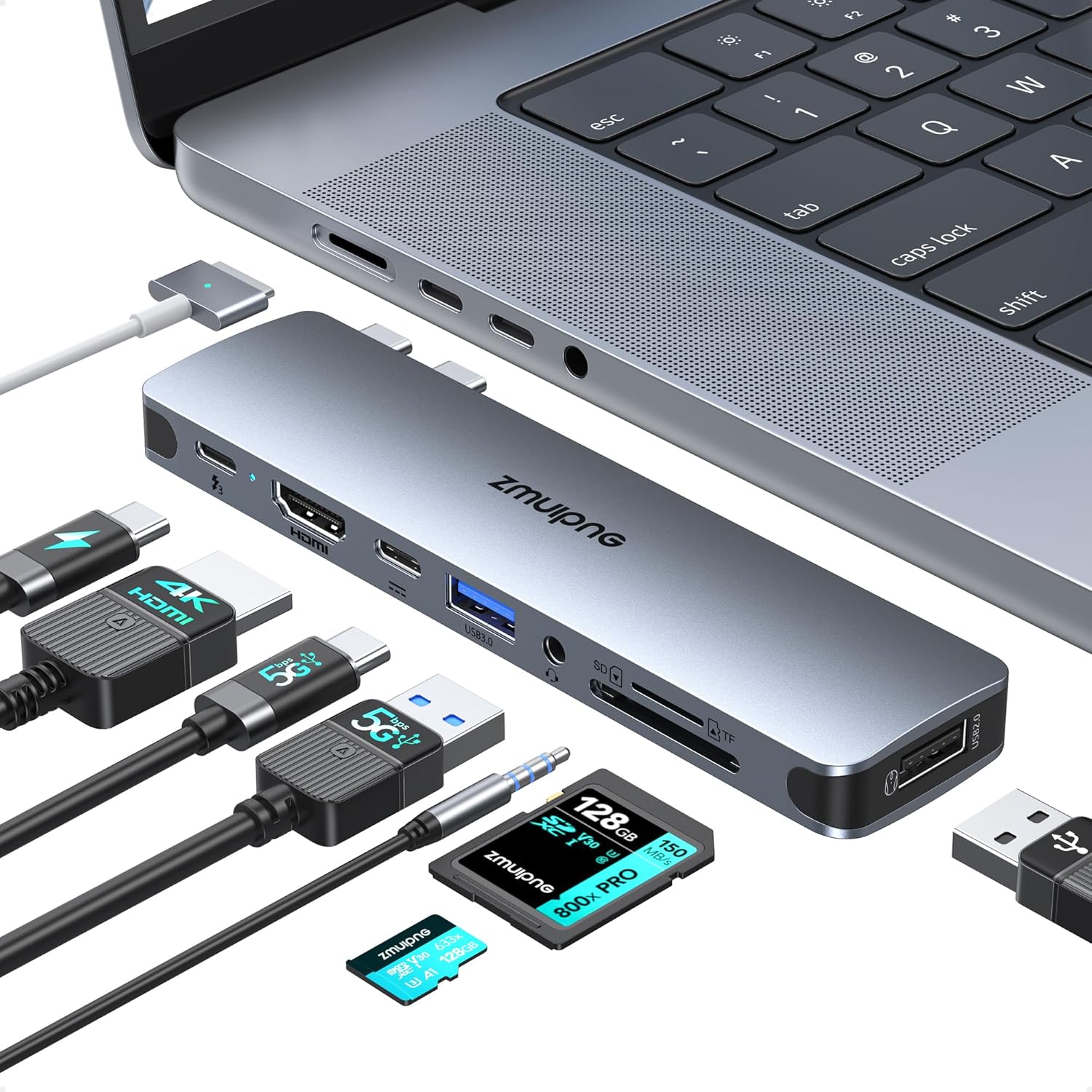
Figure 1: ZMUIPNG 8-IN-2 USB C Hub Adapter with connected devices.
Product Features
- 8-IN-2 Connectivity: Extends two USB-C ports into 4K HDMI, Thunderbolt 3, USB-C (data), 2x USB 3.0, USB 2.0, SD, and Micro SD card readers.
- 4K UHD HDMI Output: Supports video output up to 3840 x 2160@30Hz for mirroring or extending display.
- Thunderbolt 3 Port: Provides up to 40Gb/s data transfer, 5K display support, and up to 100W Power Delivery.
- SuperSpeed USB 3.0 Ports: Two USB 3.0 ports for data transfer up to 5Gbps.
- USB 2.0 Port: One USB 2.0 port for data transfer up to 480Mbps, suitable for peripherals like mouse and keyboard.
- SD & Micro SD Card Readers: Supports data transfer up to 104MB/s.
- Compatibility: Specifically designed for 13'', 15'', 16'' MacBook Pro (2016-2022) and MacBook Air (2018-2021).
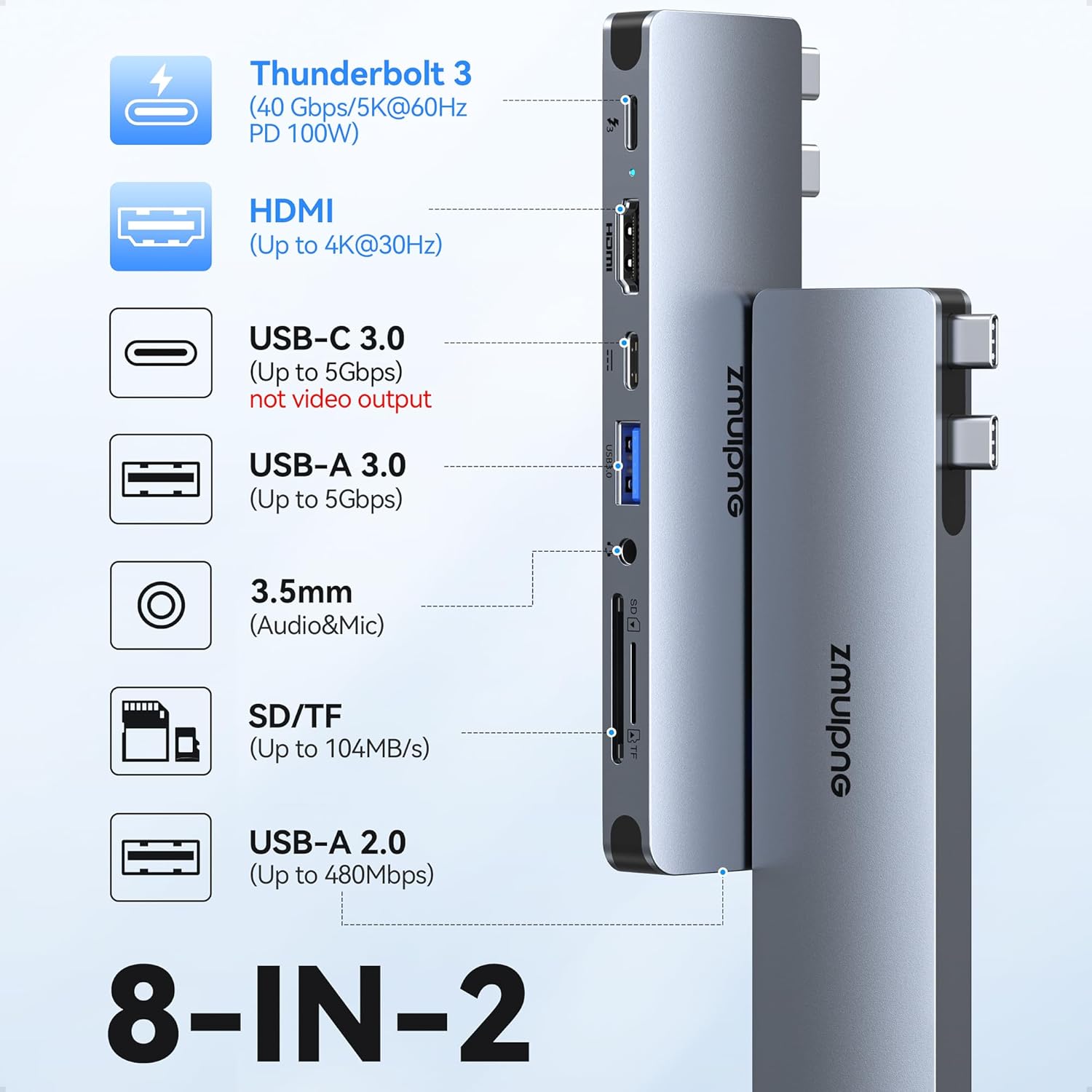
Figure 2: Overview of ZMUIPNG 8-IN-2 USB C Hub Adapter ports and their functions.
Setup Guide
- Unpacking: Carefully remove the ZMUIPNG 8-IN-2 USB C Hub Adapter from its packaging. Ensure all components are present.
- Connecting to MacBook: Align the two USB-C connectors of the hub with the corresponding Thunderbolt 3/USB-C ports on your MacBook Pro or MacBook Air. Gently push the hub until it is securely seated. Ensure no MacBook case is used, as this adapter is not compatible with cases.
- Attaching Foot Pads (Optional but Recommended): The hub comes with rubber foot pads. These can be attached to the underside of the hub in the designated indents. This ensures the hub sits flush with your MacBook and prevents damage to the ports from downward pressure. Note that these foot pads are not reusable once applied.
- Power Connection: For optimal performance and to charge your MacBook, connect your MacBook's original USB-C power adapter to the Thunderbolt 3 port on the hub. This port supports up to 100W Power Delivery.
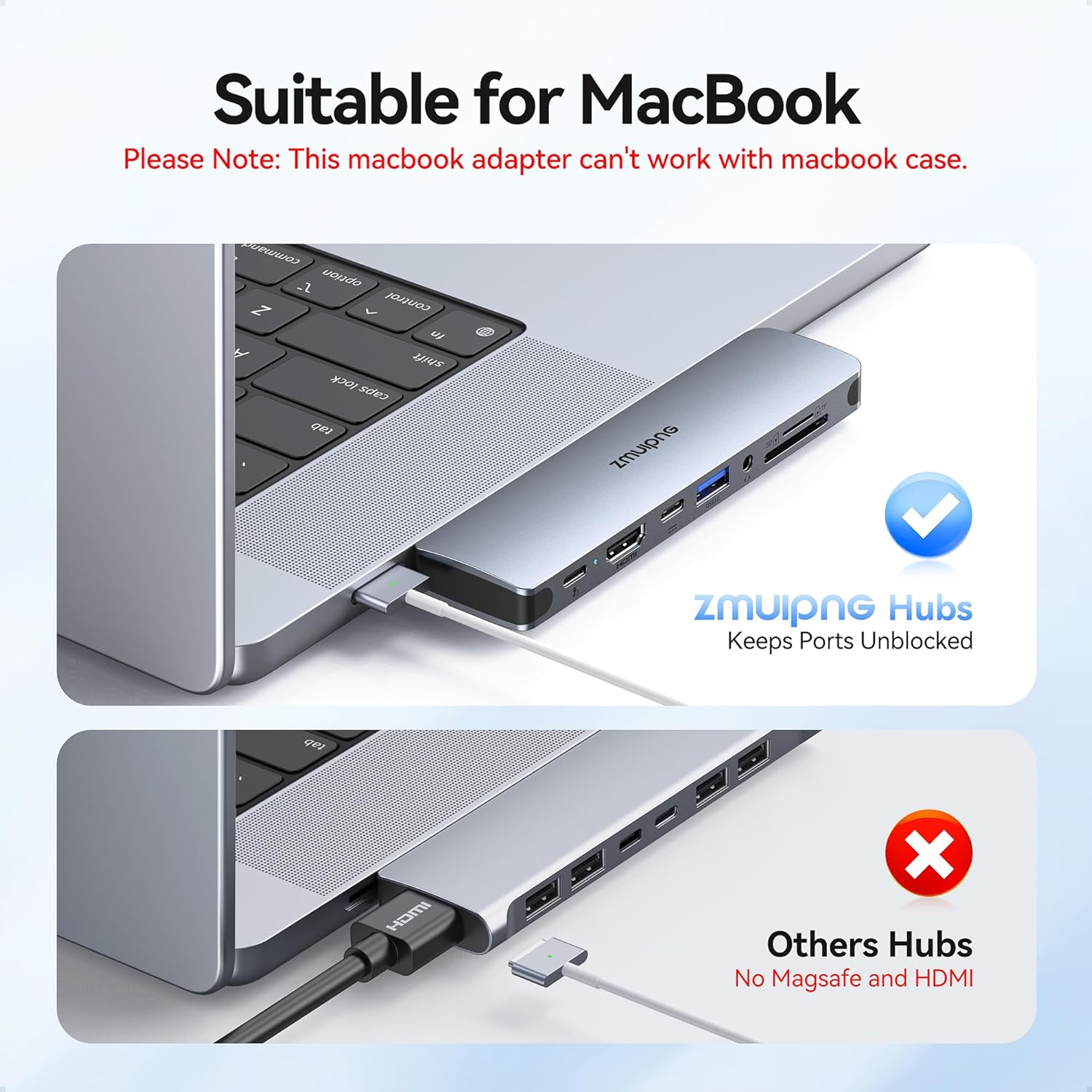
Figure 3: Proper connection of the ZMUIPNG hub to a MacBook, ensuring ports remain accessible.
Video 1: Demonstrates the proper attachment of the foot pads to the ZMUIPNG hub for stable placement and port protection.
Operating Instructions
Display Output (HDMI & Thunderbolt 3)
- HDMI Port: Connect an HDMI cable from the hub's HDMI port to your monitor, TV, or projector. This port supports resolutions up to 4K (3840 x 2160) at 30Hz.
- Thunderbolt 3 Port: This port can also be used for video output, supporting up to 5K resolution at 60Hz. Connect a compatible USB-C to DisplayPort or USB-C to HDMI cable (not included) to this port for additional display connectivity.
- Dual Monitor Setup: You can connect two external displays simultaneously using the HDMI and Thunderbolt 3 ports.
Note: For MacBooks with M1, M2, or M3 chips, the hub does not support Multi-Stream Transport (MST) mode (ABC display). Dual external displays will mirror the MacBook's display or extend it as a single combined desktop.

Figure 4: Dual monitor setup using the ZMUIPNG hub.
USB Data Transfer
- USB 3.0 Ports: Connect USB 3.0 compatible devices such as external hard drives, SSDs, or flash drives to the blue USB-A ports for high-speed data transfer up to 5Gbps.
- USB 2.0 Port: Use the black USB-A port for connecting peripherals like keyboards, mice, or printers. This port offers speeds up to 480Mbps.
- USB-C Data Port: The second USB-C port on the hub is for data transfer only (up to 5Gbps) and does not support video output or charging. Connect USB-C devices like external SSDs to this port.
Note: The hub supports connecting only one HDD/SSD at a time. Compatibility with Logitech's mouse and keyboard may vary.

Figure 5: High-speed data transfer via USB ports.
SD/Micro SD Card Reader
- Insert your SD or Micro SD card into the corresponding slot on the hub. The card reader supports transfer speeds up to 104MB/s, allowing for quick browsing and downloading of photos and videos.

Figure 6: SD/TF card reader and 3.5mm audio port usage.
Audio Output
- Connect your wired headset or microphone to the 3.5mm audio jack on the hub for audio input/output.
Maintenance and Care
- Cleaning: Use a soft, dry cloth to clean the surface of the hub. Avoid using liquid cleaners or aerosols.
- Storage: When not in use, store the hub in a cool, dry place away from direct sunlight and extreme temperatures.
- Handling: Avoid dropping the hub or subjecting it to strong impacts. Do not attempt to disassemble or repair the device yourself.
- Temperature: The hub may become slightly warm during extended use, especially when multiple ports are active or when charging. This is normal. Ensure adequate ventilation around the hub and your MacBook.
Troubleshooting
| Problem | Possible Cause | Solution |
|---|---|---|
| Hub not recognized by MacBook. | Loose connection; incompatible MacBook case; driver issue. | Ensure the hub is firmly connected to both USB-C ports on your MacBook. Remove any MacBook case that might prevent a secure connection. Restart your MacBook. |
| HDMI display not working. | Incorrect display settings; faulty cable; incompatible resolution. | Check display settings on your MacBook (System Preferences > Displays). Ensure HDMI cable is securely connected. Try a different HDMI cable. Verify your monitor supports 4K@30Hz. |
| USB devices not detected. | Insufficient power; faulty device/cable; too many HDDs/SSDs. | Ensure your MacBook's power adapter is connected to the hub's Thunderbolt 3 port. Try connecting the USB device directly to your MacBook if possible. Only connect one HDD/SSD at a time. |
| SD/Micro SD card not reading. | Card inserted incorrectly; damaged card; incompatible format. | Reinsert the card correctly. Try a different card. Ensure the card is not locked (write-protected). |
| Hub feels warm. | Normal operation under load. | This is normal, especially during heavy use or charging. Ensure proper ventilation. If it becomes excessively hot or malfunctions, disconnect immediately and contact support. |
Specifications
- Model: ZM1818
- Dimensions: 5.12 x 1.57 x 0.59 inches
- Weight: 2.61 ounces
- Ports:
- 1x Thunderbolt 3 (5K@60Hz, 40Gbps, 100W PD)
- 1x HDMI (4K@30Hz)
- 1x USB-C (Data only, 5Gbps)
- 2x USB 3.0 (5Gbps)
- 1x USB 2.0 (480Mbps)
- 1x SD Card Reader (up to 104MB/s)
- 1x Micro SD Card Reader (up to 104MB/s)
- 1x 3.5mm Audio Jack
- Compatible Devices: MacBook Pro 2016-2022 (13'', 15'', 16''), MacBook Air 2018-2021.
Warranty and Support
ZMUIPNG products come with a standard manufacturer's warranty. For specific warranty details, please refer to the product packaging or contact ZMUIPNG customer support directly.
If you encounter any issues or have questions regarding your ZMUIPNG 8-IN-2 USB C Hub Adapter, please contact our customer support team:
- Online Support: Visit the ZMUIPNG Store on Amazon.
- Email Support: Refer to the contact information provided in your product's original packaging.
Please have your product model number (ZM1818) and purchase details ready when contacting support.
Related documentsZM1818


Ask a question about this manual
Ask about setup, troubleshooting, compatibility, parts, safety, or missing instructions. Manuals+ will review the question and use this page’s manual context to help answer it.