
Roku RCAL7R
Roku Voice Remote Instruction Manual
Model: RCAL7R
1. Product Overview
The Roku Voice Remote (Model RCAL7R) is designed to enhance your Roku streaming experience. It serves as an ideal replacement or upgrade for your existing Roku TV, Roku player, or Roku Smart Soundbar remote. This remote features intuitive voice control, dedicated TV power, volume, and mute buttons, and convenient pre-set channel shortcut buttons for quick access to popular streaming services. It is compatible with all Roku TV brands and most Roku streaming media players.
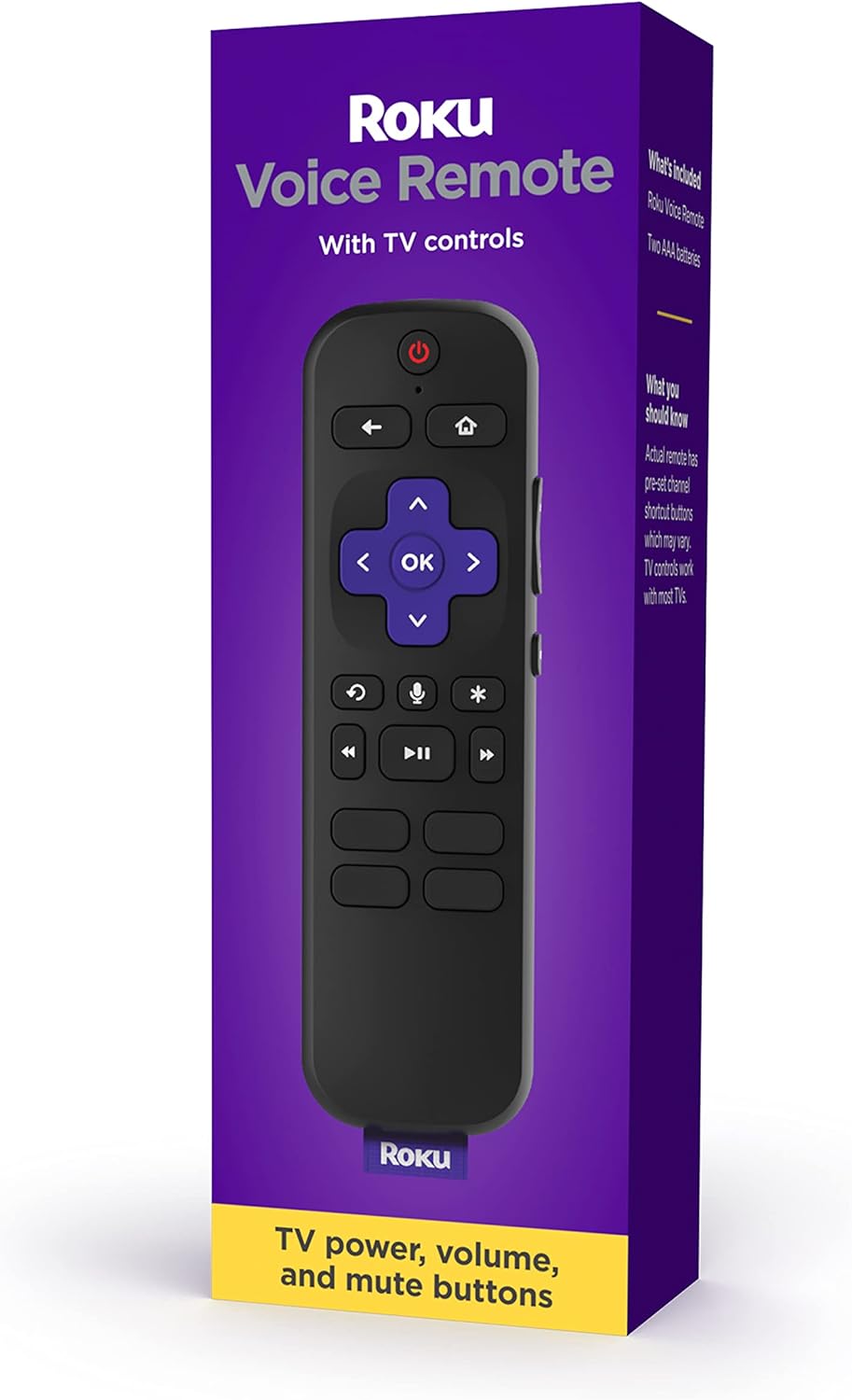
Image: The Roku Voice Remote in its official packaging, highlighting its key features.
2. What's in the Box
Upon opening your Roku Voice Remote package, you will find the following items:
- One (1) Roku Voice Remote
- Two (2) AAA batteries

Image: A visual representation of the Roku Voice Remote and the two included AAA batteries, as found in the product box.
3. Setup Guide
3.1. Inserting Batteries
- Locate the battery compartment on the back of the remote.
- Slide the battery cover downwards to open.
- Insert the two included AAA batteries, ensuring the positive (+) and negative (-) ends align with the indicators inside the compartment.
- Slide the battery cover back into place until it clicks securely.
3.2. Pairing the Remote
The Roku Voice Remote uses a wireless connection and must be paired with your Roku device. Follow these steps:
- Ensure your Roku device (Roku TV, Roku player, or Roku Smart Soundbar) is powered on and displaying the Roku home screen.
- With batteries inserted, open the battery compartment again.
- Locate the small pairing button inside the battery compartment.
- Press and hold the pairing button for approximately 5 seconds, or until the indicator light inside the compartment begins to flash green.
- The remote will automatically attempt to pair with your Roku device. A pairing message should appear on your TV screen.
- Once paired, the indicator light on the remote will stop flashing, and you can begin using your remote.
If pairing is unsuccessful, try moving closer to your Roku device and repeat the steps. You may also need to restart your Roku device by unplugging it from power for a few seconds and then plugging it back in.

Image: A close-up of the Roku Voice Remote, illustrating the location of the pairing button within the battery compartment.
4. Operating Instructions
The Roku Voice Remote offers several ways to control your entertainment:
4.1. Standard Navigation
- Directional Pad (Purple Cross): Use the up, down, left, and right arrows to navigate menus and select items.
- OK Button: Press to confirm a selection.
- Back Button (←): Returns to the previous screen or menu.
- Home Button (⌂): Returns to the Roku home screen.
- Playback Controls: Use the rewind (⏮), play/pause (⏸), and fast forward (⏭) buttons to control media playback.
4.2. Voice Control
The voice control feature allows you to search for content, launch channels, and control your Roku device using spoken commands.
- To activate voice control: Press and hold the Microphone button (🎙) on the remote.
- Speak your command: While holding the button, clearly speak your command (e.g., "Search for action movies," "Launch Netflix," "Turn on captions").
- Release the button: Release the Microphone button when you are finished speaking.

Image: A user holding the Roku Voice Remote and speaking a command, with a text bubble indicating "Launch Netflix" on the screen.
4.3. TV Controls
The Roku Voice Remote includes dedicated buttons to control your TV's power, volume, and mute functions (compatible with most TVs).
- Power Button (⏻): Turns your TV on or off.
- Volume Up/Down Buttons: Adjusts the TV volume.
- Mute Button (🔇): Mutes or unmutes the TV audio.
4.4. Shortcut Buttons
Four pre-set channel shortcut buttons allow for quick access to popular streaming channels with a single press. Note that the specific channels assigned to these buttons may vary.

Image: A detailed view of the Roku Voice Remote, highlighting the layout of all buttons, including the pre-set channel shortcut buttons at the bottom.
5. Maintenance
5.1. Battery Replacement
When the remote's performance declines or it stops responding, it may be time to replace the batteries. Follow the steps in Section 3.1 to replace the two AAA batteries. Always use fresh, high-quality alkaline batteries for optimal performance.
5.2. Cleaning
To clean your Roku Voice Remote, gently wipe it with a soft, dry, lint-free cloth. Do not use abrasive cleaners, waxes, or solvents. Avoid getting moisture into any openings.
6. Troubleshooting
| Issue | Possible Cause | Solution |
|---|---|---|
| Remote not responding | Low or dead batteries; remote not paired; interference. | Replace batteries. Re-pair the remote (see Section 3.2). Ensure no obstructions between remote and Roku device. |
| Voice control not working | Microphone button not held down; poor internet connection; Roku device not compatible with voice search. | Ensure you are holding the Microphone button while speaking. Check your internet connection. Verify your Roku device supports voice search. |
| TV controls (power, volume, mute) not working | Incompatibility with TV model; remote not properly configured. | While the remote is compatible with most TVs, some models may not be fully supported. Ensure your Roku device is updated to the latest software. |
| Remote loses pairing frequently | Weak signal; interference; faulty batteries. | Move Roku device closer to the remote or vice versa. Check for other wireless devices causing interference. Replace batteries. |
For more detailed troubleshooting or specific issues, please refer to the official Roku support website or the comprehensive user guide available for download.
7. Specifications
| Feature | Detail |
|---|---|
| Model Number | RCAL7R |
| Product Dimensions | 5.6 x 1.7 x 0.8 inches |
| Item Weight | 3.2 ounces |
| Batteries Required | 2 AAA batteries (included) |
| Special Feature | Voice Search |
| Color | Black |
| Compatible Devices | Roku Players, Roku TVs, Roku Audio devices |
| Connectivity | Wireless (RF) |

Image: The Roku Voice Remote with its approximate dimensions (5.5" length, 1.7" width) indicated.
8. Warranty and Support
For information regarding product warranty, returns, or additional support, please refer to the official Roku website or contact Roku customer service directly.
A detailed User Guide in PDF format is available for download:
Visit the official Roku store for more products and support resources: Roku Store on Amazon
Related documentsRCAL7R


Ask a question about this manual
Ask about setup, troubleshooting, compatibility, parts, safety, or missing instructions. Manuals+ will review the question and use this page’s manual context to help answer it.