
1. Introduction
Thank you for purchasing the DELUX M618MINI Ergonomic Vertical Mouse. This device is designed to provide a comfortable and natural hand position, reducing wrist and hand fatigue during extended use. It features versatile connectivity options, customizable DPI settings, and a rechargeable battery for enhanced productivity.
2. Product Features
- Ergonomic Design: The mouse is shaped to fit the hand naturally, minimizing strain and promoting a comfortable grip for long-term use. This design helps alleviate wrist and hand fatigue.
- Multi-Mode Connectivity: Offers three connection modes: wired, 2.4G wireless, and Bluetooth. It utilizes improved Bluetooth 5.0 and 2.4Ghz wireless transmission for precise tracking and fast response, ensuring a strong and stable wireless connection. (Note: Bluetooth 5.0 is specifically for Windows 8+ systems).
- RGB Lighting: Integrated RGB lighting provides an ambient atmosphere, enhancing your workspace with both practical and aesthetic value.
- Silent Buttons: Equipped with silent click buttons that reduce over 90% of noise, allowing you to focus on your work without disturbing others in quiet environments.
- USB-C Rechargeable: Features a built-in 1000mAh rechargeable battery. It can be easily charged using the included USB-C cable. The energy-saving mode allows for up to 2 weeks of use on a full charge, even with RGB lighting active. The mouse can be used while charging.
- Wide Compatibility: Compatible with Windows XP/Vista/7/8/10/Android, PC, laptops, computers, notebooks, mobile phones, and MacBooks. (Note: On Mac OS, the back/forward buttons and custom drivers are not supported).
3. Package Contents
The DELUX M618MINI package includes the following items:
- DELUX M618MINI Ergonomic Vertical Mouse
- USB-C Charging Cable
- 2.4GHz USB Receiver (stored in the mouse's bottom compartment)
- User Manual

Image: Contents of the DELUX M618MINI retail box.
4. Setup
4.1 Power On/Off
Locate the ON/OFF switch on the bottom of the mouse. Slide it to the 'ON' position to power on the mouse. Slide it to 'OFF' when not in use to conserve battery.
4.2 Connecting the Mouse
The M618MINI offers three connection methods:
- Wired Mode: Connect the included USB-C cable to the mouse and the other end to an available USB port on your computer. The mouse will function immediately.
- 2.4GHz Wireless Mode:
- Remove the 2.4GHz USB receiver from its storage slot on the bottom of the mouse.
- Plug the USB receiver into an available USB port on your computer.
- Slide the mode switch on the bottom of the mouse to the '2.4G' position. The mouse should connect automatically.
- Bluetooth Mode:
- Slide the mode switch on the bottom of the mouse to the 'BT' position.
- Press and hold the Bluetooth pairing button (usually located near the mode switch) until the indicator light on the mouse starts blinking, indicating it's in pairing mode.
- On your computer or device, go to Bluetooth settings and search for new devices. Select 'DELUX M618MINI' (or similar) from the list to pair.
- For Bluetooth 5.0, ensure your system is Windows 8 or newer for optimal performance.

Image: Bottom of the mouse with power and mode switches.

Image: Multi-system compatibility and connection options.
5. Operating Instructions
The DELUX M618MINI mouse features standard buttons and additional ergonomic controls:
- Left/Right Click Buttons: Standard mouse functions. Designed for silent clicks.
- Scroll Wheel: For vertical scrolling.
- Forward/Backward Buttons: Located on the side for easy navigation in web browsers and file explorers. (Note: These buttons may not be functional on Mac OS without third-party software).
- DPI Button: Located near the scroll wheel, used to adjust the mouse sensitivity.
5.1 DPI Adjustment
Press the DPI button to cycle through different sensitivity levels. The M618MINI supports multiple DPI settings up to 4000 DPI, allowing you to choose the speed that best suits your needs (e.g., 800, 1200, 1600, 2400, 4000 DPI). An indicator light may change to show the current DPI setting.

Image: DPI adjustment and RGB lighting.
5.2 RGB Lighting
The mouse features integrated RGB lighting. The lighting is designed to be ambient and can be a decorative element for your workspace. Specific controls for RGB lighting (if any) are usually integrated with the DPI button or through software (check manufacturer's website for software availability).
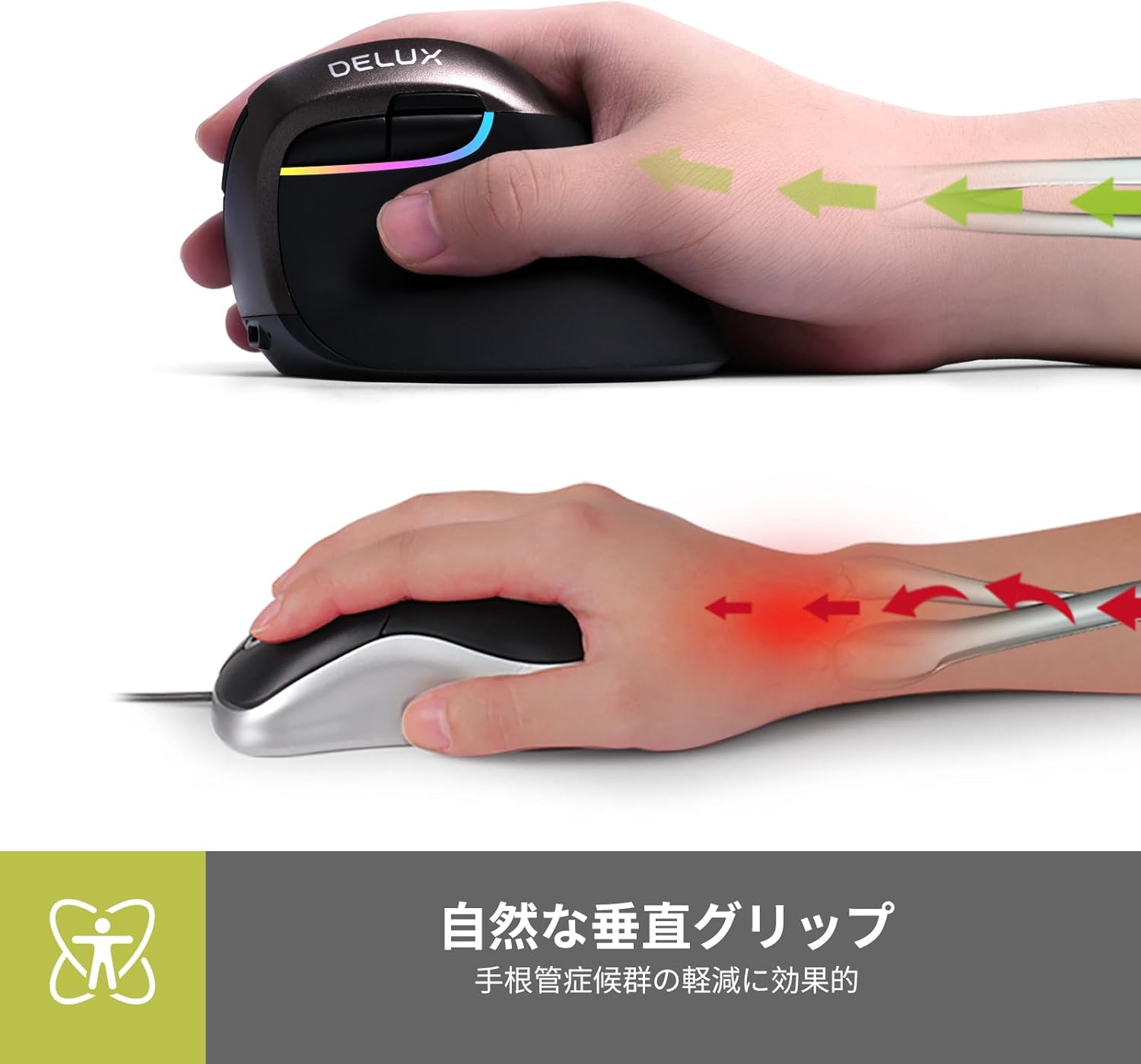
Image: Natural vertical grip for reduced wrist strain.

Image: Comparison of traditional vs. natural vertical grip.

Image: Comfortable thumb and pinky rest.

Image: Rubber lacquer finish for enhanced grip.

Image: Button layout diagram.
6. Charging
The DELUX M618MINI mouse has a built-in 1000mAh rechargeable battery. To charge the mouse:
- Connect the included USB-C cable to the charging port on the front of the mouse.
- Connect the other end of the USB-C cable to a USB power source (e.g., computer USB port, USB wall adapter).
- The mouse can be used while charging. A full charge provides up to 2 weeks of use in energy-saving mode, even with RGB lighting active.
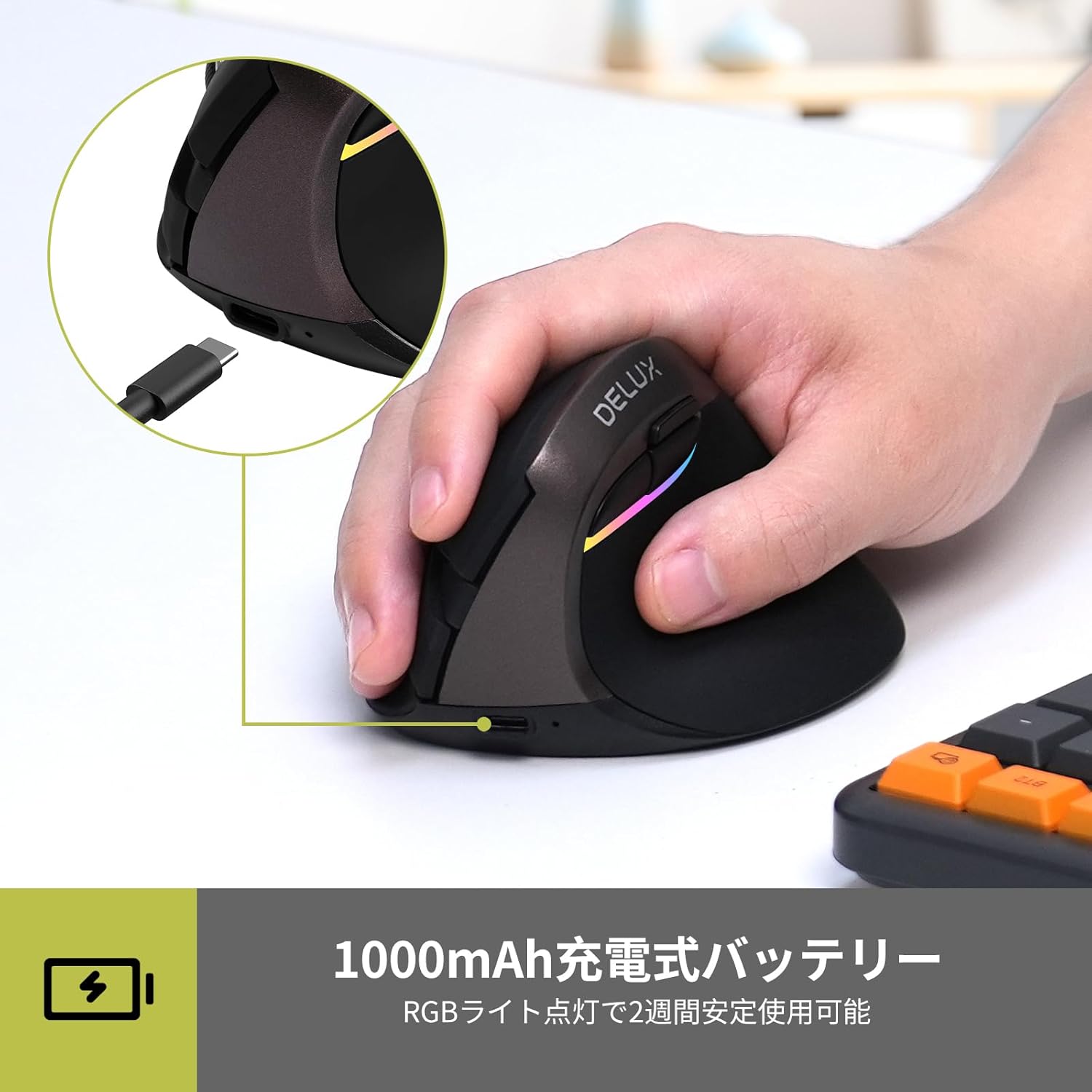
Image: USB-C charging port.

Image: 1000mAh rechargeable battery and USB-C charging.
7. Maintenance
To ensure the longevity and optimal performance of your DELUX M618MINI mouse:
- Keep the mouse clean by wiping it with a soft, dry cloth.
- Avoid exposing the mouse to extreme temperatures, humidity, or direct sunlight.
- Do not disassemble the mouse, as this may void the warranty.
8. Troubleshooting
8.1 Mouse Not Responding
- Ensure the mouse is powered on (ON/OFF switch on the bottom).
- Check the battery level. If low, connect the USB-C charging cable.
- For 2.4GHz wireless: Ensure the USB receiver is securely plugged into a working USB port and the mode switch is set to '2.4G'.
- For Bluetooth: Ensure the mouse is in BT mode, paired correctly, and your device's Bluetooth is enabled. Try re-pairing if necessary.
- If using wired mode, ensure the USB-C cable is securely connected to both the mouse and the computer.
- Try connecting the mouse to a different USB port or a different computer to rule out port or computer issues.
8.2 Cursor Movement is Erratic or Slow
- Clean the optical sensor on the bottom of the mouse with a soft cloth.
- Adjust the DPI setting using the DPI button to a more suitable level.
- Ensure you are using the mouse on a suitable surface (a mouse pad is recommended).
8.3 Silent Buttons Not Working
- The silent click feature refers to reduced audible click noise, not a complete absence of sound or tactile feedback.
- If buttons are completely unresponsive, refer to "Mouse Not Responding" section.

Image: Silent buttons for quiet operation.

Image: Noiseless structure with silent buttons.
9. Specifications
| Feature | Detail |
|---|---|
| Brand | DELUX |
| Model | M618MINI |
| Connectivity | Wired (USB-C), 2.4GHz Wireless, Bluetooth 5.0 |
| DPI Settings | Up to 4000 DPI (Adjustable: 800/1200/1600/2400/4000) |
| Movement Detection | Optical |
| Battery | 1000mAh Rechargeable Lithium Battery (Built-in) |
| Battery Life | Up to 2 weeks (with RGB lighting, in energy-saving mode) |
| Charging Port | USB-C |
| Special Features | Ergonomic Design, RGB Lighting, Silent Buttons |
| Compatibility | Windows XP/Vista/7/8/10, Android, PC, Laptops, MacBooks |
| Dimensions | 10.5 x 9.3 x 8.2 cm |
| Weight | 180 g |

Image: Product dimensions.
10. Product Videos
10.1 DELUX M618MINI Features Overview
Video: This video demonstrates the ergonomic design, USB receiver setup, real-time battery display, DPI adjustment, multi-device switching capabilities, and USB-C charging of the DELUX M618MINI vertical mouse.
10.2 Vertical Mouse Ergonomics and Operation
Video: This video showcases the ergonomic benefits of the vertical design, comfortable thumb rest, multi-device connectivity, and charging process of a vertical wireless mouse.
11. Warranty and Support
All DELUX products are covered by a 12-month warranty from the date of purchase. Additionally, DELUX provides lifetime free technical support for this product.
If you encounter any issues or require assistance, please contact DELUX customer support through your retailer or the official DELUX website. Please have your product model (M618MINI) and purchase information ready when contacting support.


