
Introduction
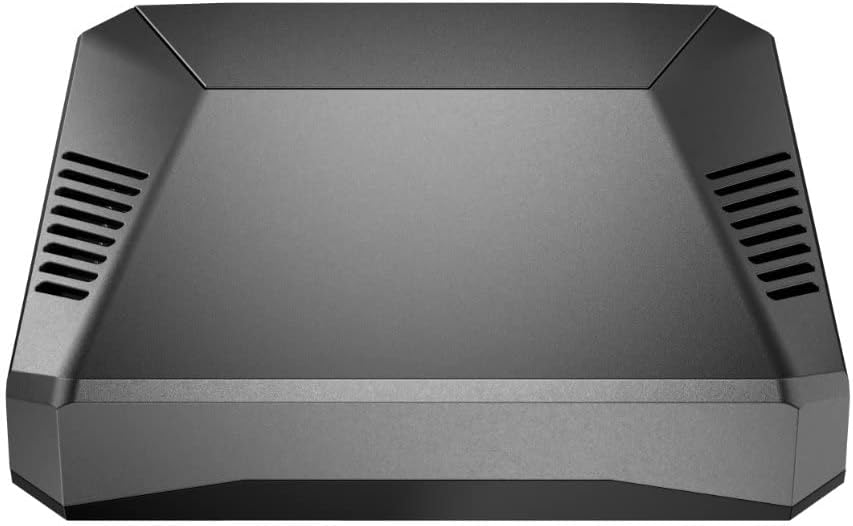
Image: Argon ONE V2 Aluminum Case for Raspberry Pi 4.
The Argon ONE V2 Aluminum Case is designed to provide robust protection and efficient thermal management for your Raspberry Pi 4. It combines passive cooling through its aluminum body with active cooling via an integrated 30mm fan, ensuring optimal performance and extended lifespan for your device. This case also features a neat cable management system, a safe shutdown power button, and an integrated IR receiver for enhanced control.
This manual provides detailed instructions for assembly, operation, and maintenance of your Argon ONE V2 case.

Image: Internal view of the Argon ONE V2 case with cooling fan.
What's in the Box
Upon opening the package, verify that all components are present:
- Argon ONE V2 Aluminum Case (Top and Bottom parts)
- HDMI Daughter Board
- 30mm Cooling Fan (pre-installed)
- Thermal Pads
- Screws for assembly
- Rubber Footing
- Quick Start Guide (physical copy)

Image: Contents of the Argon ONE V2 case box.
Setup Instructions
Follow these steps to assemble your Raspberry Pi 4 within the Argon ONE V2 case:
- Prepare the Raspberry Pi 4: Ensure your Raspberry Pi 4 board is clean and free of debris.
- Apply Thermal Pads: Carefully peel off the protective films from both sides of the thermal pads. Apply the pads to the designated areas on the Raspberry Pi 4's SoC (System on Chip) and RAM chips. These pads facilitate heat transfer to the aluminum case.
- Install Daughter Board: Connect the HDMI daughter board to the Raspberry Pi 4's micro HDMI and 3.5mm audio ports. Ensure a firm connection. Note: This step may require some force. Exercise caution to avoid damage.
- Position Raspberry Pi: Place the Raspberry Pi 4 board with the attached daughter board into the bottom part of the Argon ONE V2 case. Ensure that the GPIO pins align correctly with the case's internal connectors.
- Secure the Top Case: Carefully place the top aluminum part of the case over the Raspberry Pi. The top part acts as a heatsink, making direct contact with the thermal pads.
- Fasten Screws: Use the provided screws to secure the top and bottom parts of the case together. Do not overtighten.
- Attach Rubber Footing: Apply the rubber footings to the bottom of the case to prevent slipping and protect surfaces.

Image: Internal view showing GPIO pins and heatsink contact.

Image: Rear ports of the assembled Argon ONE V2 case.
Software Configuration for Fan and Power Button
To enable the fan control and safe shutdown features, you need to install the Argon ONE script. This script allows you to configure fan speed based on CPU temperature and utilize the power button for safe shutdown, reboot, or forced shutdown.
Refer to the official Argon Forty website or the included Quick Start Guide for the latest script installation instructions. Typically, this involves running a command in the Raspberry Pi's terminal.
Video: Official overview of the Argon ONE Pi 4 V2 Thermal Case, demonstrating its features and assembly process.
Operating Instructions
Power Management
The Argon ONE V2 case features a built-in power button that provides safe shutdown functionality, preventing data corruption and extending the life of your SD card. Once the Argon ONE script is installed:
- Short Press: Initiates a safe shutdown of the Raspberry Pi.
- Long Press (3-5 seconds): Forces a hard shutdown. Use this only if the safe shutdown fails or the system is unresponsive.
- After Shutdown: Press the button again to power on the Raspberry Pi.

Image: Detail of the power button for safe shutdown.
Fan Control
The integrated 30mm fan is controlled by the Argon ONE script, which automatically adjusts its speed based on the Raspberry Pi's CPU temperature. This ensures efficient cooling while minimizing noise. You can customize the fan's temperature thresholds and speeds through the script's configuration settings.
GPIO Access and IR Receiver
The case provides open access to the GPIO pins, allowing for expansion and connection of other peripherals. An integrated IR receiver extends control capabilities, enabling remote operation with a compatible IR remote (sold separately).
Video: Demonstration of the Argon ONE Pi 4 Thermal Case, highlighting its design and features including the IR receiver.
Maintenance
To ensure the longevity and optimal performance of your Argon ONE V2 case and Raspberry Pi 4, consider the following maintenance tips:
- Dust Removal: Periodically clean the case, especially the ventilation slots, to prevent dust buildup that can hinder airflow and cooling efficiency. Use a soft brush or compressed air.
- Thermal Pad Integrity: If you disassemble the case, inspect the thermal pads. If they appear damaged or lose their adhesive properties, replace them to maintain effective heat transfer.
- Firm Connections: Ensure all internal and external connections (HDMI, USB, power) remain firm. Loose connections can lead to intermittent issues.
- Software Updates: Keep your Raspberry Pi OS and the Argon ONE script updated to benefit from performance improvements and bug fixes.
Troubleshooting
This section addresses common issues you might encounter:
No Video Output / Black Screen on Boot
If you experience a black or blank screen when booting your Raspberry Pi 4 with the Argon ONE V2 case, this might be due to an HDMI hotplug detection issue. Follow these steps to resolve it:
- Access SD Card: Remove the SD card from your Raspberry Pi and insert it into a computer.
- Locate
config.txt: Navigate to thebootpartition of the SD card. Find and open the file namedconfig.txtusing a plain text editor (e.g., Notepad on Windows, TextEdit on macOS, or any code editor). - Edit
config.txt: Look for the line that reads# hdmi_force_hotplug=1. If it's commented out (starts with#), remove the#and any leading space to uncomment it. If the line does not exist, addhdmi_force_hotplug=1at the end of the file. - Save and Reboot: Save the changes to
config.txt, safely eject the SD card, and reinsert it into your Raspberry Pi. Power on the device.
Note: After applying this fix, one of the HDMI ports might initially display at a lower resolution (e.g., 1280x720). If this occurs, try plugging the HDMI cable into the other HDMI port on the case and rebooting the Pi. It should then scale to your screen's native resolution.
Fan Not Spinning or Incorrectly Controlled
- Verify Script Installation: Ensure the Argon ONE script is correctly installed and running. Re-run the installation command if unsure.
- Check Connections: Confirm that the fan's connector is securely attached to the appropriate pins on the Raspberry Pi or daughter board.
- Temperature Thresholds: Review the fan control settings in the Argon ONE script. The fan may not activate if the CPU temperature is below the configured threshold.
Power Button Not Functioning
- Script Installation: The power button functionality relies on the Argon ONE script. Ensure it is installed and active.
- Physical Connection: Check that the power button's internal wiring is correctly connected to the daughter board.
- Jumper Settings: The power button can be bypassed with jumper settings. Ensure jumpers are configured for button functionality if desired.
Specifications
| Brand | Argon Forty |
| Model Name | V2 |
| Model Number | B07WP8WC3V (AR1_Rpi4_Case Only) |
| Compatible Devices | Raspberry Pi 4 |
| Case Type | Raspberry Pi Case |
| Material | Aluminum |
| Cooling Method | Air (Passive & Active with 30mm fan) |
| Fan Size | 30 millimeters |
| Special Features | Built-In Fan, Proprietary Power Button Functionality, Integrated IR Receiver |
| Item Weight | 0.21 kg |
| UPC | 045918091818 |
| ASIN | B07WP8WC3V |
Warranty and Support
Warranty Information
The Argon ONE V2 Aluminum Case for Raspberry Pi 4 comes with a 1-month warranty from the date of purchase. This warranty covers manufacturing defects and material flaws under normal use. It does not cover damage caused by misuse, accidents, unauthorized modifications, or improper installation.
Please retain your proof of purchase for warranty claims.
Customer Support
For technical assistance, troubleshooting, or warranty inquiries, please contact Argon Forty customer support through their official website or the retailer where the product was purchased. You can find more information and resources on the Argon Forty Store on Amazon.