
1. Introduction
This manual provides detailed instructions for the setup, operation, and maintenance of your Targus M610 AKM610AP Wireless Mouse and Keyboard Combo. This combo offers a reliable 2.4GHz wireless connection, a full-sized keyboard, and a high-definition 1600 DPI optical mouse for efficient and comfortable use.

Figure 1: Targus M610 AKM610AP Wireless Mouse and Keyboard Combo. This image shows the full-sized black wireless keyboard and the matching black wireless mouse.
2. Package Contents
Verify that all items are present in your package:
- Targus Wireless Keyboard
- Targus Wireless Mouse
- USB Receiver
- 1 AA Battery (for mouse, included)

Figure 2: The wireless mouse shown alongside its compact USB receiver. The receiver enables wireless connectivity for both the mouse and keyboard.
3. Setup Instructions
Follow these steps to set up your Targus Wireless Mouse and Keyboard Combo:
- Install Batteries:
- For the mouse: Open the battery compartment cover on the underside of the mouse. Insert the provided AA battery, ensuring correct polarity (+/-). Close the cover.
- For the keyboard: Open the battery compartment cover on the underside of the keyboard. Insert the required batteries (typically AAA, not included for keyboard based on JSON). Ensure correct polarity (+/-). Close the cover.
- Connect the USB Receiver:
Locate an available USB port on your computer. Insert the USB receiver firmly into the USB port. Your computer should automatically detect and install the necessary drivers. This is a plug-and-play device, requiring no additional software installation.

Figure 3: A close-up view of the compact USB receiver, which facilitates the wireless connection for both the keyboard and mouse.
- Power On:
Ensure the power switch on both the mouse and keyboard (if present) is in the "ON" position. The devices should now be ready for use.
4. Operating Instructions
4.1. Keyboard Usage
The Targus M610 keyboard features a full-sized layout for comfortable typing.
- Standard Typing: Use the alphanumeric keys for text input.
- Function Keys (F1-F12): These keys may have secondary multimedia functions (e.g., volume control, media playback) accessible by pressing the Fn key simultaneously.
- Numeric Keypad: The dedicated numeric keypad on the right provides quick entry for numbers and calculations.
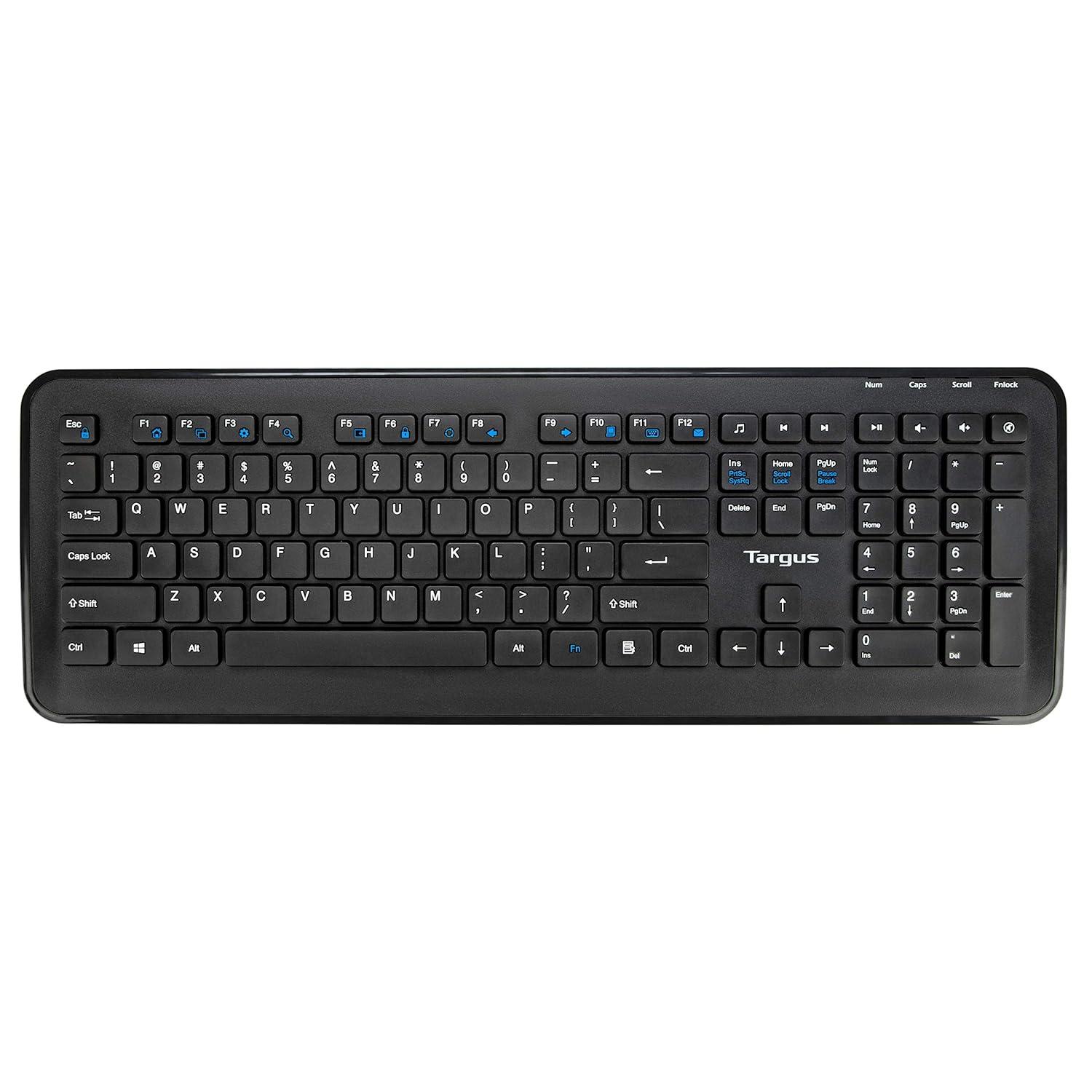
Figure 4: Top-down view of the full-sized Targus wireless keyboard, highlighting its layout and function keys.
4.2. Mouse Usage
The Targus M610 mouse is equipped with a high-definition 1600 DPI optical sensor for precise tracking.
- Left-Click Button: Primary selection and activation.
- Right-Click Button: Accesses contextual menus.
- Scroll Wheel: Navigates vertically through documents and web pages. Can also function as a middle-click button.
- DPI Sensor: The 1600 DPI optical sensor provides accurate and responsive cursor movement.

Figure 5: Top view of the Targus wireless mouse, showing the left and right click buttons and the scroll wheel.
5. Maintenance and Care
To ensure the longevity and optimal performance of your Targus Wireless Combo, follow these maintenance guidelines:
- Cleaning: Use a soft, dry cloth to clean the surfaces of the keyboard and mouse. For stubborn dirt, slightly dampen the cloth with water or a mild cleaning solution. Avoid harsh chemicals or abrasive materials.
- Battery Replacement: Replace batteries when performance degrades or the low battery indicator (if present) illuminates. Always use fresh, high-quality batteries of the specified type (AA for mouse, typically AAA for keyboard).
- Storage: When not in use for extended periods, store the combo in a cool, dry place. Consider removing batteries to prevent leakage.
- Avoid Liquids: Keep the keyboard and mouse away from liquids to prevent damage to internal components.
6. Troubleshooting
If you encounter issues with your Targus Wireless Combo, refer to the following common solutions:
| Problem | Solution |
|---|---|
| Keyboard or mouse not responding. |
|
| Intermittent connection or lag. |
|
| Mouse cursor erratic or not moving smoothly. |
|
7. Specifications
Detailed technical specifications for the Targus M610 AKM610AP Wireless Mouse and Keyboard Combo:
| Feature | Detail |
|---|---|
| Brand | Targus |
| Model Number | AKM610AP |
| Connectivity Technology | 2.4GHz Wireless, USB Receiver |
| Color | Black |
| Mouse Sensor | 1600 DPI Optical Sensor |
| Keyboard Type | Full-sized with Multimedia Keys |
| Compatible Devices | Personal Computer, Laptop, Television, Projector |
| Power Source | Battery Powered |
| Batteries Required | 1 AA battery (for mouse, included) |
| Product Dimensions (Keyboard) | Approximately 45.5 cm (Width) x 15.7 cm (Height) |
| Product Dimensions (Mouse) | Approximately 6.6 cm (Length) x 3.8 cm (Width) x 1.1 cm (Height) |
| Item Weight | 611 g (total combo weight) |

Figure 6: Diagram illustrating the approximate dimensions of the Targus wireless keyboard, including its width and height, and highlighting the 12 multimedia keys.

Figure 7: Diagram illustrating the approximate dimensions of the Targus wireless mouse (length, width, height) and indicating the high-precision nano receiver.
8. Warranty and Support
The Targus M610 AKM610AP Wireless Mouse and Keyboard Combo comes with a 3-Year Warranty.
For warranty claims, technical support, or further assistance, please contact Targus customer service through their official website or the retailer where the product was purchased. Keep your proof of purchase for warranty validation.
For more information, visit the official Targus website: www.targus.com


