
eero eero 1-Pack
eero Mesh WiFi Router Instruction Manual
Model: eero 1-Pack
1. Introduction
The eero mesh WiFi router is designed to provide fast, reliable, and secure whole-home WiFi coverage. This manual will guide you through the setup, operation, maintenance, and troubleshooting of your eero device.
This particular eero device is a Like-New Amazon refurbished product, tested and certified to function like new, and comes with the same limited warranty as a new device.
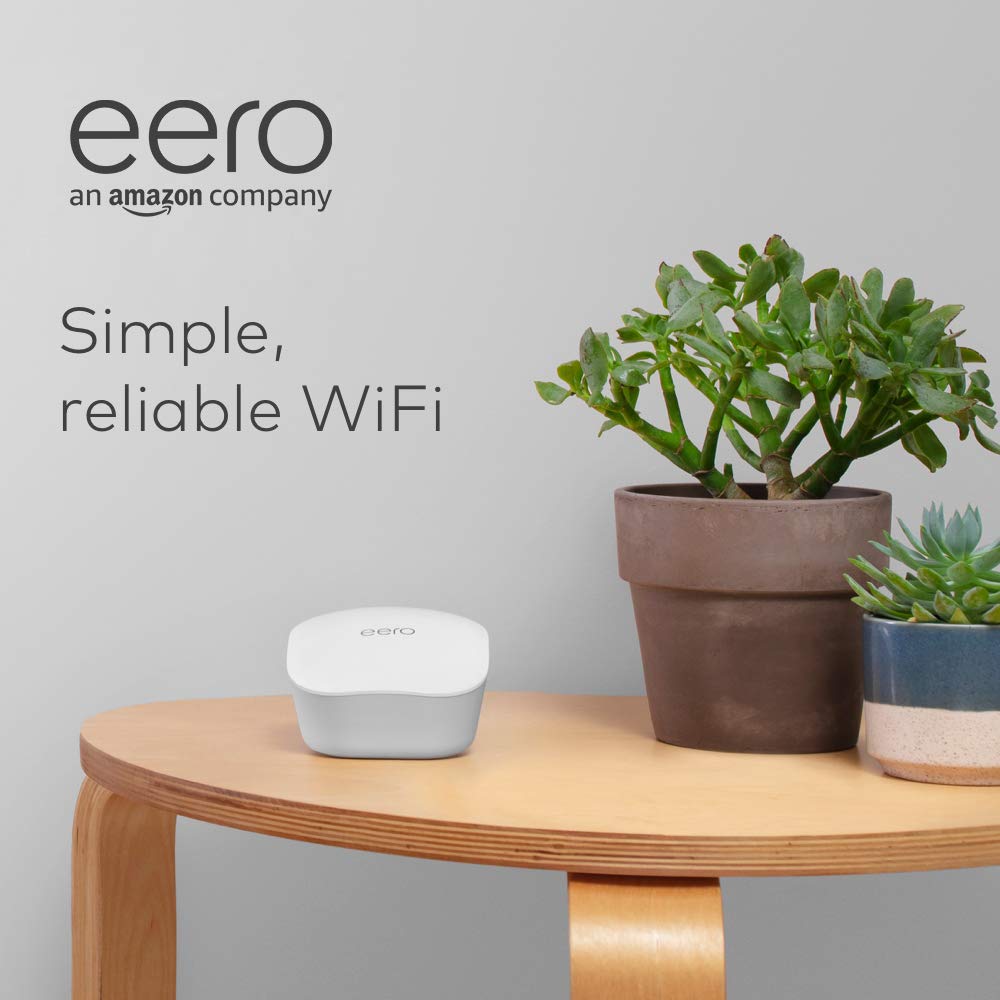
Image: The eero mesh WiFi router, a compact white device, sits on a wooden table next to two potted plants. Text on the image reads "eero an amazon company Simple, reliable WiFi," highlighting its core benefits.
2. Setup
Setting up your eero system is a straightforward process, typically taking less than 10 minutes using the eero app.
2.1 What's in the Box
- eero mesh WiFi router
- Power adapter
- Ethernet cable
2.2 Initial Connection
- Download the eero app from your device's app store.
- Connect your eero device to your modem using the provided Ethernet cable.
- Plug in the power adapter to your eero device and an electrical outlet.
- Follow the on-screen instructions within the eero app to complete the setup. The app will guide you through creating your network name (SSID) and password.
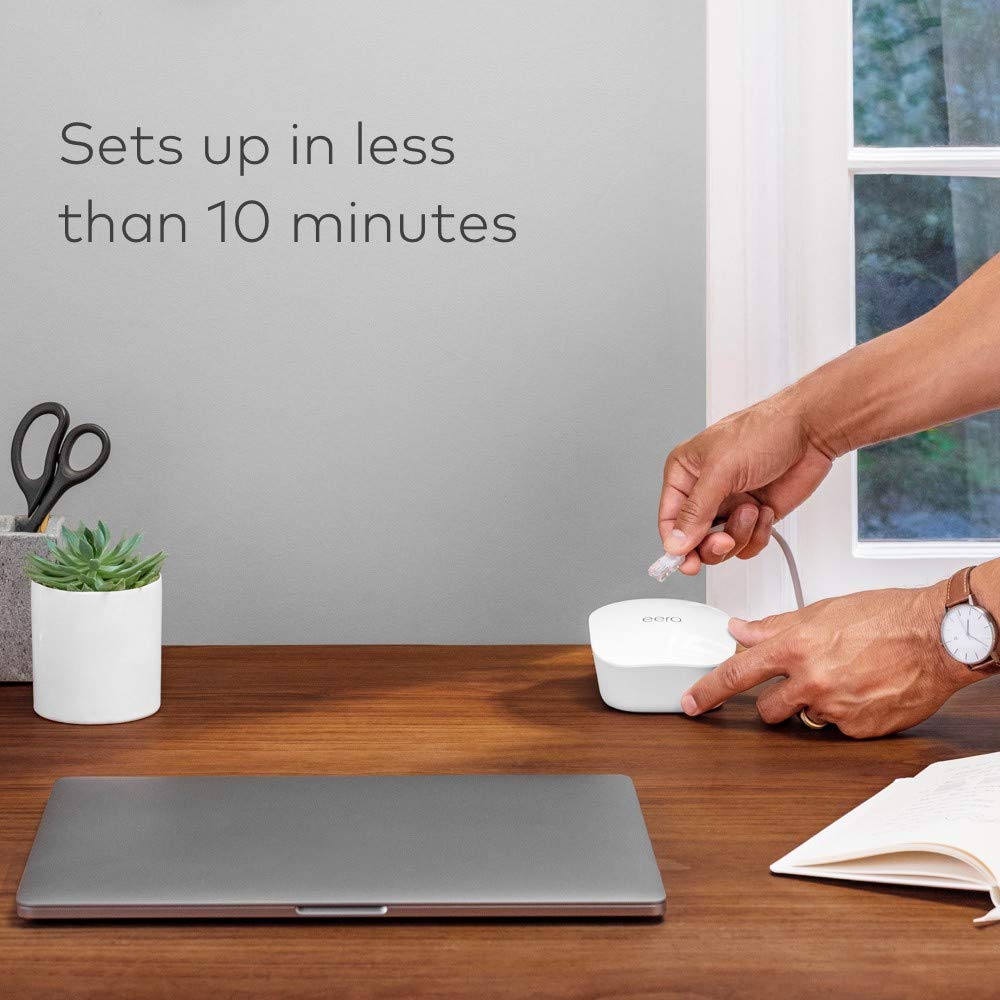
Image: A person's hands are shown connecting an Ethernet cable to the back of a white eero router, which is placed on a wooden desk next to a laptop. Text on the image states "Sets up in less than 10 minutes," emphasizing the ease of installation.
Note: The eero system works with your existing internet service provider by connecting to your modem. It is designed to replace your existing router or extend your current eero network.
3. Operating Your eero System
Once set up, your eero system intelligently manages your WiFi network to provide optimal performance. The eero app is your primary tool for managing your network.
3.1 eero App Features
- Network Management: View connected devices, check network status, and manage guest access.
- Parental Controls: Pause internet access for specific devices or profiles.
- Security: Monitor network activity and receive security alerts.
- Alexa Integration: If you have an Alexa device, you can manage WiFi access using voice commands.

Image: A smartphone screen displays the eero app interface, showing a list of connected devices and network status. Text on the image reads "Easily manage your WiFi from the eero app," illustrating the app's functionality.
3.2 Expanding Your Network
You can easily expand your eero system by adding more eero devices. All eero products are cross-compatible, allowing you to customize your network coverage as your needs change. Simply add new eero devices through the eero app.

Image: An illustrative diagram of a multi-story house with WiFi signals emanating from several eero devices, covering all rooms and devices. Text on the image says "Whole-home WiFi coverage for all your devices," demonstrating the mesh network's reach.
4. Maintenance
eero systems are designed for minimal maintenance, with many processes automated.
4.1 Automatic Updates
Your eero system receives automatic software updates to keep your network safe, secure, and performing optimally. These updates often include new features, performance improvements, and security patches.

Image: A white eero device is depicted with circular arrows around it, symbolizing automatic updates. Text on the image reads "Automatic security updates," highlighting a key maintenance feature.
4.2 Cleaning Your Device
To clean your eero device, gently wipe it with a soft, dry cloth. Avoid using liquid cleaners or abrasive materials.
5. Troubleshooting
If you encounter issues with your eero system, try the following troubleshooting steps:
- Check Connections: Ensure all cables (power, Ethernet) are securely connected to your eero device and modem.
- Restart Devices: Power cycle your modem and eero device by unplugging them for 30 seconds and then plugging them back in.
- Check eero App: The eero app provides real-time status updates and can often diagnose network issues.
- Relocate eero: If you have multiple eero devices, try repositioning them to improve coverage, especially if you notice dead zones.
- Contact Support: If issues persist, refer to the support section for further assistance.
Common Issue: No Internet Connection
If your eero device shows a red light or you have no internet connection, first verify that your modem is working correctly. Then, restart both your modem and eero device. Ensure the Ethernet cable from your modem is connected to the correct port on your eero.
6. Specifications
| Feature | Description |
|---|---|
| Model | eero 1-Pack (B07WMMD6DD) |
| Coverage | Up to 1,500 sq. ft. per eero device |
| Connectivity | Dual-band WiFi, 2 Ethernet ports (auto-sensing WAN/LAN) |
| Technology | TrueMesh technology |
| Security | Automatic security updates, WPA2 encryption |
| Compatibility | Works with existing modems and all eero products |
| Dimensions | (Specific dimensions not provided in input) |
7. Warranty and Support
7.1 Limited Warranty
This Like-New Amazon eero mesh WiFi router comes with the same limited warranty as a new device. For specific warranty terms and conditions, please refer to the documentation provided with your purchase or visit the official eero support website.
7.2 Customer Support
For further assistance, please utilize the following resources:
- eero App: The eero app provides in-app support, FAQs, and diagnostic tools.
- Online Help: Visit the official eero support website for comprehensive guides and troubleshooting articles.
- Contact: For direct support, contact eero customer service through the options provided on their official website.
Related documentseero 1-Pack


Ask a question about this manual
Ask about setup, troubleshooting, compatibility, parts, safety, or missing instructions. Manuals+ will review the question and use this page’s manual context to help answer it.