
1. Introduction
The Raymarine E7D Hybrid Multi Touch MFD E62355 is an advanced multifunction display designed for marine navigation and fishfinding. It combines a responsive touchscreen interface with traditional keypad controls, offering flexible operation. This device features Wi-Fi connectivity for streaming to compatible mobile devices and integrates seamlessly with other marine electronics.
This manual provides essential information for the safe and efficient use of your E7D MFD, covering installation, operation, maintenance, and troubleshooting.
2. Safety Information
Always observe the following safety precautions to prevent injury, damage to the device, or damage to your vessel:
- Installation: Ensure all wiring is correctly connected according to the wiring diagrams. Incorrect wiring can cause damage or fire.
- Power Supply: Connect the unit to a stable 12V DC power source. Do not exceed the specified voltage range.
- Navigation: The E7D MFD is an aid to navigation. Always use official government charts and exercise caution. Do not rely solely on electronic navigation.
- Maintenance: Disconnect power before performing any maintenance or cleaning.
- Water Exposure: While the unit is designed for marine environments, ensure all connections are sealed to prevent water ingress.
3. Setup
3.1 Unpacking and Inspection
Carefully remove all components from the packaging. Verify that all items listed in the packing list are present and undamaged. If any items are missing or damaged, contact your Raymarine dealer immediately.
3.2 Mounting the Display
The E7D MFD can be flush-mounted or bracket-mounted. Choose a location that provides good visibility, is protected from direct sunlight if possible, and allows for adequate ventilation around the unit. Ensure there is sufficient space behind the unit for cable connections.
For flush mounting, use the provided template to cut the opening. For bracket mounting, secure the bracket to a sturdy surface using appropriate fasteners.
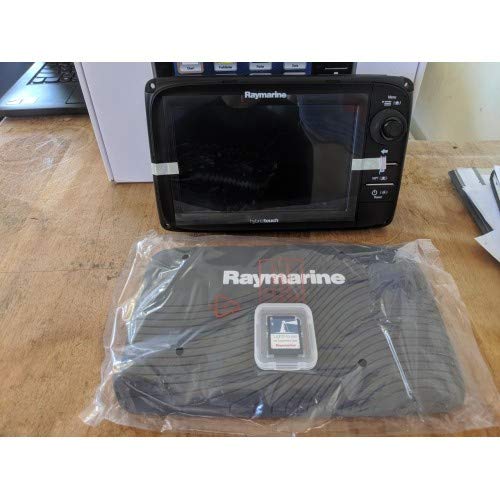
Figure 3.2.1: The Raymarine E7D Hybrid Multi Touch MFD E62355 display unit, typically mounted on a boat's helm or dashboard. This image shows the front panel with its screen and control buttons.
3.3 Wiring Connections
Connect the power cable to a 12V DC power source, ensuring correct polarity. Connect any transducers (for sonar/fishfinder functionality) and network cables (e.g., SeaTalkng/NMEA 2000) as required for your system configuration. Refer to the detailed wiring diagrams in the full installation guide for specific connections.
- Power: Red wire to positive (+12V DC), Black wire to negative (GND).
- Transducer: Connect the transducer cable to the designated port on the E7D.
- Network: Connect SeaTalkng or NMEA 2000 cables for communication with other devices.
3.4 Initial Power On
Once all connections are secure, apply power to the unit. The E7D will perform a self-test and then display the home screen. Follow the on-screen prompts for initial setup, including language selection, time zone, and unit preferences.
4. Operating Instructions
4.1 User Interface: HybridTouch
The E7D features HybridTouch, allowing you to control the unit using either the multi-touch touchscreen or the physical keypad and rotary controller. You can switch between modes or use them interchangeably.
- Touchscreen Gestures: Tap to select, pinch to zoom, swipe to pan.
- Keypad Controls: Use the directional pad, rotary knob, and dedicated buttons for menu navigation, zooming, and function selection.
4.2 Chartplotter Navigation
Access the Chart application from the home screen. Use the touchscreen or keypad to pan and zoom the chart. You can create waypoints, routes, and track your vessel's position. Ensure your chart card is inserted correctly for detailed cartography.
- Creating a Waypoint: Tap on the desired location on the chart and select "New Waypoint".
- Navigating a Route: Select a pre-planned route or create a new one, then choose "Go To" or "Follow Route".
4.3 Sonar/Fishfinder Operation
If a compatible transducer is connected, access the Sonar application. Adjust gain, range, and frequency settings to optimize the display for current conditions. The E7D provides clear views of underwater structure and fish targets.
Note: The effectiveness of the sonar depends on the transducer type and installation.
4.4 Wi-Fi Streaming to Mobile Devices
The E7D supports Wi-Fi streaming to compatible Apple iPhones (4 and above). Download the Raymarine mobile app from the App Store. On the E7D, enable Wi-Fi and connect your mobile device to the E7D's Wi-Fi network. You can then view and control the MFD from your mobile device.
Video 4.4.1: This video demonstrates the process of connecting a mobile device to the Raymarine E7D's Wi-Fi network and streaming the display. It covers enabling Wi-Fi on the MFD and pairing with the Raymarine mobile application.
5. Maintenance
5.1 Cleaning the Display
To clean the screen and casing, use a soft, damp cloth with fresh water. For stubborn marks, a mild soap solution can be used. Do not use abrasive cleaners, solvents, or high-pressure water jets, as these can damage the display and seals.
5.2 Software Updates
Periodically check the Raymarine website for software updates. Updates often include new features, performance enhancements, and bug fixes. Follow the instructions provided with the update package for a safe and successful installation, typically involving a microSD card.
5.3 Storage
If storing the vessel for an extended period, it is recommended to disconnect the E7D from power. For long-term storage in harsh conditions, consider removing the unit and storing it in a dry, temperature-controlled environment.
6. Troubleshooting
This section addresses common issues you might encounter with your E7D MFD.
| Problem | Possible Cause | Solution |
|---|---|---|
| Unit does not power on. | No power supply; Blown fuse; Loose connection. | Check power cable connections; Inspect fuse in power circuit; Ensure battery is charged. |
| No chart displayed. | No chart card inserted; Corrupt chart data; Incorrect chart settings. | Insert a valid chart card; Try a different chart card; Check chart display settings. |
| Sonar not showing depth. | Transducer not connected; Transducer faulty; Air bubbles under transducer. | Verify transducer connection; Clean transducer face; Reposition transducer if necessary. |
| Touchscreen unresponsive. | Screen dirty; Software glitch; Water on screen. | Clean screen; Restart unit; Dry screen thoroughly. |
If the problem persists after attempting these solutions, contact Raymarine customer support or your authorized dealer.
7. Specifications
Key technical specifications for the Raymarine E7D Hybrid Multi Touch MFD E62355:
- Model: E7D (E62355)
- Display Type: HybridTouch (Multi-touch touchscreen and keypad control)
- Connectivity: Wi-Fi, SeaTalkng/NMEA 2000, Ethernet, USB
- Dimensions (approximate): 226 x 142 x 150 mm (Width x Height x Depth)
- Power Input: 12V DC
- Features: Chartplotter, Sonar (built-in), GPS, Radar (with optional scanner), Instrument Display
- ASIN: B07WLMBQL1
- Manufacturer: Raymarine
8. Warranty and Support
Your Raymarine E7D MFD is covered by a standard manufacturer's warranty. Please refer to the warranty card included with your product or visit the official Raymarine website for detailed warranty terms and conditions.
For technical support, service, or further assistance, please visit the official Raymarine support website or contact your authorized Raymarine dealer. You can find contact information and FAQs on their website: www.raymarine.com/support