
1. Introduction
This manual provides detailed instructions for the installation, operation, and maintenance of your Thinkware F100 Dash Cam. The F100 system includes a 1080P Full HD front camera and supports an optional 720P HD rear camera, offering comprehensive surveillance for your vehicle. Please read this manual thoroughly before using the product to ensure proper functionality and safety.
2. Package Contents
Verify that all items are present in your product package:
- Thinkware F100 Front Dash Cam Unit
- Rear Camera (if purchased as a 2-channel system)
- Power Cable (Hardwiring Cable for Parking Mode)
- 16 GB MicroSD Card
- Adhesive Mount
- Cable Clips
- Quick Start Guide
3. Product Overview
The Thinkware F100 Dash Cam is designed for discreet and reliable vehicle recording. It features a compact design and essential functions for road safety and parking surveillance.

Figure 3.1: Thinkware F100 Front Dash Cam Unit. This image displays the main dash cam unit, showing the lens, the 'THINKWARE' branding, and various ports and ventilation on the side and rear.

Figure 3.2: Thinkware F100 Dash Cam installed, showing a split view of the device mounted on a windshield and the corresponding 1080P Full HD road recording. This illustrates the camera's perspective and discreet placement.
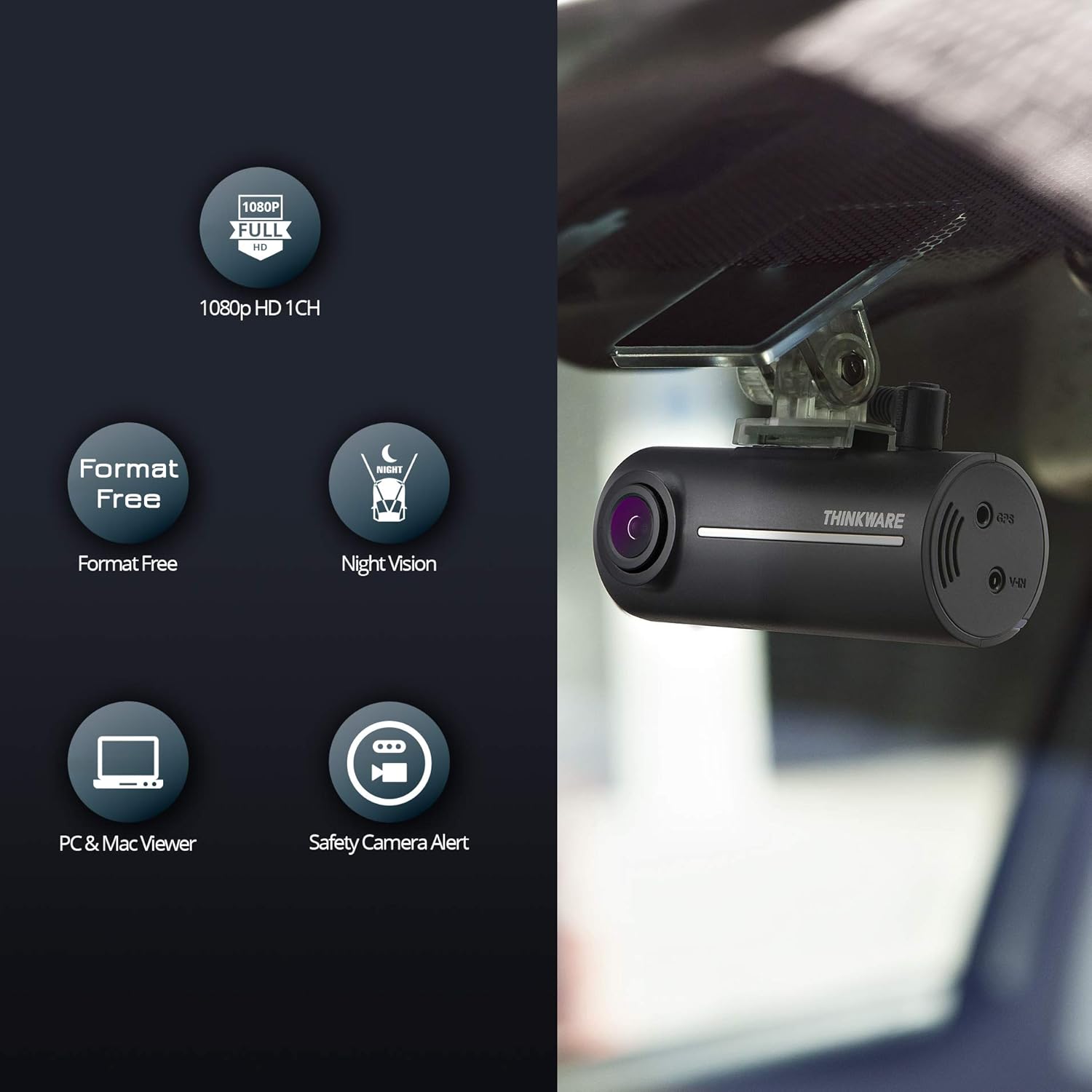
Figure 3.3: Key features of the Thinkware F100 Dash Cam. Icons represent 1080p HD 1-channel recording, Format Free technology, Night Vision, PC & Mac Viewer compatibility, and Safety Camera Alerts. The dash cam unit is shown mounted on a windshield.
Main Components:
- Front Camera Lens: Records 1080P Full HD video.
- Speaker: Provides voice guidance and alerts.
- MicroSD Card Slot: For inserting the memory card.
- Power Input (DC-IN): Connects to the vehicle's power supply.
- V-IN Port: For connecting the optional rear camera.
- GPS Port: For connecting an optional GPS antenna (required for speed camera alerts).
- REC Button: Manual event recording.
4. Setup and Installation
Proper installation is crucial for optimal performance. It is recommended to have the dash cam professionally installed.
4.1 MicroSD Card Insertion
- Ensure the dash cam is powered off.
- Locate the MicroSD card slot on the side of the main unit.
- Insert the MicroSD card with the gold contacts facing the front of the camera until it clicks into place.
4.2 Front Camera Installation
- Clean the windshield area where the dash cam will be mounted.
- Attach the adhesive mount to the front camera unit.
- Peel off the protective film from the adhesive mount and firmly press the dash cam onto the windshield, ideally behind the rearview mirror for an unobstructed view.
- Adjust the camera angle to ensure the road ahead is centered in the frame.
4.3 Rear Camera Installation (Optional)
- Mount the rear camera on the rear windshield, ensuring a clear view of the road behind.
- Connect the rear camera cable to the V-IN port on the front dash cam unit.
- Route the cable neatly along the vehicle's headliner and A-pillars to conceal it.
4.4 Power Connection (Hardwiring for Parking Mode)
The F100 includes a hardwiring cable for direct connection to your vehicle's battery, enabling the advanced parking surveillance mode. This connection continuously monitors the vehicle's battery status and automatically shuts off if low voltage is detected, protecting your car battery.
- Connect the yellow wire (BATT+) to a constant power fuse (always on).
- Connect the red wire (ACC) to an accessory power fuse (on when ignition is on).
- Connect the black wire (GND) to a metal ground point on the vehicle chassis.
- Plug the power cable into the DC-IN port of the front dash cam.
Note: Incorrect wiring can damage the device or vehicle. Consult a professional if you are unsure.
5. Operating Instructions
5.1 Powering On/Off
The dash cam powers on automatically when the vehicle's ignition is turned on (if connected to ACC power) and powers off when the ignition is turned off.
5.2 Recording Modes
- Continuous Recording: The dash cam records continuously while driving. Older files are overwritten by new ones when the memory card is full (loop recording).
- Event Recording: In the event of an impact or sudden braking, the G-sensor triggers an event recording. These files are saved separately and are protected from being overwritten.
- Manual Recording: Press the REC button on the unit to manually initiate an event recording.
- Parking Surveillance Mode: When the vehicle is parked and the ignition is off, the dash cam enters parking mode (requires hardwiring). It records impacts or motion detected around the vehicle. The F100 monitors the car battery and will shut down if the voltage drops below a safe level.
5.3 Night Vision Enhancement
The F100 features Night Vision technology, utilizing Sony CMOS image sensors to enhance video quality in low-light conditions, ensuring clearer recordings during nighttime driving or parking.

Figure 5.1: Comparison of night-time video quality with Night Vision enhancement ON versus OFF. The image clearly demonstrates improved visibility and detail when the feature is active, especially in dark environments.
5.4 Safety Camera Alerts (Optional)
With an optional GPS antenna, the F100 can provide alerts for speed cameras and red light cameras based on the European radar camera database (Cyclops). Updates for this database are free.
5.5 Viewing Recordings
Recordings can be viewed using the Thinkware PC Viewer or Mac Viewer software. Remove the MicroSD card from the dash cam and insert it into your computer's card reader to access the files.
6. Maintenance
6.1 Format Free Technology
The Thinkware F100 utilizes File Allocation Table (FAT) technology, which eliminates the need for frequent manual MicroSD card formatting. This extends the lifespan of your memory card and ensures continuous recording without interruption.
6.2 MicroSD Card Care
- Use only genuine Thinkware MicroSD cards for optimal performance.
- Periodically back up important recordings to your computer.
- While "Format Free" reduces the need, occasional formatting (e.g., every few months) via the PC/Mac Viewer can help maintain card health.
6.3 Cleaning the Device
Wipe the camera lens and body with a soft, dry cloth. Do not use harsh chemicals or abrasive cleaners.
7. Troubleshooting
If you encounter issues with your Thinkware F100 Dash Cam, refer to the following common problems and solutions:
| Problem | Possible Cause / Solution |
|---|---|
| Dash cam does not power on. | Check power cable connection. Ensure vehicle ignition is on (if connected to ACC). Check vehicle's fuse box. |
| No recording. | Ensure MicroSD card is inserted correctly. Check if the card is full (though Format Free should manage this, a very old or faulty card might cause issues). Try formatting the card via the PC/Mac Viewer. |
| Poor video quality. | Clean the camera lens. Ensure the windshield area is clean. Check if Night Vision is enabled in low light. |
| Parking mode not working. | Verify hardwiring connection to constant power. Ensure parking mode is enabled in settings (if configurable). Check vehicle battery voltage. |
| GPS not working / No speed camera alerts. | Ensure optional GPS antenna is connected and has a clear view of the sky. |
If the problem persists, please contact Thinkware customer support.
8. Specifications
| Feature | Detail |
|---|---|
| Model | F100 |
| Front Camera Resolution | 1080p Full HD |
| Rear Camera Resolution (Optional) | 720p HD |
| Viewing Angle | 135° (Wide Angle) |
| Frame Rate | 30 fps |
| Image Sensor | Sony CMOS |
| Special Features | Night Vision, G-Sensor, Parking Surveillance, Format Free, Safety Camera Alerts (with optional GPS) |
| Storage | MicroSD Card (16GB included) |
| Connectivity | Bluetooth, WLAN |
| Dimensions | 7.8 x 3.15 x 3.4 cm |
| Weight | 360 g |
9. Warranty and Support
Thinkware cameras come with a 2-year warranty period. For technical assistance or warranty claims, please contact Thinkware customer support. Our German customers can receive friendly technical support via email.
For further information, visit the official Thinkware store: Thinkware Store on Amazon.de


