
Introduction
This manual provides essential information for setting up, operating, maintaining, and troubleshooting your vivo V30 5G smartphone. Please read this guide thoroughly to ensure proper use and to maximize the device's capabilities. The vivo V30 5G features a powerful Qualcomm Snapdragon 7 Gen 3 processor, a vibrant 6.78-inch FHD+ AMOLED display, advanced dual 50MP rear cameras, and a long-lasting 5000 mAh battery with 80W fast charging.
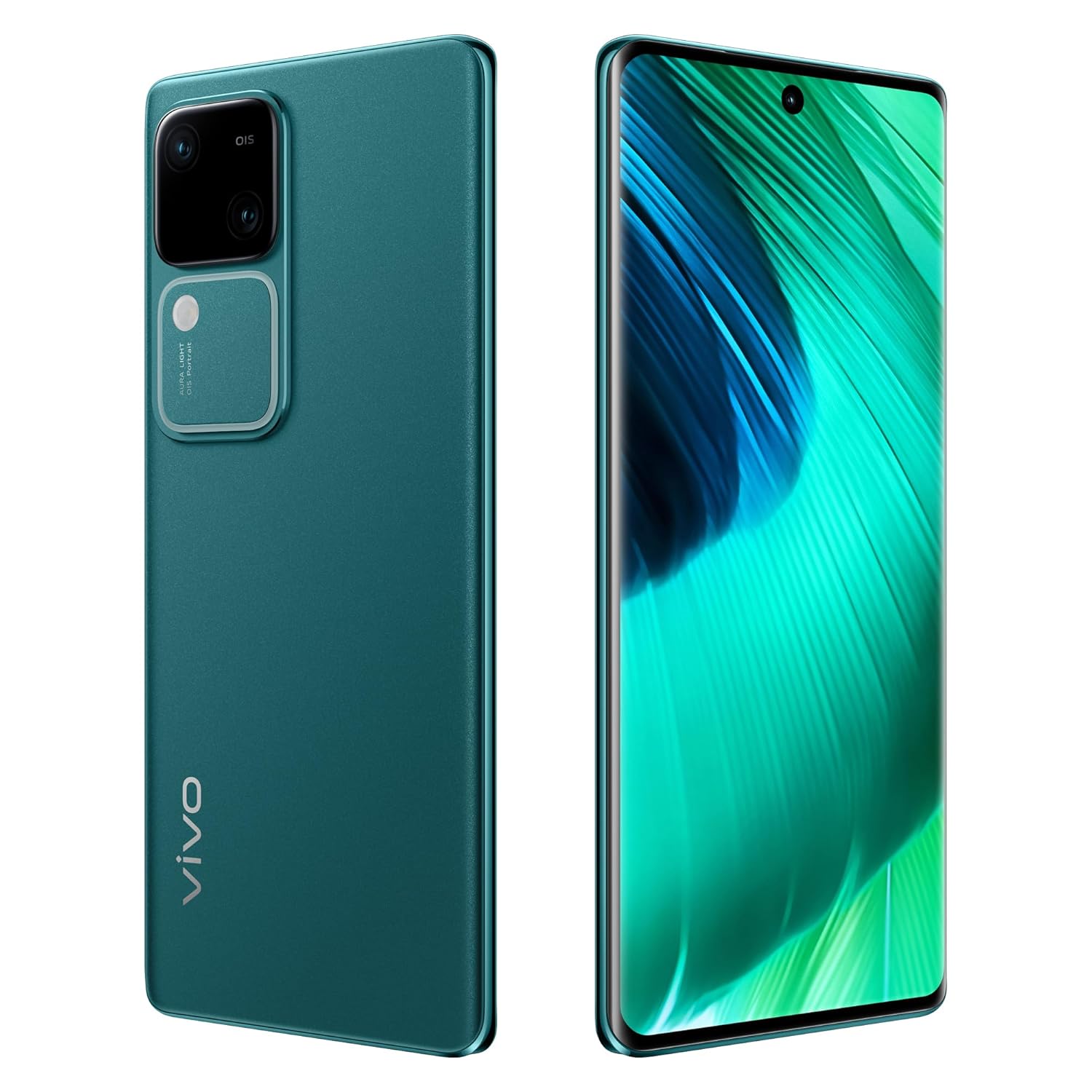
Image: The vivo V30 5G smartphone in Peacock Green, showcasing its sleek design, large display, and the prominent dual camera system on the rear.
Setup Guide
1. Unboxing and Initial Inspection
Carefully remove all items from the packaging. Verify that the following components are present:
- vivo V30 5G Smartphone
- Adapter
- USB Cable (Type-C)
- Phone Case
- Screen Protector (pre-applied or in box)
- SIM Tray Ejector
2. SIM Card Installation
- Locate the SIM card tray on the side of your device.
- Insert the SIM tray ejector tool into the small hole next to the tray and press gently until the tray pops out.
- Place your Nano-SIM cards into the designated slots on the tray. This device supports Dual SIM functionality.
- Carefully reinsert the SIM tray into the phone until it clicks into place.
3. Initial Power On and Setup
- Press and hold the Power button on the side of the phone until the vivo logo appears.
- Follow the on-screen instructions to complete the initial setup, including language selection, Wi-Fi connection, Google account setup, and Funtouch OS 14 preferences.
4. Charging the Device
Connect the USB Type-C cable to the phone's charging port and the adapter. Plug the adapter into a power outlet. The vivo V30 5G supports 80W fast charging. It is recommended to fully charge the device before first use.
Operating Your Device
1. Basic Navigation
- Touchscreen Gestures: Swipe, tap, pinch-to-zoom, and long-press are standard gestures for navigating the Funtouch OS 14 interface.
- Power Button: Press to wake/sleep the screen. Long-press to power off or restart.
- Volume Buttons: Adjust media volume, call volume, and notification volume.
2. Camera Usage
The vivo V30 5G features a versatile camera system:
- Rear Cameras: Dual 50MP + 50MP sensors for high-resolution photos and videos. Optical Image Stabilization (OIS) enhances clarity.
- Front Camera: 50MP sensor for clear selfies and video calls.
- Aura Light: Utilize the integrated Aura Light for improved portrait photography in low-light conditions.
- Shooting Modes: Access various modes like Portrait, Night, Panorama, and Pro mode through the camera application.
3. Connectivity
- Wi-Fi: Connect to wireless networks via Settings > Network & internet > Wi-Fi.
- Bluetooth: Pair with Bluetooth devices like headphones or speakers via Settings > Connected devices > Bluetooth.
- Mobile Data: Enable or disable cellular data via Quick Settings or Settings > Network & internet > SIMs.
- USB Type-C: Use the USB-C port for charging, data transfer, and connecting accessories.
4. Security Features
The device includes Face Recognition for secure unlocking. Set it up via Settings > Security > Face.
Maintenance and Care
1. Cleaning Your Device
Use a soft, lint-free cloth to clean the screen and body of your phone. Avoid using harsh chemicals or abrasive materials. Do not expose the device to excessive moisture.
2. Software Updates
Regularly check for and install software updates to ensure optimal performance, security, and access to new features. Go to Settings > System > System update.
3. Battery Care
- Avoid extreme temperatures, as they can degrade battery life.
- Use only the original vivo charger and cable for optimal charging and safety.
- Do not leave the phone charging for extended periods after it reaches 100%.
Troubleshooting
If you encounter issues with your vivo V30 5G, try the following solutions:
- Device not turning on: Ensure the battery is charged. Connect the charger and wait a few minutes before attempting to power on again.
- Screen unresponsive: Try restarting the device by holding the Power button for approximately 10-15 seconds.
- Apps crashing: Clear the cache of the problematic app (Settings > Apps > [App Name] > Storage & cache > Clear cache). If the issue persists, try reinstalling the app.
- Poor network signal: Check your SIM card installation. Try restarting the phone or toggling Airplane Mode on and off. Ensure you are in an area with network coverage.
- Charging issues: Verify that the charging cable and adapter are securely connected and undamaged. Try a different power outlet.
For more complex issues, refer to the official vivo support website or contact customer service.
Technical Specifications
| Feature | Specification |
|---|---|
| Brand | vivo |
| Model | V30 5G |
| Operating System | Funtouch OS 14 Global (Based on Android 14) |
| Processor | Qualcomm Snapdragon 7 Gen 3 |
| CPU Speed | 2.2 GHz |
| RAM | 8 GB |
| Internal Storage | 128 GB |
| Display Size | 17.22 cm (6.78 inches) |
| Display Type | FHD+ AMOLED |
| Display Resolution | 2800 x 1260 Pixels |
| Rear Camera | Dual 50MP + 50MP (with OIS) |
| Front Camera | 50 MP |
| Battery Capacity | 5000 mAh |
| Charging | 80W Fast Charging |
| SIM Card Slot | Dual SIM |
| Connector Type | USB Type C |
| Biometric Security | Face Recognition |
| Dimensions (L x W x H) | 16.4 x 7.5 x 0.7 Centimeters |
| Weight | 186 Grams |
| Model Year | 2024 |
Warranty Information
The vivo V30 5G comes with a 1-year manufacturer warranty from the date of purchase. This warranty covers manufacturing defects. Please retain your proof of purchase for warranty claims. For detailed terms and conditions, refer to the warranty card included in your product packaging or visit the official vivo website.
Customer Support
For technical assistance, service, or further inquiries, please contact vivo customer support using the following information:
Manufacturer: vivo Mobile India Pvt Ltd
Address: Tech-1 and Tech-2, World Trade Centre, Plot no-TZ-13A, Techzone (I.T. Park), Greater Noida, Uttar Pradesh, India. Pin - 201308
Please visit the official vivo website for the most up-to-date contact details, service center locations, and online support resources.


