
1. Introduction
Thank you for purchasing the WZATCO S2 Native 1080P Full HD LED Projector. This manual provides essential information for the safe and efficient operation of your projector. Please read it thoroughly before use and retain it for future reference.
2. Safety Information
- Power Supply: Use only the specified power adapter. Ensure the voltage matches your local power supply.
- Ventilation: Do not block ventilation openings. Ensure adequate airflow around the projector to prevent overheating.
- Heat: Do not place the projector near heat sources or in direct sunlight.
- Moisture: Keep the projector away from water, rain, and excessive humidity. Do not operate with wet hands.
- Cleaning: Unplug the projector before cleaning. Use a soft, dry cloth. Do not use liquid or aerosol cleaners.
- Lens Care: Avoid touching the projector lens directly. Use a lens cleaning cloth if necessary.
- Eye Protection: Do not look directly into the projector lens when the lamp is on, as the bright light can cause eye damage.
- Servicing: Do not attempt to repair this product yourself. Refer all servicing to qualified service personnel.
3. Package Contents
Please check that all items are present and in good condition:
- WZATCO S2 1080P Projector
- HDMI Cable
- A/V Cable
- 2.4G Remote Control (Note: 2 AAA batteries required, not included)
- Power Cable
- User Manual (this document)
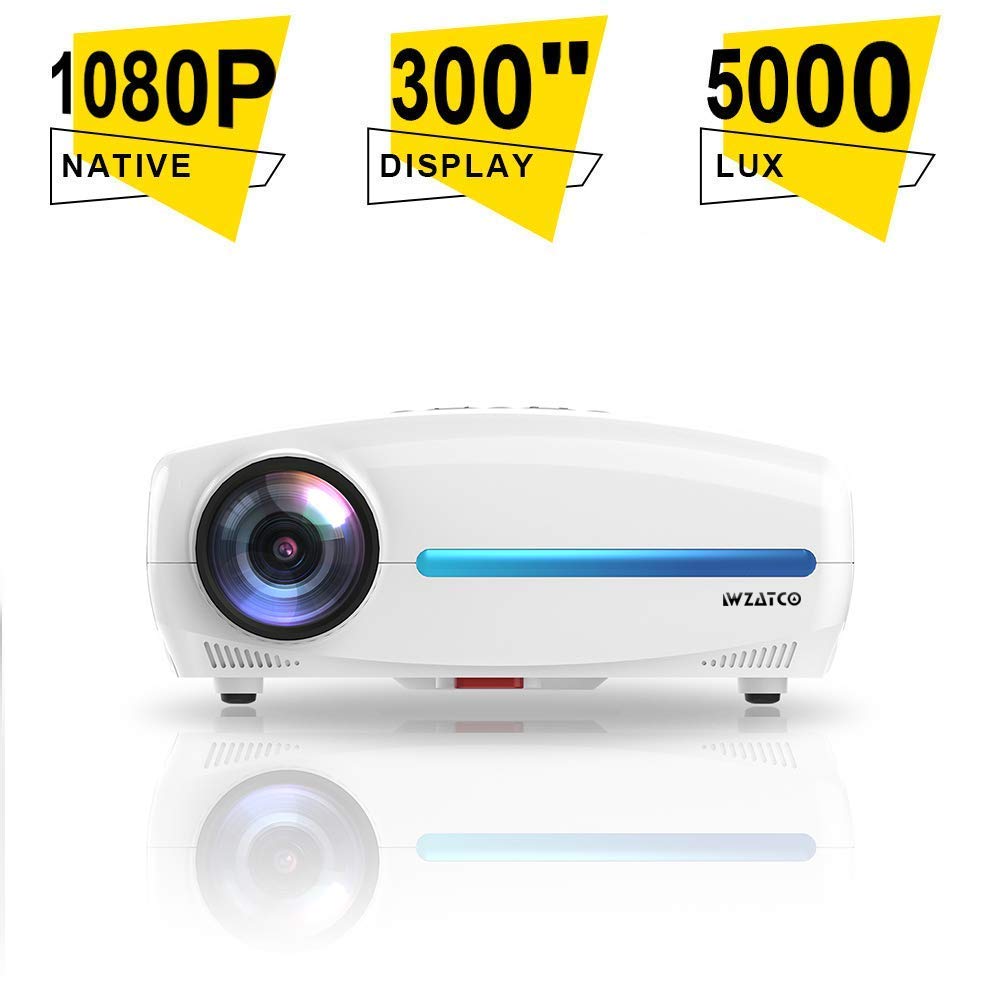
Image: WZATCO S2 Projector with its standard accessories, including cables, remote, and user manual.
4. Product Overview
The WZATCO S2 is a Native 1080P Full HD LED Projector designed for home cinema and office use. It features a 6-inch LCD display panel, LED light source, and offers 4D Digital Keystone Correction.
4.1. Projector Features
- Native 1920x1080P Full HD Resolution
- 5000 Lumens Brightness (240 ANSI Lumens)
- 5000:1 Max Contrast Ratio
- 4D Digital Keystone Correction (up to 50 degrees)
- LED Lamp Lifespan: >30,000 hours
- HiFi Audio System with 10W*2 speakers
- Multiple Input Ports: HDMI (x2), USB (x2), VGA, A/V
4.2. Input/Output Ports
Familiarize yourself with the available connection ports on the projector:
- HDMI (x2): Connect to Blu-ray players, gaming consoles, laptops, and other HDMI-enabled devices.
- USB (x2): Connect USB drives for media playback.
- VGA: Connect to older computers or laptops.
- A/V: Connect to legacy devices using composite video and stereo audio.
- 3.5mm Audio Out: Connect external speakers or headphones.
- Power Socket: For connecting the power cable.
5. Setup
5.1. Projector Placement
Position the projector on a stable, flat surface or mount it to the ceiling. Ensure it is within a suitable distance from the projection screen or wall to achieve the desired image size. The throw ratio is 1.5:1.
- For a 53-inch image, place the projector approximately 1.80 meters away.
- For a 106-inch image, place the projector approximately 3.6 meters away.
- For a 200-inch image, place the projector approximately 6 meters away.
5.2. Power Connection
- Connect the power cable to the projector's power socket.
- Plug the other end of the power cable into a suitable electrical outlet.
5.3. Connecting Input Devices
Connect your desired source device (e.g., laptop, gaming console) to the projector using the appropriate cable (HDMI, VGA, or A/V).
- For HDMI connections, use the provided HDMI cable.
- For USB media playback, insert a USB drive into one of the USB ports.
5.4. Focus and Keystone Adjustment
- Focus: Rotate the focus ring on the projector lens until the image appears sharp and clear.
- Keystone Correction: If the image appears trapezoidal, use the 4D Digital Keystone Correction feature via the remote control or projector menu to adjust the image shape until it is rectangular. The S2 supports up to 50 degrees of correction.
6. Operating Instructions
6.1. Powering On/Off
- Power On: Press the power button on the projector or the remote control. The indicator light will change.
- Power Off: Press the power button again. Confirm shutdown if prompted. Allow the projector to cool down before unplugging.
6.2. Source Selection
Use the "Source" button on the remote control or the projector's control panel to cycle through available input sources (HDMI1, HDMI2, USB1, USB2, VGA, A/V).
6.3. Menu Navigation
Use the arrow keys and "OK" button on the remote control to navigate the on-screen display (OSD) menu. Adjust settings such as picture mode, aspect ratio, sound, and advanced options.
6.4. Audio Settings
The WZATCO S2 features a built-in HiFi Audio System with 10W*2 speakers. You can adjust the volume using the remote control. For external audio, connect speakers or headphones to the 3.5mm Audio Out port.
7. Maintenance
7.1. Cleaning the Projector
- Exterior: Wipe the projector's exterior with a soft, dry, lint-free cloth. Do not use abrasive cleaners or solvents.
- Lens: Gently clean the lens with a professional lens cleaning cloth or lens paper. Avoid applying excessive pressure.
7.2. Lamp Lifespan
The WZATCO S2 uses an LED light source with an estimated lifespan of over 30,000 hours, providing long-lasting performance without frequent lamp replacement.
8. Troubleshooting
| Problem | Possible Cause | Solution |
|---|---|---|
| No image displayed |
|
|
| Image is blurry |
|
|
| Image is trapezoidal |
|
|
| No sound |
|
|
9. Specifications
| Brand | WZATCO |
| Model | S2 |
| Display Technology | 6'' LCD @ 8-digit LTPS Panel |
| Lamp Technology | LED Light Source |
| Lamp Lifespan | >30,000 Hours |
| Native Resolution | 1920 x 1080 (Full HD) |
| Brightness | 240 ANSI Lumens / 5000 Lumens |
| Contrast Ratio | 1200:1 (FoFo), 5000:1 (Max) |
| Throw Ratio | 1.5:1 |
| Image Size | 53" @ 1.80M, 106" @ 3.6M, 200" @ 6M |
| Keystone Correction | 4D Digital Keystone Correction, 50 degrees |
| 3D Support | Red-Blue 3D |
| Input Ports | 2 x USB2.0, 1 x A/V, 2 x HDMI2.0, 1 x VGA |
| Sound System | HiFi Audio System with 10W*2 speakers |
| Output Port | 3.5mm Audio Out |
| Remote Control | 2.4G Remote |
| Power Consumption | 120W |
| Max Dimensions | 300mm x 230mm x 130mm |
| Net Weight | 2.6 kg |
| Mounting Type | Ceiling Mount (also suitable for table placement) |
| Compatible Devices | Laptop, Gaming Console, Blu-ray Player |
10. Warranty and Support
For warranty information, technical support, or service inquiries, please refer to the warranty card included with your product or contact WZATCO customer support directly. Keep your purchase receipt as proof of purchase.
You can often find support contact details on the official WZATCO website or through your retailer.


