
1. Introduction
Welcome to the user manual for your new vivo T3 5G smartphone. This guide provides essential information to help you set up, operate, maintain, and troubleshoot your device. The vivo T3 5G is designed for high performance, featuring a MediaTek Dimensity 7200 processor, a 120 Hz Ultra Vision AMOLED display, and a 50MP Sony IMX882 OIS camera for exceptional photography and videography. It also includes a 5000 mAh battery with 44W FlashCharge for extended use.
2. Package Contents
Before you begin, please check that your package contains the following items:
- vivo T3 5G Smartphone
- Adapter
- USB Cable
- SIM Tray Ejector
- Screen Protector (pre-applied or in box)
- Phone Case
- Quick Start Guide (not included in this manual)
- Warranty Card (not included in this manual)
3. Device Layout
Familiarize yourself with the physical components of your vivo T3 5G smartphone.
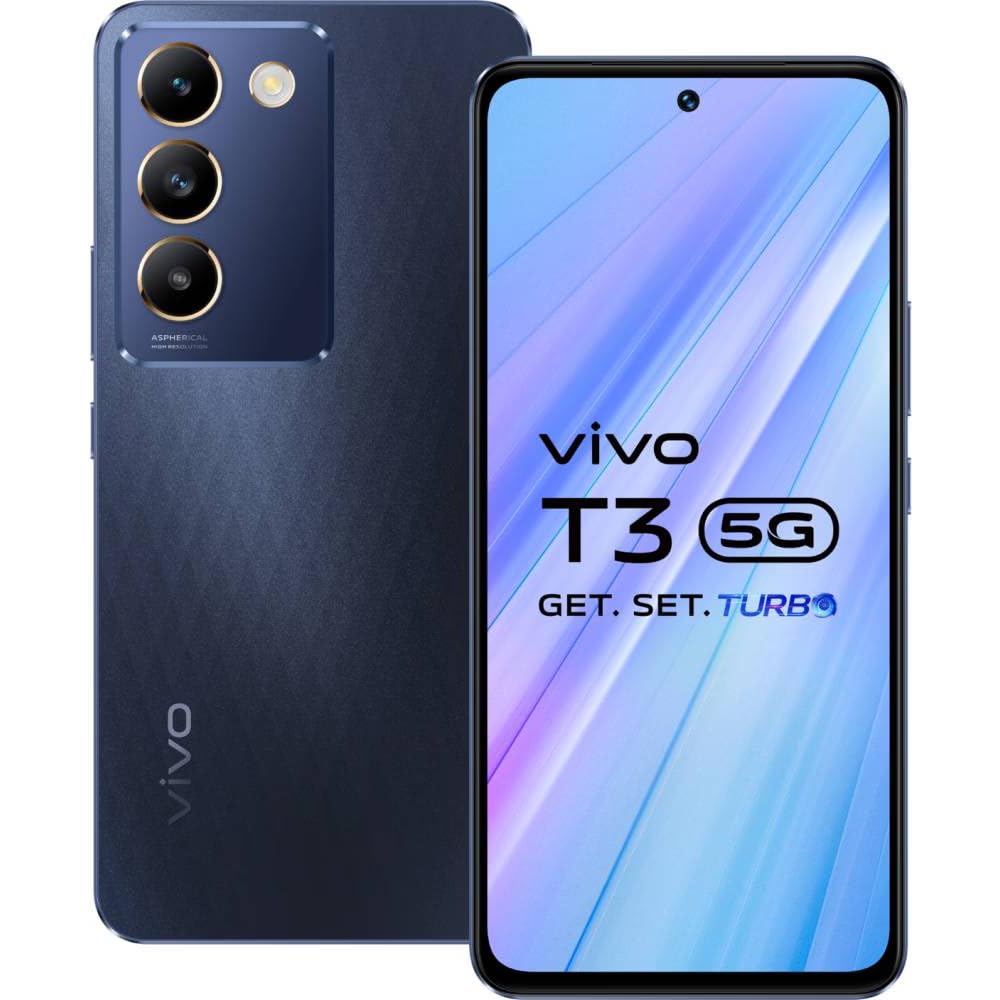
Figure 3.1: Front view of the vivo T3 5G smartphone, showing the display, front camera, and earpiece.

Figure 3.2: Rear view of the vivo T3 5G smartphone, highlighting the triple camera module and LED flash.
Key Components:
- Front Camera: For selfies and video calls.
- Display: 6.67-inch Full HD+ AMOLED screen.
- Power Button: Located on the side, used to turn the device on/off or wake/sleep the screen.
- Volume Buttons: Located on the side, used to adjust media and call volume.
- USB Type-C Port: For charging and data transfer.
- SIM Card Tray: Located on the side, for inserting SIM cards.
- Rear Cameras: Main 50MP camera with OIS and a 2MP secondary camera.
- Flash: For illuminating subjects in low light.
- Fingerprint Sensor: Integrated for biometric security.
4. Setup
4.1. Installing SIM Cards
- Locate the SIM card tray on the side of your phone.
- Insert the SIM tray ejector tool into the small hole next to the tray and press firmly until the tray pops out.
- Place your Nano-SIM cards into the designated slots on the tray. Ensure the gold contacts face downwards and the cut corner aligns correctly. The vivo T3 5G supports Dual SIM functionality.
- Carefully reinsert the tray into the phone until it clicks into place.
4.2. Charging the Battery
Before first use, it is recommended to fully charge the device. Use only the provided adapter and USB Type-C cable.
- Connect the USB Type-C cable to the charging port at the bottom of your phone.
- Connect the other end of the USB cable to the power adapter.
- Plug the power adapter into a wall outlet.
- The charging indicator will appear on the screen. The device supports 44W FlashCharge for rapid charging.
4.3. Powering On/Off
- To Power On: Press and hold the Power button until the vivo logo appears.
- To Power Off: Press and hold the Power button for a few seconds, then tap "Power off" on the screen.
- To Restart: Press and hold the Power button for a few seconds, then tap "Restart" on the screen.
4.4. Initial Setup Wizard
Upon first power-on, follow the on-screen instructions to complete the initial setup, including language selection, Wi-Fi connection, Google account setup, and security settings (fingerprint recognition).
5. Operating Your Device
5.1. Touchscreen Navigation
Your vivo T3 5G features a responsive touchscreen for interaction:
- Tap: To select an item or open an app.
- Touch and Hold: To access contextual menus or move items.
- Swipe: To scroll through lists or switch between screens.
- Pinch: To zoom in or out on images and web pages.
5.2. Making Calls and Sending Messages
- Calls: Open the "Phone" app, enter the number, and tap the call icon.
- Messages: Open the "Messages" app, tap the new message icon, enter the recipient and your message.
5.3. Camera Usage
The vivo T3 5G is equipped with a 50MP main camera with OIS and a 16MP front camera.
- Open the "Camera" app.
- Select your desired shooting mode (e.g., Photo, Portrait, Night, Video).
- Tap the shutter button to capture a photo or start/stop video recording.
- For advanced settings, tap the gear icon or swipe to access options like resolution, timer, and filters.
- The device supports 4K video recording for high-quality footage.
5.4. Internet Connectivity
- Wi-Fi: Go to Settings > Network & internet > Wi-Fi, then select a network and enter the password.
- Mobile Data (5G): Ensure your SIM card has an active data plan. Go to Settings > Network & internet > Mobile network to enable mobile data and 5G.
6. Maintenance
6.1. Cleaning Your Device
To maintain the appearance and functionality of your phone:
- Use a soft, lint-free cloth to wipe the screen and body.
- Avoid using harsh chemicals, abrasive cleaners, or compressed air.
- Keep ports free of dust and debris.
6.2. Software Updates
Regular software updates provide new features, security enhancements, and bug fixes. It is recommended to keep your device's software up to date.
- Go to Settings > System > System update.
- Connect to a Wi-Fi network and ensure your battery is sufficiently charged before performing an update.
6.3. Battery Care
To prolong the life of your 5000 mAh Lithium-Ion battery:
- Avoid extreme temperatures.
- Do not let the battery completely drain frequently.
- Use the original charger and cable for optimal charging.
6.4. Water Resistance
The vivo T3 5G is rated as water resistant. This means it can withstand splashes and light rain, but it is not designed for submersion in water. Avoid exposing the device to excessive moisture, saltwater, or other liquids.
7. Troubleshooting
This section addresses common issues you might encounter with your vivo T3 5G.
7.1. Device Not Turning On
- Ensure the battery is charged. Connect the charger and wait a few minutes before attempting to power on.
- Press and hold the Power button for at least 10-15 seconds to force a restart.
7.2. Charging Issues
- Verify that the charger and USB cable are securely connected to both the phone and the power outlet.
- Try using a different power outlet.
- Inspect the charging port for any debris or damage.
- Use only the original vivo charger and cable.
7.3. Network Connectivity Problems
- No Signal/Poor Signal: Check if your SIM card is properly inserted. Try restarting the phone. Ensure you are in an area with network coverage.
- Wi-Fi Connection Issues: Restart your Wi-Fi router. Forget the network on your phone and reconnect. Ensure the Wi-Fi password is correct.
7.4. Camera Not Working
- Restart the phone.
- Clear the cache and data of the Camera app (Settings > Apps > Camera > Storage > Clear Cache/Clear Data).
- Ensure no other app is using the camera in the background.
8. Specifications
Detailed technical specifications for the vivo T3 5G smartphone:
| Feature | Specification |
|---|---|
| Brand | vivo |
| Model | T3 5G |
| Operating System | Android 14 |
| Processor | MediaTek Dimensity 7200 (2.8 GHz) |
| RAM | 8 GB |
| Internal Storage | 256 GB |
| Display | 6.67-inch Full HD+ AMOLED (2408 x 1080 Pixels), 120 Hz |
| Rear Camera | 50MP (Sony IMX882 OIS) + 2MP |
| Front Camera | 16MP |
| Battery Capacity | 5000 mAh (Lithium-Ion) |
| Charging | 44W FlashCharge |
| SIM Card Slot | Dual SIM |
| Connectivity | 5G, GSM, LTE, Wi-Fi, Bluetooth, GPS |
| Connector Type | USB Type-C |
| Biometric Security | Fingerprint Recognition |
| Water Resistance | Water Resistant |
| Dimensions | 16.6 x 7.6 x 0.8 Centimeters |
| Weight | 186 Grams |
| Video Capture Resolution | 3840 x 2160 (4K) |
9. Warranty Information
Your vivo T3 5G smartphone comes with the following warranty:
- Device: 1 Year Manufacturer Warranty
- Inbox Accessories: 6 Months Manufacturer Warranty
Please retain your proof of purchase for warranty claims. The warranty covers manufacturing defects and does not cover damage caused by misuse, accidents, or unauthorized modifications.
10. Support and Contact Information
For further assistance, technical support, or service inquiries, please contact vivo customer support. You can find more information on the official vivo website or through the contact details provided with your device.
Manufacturer: Vivo, vivo Mobile India Private Limited TEC-1 and TEC-2 World Trade Centre Plot No TZ-13A Techzone IT Park Noida-201308
For the latest support information, visit the official vivo website: www.vivo.com/in


