
Cooler Master MS-110-KKMF1-US
Cooler Master MS110 Combo Bundle
User Manual
Introduction
This manual provides comprehensive instructions for the setup, operation, maintenance, and troubleshooting of your Cooler Master MS110 Combo Bundle. This bundle includes a Mem-chanical Gaming Keyboard and a Gaming Mouse with an Optical Sensor, designed for enhanced gaming and computing experiences.
Key features of this combo include Mem-chanical Switches for tactile feedback, customizable gaming keys for personalized control, and an Optical Sensor in the mouse for precise tracking.
Setup
The Cooler Master MS110 Combo is designed for easy plug-and-play setup with your personal computer or gaming console. Both the keyboard and mouse connect via a standard USB-A interface.
Connecting the Keyboard and Mouse
- Locate an available USB-A port on your computer or gaming console.
- Carefully insert the USB connector of the Cooler Master MS110 Keyboard into the USB-A port.
- Insert the USB connector of the Cooler Master MS110 Mouse into another available USB-A port.
- Your operating system (e.g., Windows) should automatically detect and install the necessary drivers. This process may take a few moments.
- Once installation is complete, the keyboard and mouse will be ready for use. The keyboard's RGB lighting will illuminate, indicating it is powered on.
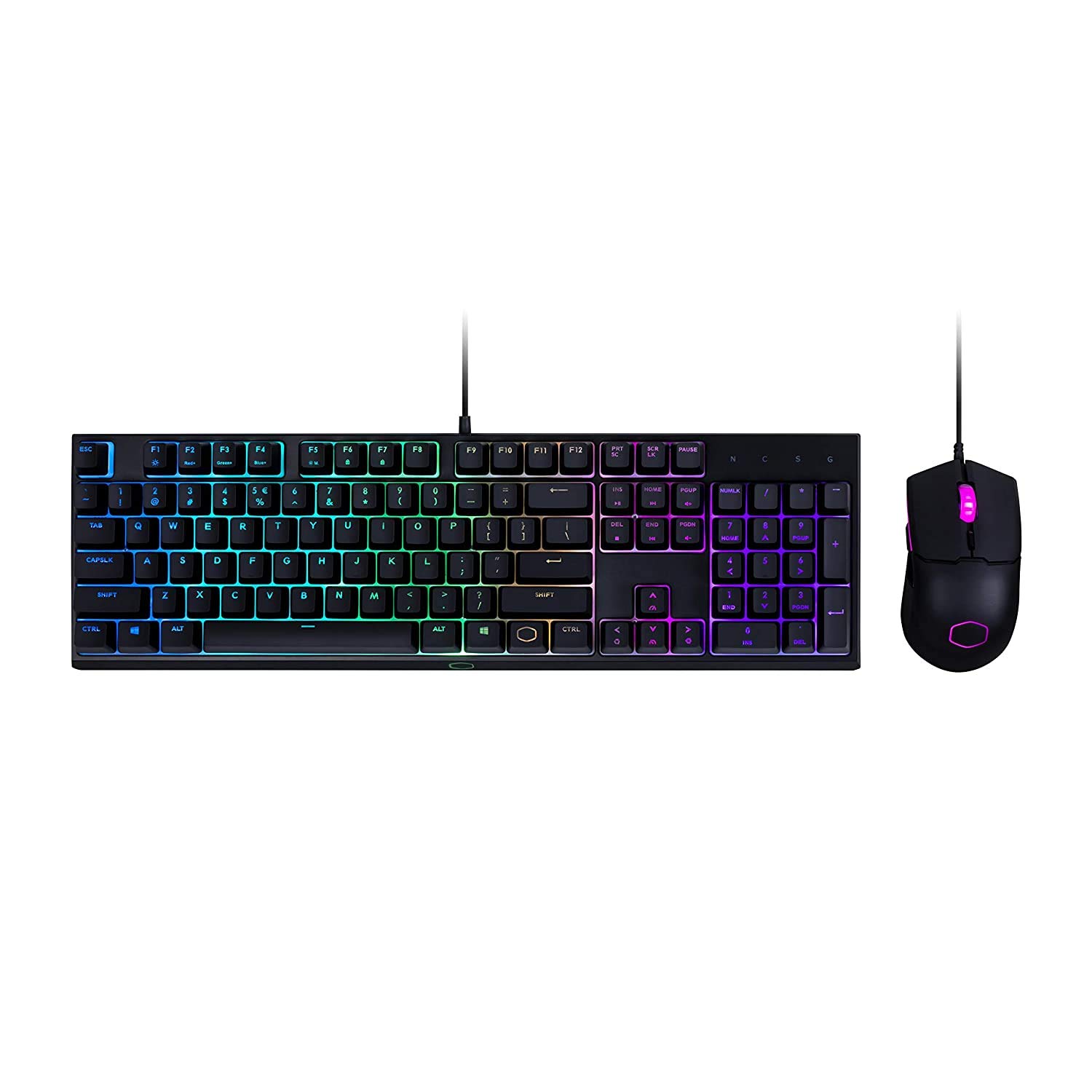
Figure 1: The Cooler Master MS110 Keyboard and Mouse Combo, ready for connection. The keyboard features a full layout with a numeric keypad and RGB backlighting, while the mouse has an ergonomic design with illuminated accents.
Operating Instructions
Keyboard Operation
The MS110 keyboard features Cooler Master's exclusive Mem-chanical switches, providing a tactile and responsive typing experience similar to mechanical keyboards. It includes a full-size layout with a numeric keypad and dedicated media keys.
- Standard Typing: Use the alphanumeric keys for text input.
- Function Keys (F1-F12): These keys perform their standard functions. Some may have secondary functions accessible via the 'Fn' key (refer to on-keyboard legends).
- Media Controls: Dedicated media keys (e.g., Play/Pause, Volume Up/Down) are typically located above the numeric keypad or integrated with function keys.
- RGB Lighting Control: The keyboard features vibrant RGB backlighting. Lighting modes and brightness can often be adjusted directly on the keyboard using specific key combinations (e.g., Fn + F-keys or dedicated lighting keys). Refer to the keyboard's printed legends for specific combinations.

Figure 2: Angled view of the MS110 keyboard and mouse, showcasing the customizable RGB lighting effects on the keyboard's keys and underglow, and the mouse's illuminated scroll wheel and logo.

Figure 3: Side profile of the MS110 keyboard, illustrating its ergonomic design and the slight incline provided by its adjustable feet for comfortable typing and gaming.
Mouse Operation
The MS110 mouse is equipped with an optical sensor for precise tracking and is designed for right-hand orientation. It offers responsive control for both general computing and gaming.
- Left and Right Click: Standard mouse button functions.
- Scroll Wheel: Used for vertical scrolling and can also function as a middle click button.
- DPI Adjustment: The mouse typically includes a dedicated button (often located behind the scroll wheel) to cycle through different DPI (Dots Per Inch) sensitivity levels, allowing you to adjust cursor speed on the fly.
- Side Buttons: If present, these buttons are often programmable for in-game actions or navigation (e.g., forward/back in web browsers).
Maintenance
Proper maintenance ensures the longevity and optimal performance of your Cooler Master MS110 Combo.
- Cleaning the Keyboard:
- Disconnect the keyboard from your computer.
- Use a can of compressed air to remove dust and debris from between the keys.
- Wipe the keycaps and keyboard surface with a soft, slightly damp, lint-free cloth. Avoid excessive moisture.
- Do not use harsh chemicals, abrasive cleaners, or solvents.
- Cleaning the Mouse:
- Disconnect the mouse from your computer.
- Wipe the mouse surface with a soft, slightly damp, lint-free cloth.
- Gently clean the optical sensor lens on the bottom of the mouse with a dry cotton swab to ensure accurate tracking.
- Storage: When not in use for extended periods, store the combo in a clean, dry environment away from direct sunlight and extreme temperatures.
Troubleshooting
If you encounter issues with your Cooler Master MS110 Combo, refer to the following common troubleshooting steps.
- Keyboard or Mouse Not Responding:
- Ensure both USB connectors are securely plugged into the computer's USB ports.
- Try plugging the devices into different USB ports on your computer.
- Restart your computer.
- Check your computer's Device Manager (Windows) to see if the devices are recognized and if there are any driver issues.
- Keys Not Registering or Mouse Tracking Poorly:
- Perform the cleaning steps outlined in the Maintenance section. Debris under keys or on the mouse sensor can cause issues.
- Ensure the mouse is used on a clean, non-reflective surface.
- RGB Lighting Not Working:
- Verify the keyboard is properly connected and powered.
- Cycle through lighting modes using the keyboard's built-in controls (refer to the Operating section).
- If applicable, check for any software-based lighting controls from Cooler Master (though no specific software is mentioned in product details).
Specifications
| Feature | Detail |
|---|---|
| Brand | Cooler Master |
| Model Number | MS-110-KKMF1-US |
| Product Dimensions | 55.8 x 18.7 x 4.6 cm |
| Item Weight | 1.08 kg (Keyboard and Mouse combined) |
| Hardware Interface | USB |
| Connectivity Technology | USB (Corded Electric) |
| Compatible Devices | Personal Computer, Gaming Console |
| Operating System | Windows |
| Special Features | Mem-chanical Switches, Customizable Gaming Keys, Optical Sensor, Attached Light (RGB) |
| Keyboard Description | Gaming |
| Movement Detection Technology (Mouse) | Optical |
| Hand Orientation (Mouse) | Right |
Warranty Information
Cooler Master products are typically covered by a limited warranty. For specific warranty terms, conditions, and duration applicable to your MS110 Combo Bundle, please refer to the warranty card included with your product packaging or visit the official Cooler Master website. Proof of purchase may be required for warranty claims.
Support
For further assistance, technical support, or to download the latest drivers and software (if available), please visit the official Cooler Master support website. You can also find FAQs and community forums there.
Official Cooler Master Store: Cooler Master Store on Amazon.in
Ask a question about this manual
Ask about setup, troubleshooting, compatibility, parts, safety, or missing instructions. Manuals+ will review the question and use this page’s manual context to help answer it.