
Introduction
Welcome to the user manual for your new Vivo T2 5G smartphone. This guide provides essential information to help you set up, operate, maintain, and troubleshoot your device. The Vivo T2 5G features an FHD+ AMOLED display, a 64 MP OIS anti-shake camera, a powerful Snapdragon 695 processor, and FlashCharge technology for efficient power management.
For optimal performance and longevity of your device, please read this manual thoroughly and retain it for future reference.
What's in the Box
Upon unboxing your Vivo T2 5G, please ensure all the following items are present:
- Vivo T2 5G Smartphone
- USB Cable
- Power Adapter
- SIM Tray Ejector
- Phone Case
- Screen Protector (pre-applied or in box)
Device Layout
Familiarize yourself with the physical components of your Vivo T2 5G smartphone.
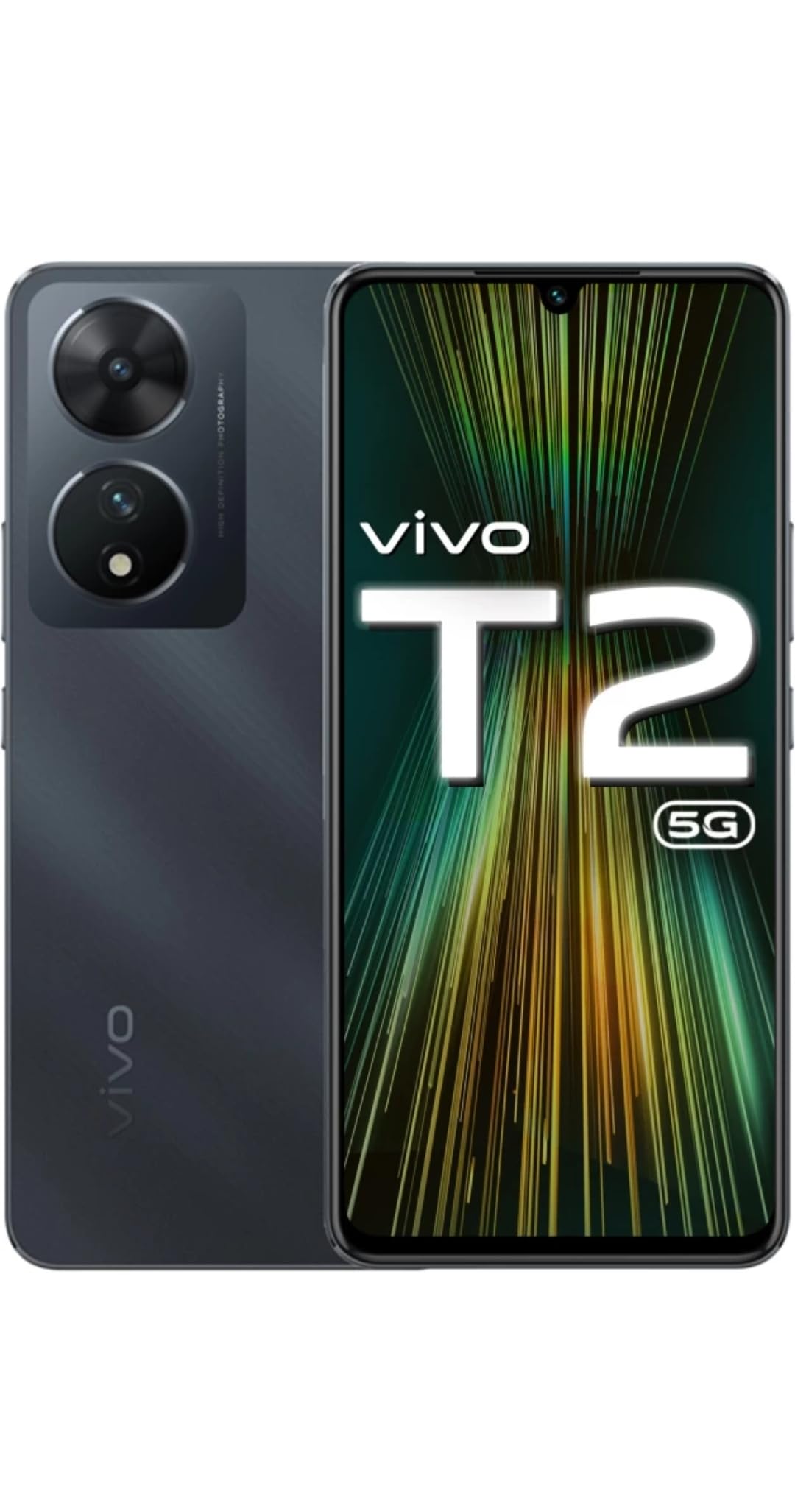
Figure 1: Front and Rear View of Vivo T2 5G. This image displays the overall design of the smartphone, highlighting the display on the front and the dual camera module on the rear.

Figure 2: Side View of Vivo T2 5G. This image illustrates the placement of the USB Type-C port, speaker grille, microphone, and SIM card tray on the device's edges.

Figure 3: Vivo T2 5G Display Features. This image highlights the FHD+ AMOLED display, 1300 nits peak brightness, and 360 Hz touch sampling rate, emphasizing the visual quality and responsiveness.

Figure 4: Vivo T2 5G Camera System. This image focuses on the rear camera module, showcasing the 64MP OIS anti-shake camera, indicating its advanced photographic capabilities.
Setup
1. SIM Card Installation
- Locate the SIM card tray on the side of your device.
- Insert the SIM tray ejector tool into the small hole next to the tray and press gently until the tray pops out.
- Place your Nano-SIM card(s) into the designated slots on the tray. Ensure the gold contacts face downwards.
- Carefully reinsert the SIM tray into the phone until it clicks into place.
2. Powering On/Off
- To Power On: Press and hold the Power button (usually on the right side) until the Vivo logo appears.
- To Power Off: Press and hold the Power button, then select 'Power off' from the options on the screen.
- To Restart: Press and hold the Power button, then select 'Restart' from the options.
3. Initial Device Configuration
The first time you power on your device, you will be guided through a setup wizard:
- Select your preferred language and region.
- Connect to a Wi-Fi network for internet access.
- Sign in with your Google account or create a new one.
- Set up screen lock (PIN, pattern, password) and fingerprint recognition for security.
- Review and accept the terms and conditions.
Operating Your Device
Display and Navigation
- Your Vivo T2 5G features a 6.38-inch FHD+ AMOLED display with a 90Hz refresh rate for smooth visuals and responsive touch.
- Navigate using gestures or the traditional three-button navigation bar (customizable in Settings).
- Adjust brightness, dark mode, and eye protection settings in the Quick Settings panel or Display settings.
Camera Functions
The device is equipped with a 64 MP OIS (Optical Image Stabilization) anti-shake main camera and a 16 MP front camera.
- Open the Camera app from your home screen or lock screen.
- Switch between photo, video, portrait, and other modes by swiping across the screen.
- Tap to focus on a subject; pinch to zoom in or out.
- Utilize OIS for stable photos and videos, especially in low light or when moving.
- Explore the Bokeh Flare Portrait mode for artistic background blur effects.
Performance and Storage
- The Snapdragon 695 processor ensures smooth performance for daily tasks and gaming.
- Extended RAM 3.0 allows you to use multiple applications simultaneously without significant slowdowns.
- Your device comes with 128 GB of internal storage. Manage storage by regularly clearing cache and uninstalling unused apps.
Charging
The Vivo T2 5G supports FlashCharge technology for rapid charging. Use the provided power adapter and USB cable for optimal charging speeds.
- Connect the USB cable to the phone's USB Type-C port and the power adapter.
- Plug the power adapter into a wall outlet.
- The phone will automatically determine the optimal charging strategy.
Security Features
- Fingerprint Recognition: Register your fingerprints in Settings > Security > Fingerprint to unlock your device and authorize purchases quickly.
- Face Unlock: Set up face recognition for convenient unlocking.
- Screen Lock: Use a PIN, pattern, or password as a primary security measure.
Maintenance
Battery Care
- Avoid extreme temperatures, as they can degrade battery life.
- For long-term storage, charge the battery to about 50% and power off the device.
- Use only original or certified chargers and cables.
- Close background apps and reduce screen brightness to conserve battery.
Cleaning Your Device
- Power off your phone before cleaning.
- Use a soft, lint-free cloth to wipe the screen and body.
- For stubborn smudges, slightly dampen the cloth with water or a screen cleaner. Avoid harsh chemicals.
- Do not spray cleaners directly onto the device.
Software Updates
Regularly check for and install software updates to ensure your device has the latest features, security patches, and performance improvements. Go to Settings > System > System update.
Troubleshooting
This section addresses common issues you might encounter with your Vivo T2 5G.
Device Not Turning On
- Ensure the battery is charged. Connect the charger and wait a few minutes before attempting to power on.
- Press and hold the Power button for at least 10-15 seconds to force a restart.
Apps Crashing or Freezing
- Close and reopen the app.
- Clear the app's cache and data in Settings > Apps > [App Name] > Storage.
- Ensure the app is updated to its latest version.
- Restart your phone.
Network Connectivity Issues
- Toggle Airplane Mode on and off.
- Check if your SIM card is properly inserted.
- Reset network settings in Settings > System > Reset options > Reset Wi-Fi, mobile & Bluetooth.
- Contact your network provider if the issue persists.
Factory Reset (Data Loss Warning)
If your device experiences persistent issues, a factory reset may resolve them. Warning: This will erase all data on your phone. Back up important data before proceeding.
- Go to Settings > System > Reset options.
- Select 'Erase all data (factory reset)'.
- Confirm your decision and enter your PIN/password if prompted.
Specifications
| Feature | Specification |
|---|---|
| Brand | vivo |
| Model | T2 5G |
| Operating System | Android 13.0 |
| Processor | Snapdragon 695 |
| RAM | 6 GB |
| Internal Storage | 128 GB |
| Display | 6.38 inch Full HD+ AMOLED, 2400 x 1080 Pixels, 90Hz Refresh Rate |
| Rear Camera | 64 MP (OIS) + 2 MP |
| Front Camera | 16 MP |
| Battery Capacity | 4500 mAh (Lithium-Ion) |
| Charging | FlashCharge Support |
| SIM Type | Single Nano SIM |
| Connectivity | 5G, Bluetooth, USB Type-C, Wi-Fi |
| Biometric Security | Fingerprint Recognition |
| Water Resistance | Water Resistant |
| Dimensions | 15.9 x 7.4 x 0.8 Centimeters |
| Weight | 172 Grams |
Warranty Information
Your Vivo T2 5G smartphone comes with a 1 Year Manufacturer Warranty from the date of purchase. This warranty covers manufacturing defects and issues arising from normal use. Please retain your proof of purchase for warranty claims. The warranty does not cover damage caused by misuse, accidents, unauthorized repairs, or normal wear and tear.
Support
For further assistance, technical support, or warranty claims, please contact Vivo Mobile India Private Limited.
Manufacturer Contact Information:
vivo Mobile India Private Limited
TEC-1 and TEC-2 World Trade Centre
Plot No TZ-13A Techzone IT Park
Noida-201308
You can also visit the official Vivo website for support resources, FAQs, and service center locations.


