1. Introduction
This manual provides instructions for the safe and effective use of Vivid Colors Cyan refill ink bottles, models BT5000 and BT5001. These inks are designed to provide optimal color and quality results for compatible Brother printers.
Product Description: Vivid Colors refill ink bottles contain dye-based ink formulated for vibrant colors and long-lasting prints. Each bottle contains 50ml of ink and is individually bagged and vacuum-sealed to maintain quality.
Compatibility: This refill ink is compatible with the following Brother printer models:
- Brother DCP-T300, DCP-T500W, DCP-T700W
- Brother DCP-T310, DCP-T510W, DCP-T710W
- Brother MFC-T800, MFC-T810W, MFC-T910W
Package Contents:
- 1 x Vivid Colors Cyan Refill Ink Bottle (50ml)
2. Safety Precautions
- Keep ink bottles out of reach of children and pets.
- Do not ingest ink. If swallowed, seek medical attention immediately.
- Avoid contact with eyes. If ink gets into eyes, flush immediately with plenty of water and seek medical attention.
- Avoid prolonged skin contact. Wash hands thoroughly with soap and water after handling ink.
- Store ink bottles in a cool, dry place, away from direct sunlight and extreme temperatures.
- Do not expose ink to open flames or high heat sources.
3. Setup and Ink Refilling Instructions
Before refilling, ensure your printer is turned on and the ink tank cover is accessible. Refer to your Brother printer's user manual for specific instructions on accessing and refilling its ink tanks.
- Prepare Your Workspace: Place a protective sheet or newspaper under the printer to catch any potential ink spills. Have paper towels or a cloth ready for cleaning.
- Identify the Cyan Tank: Open the ink tank cover on your Brother printer. Locate the cyan ink tank.
- Open the Ink Tank Cap: Carefully remove the cap of the cyan ink tank.
- Prepare the Ink Bottle: Unscrew the cap from the Vivid Colors Cyan refill ink bottle. Remove the seal if present.
- Refill the Tank: Invert the ink bottle and gently insert its nozzle into the ink tank's refill port. The ink should flow into the tank. Do not squeeze the bottle forcefully. Allow the ink to drain naturally until the tank is filled to the upper limit line.
- Remove the Bottle: Once the tank is filled, carefully remove the ink bottle, ensuring no drips occur.
- Close the Tank Cap: Securely replace the cap on the ink tank.
- Close the Ink Tank Cover: Close the printer's ink tank cover.
- Clean Up: Wipe away any spilled ink immediately with a damp cloth. Wash your hands thoroughly.
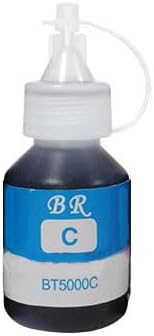
Figure 1: Vivid Colors Cyan Refill Ink Bottle. This image shows a single bottle of Vivid Colors Cyan refill ink, featuring a white screw-on cap with a nozzle and a blue label indicating 'BR C' and 'BT5000C'.
4. Operation and Printing Tips
- Initial Print Head Cleaning: After refilling, it is recommended to perform a print head cleaning cycle through your printer's utility software to ensure optimal print quality.
- Ink Level Monitoring: While the printer's ink level indicators may not always be accurate with third-party inks, visually inspect the ink tanks periodically to monitor actual ink levels.
- Regular Printing: To prevent print head clogs, use your printer regularly, even if it's just printing a test page once a week.
5. Maintenance and Storage
- Ink Bottle Storage: Store unused ink bottles upright in their original packaging in a cool, dark place. Ensure the caps are tightly sealed to prevent drying or leakage.
- Printer Maintenance: Follow your printer manufacturer's guidelines for routine maintenance, such as print head alignment and nozzle checks, to maintain print quality.
6. Troubleshooting
If you encounter issues after refilling your ink tanks, consider the following common problems and solutions:
- Poor Print Quality (Streaks, Fading, Incorrect Colors):
- Perform a print head cleaning cycle through your printer's software.
- Check ink levels visually to ensure sufficient ink.
- Perform a nozzle check to identify clogged nozzles and repeat cleaning if necessary.
- Ensure the ink tank caps are securely closed.
- Printer Not Recognizing Ink:
- Third-party inks may not always register accurate ink levels on the printer's display. This is normal and typically does not affect printing functionality as long as the tanks are physically filled.
- If the printer completely stops printing due to an "empty" warning, you may need to acknowledge the warning or reset the ink levels manually if your printer model supports it (refer to your printer's manual).
- Ink Leakage:
- Ensure the ink bottle nozzle was properly seated in the tank during refilling.
- Verify that the ink tank caps are tightly closed after refilling.
7. Product Specifications
| Brand | Vivid Colors |
| Ink Color | Cyan |
| Ink Type | Dye-based |
| Ink Volume | 50ml per bottle |
| Compatible Models | Brother DCP-T300/500W/700W/310/510/710, MFC-T800/810/910 |
| Estimated Page Yield | Up to 3000 pages (based on manufacturer's standard) |
| Item Weight | Approximately 1 pound (for the package) |
| Special Feature | Refillable |
8. Warranty Information
Vivid Colors products are manufactured to high-quality standards. For specific warranty details regarding this refill ink bottle, please refer to the official Vivid Colors website or contact customer support directly. This product is not an OEM (Original Equipment Manufacturer) product.
9. Customer Support
If you have any questions, concerns, or require assistance with your Vivid Colors refill ink, please contact Vivid Colors customer support through their official channels. You can typically find contact information on the product packaging or the Vivid Colors brand website.
For printer-specific issues not related to ink quality, please consult your Brother printer's user manual or contact Brother customer support.


