
1. Introduction
This manual provides detailed instructions for the installation, operation, and maintenance of your Pantum BM2300AW Multifunction Printer. This device is designed to perform printing, scanning, and copying functions efficiently. Please read this manual thoroughly before using the printer to ensure proper operation and to prevent damage.
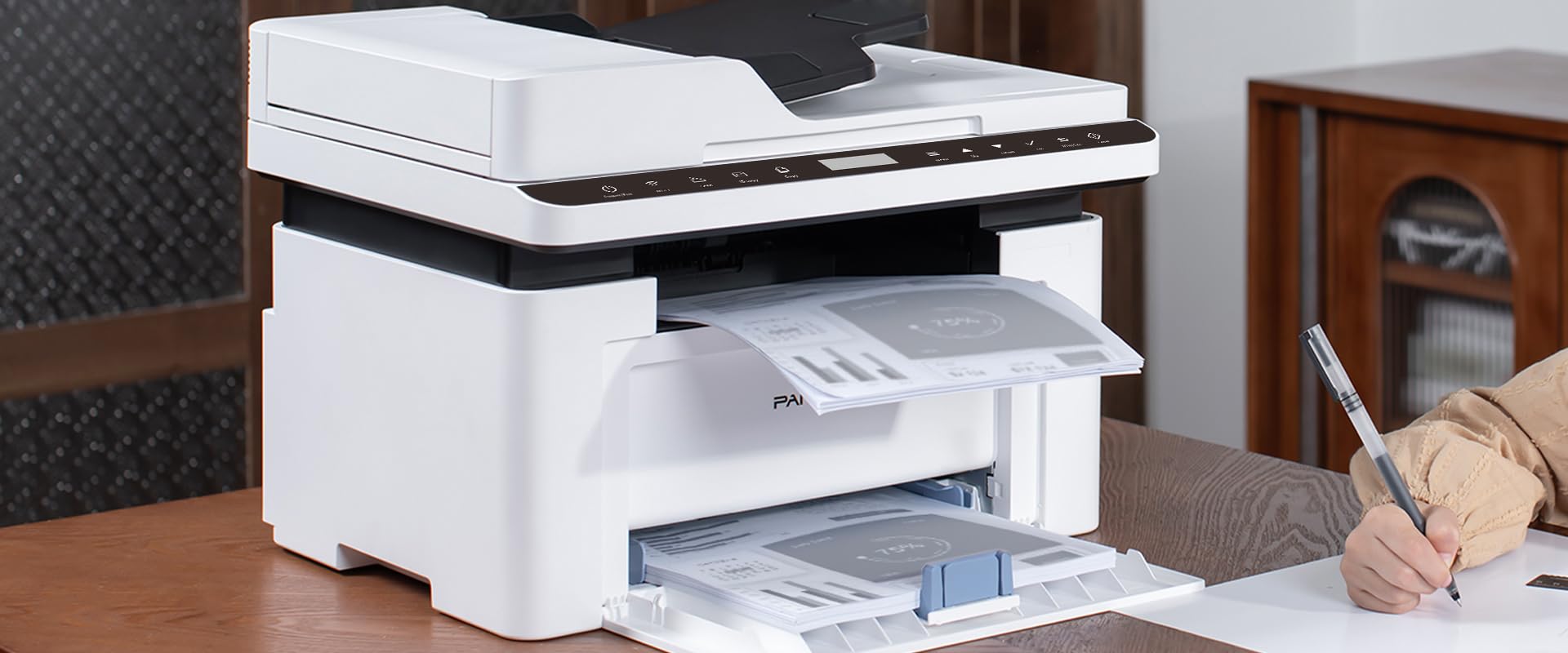
Image 1.1: The Pantum BM2300AW Multifunction Printer in use, showing paper in both the output and input trays. A user is seen writing nearby.
2. Setup
2.1 Unpacking
- Carefully remove the printer from its packaging.
- Remove all protective tapes and packing materials from the exterior and interior of the printer. Refer to the quick setup guide for specific locations.
- Place the printer on a stable, level surface with adequate ventilation.
2.2 Connecting Power
- Connect the power cord to the printer's power input.
- Plug the other end of the power cord into a grounded electrical outlet.
- Press the power button to turn on the printer.
2.3 Installing Toner Cartridge
- Open the front cover of the printer.
- Gently shake the toner cartridge horizontally several times to distribute the toner evenly.
- Insert the toner cartridge into the printer until it clicks into place.
- Close the front cover.
2.4 Loading Paper
- Pull out the paper tray.
- Adjust the paper guides to fit the size of the paper you are loading.
- Load the paper stack into the tray, ensuring it is flat and below the maximum fill line.
- Push the paper tray back into the printer.
2.5 Driver Installation and Network Connection
- USB Connection: Connect a USB cable from your computer to the printer's USB port. The operating system may automatically detect and install drivers. If not, proceed to step 3.
- Ethernet Connection: Connect an Ethernet cable from your network router or switch to the printer's Ethernet port.
- Visit the official Pantum website (www.pantum.com) to download the latest drivers and software for your BM2300AW model.
- Follow the on-screen instructions to complete the driver installation.
3. Operating Instructions
3.1 Control Panel Overview
The Pantum BM2300AW features a 3-inch display screen and various buttons for navigation and function selection. Familiarize yourself with the layout for easy operation.
- Power Button: Turns the printer on or off.
- Menu/Settings Button: Accesses printer settings and configuration options.
- Navigation Buttons: Used to scroll through menus on the display.
- Start Button: Initiates print, copy, or scan jobs.
- Cancel Button: Stops the current operation.
3.2 Printing Documents
- Ensure the printer is powered on and connected to your computer or network.
- Open the document you wish to print on your computer.
- Select File > Print.
- Choose the Pantum BM2300AW from the list of available printers.
- Adjust print settings (e.g., number of copies, paper size, duplex printing) as needed.
- Click Print.
3.3 Copying Documents
- Place the document face-down on the scanner glass or face-up in the Automatic Document Feeder (ADF).
- On the printer's control panel, select the Copy function.
- Use the navigation buttons to adjust settings such as number of copies, copy quality, or enlargement/reduction.
- Press the Start button to begin copying.
3.4 Scanning Documents
- Place the document on the scanner glass or in the ADF.
- On your computer, open the scanning software provided with your Pantum printer (or use a standard scanning application).
- Select the Pantum BM2300AW as your scanner.
- Choose scan settings such as resolution, color mode, and destination folder.
- Click Scan to initiate the scanning process.
4. Maintenance
4.1 Replacing the Toner Cartridge
- When the printer indicates a low toner level, order a replacement cartridge.
- Turn off the printer and unplug the power cord.
- Open the front cover and carefully remove the old toner cartridge.
- Unpack the new toner cartridge and gently shake it.
- Insert the new cartridge into the printer until it locks into place.
- Close the front cover, plug in the power cord, and turn on the printer.
4.2 Cleaning the Printer
- Regularly wipe the exterior of the printer with a soft, damp, lint-free cloth.
- Clean the scanner glass with a glass cleaner applied to a cloth (not directly to the glass).
- Refer to the full user manual on the Pantum website for detailed internal cleaning procedures.
4.3 Clearing Paper Jams
- If a paper jam occurs, the printer display will show an error message.
- Turn off the printer and unplug it.
- Open the covers and trays as indicated by the error message or the printer's internal diagrams.
- Carefully pull out any jammed paper in the direction of the paper path. Avoid tearing the paper.
- Close all covers and trays, plug in the printer, and turn it back on.
5. Troubleshooting
This section addresses common issues you might encounter. For more complex problems, consult the full user manual or contact Pantum support.
5.1 Printer Not Responding
- Ensure the printer is powered on and the power cord is securely connected.
- Check the USB or Ethernet cable connection between the printer and your computer/network.
- Verify that the correct printer driver is installed and selected on your computer.
- Restart both the printer and your computer.
5.2 Poor Print Quality
- Check the toner level and replace the cartridge if it is low.
- Ensure you are using appropriate paper for your print job.
- Clean the printer's internal components as per the maintenance section or full manual.
- Adjust print quality settings in your computer's print dialogue.
5.3 Paper Jams Occur Frequently
- Ensure paper is loaded correctly and the paper guides are adjusted snugly against the paper stack.
- Do not overload the paper tray.
- Use paper that meets the printer's specifications (weight, type).
- Check for any foreign objects inside the paper path.
6. Specifications
| Feature | Detail |
|---|---|
| Brand | PANTUM |
| Model Number | BM2300AW (Item No. S5627949) |
| Product Dimensions (D x W x H) | 35 x 35 x 25 centimeters |
| Item Weight | 10 Kilograms |
| Connectivity Technology | USB, Ethernet |
| Printing Technology | Color Laser |
| Max Monochrome Print Speed | 30 Pages per minute |
| Max Color Print Speed | 15 Pages per minute |
| Max B&W Print Resolution | 600x600 dpi or higher |
| Max Color Print Resolution | 4800 x 1200 dpi |
| Duplex Printing | Yes |
| Max Media Size | A3 |
| Max Sheet Feeding Capacity | 100 sheets |
| Scanner Type | Sheet-fed |
| Screen Size | 3 Inches |
| Power Consumption | 50 Watts |
| Color Depth | 36 bpp |
7. Warranty Information
The Pantum BM2300AW Multifunction Printer comes with a limited warranty. For specific terms, conditions, and duration of your warranty, please refer to the warranty card included with your product or visit the official Pantum website. Keep your proof of purchase for warranty claims.
8. Customer Support
For further assistance, technical support, driver downloads, or frequently asked questions, please visit the official Pantum support website:
You may also find contact information for your regional support center on the website.


