
1. Important Safety Information
Please read all safety instructions carefully before using this product. Incorrect use may lead to damage or malfunction.
- Operating Temperature: Use the controller within a temperature range of 0°C to 40°C (32°F to 104°F).
- Keep Away from Children: This product contains small parts that could be a choking hazard. Keep out of reach of young children.
- Avoid Moisture: Do not expose the controller to water, humidity, or any liquids to prevent electric shock or fire.
- Avoid Heat Sources: Keep the controller away from heat sources, open flames, or direct sunlight.
- Do Not Disassemble: Do not attempt to disassemble, repair, or modify the controller. This will void the warranty and may cause damage or injury.
- Battery Safety: The built-in battery should not be disposed of in fire or exposed to high temperatures or pressure, as this may cause an explosion.
- Compatibility Note: This controller is NOT compatible with Xbox, PS4, PS5, Fire TV, Firestick, and Nvidia GeForce Now.
2. Product Overview
The EasySMX ESM-9110 is a versatile 2.4G wireless gaming controller designed for a wide range of platforms, offering an enhanced gaming experience with its advanced features.

Image: Front view of the EasySMX ESM-9110 Wireless Gaming Controller and its USB receiver dongle.
3. Key Features
- Programmable Buttons (M1-M4): Four customizable buttons on the bottom of the controller allow for complex operations to be assigned, enhancing gameplay efficiency.
- 2.4G Wireless Transmission: Ensures a stable signal, strong anti-interference, long connection distance, and minimal delay for a seamless gaming experience.
- Adjustable LED Light: The ABXY buttons and right joystick feature cold LED lighting with 5 adjustable brightness levels.
- Adjustable Double Vibration: Built-in asymmetric dual-vibration somatosensory motors provide realistic feedback, with vibration intensity adjustable in five steps.
- Built-in Rechargeable Battery: A 600mAh lithium polymer battery offers up to 14 hours of playtime on a single 2-hour charge.
- Broad Compatibility: Compatible with Windows XP/7/8/8.1/10/11 PCs, PS3, Android phones/tablets/TV boxes (with OTG function and Android 5.0 or above), Android TVs, and Nintendo Switch.
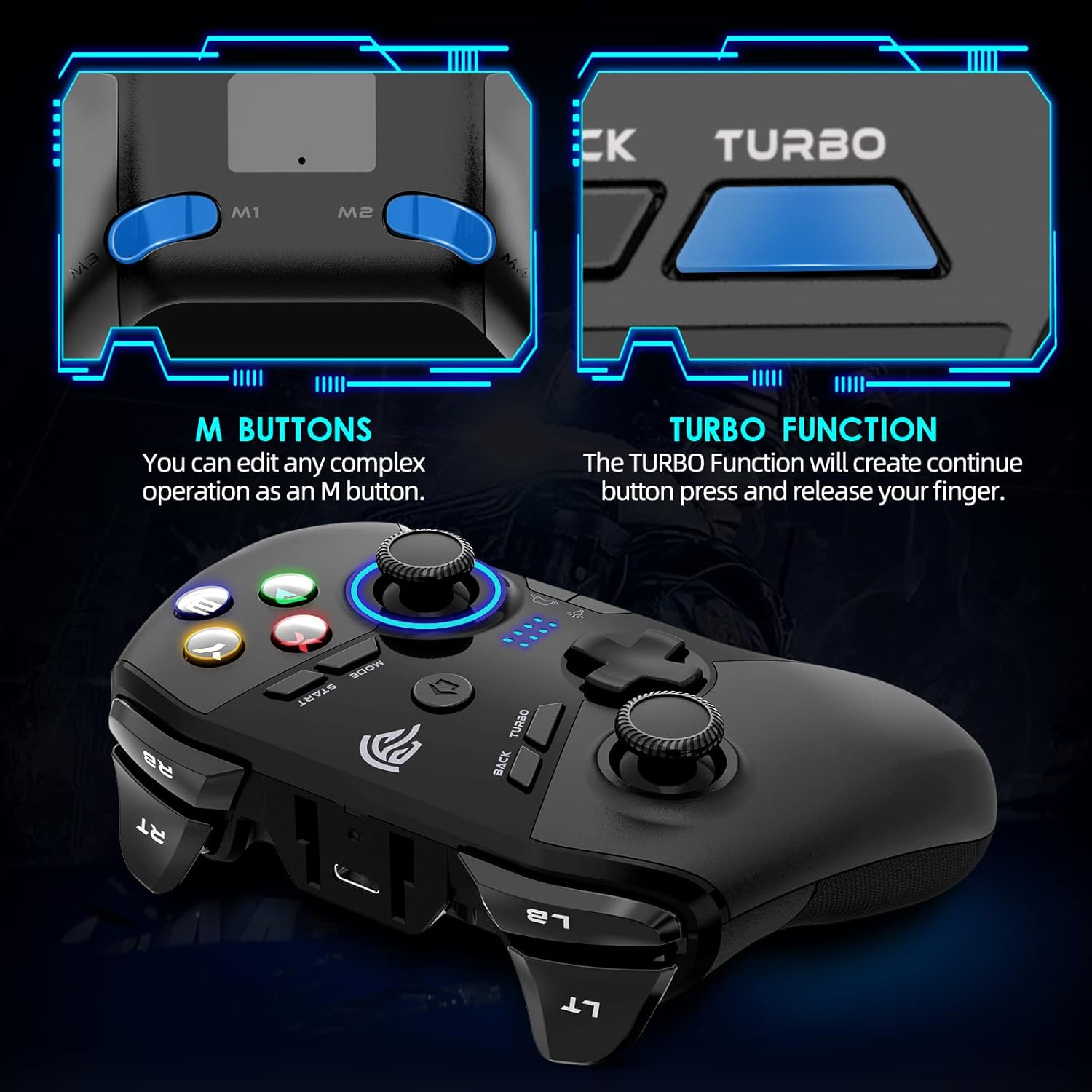
Image: Close-up of the controller highlighting the programmable M buttons and Turbo function.
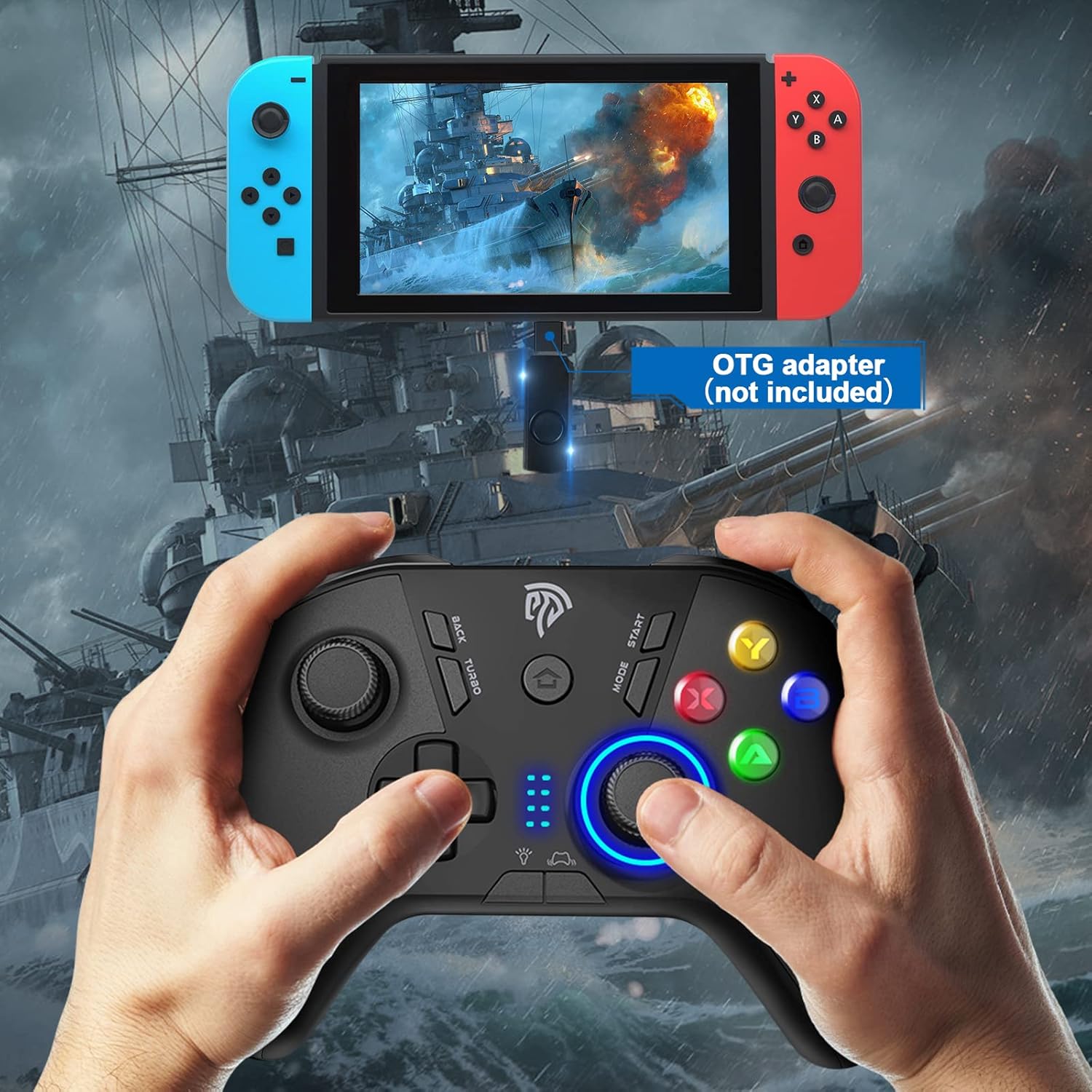
Image: Controller demonstrating dual vibration feature with visual effects.

Image: Icon indicating the Turbo Function on the controller.

Image: Icon indicating the Vibration Control Button (5 settings) on the controller.

Image: EasySMX brand logo, representing the manufacturer.
4. Setup Guide
4.1. General Wireless Connection
The EasySMX ESM-9110 controller uses 2.4G wireless technology for a plug-and-play experience. Simply insert the USB receiver into your device, and the controller should automatically connect when powered on.
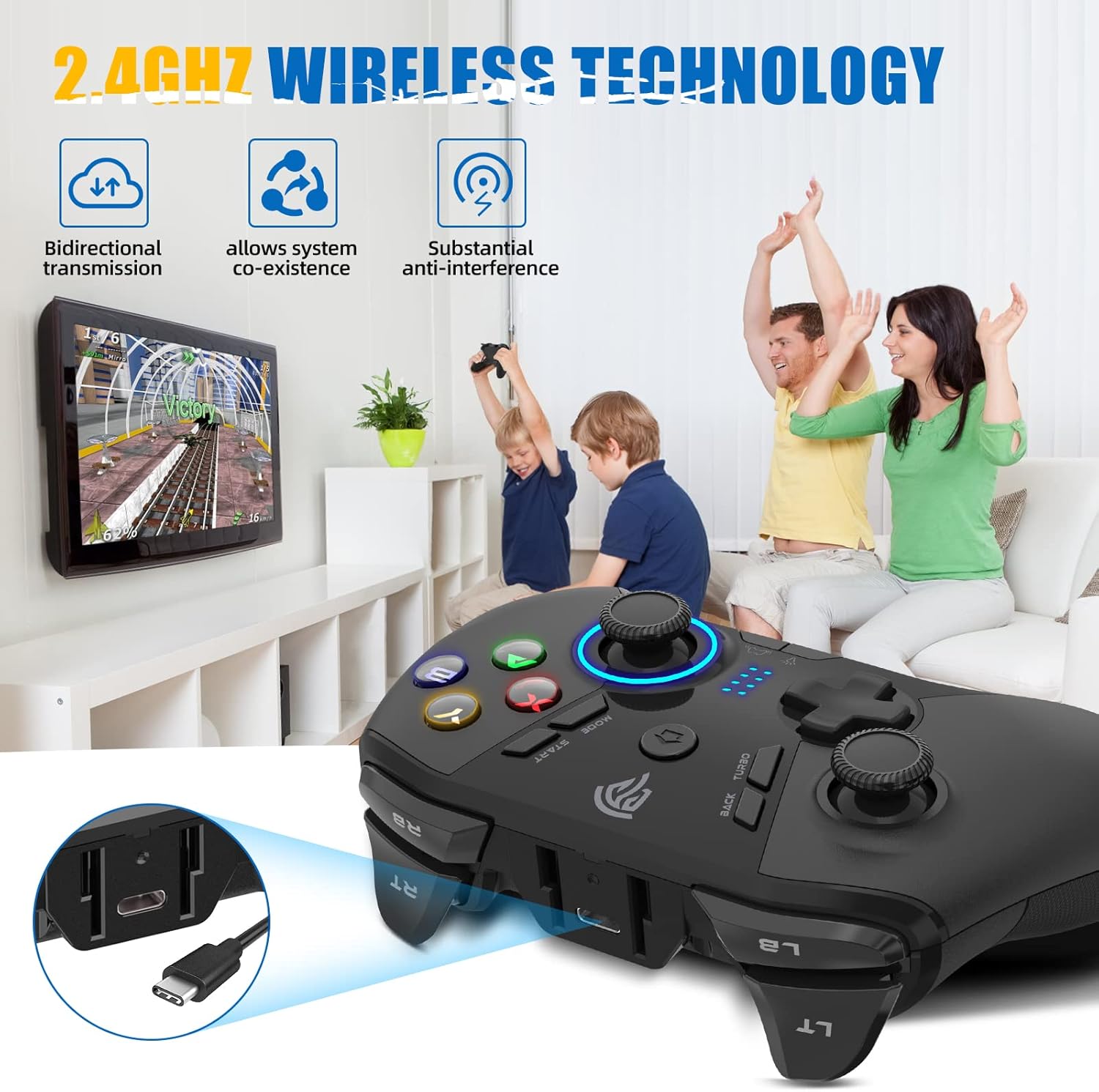
Image: Illustration of 2.4GHz Wireless Technology features, including bidirectional transmission, system co-existence, and anti-interference.
4.2. Connecting to PC
- Insert the 2.4G USB receiver into an available USB port on your PC.
- Press the Home button on the controller to power it on. The controller will automatically search for the receiver.
- Once connected, the LED indicators on the controller will show the active mode (e.g., LED 1 and 4 for Xinput mode, LED 1 and 3 for Dinput mode).
Video: Official EasySMX guide on setting up the 9110 Wireless PC Controller with a PC. This video demonstrates the steps for connecting the controller to a Windows computer, showing the USB receiver insertion and controller pairing process.
4.3. Connecting to Steam Deck
- Connect the USB receiver with an OTG adapter (if your Steam Deck requires one).
- Plug the adapter with the receiver into your Steam Deck's USB-C port.
- Press the Home button on the controller to turn it on.
- LED 1 and 4 staying solid indicates a successful connection.
Video: Official EasySMX guide demonstrating how to set up the 9110 Wireless PC Controller with a Steam Deck. The video shows connecting the USB receiver via an OTG adapter to the Steam Deck and then pairing the controller.
4.4. Connecting to Android TV / TV Box
- Insert the 2.4G USB receiver into an available USB port on your Android TV or TV Box.
- Press the Home button on the controller to power it on.
- The controller will automatically connect, and the LED indicators will confirm the connection (typically LED 2 and 3).
Video: Official EasySMX guide on setting up the 9110 Wireless PC Controller with an Android TV. This video illustrates the connection process and shows the controller being used to navigate the Android TV interface.
4.5. LED Indicator Reference
The LED indicators on the controller provide information about the current connection mode:

Image: A visual table showing how the LED indicators on the controller light up for PC (Xinput/Dinput), Phone/Tablet/TV Box, Steam Deck, Nintendo Switch, and PS3 connections.
5. Operating Instructions
5.1. Power On/Off
- Power On: Press the Home button to turn on the controller.
- Power Off: Hold down the Home button for 30 seconds to turn off the controller. The controller will also automatically power off after a period of inactivity to save battery.
5.2. Setting Programmable M Buttons
The M1, M2, M3, and M4 buttons on the back of the controller can be programmed to perform complex operations or replicate other button presses.
- To Program: Press the desired M button (M1, M2, M3, or M4) + Back button + "combination keys" (the buttons you want to assign).
- To Clear: Press the desired M button (M1, M2, M3, or M4) + Back button + the same M button again.

Image: Detailed instructions on how to program and clear the M1-M4 customizable buttons on the controller.
5.3. Adjusting LED Light Brightness
The ABXY buttons and right joystick feature adjustable LED backlighting with 5 brightness levels.
- Press the Light Control Button (usually indicated by a lightbulb icon) to cycle through the 5 brightness settings, including off.
5.4. Adjusting Vibration Intensity
The controller features dual-vibration motors with 5 adjustable intensity levels.
- Press the Vibration Control Button (usually indicated by a vibration icon) to cycle through the 5 vibration intensity settings, including off.
5.5. Using the Turbo Function
The Turbo function allows for continuous button presses without repeatedly pressing the button.
- To Activate: Press and hold the button you wish to set to Turbo, then press the Turbo button.
- To Deactivate: Repeat the process.
6. Maintenance
- Cleaning: Use a soft, dry cloth to clean the controller. Avoid using harsh chemicals or abrasive materials.
- Storage: Store the controller in a cool, dry place away from direct sunlight and extreme temperatures when not in use.
- Charging: Charge the controller using the provided USB-C cable. A full charge takes approximately 2 hours. Avoid overcharging.
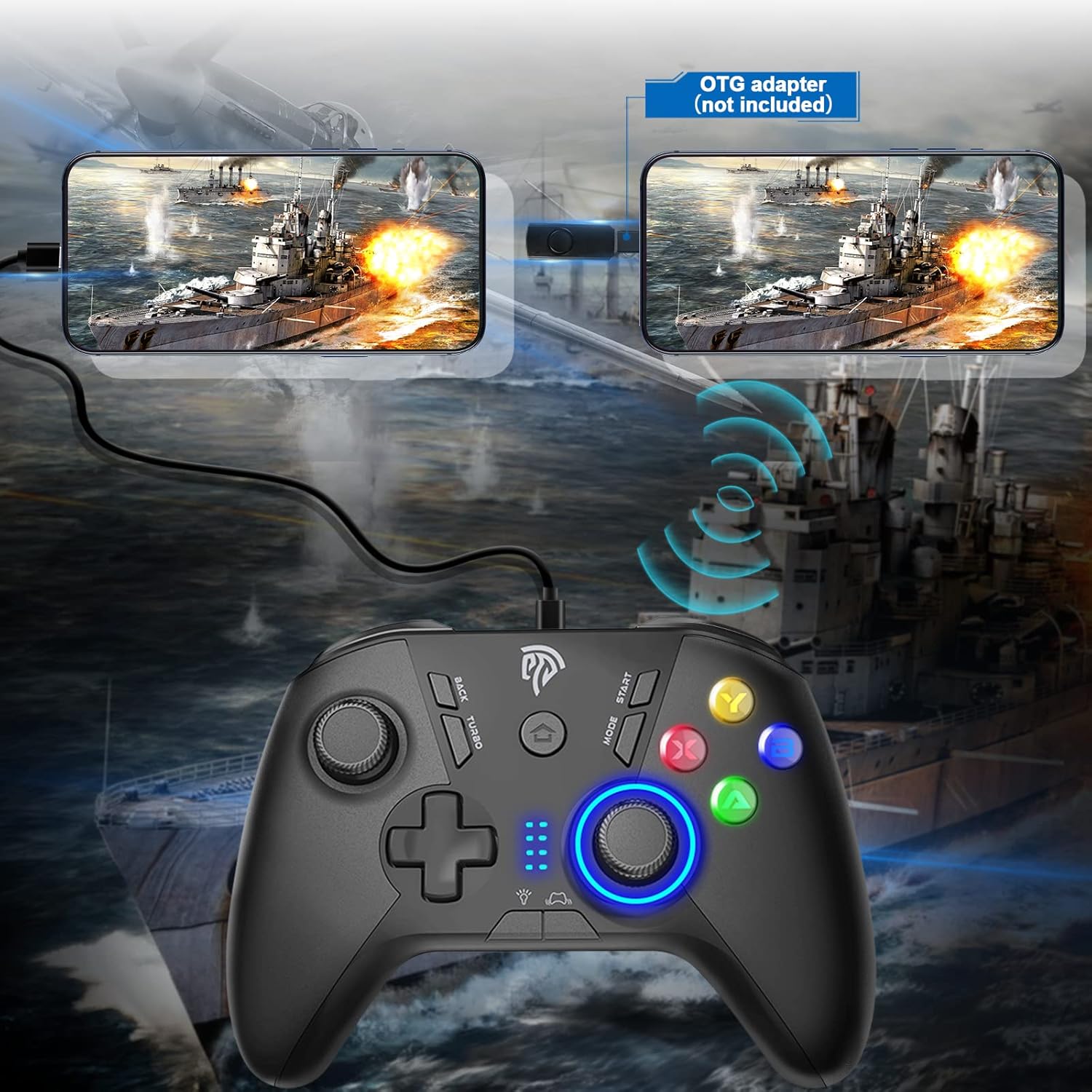
Image: Visual representation of the controller's built-in battery, showing 12-14 hours working time, 600mAh capacity, and 2 hours charging time.
7. Troubleshooting
If you encounter any issues with your EasySMX ESM-9110 controller, please refer to the following common solutions:
- Controller Not Connecting:
- Ensure the USB receiver is securely plugged into your device.
- Make sure the controller is powered on.
- Try plugging the USB receiver into a different USB port.
- If using with an Android phone/tablet/Tesla, ensure you are using an OTG adapter if required.
- Restart your device and try connecting again.
- Buttons Not Responding / Incorrect Input:
- Check the LED indicators to ensure the controller is in the correct mode for your device (e.g., Xinput for PC games).
- Try switching modes by holding the Home button and observing the LED changes.
- Ensure the controller battery is not low.
- Vibration Not Working:
- Check the vibration intensity setting using the Vibration Control Button. Ensure it's not set to off.
- Verify that the game you are playing supports vibration feedback.
- Battery Drains Quickly:
- Ensure the controller is fully charged (approx. 2 hours).
- Adjust LED light brightness to a lower setting or turn it off to conserve battery.
- Ensure the controller is powered off when not in use.
If problems persist, please contact EasySMX customer support for assistance. Do not attempt to repair the item yourself.
8. Specifications
| Attribute | Detail |
|---|---|
| Brand | EasySMX |
| Model Name | ESM 9110 Gamepad |
| Item Model Number | ESM-9110-black-EU |
| Hardware Platform | PC, Nintendo Switch, Steam/Steam Deck, PlayStation 3, Android |
| Operating System | Android, Windows, Windows XP |
| Connectivity Technology | 2.4G Wireless, USB Wired |
| Item Weight | 7.5 ounces |
| Product Dimensions (LxWxH) | 6.89 x 5.31 x 3.07 inches |
| Color | Black |
| Power Source | Battery Powered, USB Cable |
| Batteries | 1 Lithium Polymer battery required (included) |
| Battery Capacity | 600mAh |
| Charging Time | Approx. 2 hours |
| Working Time | Up to 14 hours |
9. Warranty and Support
EasySMX is committed to providing high-quality products and excellent customer service. If you encounter any issues or have questions regarding your ESM-9110 controller, please contact the seller directly through your purchase platform.
- Return Policy: This product typically comes with a 30-day refund/replacement policy from the date of purchase. Please refer to your specific retailer's policy for details.
- Official User Manual: For additional detailed information, you may refer to the official PDF user manual available online: EasySMX ESM-9110 User Manual (PDF).


