
1. Introduction
Thank you for purchasing the LOVCUBE 15 Inch Digital Photo Frame L15N. This manual provides essential information for setting up, operating, and maintaining your digital photo frame. Please read these instructions carefully before use to ensure optimal performance and longevity of your device.
The LOVCUBE L15N features a 15-inch HD IPS display, motion sensor, and supports various media formats for photos, videos, and music. It is designed for ease of use, allowing you to display your cherished memories with minimal setup.
2. Product Overview
2.1 Package Contents
- LOVCUBE 15 Inch Digital Photo Frame
- Remote Control (requires 1 CR2 battery, typically included)
- Power Adapter
- Desktop Stand
- Wall-mounting Brackets and Screws
- User Manual
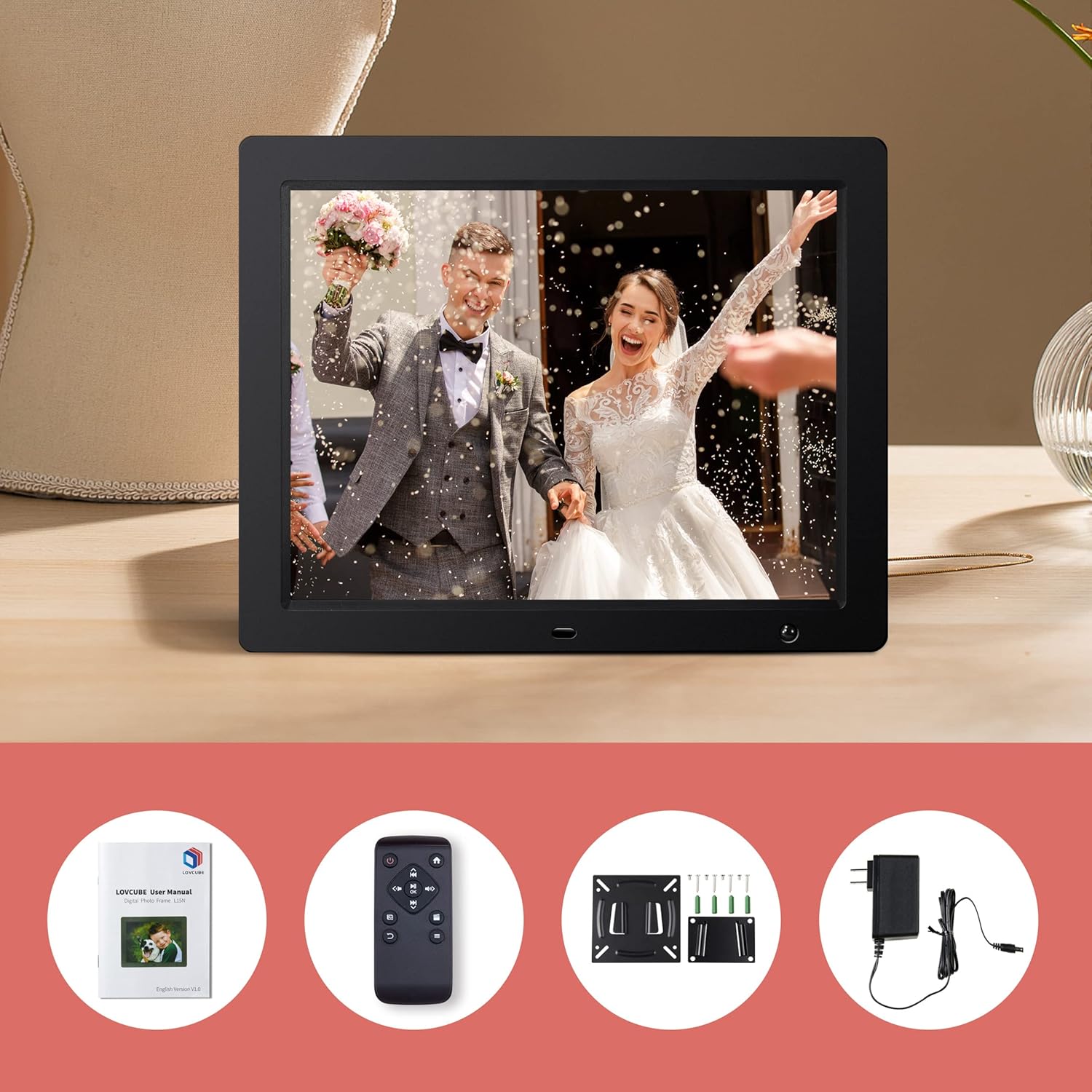
Image: Package contents of the LOVCUBE digital photo frame.
2.2 Key Features
- 15-inch HD IPS Display: 1024x768 resolution with a 4:3 aspect ratio and 178° wide viewing angle for clear and vibrant images.
- Motion Sensor: Built-in high-sensitivity motion sensor to conserve energy by turning the screen on/off automatically.
- Media Playback: Supports photos, 1080p Full HD videos, and background music playback.
- Breakpoint Play: Resumes playback of photos, music, or videos from the last viewed point.
- Slideshow Options: Customizable slideshow effects, transition times, and playback order (random or sequential).
- Multiple Functions: Includes clock, alarm, calendar, and auto power on/off scheduling.
- Connectivity: Features USB and SD card slots for easy media input (supports up to 32GB).
- Versatile Placement: Comes with a desktop stand and wall-mounting brackets.
2.3 Ports and Controls
Familiarize yourself with the ports and controls located on the back and sides of the frame.
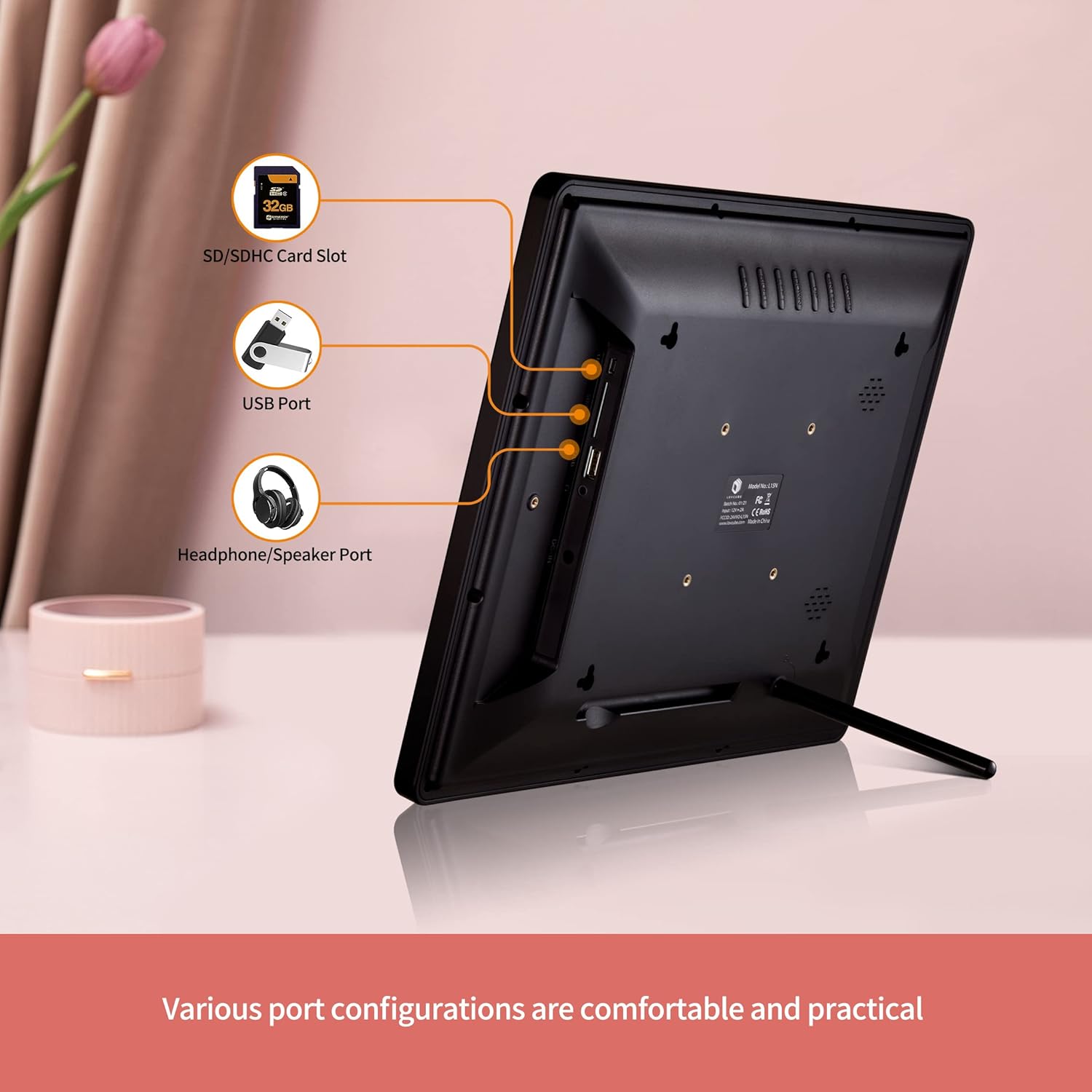
Image: Rear view of the digital photo frame with labeled ports.
- SD/SDHC Card Slot: Insert your SD or SDHC memory card here.
- USB Port: Connect a USB flash drive for media playback.
- Headphone/Speaker Port: Connect external headphones or speakers.
- DC IN: Connect the power adapter here.
- Power Button: Turns the frame on or off.
- Navigation Buttons: For menu navigation (Up, Down, Left, Right, Enter).
- Menu Button: Accesses the main menu.
- Exit Button: Returns to the previous screen or exits the menu.
3. Setup
3.1 Unpacking and Placement
- Carefully remove all components from the packaging.
- Choose a suitable location for your digital photo frame.
- For Desktop Use: Attach the included desktop stand to the back of the frame.
- For Wall Mounting: Use the provided wall-mounting brackets and screws to securely mount the frame on a wall. Ensure the wall can support the weight of the frame.

Image: Wall hanging method diagram.
3.2 Power Connection
- Connect the power adapter to the DC IN port on the frame.
- Plug the power adapter into a standard electrical outlet.
3.3 Inserting Media
The frame supports SD/SDHC cards and USB flash drives up to 32GB. No software installation is required.
- Insert your SD card into the SD/SDHC card slot or your USB flash drive into the USB port. Ensure it is inserted correctly.
- The frame will automatically detect the media and begin playing content.

Image: Plug and play functionality with a USB stick.
3.4 Remote Control Setup
The remote control requires one CR2 battery. Ensure the battery is correctly installed according to the polarity markings.
4. Operating Instructions
4.1 Basic Navigation
Use the remote control or the buttons on the back of the frame to navigate the menus.
- Power Button: Press to turn the frame on or off.
- Menu Button: Press to access the main menu options (Photo, Music, Video, Calendar, Settings).
- Arrow Buttons: Use to move between menu items or adjust settings.
- Enter Button: Confirm a selection.
- Exit Button: Go back to the previous screen or exit the current function.

Image: Using the remote control to operate the digital photo frame.
4.2 Photo Slideshow
- From the main menu, select Photo.
- The frame will start a slideshow of all photos on the inserted media.
- In the settings menu, you can customize:
- Slideshow Effects: Choose from various transition styles.
- Transition Time: Set the duration each photo is displayed.
- Play Mode: Select random or sequential playback.
- Background Music: Enable music to play during the slideshow.

Image: Slideshow mode with background music.
4.3 Video and Music Playback
- From the main menu, select Video or Music.
- Navigate through your files and select the desired video or music track to play.
- The frame supports 1080p FHD video playback.
4.4 Motion Sensor
The built-in motion sensor helps save energy by automatically turning the screen on when motion is detected and off when no motion is present for a set period.
- Access the Settings menu.
- Locate the Motion Sensor option.
- Enable or disable the motion sensor and adjust its sensitivity or delay time as needed.

Image: Motion sensor functionality.
4.5 Clock, Calendar, and Alarm
The frame can display the current time and date, and function as an alarm clock.
- From the main menu, select Calendar to view the date and time.
- In the Settings menu, you can set the time, date, and configure alarms.

Image: Digital photo frame displaying clock and calendar.
4.6 Auto Power On/Off
Schedule specific times for the frame to automatically power on and off.
- Go to the Settings menu.
- Find the Auto Power On/Off option.
- Set your desired power on and power off times.
4.7 Language Settings
The frame supports multiple languages.
- Access the Settings menu.
- Select the Language option and choose your preferred language.
5. Maintenance
5.1 Cleaning the Frame
- Always unplug the frame before cleaning.
- Use a soft, dry cloth to wipe the screen and frame.
- For stubborn marks on the screen, lightly dampen the cloth with water or a screen-cleaning solution. Avoid harsh chemicals.
5.2 Safe Media Removal
To prevent data corruption, always ensure the frame is not actively reading or writing to the SD card or USB drive before removing it. It is recommended to power off the frame before removing media.
6. Troubleshooting
- No Power: Ensure the power adapter is securely connected to both the frame and a working electrical outlet.
- No Display/Blank Screen: Check if the frame is powered on. Verify that an SD card or USB drive with compatible media is inserted correctly. The motion sensor might have turned the screen off; try moving in front of the frame or pressing a button on the remote.
- Remote Control Not Responding: Check the CR2 battery in the remote control and replace if necessary. Ensure there is a clear line of sight between the remote and the frame's IR receiver.
- Media Not Recognized: Ensure the SD card or USB drive is formatted correctly (FAT32 is generally recommended) and its capacity does not exceed 32GB. Reinsert the media.
- Video Playback Issues: Ensure video files are in a supported format and resolution (up to 1080p FHD). Some high-bitrate 1080p videos may not play smoothly.
- Images Appear Distorted: Ensure your images have a resolution compatible with the frame's 1024x768 display and 4:3 aspect ratio for best results.
7. Specifications
| Feature | Detail |
|---|---|
| Model Number | WH00004D |
| Screen Size | 15 Inches |
| Display Type | HD IPS |
| Resolution | 1024 x 768 pixels |
| Aspect Ratio | 4:3 |
| Viewing Angle | 178° |
| Supported Media | SD/SDHC Card (up to 32GB), USB Flash Drive (up to 32GB) |
| Video Playback | Up to 1080p FHD |
| Connectivity | USB |
| Special Features | Motion Sensor, Breakpoint Play, Clock, Calendar, Alarm, Auto Power On/Off |
| Remote Control Battery | 1 x CR2 (included) |
| Approx. Item Weight | 5.92 pounds |
8. Warranty and Support
8.1 Warranty Information
LOVCUBE provides a 12-month warranty for each unit from the date of purchase. This warranty covers manufacturing defects and ensures your product functions as intended under normal use.
8.2 Customer Support
For any questions, technical assistance, or warranty claims, please contact LOVCUBE customer service. We offer 24-hour after-sales service to assist you.
Please refer to the contact information provided with your purchase or visit the official LOVCUBE website for support details.


