
1. Introduction
This manual provides instructions for the installation, operation, and maintenance of the Cisco PWR-IE240W-PCAC-L 240W AC Power Supply. This power supply is specifically designed for use with the Cisco Catalyst IE3200 Rugged Series Server, ensuring reliable power delivery for your network infrastructure.
2. Safety Information
Always observe the following safety precautions to prevent injury to personnel and damage to the equipment:
- Ensure the power supply is disconnected from the power source before performing any installation, removal, or maintenance procedures.
- Do not operate the power supply in wet or damp environments. Avoid exposure to liquids.
- Do not open the power supply casing. There are no user-serviceable parts inside, and opening it may expose you to hazardous voltages.
- Use only approved and compatible AC power cords. Using an incorrect power cord can lead to electrical hazards or equipment damage.
- Ensure adequate ventilation around the power supply and the server to prevent overheating. Do not block air vents.
- Grounding is essential. Always connect the power supply to a grounded electrical outlet.
3. Package Contents
Verify that your package contains the following items:
- Cisco PWR-IE240W-PCAC-L 240W AC Power Supply
- (Optional) AC Power Cord (may be sold separately depending on region and vendor)
4. Setup and Installation
Follow these steps to properly install the Cisco PWR-IE240W-PCAC-L Power Supply into a compatible Cisco Catalyst IE3200 Rugged Series Server.
- Power Off and Disconnect: Before beginning, ensure the Cisco Catalyst IE3200 Rugged Series Server is completely powered off and disconnected from all power sources.
- Locate Power Supply Bay: Identify the designated power supply bay on your Cisco Catalyst IE3200 Rugged Series Server. Refer to your server's documentation for the exact location.
- Insert Power Supply: Carefully slide the PWR-IE240W-PCAC-L power supply into the designated bay. Ensure that the ATX connector aligns correctly with the server's internal connector. Push firmly until the power supply is fully seated within the bay.
- Secure the Power Supply: If your server chassis provides screws or locking mechanisms for the power supply, use them to secure the unit in place. This prevents accidental dislodgement.
- Connect AC Power: Connect the AC power cord to the power supply's AC inlet. Then, connect the other end of the AC power cord to a grounded electrical outlet.
- Power On Server: Reconnect any other necessary cables to the server (e.g., network cables). Once all connections are secure, power on the server.
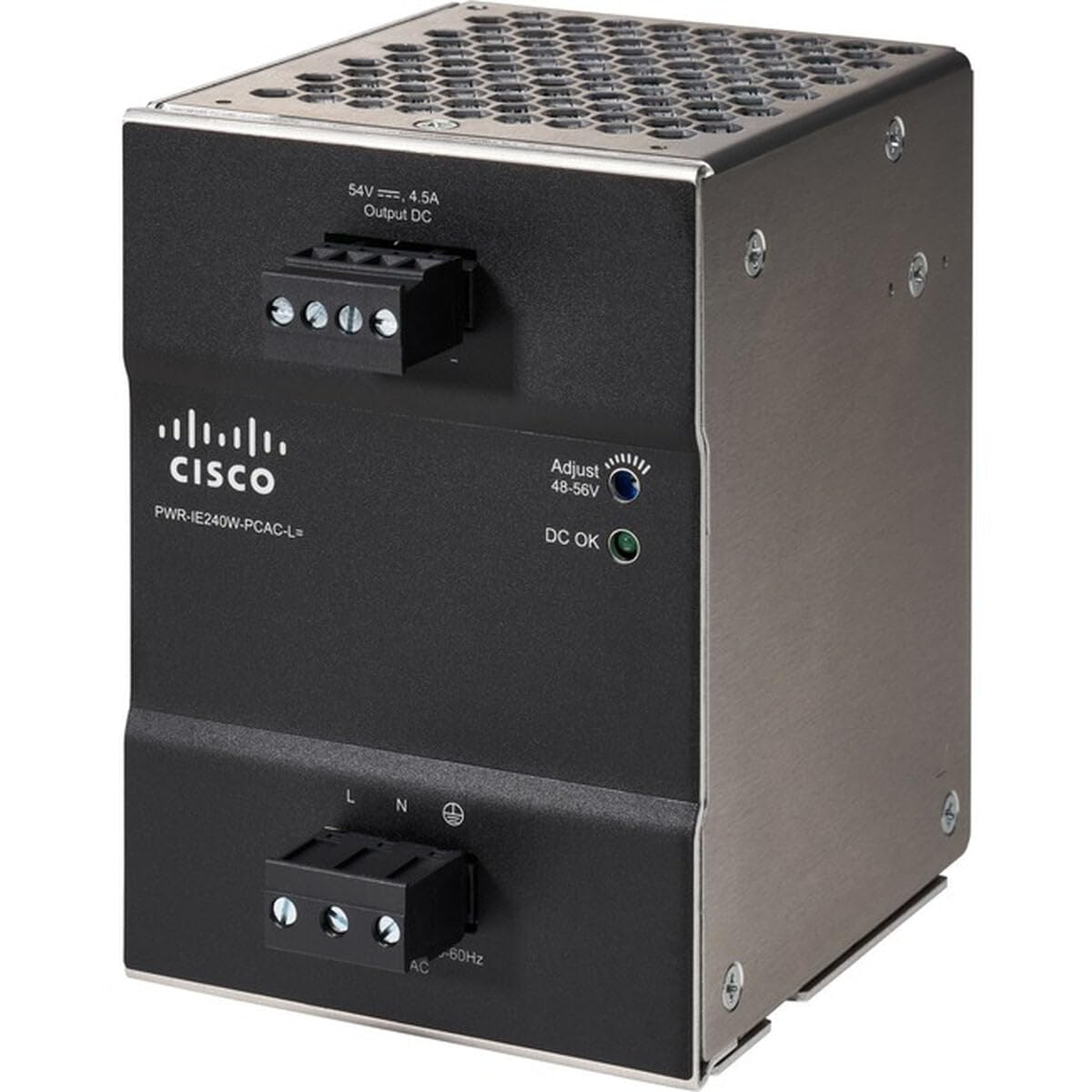
Image 1: Cisco PWR-IE240W-PCAC-L Power Supply. This image shows the general appearance of the power supply unit, which is inserted into the server chassis.
5. Operation
Once properly installed and connected, the Cisco PWR-IE240W-PCAC-L Power Supply operates automatically to provide stable power to the connected Cisco Catalyst IE3200 Rugged Series Server.
- Power Indicator: After powering on the server, observe any power indicator lights on the server or the power supply itself. These indicators confirm that the power supply is receiving power and functioning correctly. Refer to your server's specific manual for details on indicator light behavior.
- Ventilation: Ensure that the air intake and exhaust vents on both the power supply and the server chassis remain unobstructed. Proper airflow is crucial for maintaining optimal operating temperatures and preventing thermal issues.
6. Maintenance
The Cisco PWR-IE240W-PCAC-L Power Supply is designed for minimal maintenance. Adhering to these guidelines will help ensure its longevity and reliable performance:
- Cleaning: Periodically clean the exterior surfaces of the power supply and the server's ventilation grilles with a soft, dry, lint-free cloth. This helps prevent dust accumulation, which can impede airflow. Do not use liquid cleaners, aerosols, or solvents.
- Cable Inspection: Regularly inspect the AC power cord for any signs of damage, such as fraying, cuts, or bent pins. Replace any damaged power cords immediately with an approved replacement.
- Firmware Updates: Power supply firmware updates are typically managed as part of the overall system firmware updates for the connected Cisco Catalyst IE3200 Rugged Series Server. Consult your server's documentation for information on firmware management.
7. Troubleshooting
If you encounter issues with your Cisco PWR-IE240W-PCAC-L Power Supply, refer to the following common troubleshooting steps:
| Problem | Possible Cause | Solution |
|---|---|---|
| Server does not power on | AC power cord disconnected or loose | Ensure the AC power cord is securely connected to both the power supply and a functional electrical outlet. |
| Server does not power on | Faulty electrical outlet | Test the electrical outlet with another known working device or try a different outlet. |
| Server does not power on | Power supply not fully seated in bay | Power off the server, disconnect AC power, and re-seat the power supply firmly into its bay. |
| Server or power supply overheating | Blocked ventilation | Check that all air vents on the power supply and server chassis are clear of obstructions. Ensure adequate space for airflow. |
| Intermittent power or unexpected shutdowns | Loose internal or external connections | Power off the server, disconnect AC power, and verify all power connections (internal and external) are secure. |
If problems persist after attempting these troubleshooting steps, contact Cisco technical support for further assistance.
8. Specifications
Detailed technical specifications for the Cisco PWR-IE240W-PCAC-L Power Supply:
| Feature | Detail |
|---|---|
| Model Name | PWR-IE240W-PCAC-L |
| Brand | Cisco |
| Output Wattage | 240 Watts |
| Maximum Input Voltage | 240 Volts |
| Compatible Devices | Cisco Catalyst IE3200 Rugged Series |
| Connector Type | ATX |
| Cooling Method | Air |
| Product Dimensions (L x W x H) | 23.62 x 23.62 x 33.46 inches |
| Item Weight | 2.62 pounds (1.19 Kilograms) |
| Country of Origin | Thailand |
| ASIN | B07VZ943HG |
9. Warranty and Support
For detailed warranty information and technical support regarding your Cisco PWR-IE240W-PCAC-L Power Supply, please refer to the official Cisco website or contact your authorized Cisco reseller. It is recommended to retain your purchase receipt for any warranty claims.
Cisco Support Resources: https://www.cisco.com/c/en/us/support/index.html


