
MoKo B07VYY9LFK
MoKo Smart Switch User Manual
Model: B07VYY9LFK
Introduction
The MoKo Smart Switch is a versatile WiFi-enabled light switch designed to transform your traditional lighting system into an intelligent one. It features a built-in RGB dimmer night light, offering 1200 custom color settings and 8 scene modes. This smart switch supports remote control via a mobile application, voice control through popular smart home assistants like Amazon Alexa, Google Home, and SmartThings, and offers flexible scheduling options. It is designed for convenience, safety, and enhanced home automation.

Image: Front view of two MoKo Smart Switches, highlighting their sleek design and integrated RGB light panels.
Safety Information
Please read all safety instructions carefully before installation and use. Failure to follow these instructions may result in electric shock, fire, or other hazards.
- Professional Installation Recommended: If you are not familiar with electrical wiring, consult a qualified electrician.
- Power Off Before Installation: Always turn off power at the circuit breaker before installing or servicing the switch.
- Neutral Wire Required: This smart switch requires a neutral wire for proper operation. Ensure your electrical box has a neutral wire.
- 2.4GHz Network Only: The switch only supports 2.4GHz Wi-Fi networks. It is not compatible with 5GHz networks.
- Indoor Use Only: This device is intended for indoor use in dry locations.
- Overload Protection: Do not exceed the maximum wattage of 800 watts.
- FCC CE RoHS Certified: The product is certified for safety and reliability.
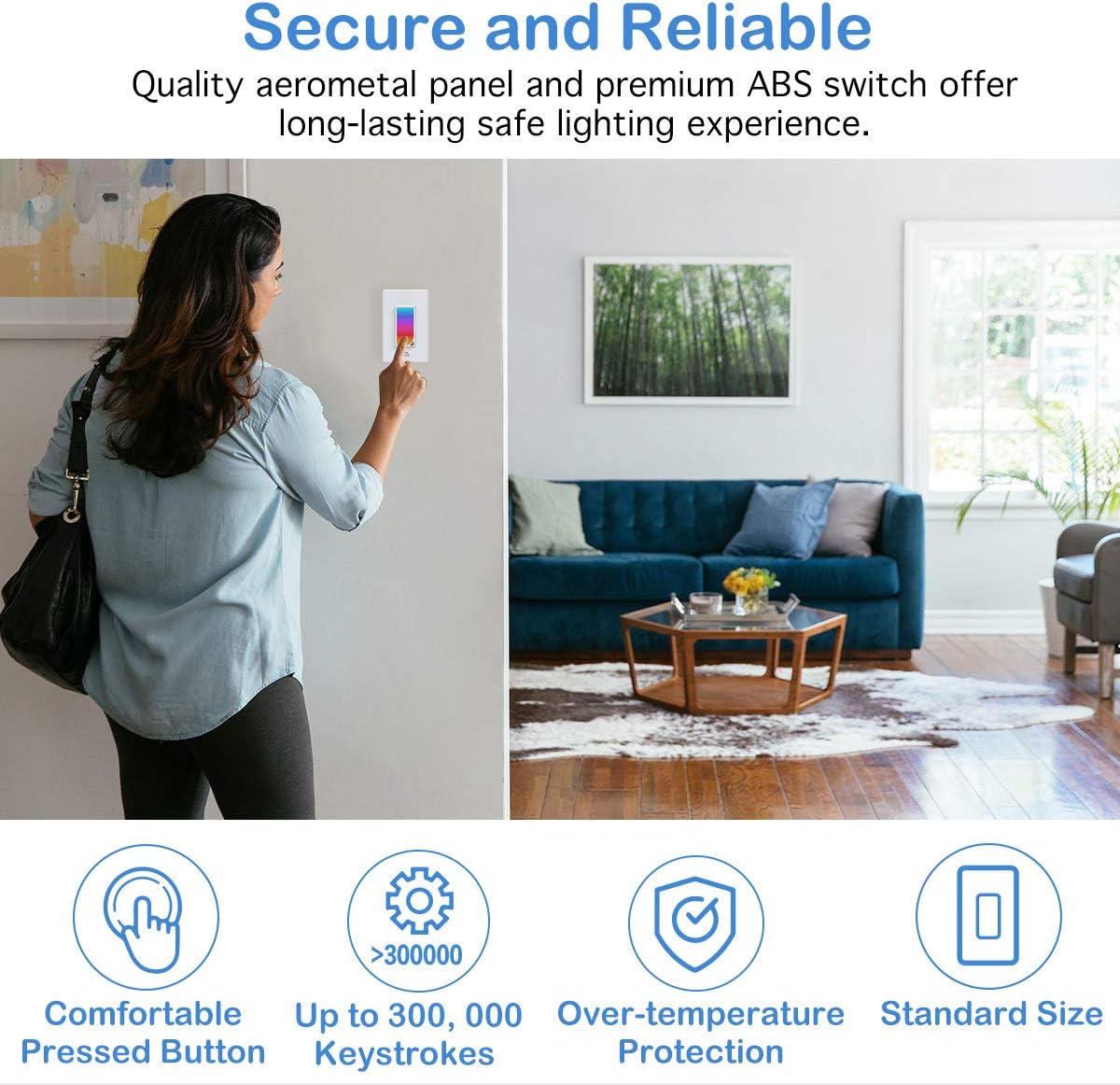
Image: A user interacting with the MoKo Smart Switch, emphasizing its secure and reliable design with features like comfortable button, high keystroke durability, and over-temperature protection.
Package Contents
- MoKo Smart Switch (1 unit)
- User Manual (this document)
- Wire Nuts (for installation)
- Mounting Screws
Product Overview
The MoKo Smart Switch integrates a traditional light switch with smart home capabilities, including an RGB night light. Its intuitive design allows for both manual and smart control.
- Touch Panel: The main surface for manual on/off control and RGB light interaction.
- RGB Dimmer Night Light: Integrated LED panel offering 1200 custom colors and various scene modes.
- Wi-Fi Module: Enables connectivity to your home network for remote and voice control.

Image: An angled view of the MoKo Smart Switch, illustrating its key features such as custom colors, scene modes, app control, Wi-Fi connectivity, voice control, scheduling, group control, and family sharing.
Setup and Installation
1. Wiring Installation
- Turn Off Power: Locate your circuit breaker and turn off the power to the light switch you are replacing. Verify power is off using a voltage tester.
- Remove Old Switch: Carefully remove the existing wall plate and unscrew the old switch from the wall box. Disconnect the wires.
- Identify Wires: Identify the Live (Hot), Load, Neutral, and Ground wires in your wall box.
- Live (Required): Typically black, carries power from the breaker.
- Load (Required): Typically black, carries power to the light fixture.
- Neutral (Required): Typically white, provides a return path for current.
- Ground (Optional, Suggested): Typically green or bare copper, for safety.
- Connect MoKo Smart Switch: Connect the wires from your wall box to the corresponding terminals on the MoKo Smart Switch using the provided wire nuts. Ensure all connections are secure and tight.
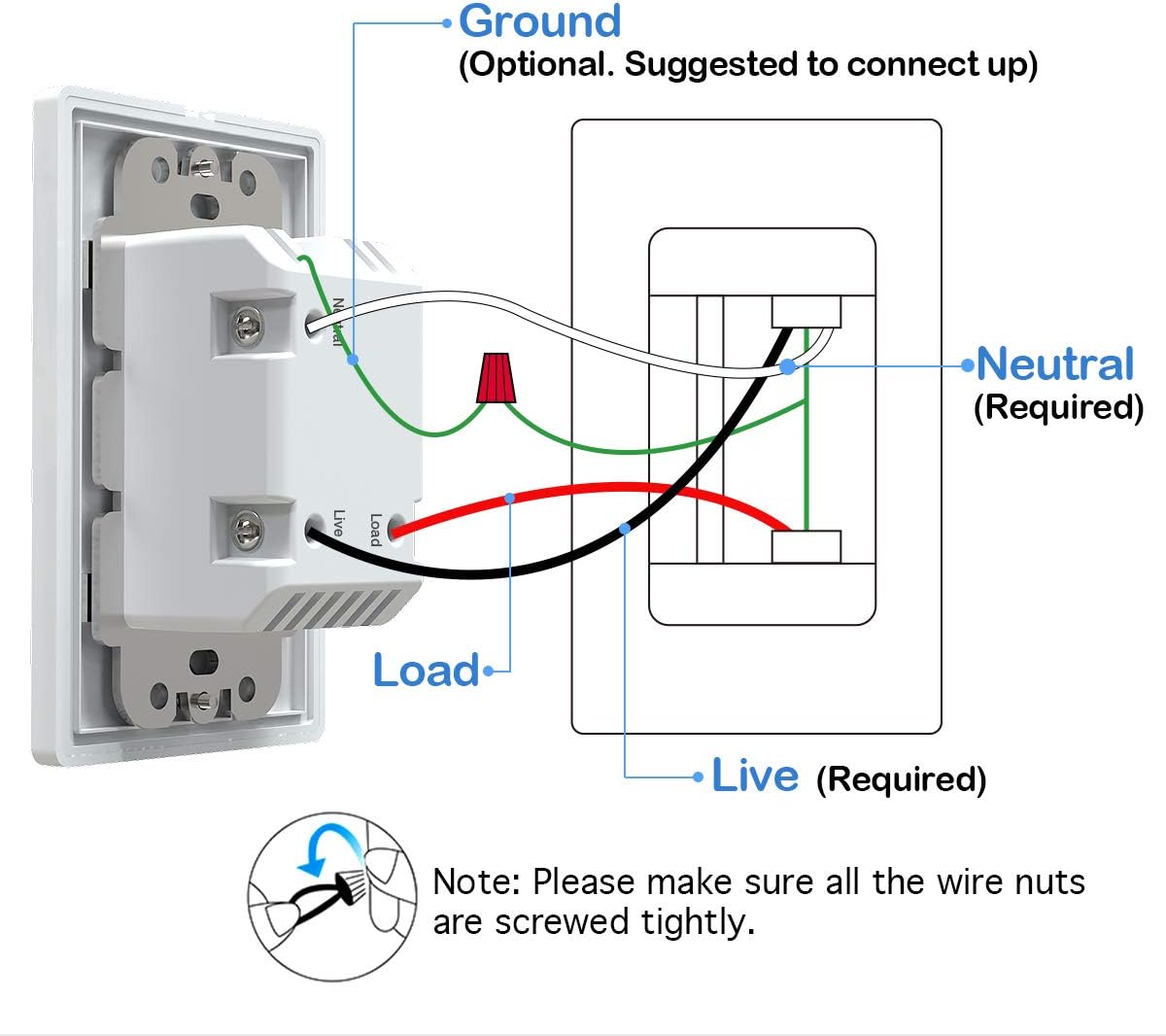
Image: Detailed wiring diagram for the MoKo Smart Switch, indicating connections for Live, Load, Neutral, and Ground wires. Note: Ensure all wire nuts are screwed tightly.
- Mount Switch: Gently push the wired switch into the wall box and secure it with screws. Attach the new wall plate.
- Restore Power: Turn the power back on at the circuit breaker. The smart switch's indicator light should begin to flash, indicating it's ready for pairing.
2. App Download and Connection
- Download App: Download the free "Smart Life" app from the Apple App Store (for iOS 8.0 and above) or Google Play Store (for Android 4.4 and above).
- Register/Login: Open the app and register for a new account or log in if you already have one.
- Add Device: Tap the "+" icon in the top right corner of the app to add a new device. Select "Electrical" then "Switch (Wi-Fi)".
- Confirm Indicator: Confirm that the indicator light on the smart switch is rapidly flashing. If not, press and hold the switch button for 5-10 seconds until it flashes rapidly.
- Connect to Wi-Fi: Enter your 2.4GHz Wi-Fi network name and password. Note: The switch does not support 5GHz networks.
- Pairing: The app will begin connecting to the device. Once successfully added, you can rename the switch and assign it to a room.
Operating Instructions
1. Manual Control
Press the physical button on the smart switch to manually turn the connected light fixture on or off.
2. App Control (Smart Life App)
- Remote On/Off: Open the Smart Life app and tap on the switch icon to turn the light on or off from anywhere with an internet connection.
- RGB Night Light Control:
The smart switch features an integrated RGB night light. You can customize its color and brightness:

Image: The Smart Life app displaying the RGB color selection wheel and preset scene options for the night light, demonstrating its versatility in different home areas.
- Access the RGB settings within the switch's control interface in the app.
- Choose from 1200 custom colors using the color wheel.
- Select from 8 preset scene modes (e.g., Night, Reading, Party, Leisure, Soft, Rainbow, Shine, Gorgeous) for different ambiances.
- The RGB light can be controlled independently or in conjunction with the main load light.
- Timing Management & Scheduling:
Set schedules and timers for your lights to automate your home.

Image: Illustration of the timing management feature, demonstrating how to schedule lights to turn on/off and set countdown timers for the RGB night light.
- Create custom schedules for the main light and the RGB night light to turn on/off at specific times.
- Set countdown timers for temporary light control.
- Utilize random circulating scheduling for security when away from home.
- Various Lighting Modes:
The switch allows for flexible control over the main light and the RGB night light.

Image: Visual representation of the three distinct lighting modes: RGB light only, main load light only, and both RGB and main load light operating simultaneously.
- Mode 1: Turn on the RGB light ONLY.
- Mode 2: Turn on the load light ONLY.
- Mode 3: Turn on the RGB and load light simultaneously.
- Family Device Sharing: Share control of the smart switch with family members through the Smart Life app.
3. Voice Control
The MoKo Smart Switch is compatible with Amazon Alexa, Google Assistant, and SmartThings for convenient hands-free voice control.
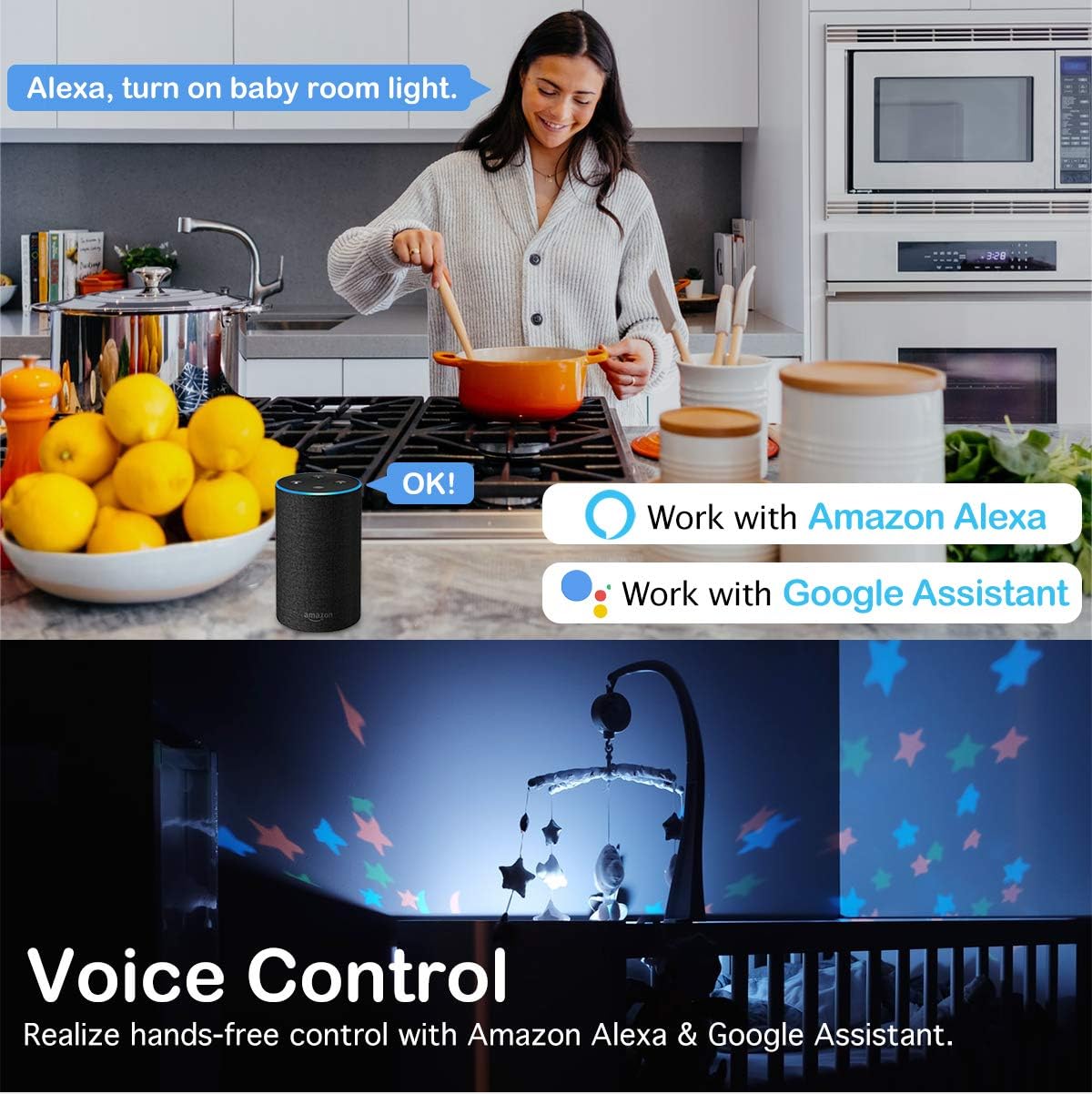
Image: A demonstration of voice control, showing a user commanding Alexa to control lights, highlighting compatibility with Amazon Alexa and Google Assistant.
- Link Accounts: In your Amazon Alexa, Google Home, or SmartThings app, enable the "Smart Life" skill/service and link your Smart Life account.
- Discover Devices: Once linked, ask your voice assistant to discover new devices.
- Voice Commands: Use simple commands such as:
- "Alexa, turn on [Switch Name]"
- "Hey Google, turn off [Switch Name]"
- "Alexa, set [Switch Name] to blue" (for RGB light)
- "Hey Google, dim [Switch Name] to 50%" (if dimmer functionality is enabled)
Maintenance
The MoKo Smart Switch requires minimal maintenance. To ensure optimal performance and longevity:
- Cleaning: Wipe the surface with a soft, dry cloth. Do not use abrasive cleaners or solvents.
- Firmware Updates: Periodically check the Smart Life app for available firmware updates to ensure your switch has the latest features and security enhancements.
- Environmental Conditions: Avoid exposing the switch to excessive moisture, extreme temperatures, or direct sunlight.
Troubleshooting
| Problem | Possible Cause | Solution |
|---|---|---|
| Switch not responding/No power. | No power at the switch; incorrect wiring; loose connection. | Check circuit breaker. Verify wiring according to the diagram, ensuring neutral wire is connected. Tighten all wire nuts. |
| Cannot connect to Wi-Fi. | Incorrect Wi-Fi password; 5GHz network selected; switch too far from router; Wi-Fi signal interference. | Ensure correct 2.4GHz Wi-Fi password. Confirm your router is broadcasting a 2.4GHz network. Move switch closer to router or use a Wi-Fi extender. Reduce interference from other devices. |
| Voice control not working. | Smart Life account not linked; device not discovered; incorrect voice command. | Ensure Smart Life skill/service is enabled and linked in your voice assistant app. Ask the voice assistant to "discover devices." Use the correct device name and commands. |
| RGB light not changing colors. | App glitch; specific mode selected. | Restart the Smart Life app. Ensure you are in the correct RGB control interface within the app. Check if a fixed scene mode is active. |
Specifications
| Feature | Detail |
|---|---|
| Brand | MoKo |
| Model | B07VYY9LFK |
| Operation Mode | Smart Switch |
| Operating Voltage | 240 Volts |
| Contact Type | Normally Open |
| Connector Type | Screw Terminals |
| Terminal | Screw |
| Item Dimensions (L x W x H) | 5.51 x 3.39 x 2.68 inches |
| Circuit Type | 2-way |
| Actuator Type | No Physical Actuator |
| Contact Material | Metal |
| Number of Positions | 2 |
| Controller Type | Google Assistant, SmartThings, Amazon Alexa, iOS, Android |
| Control Method | Remote |
| Connectivity Protocol | Wi-Fi (2.4GHz only) |
| Color | White |
| Wattage | 800 Watts |
| Unit Count | 1.0 Count |
| Item Weight | 7.8 ounces |
| Certifications | FCC CE RoHS Certified, cULus certified |
Warranty and Support
MoKo products are designed for durability and reliability. For specific warranty details, please refer to the product packaging or contact MoKo customer support.
If you encounter any issues or have questions regarding your MoKo Smart Switch, please visit the official MoKo website or contact their customer service for assistance.
Online Resources: MoKo Amazon Store
Ask a question about this manual
Ask about setup, troubleshooting, compatibility, parts, safety, or missing instructions. Manuals+ will review the question and use this page’s manual context to help answer it.