
ZTE R219z
ZTE Vodafone 4G Mobile Broadband Hotspot User Manual
Model: R219z | Brand: ZTE
Introduction
This manual provides essential information for the safe and efficient operation of your ZTE Vodafone 4G Mobile Broadband Hotspot (Model R219z). Please read this manual thoroughly before using the device to ensure proper setup, usage, and maintenance. Keep this manual for future reference.
Package Contents
Verify that all items are present in your product package:
- ZTE Vodafone 4G Mobile Broadband Hotspot (Model R219z)
- Mains charger
- Quick Start Guide (if included)
- Safety Information (if included)
Product Overview
The ZTE Vodafone 4G Mobile Broadband Hotspot is a portable device designed to provide high-speed internet access via a 4G mobile network. It allows multiple devices to connect wirelessly to the internet.
Device Layout
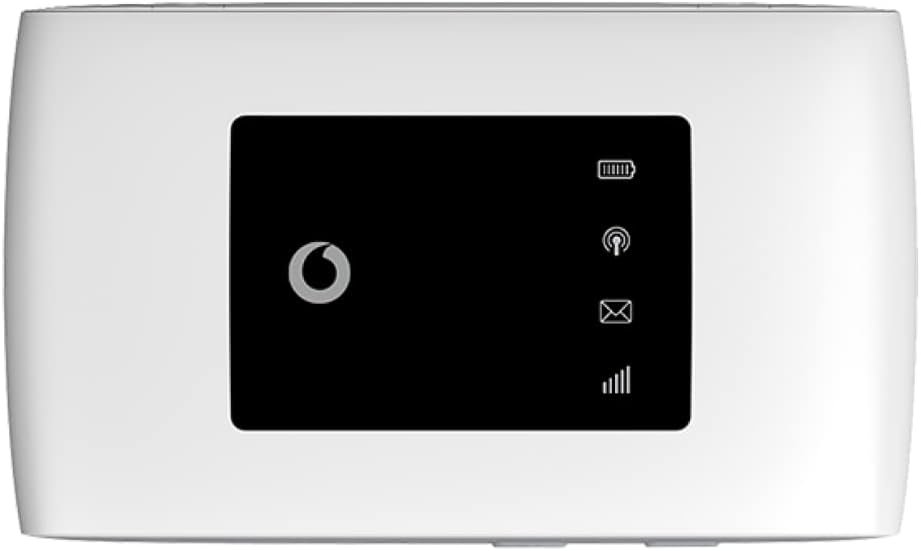
Figure 1: Front view of the ZTE Vodafone 4G Mobile Broadband Hotspot. The screen displays icons for signal strength, Wi-Fi status, new messages, and battery level.
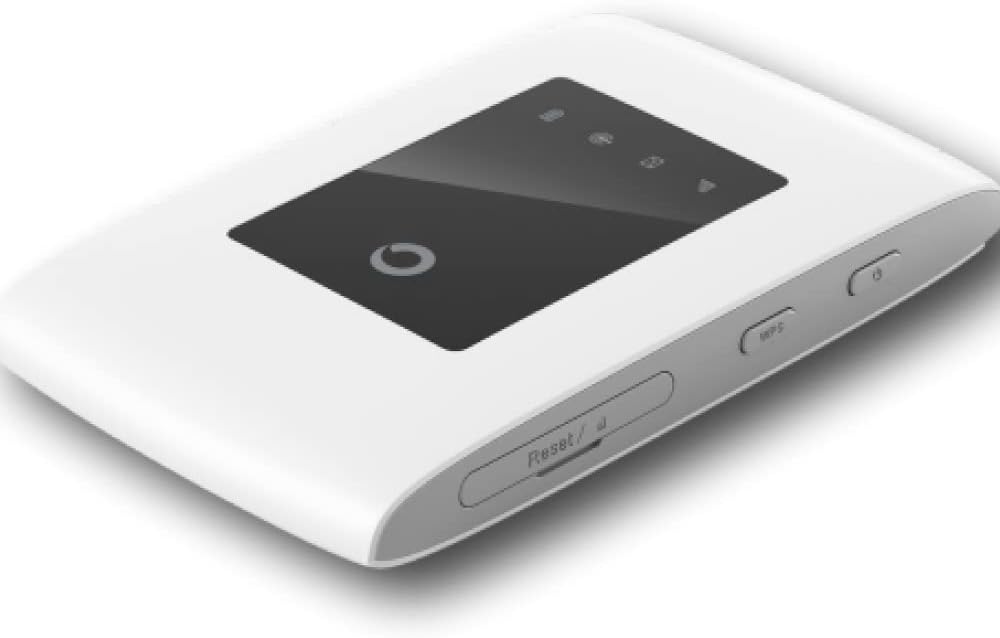
Figure 2: Angled view of the hotspot, highlighting the power button and the WPS (Wi-Fi Protected Setup) button on the side. A small reset pinhole is also visible.

Figure 3: Bottom view of the device, showing the micro USB port used for charging the hotspot.
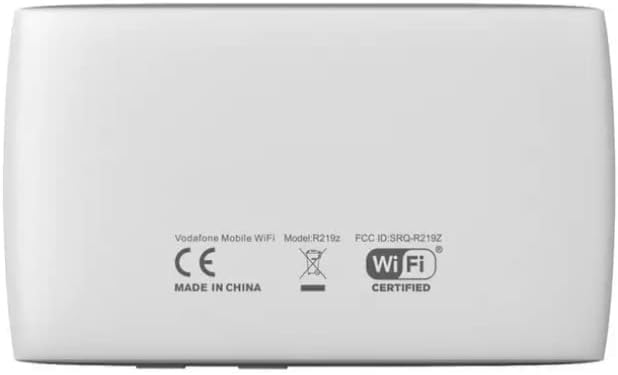
Figure 4: Back view of the hotspot, displaying the product label with regulatory information, including the model number R219z and FCC ID.
Key Features:
- 4G connectivity with speeds up to 150 Mbps.
- Supports WPA2 encryption for secure Wi-Fi connections.
- Operates on Wifi 2.4 GHz frequency.
- Offers approximately 8 hours of battery life during active use and 250 hours on standby.
- Allows up to 10 devices to connect simultaneously.
Setup
Inserting the SIM Card and Battery
- Ensure the device is powered off.
- Remove the back cover of the hotspot.
- Insert your 4G compatible SIM card into the SIM card slot with the gold contacts facing down and the notched corner aligned correctly.
- Insert the battery into its compartment, ensuring the contacts align.
- Replace the back cover until it clicks into place.
Charging the Device
- Connect the provided mains charger to the micro USB port on the hotspot (refer to Figure 3).
- Plug the charger into a power outlet.
- The battery indicator on the screen will show charging status. Allow the device to fully charge before first use.
Operating Instructions
Powering On/Off
- To power on: Press and hold the Power button (refer to Figure 2) until the screen illuminates.
- To power off: Press and hold the Power button until the device shuts down.
Connecting Devices to the Hotspot
- Ensure the hotspot is powered on and has a stable 4G signal.
- On your Wi-Fi enabled device (e.g., smartphone, tablet, laptop), open the Wi-Fi settings.
- Search for available Wi-Fi networks. The hotspot's network name (SSID) and password (Wi-Fi Key) are typically found on a label inside the battery compartment or on the device's packaging.
- Select the hotspot's SSID from the list.
- Enter the Wi-Fi Key when prompted.
- Your device should now be connected to the internet via the hotspot.
Using WPS (Wi-Fi Protected Setup)
WPS allows for a quick connection without manually entering the password:
- On the hotspot, press the WPS button (refer to Figure 2) for a few seconds until the WPS indicator on the screen starts blinking.
- Within two minutes, activate WPS on your client device (e.g., by pressing the WPS button on a router, or selecting the WPS option in your device's Wi-Fi settings).
- The devices will automatically connect.
Maintenance
- Cleaning: Use a soft, dry cloth to clean the device. Do not use liquid cleaners or aerosols.
- Storage: Store the device in a cool, dry place away from direct sunlight and extreme temperatures.
- Battery Care: To prolong battery life, avoid fully discharging the battery frequently. Charge the device regularly, even if not in use for extended periods.
- Software Updates: Periodically check for firmware updates through the device's web interface (if available) to ensure optimal performance and security.
Troubleshooting
| Problem | Possible Cause | Solution |
|---|---|---|
| No internet connection | No SIM card, incorrect APN settings, no network signal, data limit reached. | Ensure SIM card is inserted correctly. Check network signal strength. Verify APN settings via the web interface. Contact your service provider. |
| Cannot connect to Wi-Fi | Incorrect Wi-Fi password, device too far from hotspot, Wi-Fi disabled on client device. | Verify Wi-Fi password. Move closer to the hotspot. Ensure Wi-Fi is enabled on your device. |
| Hotspot not powering on | Low battery, faulty battery, power button issue. | Charge the device. Try a different charger. If problem persists, contact support. |
| Slow internet speed | Weak signal, network congestion, too many connected devices. | Move to an area with better signal. Disconnect unnecessary devices. |
Specifications
| Feature | Detail |
|---|---|
| Brand | ZTE |
| Model Name | R219z |
| Product Dimensions | 11 x 6.3 x 1.2 cm |
| Weight | 222 g |
| Batteries | 1 Lithium Ion battery (included) |
| Connectivity Technology | Wi-Fi |
| Wireless Communication Standard | 2.4 GHz Radio Frequency |
| Frequency Band Class | Dual-Band |
| Special Feature | WPS |
| Compatible Devices | Personal Computer, Tablet, Smart Television |
| Recommended Uses | Home, Business |
| Included Components | Mains charger |
Warranty and Support
For warranty information and technical support, please refer to the warranty card included with your product or visit the official ZTE or Vodafone support website. Keep your proof of purchase for warranty claims.
If you encounter issues not covered in the troubleshooting section, please contact the manufacturer's customer service or your service provider for assistance.
Related documentsR219z


Ask a question about this manual
Ask about setup, troubleshooting, compatibility, parts, safety, or missing instructions. Manuals+ will review the question and use this page’s manual context to help answer it.