
Introduction
The Creative Pebble V2 is a set of minimalistic 2.0 USB-C powered desktop speakers designed for computers and laptops. These speakers offer enhanced audio quality with up to 8W RMS power, featuring a universal 3.5 mm AUX-in for audio playback and USB-C for power. A USB-C to USB-A adapter is included for broader compatibility. The speakers are engineered with 45-degree elevated drivers to project sound directly towards the user, providing an immersive personal listening experience.
Package Contents
- 2 x Creative Pebble V2 Speakers
- 1 x USB-C to USB-A Adapter
- User Manual (this document)

Figure 1: Diagram illustrating the contents included in the Creative Pebble V2 package, showing the two speakers, USB-C to USB-A adapter, and documentation.
Product Overview
The Creative Pebble V2 speakers feature a spherical design with a flat base, allowing them to sit stably on a desktop. The right speaker houses the volume control knob and an LED indicator. Both speakers are equipped with 2-inch full-range drivers and rear-facing passive radiators for enhanced audio output.

Figure 2: Front view of the Creative Pebble V2 speakers, highlighting their compact, spherical design and the volume knob on the right speaker.

Figure 3: Side view of a single Creative Pebble V2 speaker, showing its angled design for optimal sound projection.
Setup
- Connect the Speakers: Connect the left speaker to the right speaker using the integrated cable.
- Connect for Audio: Plug the 3.5mm AUX-in cable from the right speaker into the audio output jack of your computer or laptop.
- Connect for Power:
- If your device has a USB-C port, plug the USB-C power cable from the right speaker directly into it.
- If your device has a USB-A port, attach the provided USB-C to USB-A adapter to the USB-C power cable, then plug it into a USB-A port on your computer or a 5V 2A USB-A power adapter (not included).

Figure 4: Diagram showing the various connection points for the Creative Pebble V2 speakers, including the inter-speaker cable, 3.5mm audio jack, and USB-C power cable with USB-A adapter option.
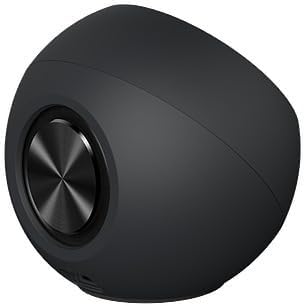
Figure 5: Close-up view of the included USB-C to USB-A adapter, used for connecting the speakers to older USB-A ports.
- Positioning: Place the speakers on your desktop with the drivers angled at 45 degrees towards you for optimal sound delivery.

Figure 6: Illustration of the 45-degree elevated drivers on the Creative Pebble V2, designed to direct sound upwards towards the listener for an immersive experience.
Operating Instructions
- Power On/Off and Volume Control: The large knob on the front of the right speaker controls both power and volume.
- Rotate clockwise to turn on the speakers and increase volume.
- Rotate counter-clockwise to decrease volume and turn off the speakers.
- A blue LED light on the right speaker indicates that the speakers are powered on.
- Gain Switch: Located on the underside of the right speaker, the gain switch allows you to select between High and Low gain modes.
- High Gain: Provides amplified audio, delivering up to 8W RMS of total power and up to 16W peak power. This mode is activated when plugged into a 10W USB-C port or a 5V 2A USB-A power adapter.
- Low Gain: Standard audio output.

Figure 7: Close-up view of the gain switch located on the bottom of the right speaker, allowing users to toggle between high and low gain settings.
Maintenance
- Keep the speakers clean by wiping them with a soft, dry cloth.
- Avoid using liquid cleaners or aerosols directly on the speakers.
- Do not expose the speakers to excessive moisture or extreme temperatures.
- Ensure cables are not kinked or placed under heavy objects to prevent damage.
Troubleshooting
| Problem | Possible Cause | Solution |
|---|---|---|
| No sound from speakers. |
|
|
| Distorted or crackling sound. |
|
|
| Speakers not recognized by computer. |
|
|
Specifications
| Feature | Detail |
|---|---|
| Model Name | Pebble V2 |
| Model Number | CT-PEBBLEV2-BK |
| Speaker Type | Satellite |
| Connectivity Technology | Wired (USB-C for power, 3.5mm AUX-in for audio) |
| Power Source | USB-C (with USB-A adapter included) |
| Audio Output Mode | Stereo (2.0) |
| Speaker Maximum Output Power | 16 Watts (Peak) |
| RMS Power | Up to 8W RMS (when Gain is set to "High" with 10W USB-C or 5V 2A USB-A power) |
| Driver Size | 2 Inches (Full-range drivers) |
| Special Features | Bass Boost, USB Port, Built-in Gain Switch, 45° Elevated Drivers |
| Product Dimensions | 4.96"D x 9.57"W x 4.96"H |
| Item Weight | 0.2 Ounces |
| Manufacturer | Creative Labs |
| UPC | 054651192935 |
Warranty and Support
The Creative Pebble V2 speakers come with a limited warranty provided by Creative Labs. For detailed warranty information, technical support, or service inquiries, please refer to the official Creative Labs website or the full user guide available online.
Online User Guide: Download PDF User Guide
Manufacturer Website: Visit Creative Store on Amazon


