
SeeKool Pandora 11
SeeKool Pandora 11 Arcade Game Console User Manual
Model: Pandora 11
1. Introduction
Welcome to the user manual for your SeeKool Pandora 11 Arcade Game Console. This console is designed to provide an authentic arcade gaming experience with a vast library of 2255 classic games. It features high-definition output, dual 8-way joysticks, and compatibility with various display devices. Please read this manual carefully to ensure proper setup, operation, and maintenance of your device.
2. Product Overview
The SeeKool Pandora 11 is a two-player arcade game console featuring an acrylic panel with colorful lighting. It offers a plug-and-play experience with pre-loaded games and supports external connectivity for enhanced gaming.
2.1 Key Features
- Full HD Output: Supports 1280x720 resolution for connection to TVs, computers, and projectors via HDMI or VGA.
- Extensive Game Library: Includes 2255 pre-installed arcade games, with 2490 2D games and 10 3D games.
- Dual Player Support: Equipped with two 8-way joysticks for simultaneous two-player gameplay.
- Favorite List Function: Allows users to mark and quickly access their preferred games.
- High-Speed Performance: Features a high-speed CPU with 16GB RAM and eMMC flash memory technology for smooth gameplay.
- Expandable Storage: Supports USB flash disk and TF card for expanding game storage.
- Built-in Speakers: Provides audio output without the need for additional devices.
- Gamepad Functionality: Can be used as a gamepad for PC, PS3, and Raspberry Pi.
2.2 Package Contents
Upon unboxing, please verify that all the following items are included:
- 1x Arcade Game Console
- 2x Spare Buttons
- 1x Power Cable
- 1x Power Adapter (Input: 110-220V 50/60Hz, Output: 12V 2A)
- 1x VGA Data Cable
- 1x HDMI Data Cable
- 1x USB Cable
- 1x User Manual (this document)
2.3 Product Dimensions and Weight
- Dimensions (LxWxH): 61 cm x 22 cm x 6 cm (24" x 8.7" x 2.5")
- Approximate Package Weight: 5 kg
3. Setup
Follow these steps to set up your SeeKool Pandora 11 Arcade Game Console.
3.1 Connecting to a Display Device
The console supports HDMI and VGA output for connecting to various display devices.
- Power Off: Ensure both the console and your display device (TV, monitor, projector) are powered off before making connections.
- Choose Connection Type:
- HDMI: For high-definition digital audio and video. Connect one end of the provided HDMI cable to the HDMI OUT port on the console and the other end to an HDMI IN port on your display device.
- VGA: For analog video. Connect one end of the provided VGA cable to the VGA OUT port on the console and the other end to a VGA IN port on your display device. If using VGA, you may need separate audio cables if your display device does not support audio via VGA or if you prefer external speakers.
- Power Connection: Connect the power adapter to the DC IN port on the console, then plug the power cable into a suitable power outlet (110-220V 50/60Hz).
- Power On: Power on your display device and select the correct input source (HDMI or VGA) corresponding to your connection. Then, power on the arcade console.

Figure 3.1: Connection Diagram for SeeKool Pandora 11 Console
This image illustrates how to connect the arcade console to different display devices such as televisions, computer monitors, and projectors using either HDMI or VGA cables. It also shows the console's ability to function as a controller for a PC or PlayStation.
3.2 Using as a Gamepad
The console can also function as a gamepad for other systems.
- Connect the provided USB cable from the console's USB port to a USB port on your PC, PS3, or Raspberry Pi.
- The system should automatically recognize the console as a game controller.
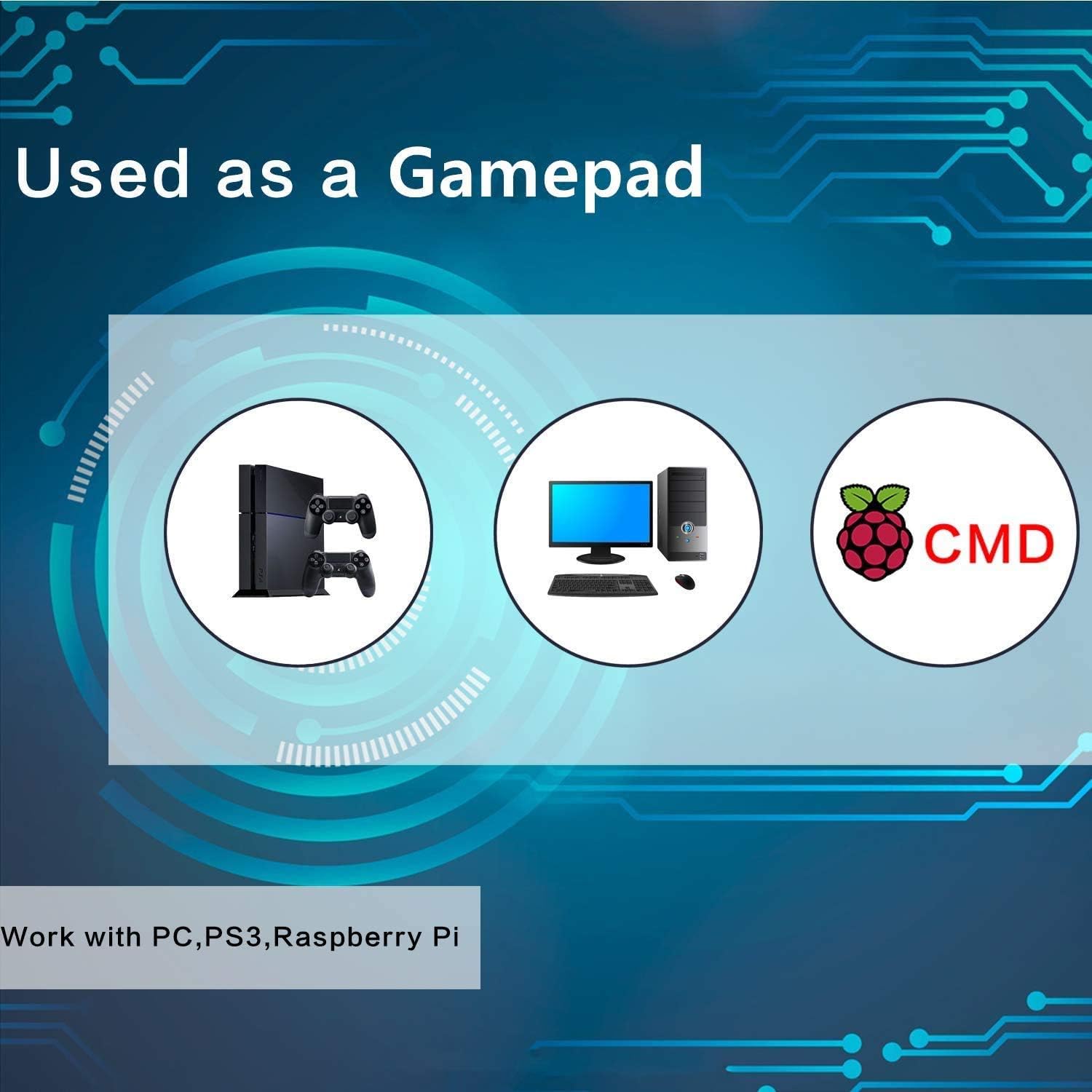
Figure 3.2: Console as a Gamepad
This image demonstrates the versatility of the SeeKool Pandora 11 console, highlighting its capability to be connected and used as a gamepad with personal computers, PlayStation 3 consoles, and Raspberry Pi devices.
4. Operating Instructions
Once the console is set up, you can begin playing.
4.1 Navigating the Game Menu
Upon powering on, the console will display the main game selection menu.
- Use the joystick to navigate through the game list.
- Press the "A" button (or equivalent action button) to select a game.
- Press the "B" button (or equivalent back button) to return to the previous menu.
- The game list is sorted alphabetically for easy navigation.
- The system automatically saves your recently played games.

Figure 4.1: Game Selection Interface
This image displays the console's operating system interface, highlighting features such as the count of 2D and 3D games available, a smart list function, and the ability to sort games alphabetically. It also indicates that the system automatically saves recently played games.
4.2 Using the Favorite List
To quickly access your most played games, utilize the Favorite List feature.
- While browsing games, locate the option to add a game to your "Favorite List" (refer to on-screen prompts or the console's specific button layout for this function).
- Once added, your favorite games will appear at the top of the game selection page for easy access.
4.3 Joystick and Button Layout
Familiarize yourself with the standard 8-way joystick and button configuration.

Figure 4.2: Joystick and Button Layout
This diagram provides a clear illustration of the control layout for the double 8-way stick arcade console. It labels the joysticks and the various action buttons, including Coin, Start, and the standard A, B, C, D, E, F buttons, which are essential for gameplay.
- Joysticks: Control character movement or menu navigation in 8 directions (Up, Down, Left, Right, and diagonals).
- Action Buttons (A, B, C, D, E, F): Perform in-game actions such as jumping, attacking, or special moves. Their specific function varies by game.
- Coin Button: Simulates inserting a coin, typically used to add credits to play a game.
- Start Button: Initiates a game or pauses gameplay.
- Pause Button: Pauses or resumes the game.
The console also supports custom button mapping and one-key language switching. Refer to the on-screen menu for these advanced options.

Figure 4.3: Advanced Features Overview
This image highlights several advanced features of the console, including the ability to customize button assignments, connect to a PlayStation 3, switch languages with a single key, and output video in 1080P HD resolution.
5. Maintenance
Proper care and maintenance will extend the life of your arcade console.
- Cleaning: Use a soft, dry cloth to wipe down the acrylic panel and plastic surfaces. Avoid abrasive cleaners or solvents that could damage the finish.
- Dust Prevention: Keep the console in a clean, dust-free environment. Dust can accumulate in vents and affect performance.
- Ventilation: Ensure the console's ventilation openings are not blocked to prevent overheating. Do not place the console in enclosed spaces without adequate airflow.
- Storage: When not in use for extended periods, store the console in a cool, dry place away from direct sunlight and extreme temperatures.
- Power Supply: Always use the original power adapter provided with the console. Do not use damaged cables or adapters.
- Handling: Handle the console with care. Avoid dropping it or subjecting it to strong impacts, which can damage internal components.
6. Troubleshooting
If you encounter issues with your SeeKool Pandora 11 console, refer to the following common problems and solutions.
| Problem | Possible Cause | Solution |
|---|---|---|
| No power / Console does not turn on. |
|
|
| No video output / Blank screen. |
|
|
| No audio. |
|
|
| Joystick or buttons unresponsive. |
|
|
| Games are slow or laggy. |
|
|
If the problem persists after trying these solutions, please contact SeeKool customer support for further assistance.
7. Specifications
| Feature | Detail |
|---|---|
| Model | Pandora 11 |
| Material | Acrylic Panel |
| Connector Type | HDMI, VGA, USB |
| Input Voltage | 110-220V 50/60Hz |
| Output Voltage | 12V 2A |
| Dimensions (LxWxH) | 61 x 22 x 6 cm (24" x 8.7" x 2.5") |
| Approx. Package Weight | 5 kg |
| CPU | A53 Mainboard with 4 Cores Chip |
| RAM | 16GB |
| Storage Technology | eMMC Flash Memory |
| Game Count | 2255 (2490 2D, 10 3D) |
| Resolution | 1280x720 Full HD (supports 1080P HD resolution) |
| Joystick Type | Dual 8-way sticks |
| Expandable Storage | Supports USB flash disk and TF card |
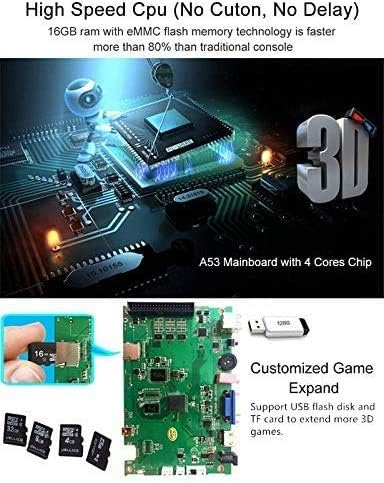
Figure 7.1: Internal Components and Expansion
This image provides a view of the internal hardware of the SeeKool Pandora 11 console, detailing its high-speed CPU, 16GB RAM, eMMC flash memory technology, and the A53 mainboard with a 4-core chip. It also illustrates the capability for customized game expansion using USB flash drives and TF cards.
8. Warranty and Support
For warranty information and technical support, please refer to the documentation provided at the time of purchase or contact SeeKool customer service directly.
If you have any questions or require assistance, please reach out to the manufacturer or your retailer.
Ask a question about this manual
Ask about setup, troubleshooting, compatibility, parts, safety, or missing instructions. Manuals+ will review the question and use this page’s manual context to help answer it.