
HPRT HT-300
HPRT HT-300 Barcode Label Printer User Manual
Model: HT-300 | Brand: HPRT
1. Introduction
This manual provides comprehensive instructions for the safe and efficient operation of your HPRT HT-300 Barcode Label Printer. Please read this manual thoroughly before using the printer and retain it for future reference.
Key Features:
- Efficient and portable thermal printing technology.
- Versatile connectivity via USB, suitable for various environments including retail, healthcare, and logistics.
- Simple operation, quick paper loading, and straightforward maintenance.
- Delivers high-quality, low-noise, and high-speed printing at 203 DPI.
- User-friendly setup and operation for seamless integration with your devices.
2. Safety Information
To ensure safe operation and prevent damage to the printer or injury to yourself, please observe the following safety precautions:
- Do not expose the printer to water or excessive humidity.
- Use only the power adapter supplied with the printer.
- Avoid placing the printer in direct sunlight or near heat sources.
- Keep the printer away from dust and debris.
- Do not attempt to disassemble or repair the printer yourself. Contact qualified service personnel.
- Ensure proper ventilation around the printer during operation.
3. Package Contents
Verify that all items are present in the package:
- HPRT HT-300 Barcode Label Printer
- Power Adapter
- USB Cable
- Starter Label Roll
- User Manual (this document)
4. Printer Overview
Familiarize yourself with the components of your HPRT HT-300 printer.
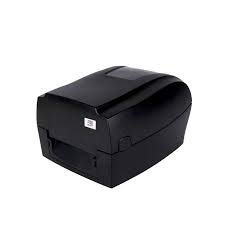
Figure 4.1: Front-right view of the HPRT HT-300 Barcode Label Printer. This image shows the compact design of the printer, with the label output slot visible at the front.
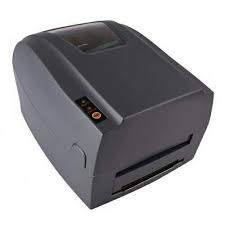
Figure 4.2: Top-right view of the HPRT HT-300 printer, highlighting the control panel with buttons for operation and status indicators.
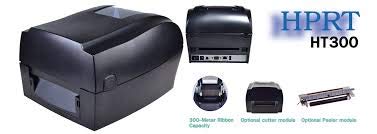
Figure 4.3: Exploded view illustrating the internal components and optional modules for the HPRT HT-300, such as the ribbon capacity, optional cutter, and peeler modules.
5. Setup
5.1 Unpacking
- Carefully remove the printer and all accessories from the packaging.
- Retain the packaging for future transportation or storage.
5.2 Connecting Power
- Connect the power adapter to the printer's power input port.
- Plug the power cord into a suitable electrical outlet.
- Ensure the power indicator light illuminates (if applicable).
5.3 Connecting to Computer
The HPRT HT-300 connects to your computer via USB.
- Connect one end of the USB cable to the printer's USB port.
- Connect the other end of the USB cable to an available USB port on your computer.
5.4 Loading Labels
Follow these steps to load label rolls into the printer:
- Open the printer cover.
- Place the label roll onto the media holder, ensuring the labels feed from the bottom.
- Guide the leading edge of the labels through the print mechanism until it extends slightly past the print head.
- Adjust the media guides to fit the width of your labels snugly.
- Close the printer cover securely.
5.5 Driver and Software Installation
To enable your computer to communicate with the printer, you must install the appropriate drivers and software.

Figure 5.1: Example of HPRT Kit Software and BarTender label design software interface. This image illustrates the software tools available for driver installation, printer settings, and label design.
- Insert the provided driver CD (if included) into your computer's optical drive, or download the latest drivers from the official HPRT website.
- Run the installer and follow the on-screen prompts to complete the driver installation.
- Install any bundled label design software, such as BarTender, if desired. This software provides tools for creating and printing various label formats.
- Utilize the HPRT label printer-specific settings tool to view printer status, perform test prints, and configure advanced settings.
6. Operation
6.1 Basic Printing Steps
- Ensure the printer is powered on and connected to your computer.
- Open your label design software (e.g., BarTender) or the application from which you wish to print.
- Create or open the label design you intend to print.
- Access the print settings and select the HPRT HT-300 as your printer.
- Verify the label size and orientation settings match your loaded labels.
- Initiate the print job.
6.2 Printer Status Indicators
Refer to the printer's control panel for status lights that indicate power, errors, or paper out conditions. Consult the driver software for more detailed status information.
7. Maintenance
Regular maintenance ensures optimal performance and extends the lifespan of your printer.
7.1 Cleaning the Print Head
The print head should be cleaned periodically to prevent print quality issues.
- Turn off the printer and disconnect the power cord.
- Open the printer cover.
- Gently wipe the print head surface with a lint-free cloth moistened with isopropyl alcohol.
- Allow the print head to dry completely before closing the cover and reconnecting power.
7.2 Cleaning the Platen Roller
Clean the platen roller to ensure smooth label feeding.
- Turn off the printer and disconnect the power cord.
- Open the printer cover.
- Rotate the platen roller manually and wipe its surface with a lint-free cloth moistened with isopropyl alcohol.
- Allow it to dry before closing the cover and reconnecting power.
8. Troubleshooting
This section addresses common issues you might encounter with your HPRT HT-300 printer.
| Problem | Possible Cause | Solution |
|---|---|---|
| Printer not responding |
|
|
| Poor print quality (faded, lines) |
|
|
| Paper jam |
|
|
9. Specifications
Technical specifications for the HPRT HT-300 Barcode Label Printer:
- Model: HT-300
- Printing Technology: Thermal
- Print Resolution: 203 DPI
- Print Speed: 5 Inches per Second (IPS)
- Printer Output: Monochrome
- Connectivity: USB
- Compatible Devices: Laptops, Computers
- Maximum Media Size: 5 inches
- Print Media: Labels
- Dual-sided printing: No
- Color: Black
- Item Weight: 3 kg 670 g
- Manufacturer: HPRT
- Manufacturer Part Number: SDH03
10. Warranty and Support
10.1 Warranty Information
The HPRT HT-300 Barcode Label Printer comes with a 12-month warranty from the date of purchase. This warranty covers manufacturing defects under normal use. It does not cover damage caused by misuse, accidents, unauthorized modifications, or improper maintenance. Please retain your proof of purchase for warranty claims.
10.2 Customer Support
For technical assistance, troubleshooting, or warranty inquiries, please contact HPRT customer support.
- Website: Visit the official HPRT website for support resources, FAQs, and driver downloads.
- Email/Phone: Refer to the HPRT website or product packaging for specific contact details.
Related documentsHT-300


Ask a question about this manual
Ask about setup, troubleshooting, compatibility, parts, safety, or missing instructions. Manuals+ will review the question and use this page’s manual context to help answer it.