
MINDEO MD-2250
MINDEO MD-2250 1D Handheld USB Wired Barcode Scanner User Manual
Model: MD-2250
1. Introduction
This manual provides detailed instructions for the proper setup, operation, and maintenance of your MINDEO MD-2250 High Speed 1D Handheld USB Wired Barcode Scanner. Please read this manual thoroughly before using the device to ensure optimal performance and longevity.
The MINDEO MD-2250 is designed for fast and precise scanning of 1D barcodes, supporting both handheld and presentation scanning modes. Its robust construction makes it suitable for various environments including manufacturing, logistics, retail, and healthcare.
2. Package Contents
Upon unpacking, please verify that all items listed below are present and in good condition:
- MINDEO MD-2250 Barcode Scanner
- USB Connection Cable
- User Manual (this document)
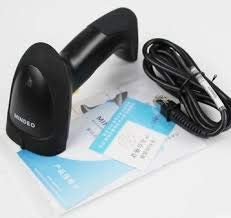
Image 2.1: Contents of the MINDEO MD-2250 package, including the scanner, USB cable, and documentation.
3. Product Overview
Familiarize yourself with the main components of your MINDEO MD-2250 barcode scanner:
- Scan Window: The area through which the laser beam is emitted to read barcodes.
- Trigger Button: Activates the scanning process in handheld mode.
- LED Indicator: Provides visual feedback on scanning status (e.g., successful scan, error).
- USB Port: Connects the scanner to a host device via the USB cable.
- Ergonomic Handle: Designed for comfortable grip during extended use.
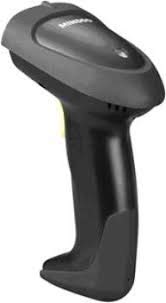
Image 3.1: Side view of the MINDEO MD-2250 Barcode Scanner, highlighting its ergonomic design.
4. Setup
Follow these steps to set up your MINDEO MD-2250 barcode scanner:
- Connect the USB Cable: Insert the smaller end of the USB cable into the USB port at the base of the scanner.
- Connect to Host Device: Plug the larger end of the USB cable into an available USB port on your computer (desktop or laptop).
- Driver Installation: The scanner is typically plug-and-play and will be recognized automatically by most operating systems (Windows, macOS, Linux) as a Human Interface Device (HID) keyboard. No additional driver installation is usually required.
- Confirmation: Once connected, the scanner's LED indicator may flash or illuminate, indicating it is powered on and ready for use.
The scanner will emulate keyboard input, meaning scanned barcode data will appear wherever your cursor is positioned, just like typing on a keyboard.
5. Operating Instructions
5.1. Basic Scanning
- Aim: Point the scan window of the scanner at the barcode you wish to read.
- Activate:
- Handheld Mode: Press and hold the trigger button. A laser line will appear.
- Presentation Mode (Auto-sense): The scanner will automatically detect a barcode placed within its scanning field and activate the laser.
- Scan: Position the laser line across the entire barcode. Ensure the barcode is flat and well-lit.
- Confirmation: A successful scan is typically indicated by an audible beep and/or a change in the LED indicator light. The barcode data will then be transmitted to your connected device.
5.2. Scanning Tips
- Maintain an appropriate distance from the barcode. The optimal scanning distance can vary depending on the barcode size and density.
- Avoid scanning at extreme angles, as this can make it difficult for the scanner to read the barcode.
- Ensure the barcode is clean and free from obstructions or damage.
- For reflective surfaces, try tilting the scanner slightly to avoid glare.
6. Maintenance
6.1. Cleaning
- Exterior: Use a soft, clean cloth lightly dampened with water or a mild, non-abrasive cleaning solution to wipe the exterior of the scanner.
- Scan Window: Gently clean the scan window with a lint-free cloth or a lens cleaning wipe. Avoid using abrasive materials or harsh chemicals that could scratch the surface.
- Do not immerse the scanner in any liquid.
6.2. Storage
- Store the scanner in a cool, dry place, away from direct sunlight and extreme temperatures.
- Protect the scanner from drops and impacts when not in use.
7. Troubleshooting
If you encounter issues with your MINDEO MD-2250 scanner, refer to the following common problems and solutions:
| Problem | Possible Cause | Solution |
|---|---|---|
| Scanner does not power on. | USB cable not properly connected or faulty USB port. | Ensure the USB cable is securely connected to both the scanner and the host device. Try a different USB port or a different computer. |
| Scanner does not read barcodes. | Barcode damaged, poor lighting, incorrect scanning angle, or scanner not enabled. | Check barcode integrity. Ensure adequate lighting. Adjust scanning angle and distance. Verify the scanner is recognized by the computer. |
| Scanned data is incorrect or incomplete. | Barcode partially obscured, damaged, or incorrect symbology settings. | Ensure the entire barcode is visible and undamaged. If issues persist, consult advanced programming guides for symbology settings (not covered in this basic manual). |
| No beep or LED feedback after scanning. | Scanner settings may have disabled feedback, or scan was unsuccessful. | Ensure the scan was successful. If feedback is consistently absent, refer to advanced programming guides to enable audible/visual feedback. |
8. Specifications
The following table outlines the key technical specifications for the MINDEO MD-2250 Barcode Scanner:
| Feature | Detail |
|---|---|
| Model | MD-2250 (Manufacturer Part Number: SDH12) |
| Brand | MINDEO |
| Connectivity Technology | USB Cable |
| Scan Type | 1D Laser Barcode Scanner |
| Scanning Modes | Handheld, Presentation (Auto-sense) |
| Compatible Devices | Desktop, Laptop |
| Power Source | Corded Electric (via USB) |
| Color | Black |
| Item Weight | 250 g |
| Item Dimensions (LxWxH) | 110 x 200 x 80 Centimeters (Note: This dimension seems unusually large for a handheld scanner, likely refers to packaging or a different unit. User should verify actual product dimensions.) |
| Material | ABS + PC (Anti-shock and Durable) |
9. Warranty and Support
For warranty information, technical support, or service inquiries, please contact your MINDEO product vendor or visit the official MINDEO website. Keep your purchase receipt as proof of purchase for warranty claims.
Related documentsMD-2250


Ask a question about this manual
Ask about setup, troubleshooting, compatibility, parts, safety, or missing instructions. Manuals+ will review the question and use this page’s manual context to help answer it.