
MoKo P840034625349
MoKo Bluetooth Keyboard with Trackpad for Microsoft Surface Go 4/3/2/1 - User Manual
Model: P840034625349
1. Introduction
This manual provides instructions for the MoKo Bluetooth Keyboard with Trackpad, designed for Microsoft Surface Go series tablets. It covers setup, operation, and maintenance to ensure optimal performance.
2. Compatibility
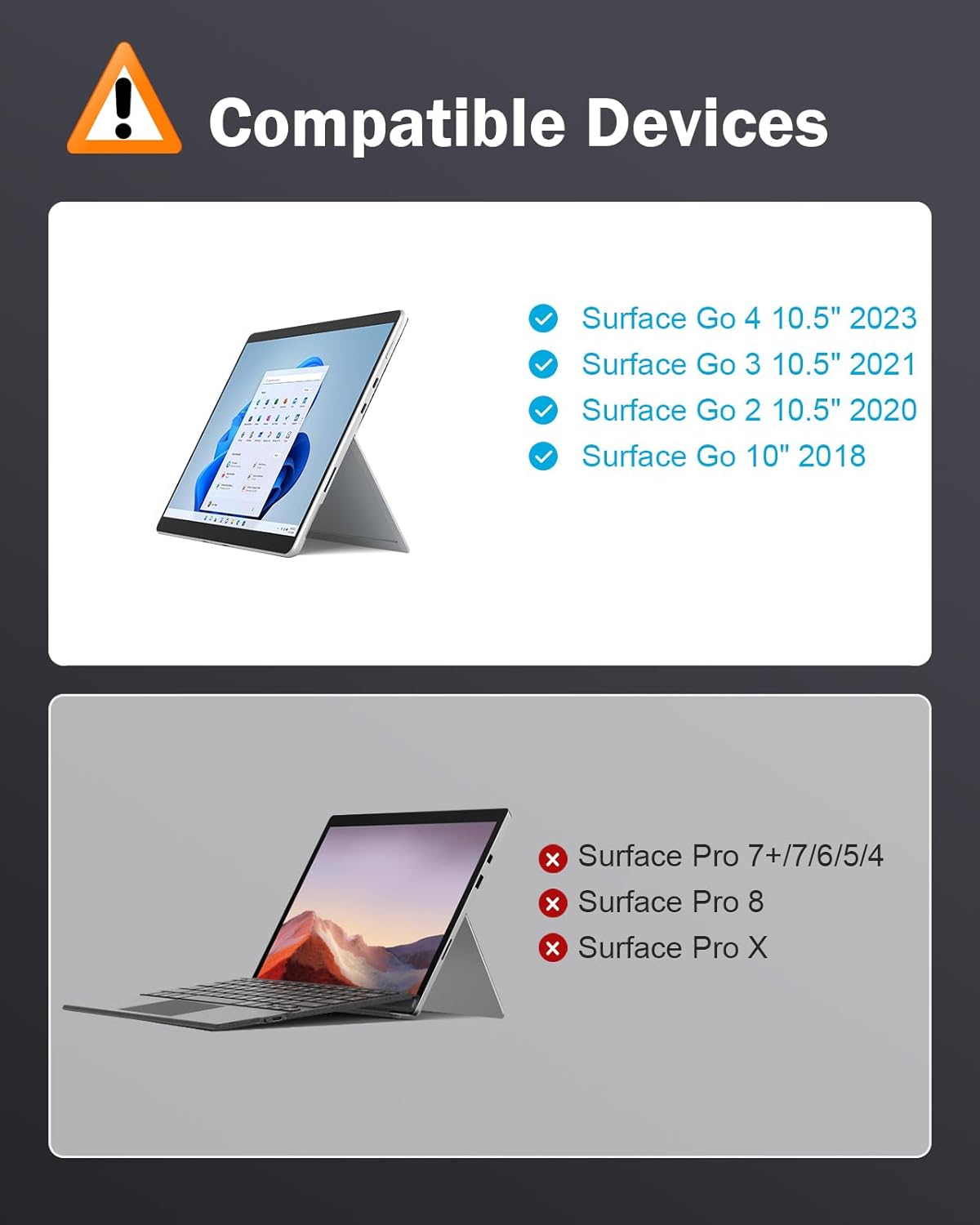
This keyboard is compatible with the following Microsoft Surface Go models:
- Microsoft Surface Go 4 10.5" (2023)
- Microsoft Surface Go 3 10.5" (2021)
- Microsoft Surface Go 2 10.5" (2020)
- Microsoft Surface Go 10" (2018)
Note: The keyboard features an American (QWERTY) layout.

3. Package Contents
- MoKo Bluetooth Keyboard with Trackpad
- USB-C Charging Cable
- User Manual
4. Setup and Connection
4.1 Initial Charging
Before first use, fully charge the keyboard using the provided USB-C cable. Connect the USB-C end to the keyboard's charging port and the other end to a USB power source.

Note: Please remove the protective film from the touchpad before use.
4.2 Power On/Off
Locate the power switch on the side of the keyboard. Slide it to the "ON" position to power on the keyboard. Slide it to "OFF" to power off.
4.3 Bluetooth Pairing
- Ensure the keyboard is powered on.
- Press the Fn + C keys simultaneously on the keyboard to activate Bluetooth pairing mode. The Bluetooth indicator light will flash.
- On your Microsoft Surface Go tablet, go to Settings > Bluetooth & devices.
- Turn on Bluetooth if it's not already enabled.
- Select "Add device" or "Add Bluetooth or other device".
- Choose "Bluetooth" and select "Bluetooth Keyboard" from the list of available devices.
- Follow any on-screen prompts to complete the pairing process. The indicator light will stop flashing once connected.

Note: If you experience issues with special characters, ensure your tablet's input language settings are correctly configured for the US QWERTY layout.
5. Operating Instructions
5.1 Attaching the Keyboard
The keyboard features a magnetic strip that allows it to attach securely to your Surface Go tablet. You can use it in two main positions:
- Flat Position: Attach the keyboard flat against the tablet for a traditional laptop experience.
- Angled Position: Fold the magnetic strip to slightly elevate the keyboard, providing a more ergonomic typing angle.

5.2 Backlighting Control
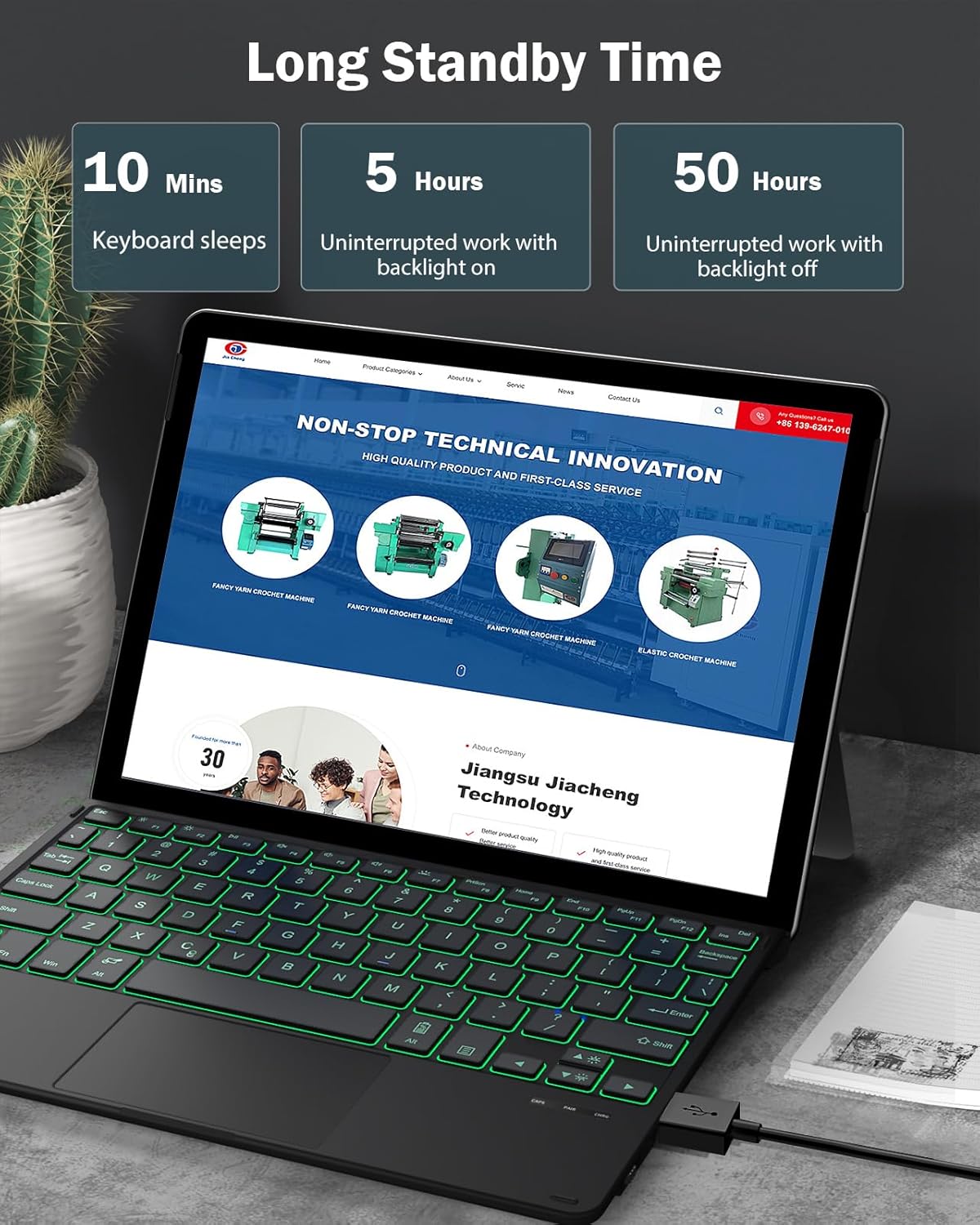
The keyboard features 7-color LED backlighting with adjustable brightness levels.
- To adjust brightness: Press Fn + F7 (sun icon) to cycle through brightness levels.
- To change backlight color: Press Fn + F7 + F8 (sun icon + color icon) to switch between the seven available colors.


5.3 Touchpad Functions
The integrated touchpad supports multi-touch gestures for easy navigation.
- Basic Navigation: Use single-finger taps for clicks, two-finger taps for right-clicks, and two-finger scrolling.
- Precision Input: For enhanced precision, press Fn + Alt to activate precision mode.

5.4 Function Shortcuts
The keyboard includes various function shortcuts for quick access to common tasks. These are typically accessed by pressing the Fn key in combination with the corresponding function key (F1-F12) or other designated keys.
Refer to the key labels for specific functions such as media control, volume adjustment, and screen brightness.

6. Maintenance and Care
- Keep the keyboard clean by wiping it with a soft, dry cloth.
- Avoid exposing the keyboard to liquids or extreme temperatures.
- Store the keyboard in a dry place when not in use.
- The keyboard features a slot for a stylus pen. Note that this slot does not provide charging functionality for the pen.
7. Troubleshooting
- Keyboard not connecting: Ensure the keyboard is charged and powered on. Re-attempt Bluetooth pairing. Check your tablet's Bluetooth settings.
- Keys not responding: Recharge the keyboard. If specific keys are unresponsive, contact customer support.
- Touchpad issues: Ensure the protective film is removed. Restart the keyboard and tablet.
- Backlight not working: Ensure the keyboard is charged. Use the Fn + F7 combination to adjust brightness.
8. Specifications
| Feature | Detail |
|---|---|
| Brand | MoKo |
| Model Number | P840034625349 |
| Connectivity Technology | Bluetooth |
| Keyboard Description | Scissor Switch with 7-color LED Backlighting |
| Special Feature | Rechargeable |
| Color | Black |
| Product Dimensions | 24.51 x 19.79 x 0.97 cm |
| Item Weight | 230 g |
| Battery Type | 1 Non-standard Battery (contained in equipment) |
| Lithium Battery Capacity | 1.85 Watt-hours |
9. Warranty and Support
For warranty information or technical support, please refer to the contact details provided with your purchase or visit the official MoKo website. Keep your purchase receipt for warranty claims.
10. Product Videos
MoKo Keyboard for Surface Pro 7 Plus/ 7/ 6/ 5/ 4/ 3
This video demonstrates the unboxing, features, and usage of the MoKo keyboard, including optimal key spacing, large touchpad, magnetic attachment, power on/off, Bluetooth connection, dual typing angles, function shortcuts, responsive touchpad, USB-C charging, and foldable storage. Note: This video is for a Surface Pro model, but demonstrates general features applicable to Surface Go keyboards.
MoKo Bluetooth Keyboard
This video showcases the MoKo Bluetooth keyboard's features, including optimal key spacing, large touchpad, magnetic attachment, pen slot, power on/off, Bluetooth connection, USB-C charging, and foldable storage. Note: This video is for a Surface Pro model, but demonstrates general features applicable to Surface Go keyboards.
MoKo Bluetooth Keyboard with Touchpad
This video highlights the MoKo Bluetooth keyboard's features, such as magnetic attachment, silent keys, sensitive touchpad, quick screenshot key, Bluetooth connection, fast USB-C charging, pen slot (no charging), slim and lightweight design, and two usage modes (flat and folded). Note: This video is for a Surface Pro model, but demonstrates general features applicable to Surface Go keyboards.
Related documentsP840034625349


Ask a question about this manual
Ask about setup, troubleshooting, compatibility, parts, safety, or missing instructions. Manuals+ will review the question and use this page’s manual context to help answer it.