
DOYO R270
DOYO 270-Degree Racing Wheel and Pedals User Manual
Model: R270
Introduction
This manual provides detailed instructions for the setup, operation, and maintenance of your DOYO 270-Degree Racing Wheel and Pedals. Please read this manual thoroughly before use to ensure proper functionality and a safe gaming experience. This racing wheel is designed for use with PC, PS3, PS4, Xbox One, Xbox Series X|S, and Nintendo Switch platforms.
Important Safety Information
- Keep the device away from water and other liquids.
- Do not expose the device to extreme temperatures or direct sunlight.
- Avoid disassembling or modifying the device, as this may void the warranty and cause damage.
- Ensure all connections are secure before use.
- Use only the provided accessories with the racing wheel.
Package Contents
Verify that all items are present in your package:
- DOYO 270-Degree Racing Wheel
- Pedal Unit (Gas and Brake)
- Mounting Clamps (2x)
- User Manual (this document)
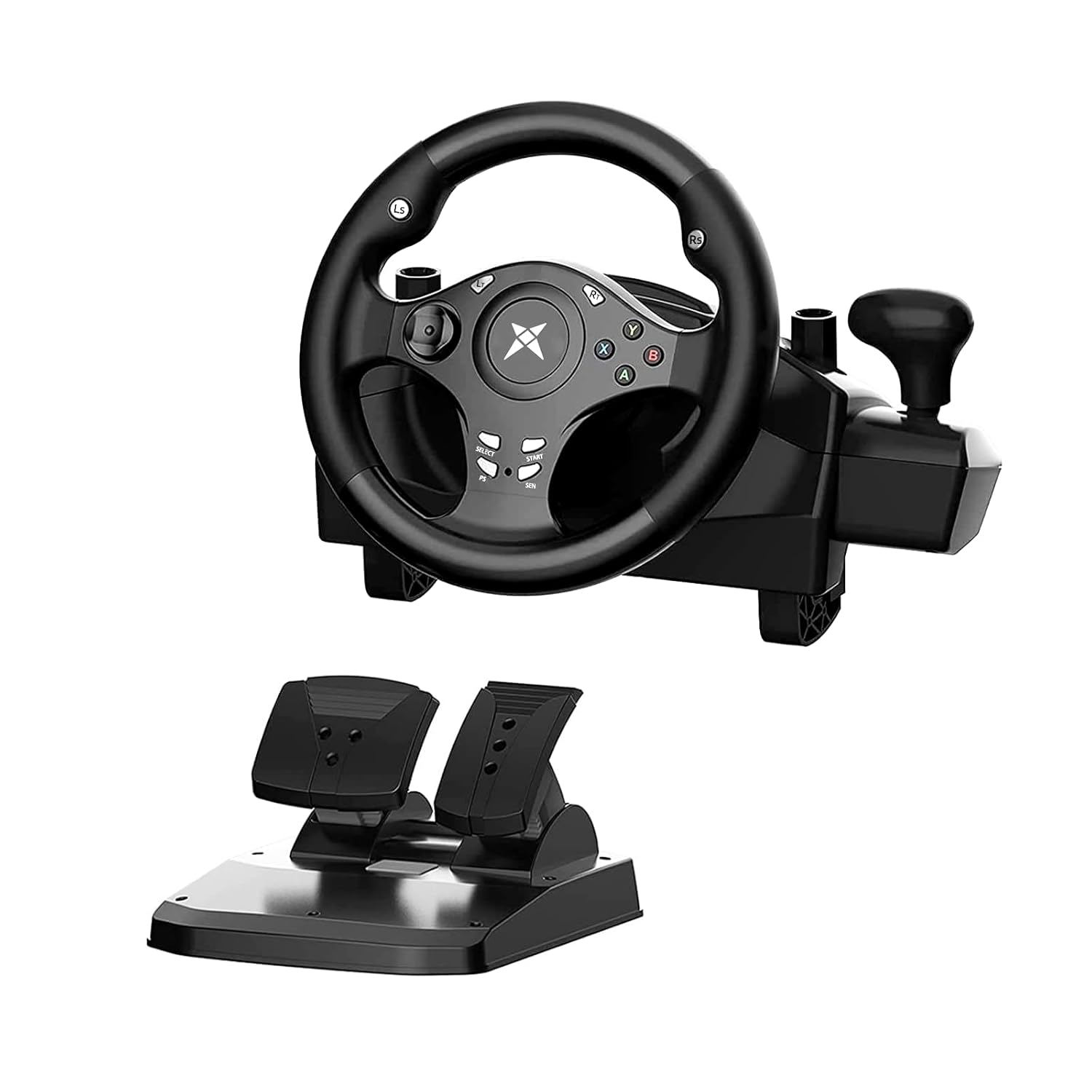
Image: The DOYO 270-Degree Racing Wheel with its accompanying pedal unit, showcasing the main components included in the package.
Setup Instructions
1. Mounting the Racing Wheel
The racing wheel can be securely mounted to a desk or table using the included clamps, or placed on your lap.
- Desktop Mounting: Attach the two clamps to the bottom of the racing wheel unit. Position the wheel on the edge of your desk and tighten the clamps until the wheel is stable. Ensure the desk thickness is within the clamp's capacity (approximately 0.2 to 2.44 inches).
- Lap Placement: The curved base of the racing wheel allows for comfortable placement directly on your lap for gaming.

Image: Illustration of how to attach and use the mounting clamps for securing the racing wheel to a surface.
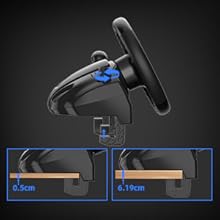
Image: Detail showing the adjustable range of the mounting clamps, accommodating surfaces from 0.2 inches to 2.44 inches thick.
2. Connecting the Pedal Unit
Connect the cable from the pedal unit to the designated port on the back of the racing wheel. Do not connect the pedals directly to your PC or console.

Image: The linear pedal system, featuring separate gas and brake pedals for precise control.
3. Connecting to Your Gaming Platform
The DOYO Racing Wheel is compatible with multiple platforms. Follow the specific instructions for your system:
- PC: Connect the racing wheel's USB cable directly to an available USB port on your computer. Drivers should install automatically.
- PS3/PS4/Switch/Android: Connect the racing wheel's USB cable directly to an available USB port on your console or Android device.
- Xbox One/Xbox Series X|S: Connect the racing wheel's USB cable to an available USB port on your Xbox console. Important: You must also connect your original Xbox controller (powered on) to the racing wheel via a data cable (not included) to enable full functionality.

Image: Diagram illustrating how to connect the racing wheel to a PS4 console and an Xbox One console, highlighting the need for an original controller for Xbox platforms.
Operating Instructions
1. Basic Controls
- Steering Wheel: Provides 270 degrees of rotation (135 degrees left and 135 degrees right) for precise steering control.
- Pedals: The pedal unit includes a gas pedal and a brake pedal. These are linear pedals, meaning the input strength corresponds to how far the pedal is pressed.
- Buttons: The wheel features standard gaming buttons (A, B, X, Y, D-pad, L1/R1, L2/R2, Select, Start, PS/Home, SEN) for in-game actions.
- Sequential Gear Lever: Use the integrated gear lever for sequential shifting in compatible games.

Image: The ergonomically designed steering wheel, highlighting its 270-degree rotation capability and comfortable grip.

Image: Close-up view of the racing wheel's features, including the D-pad for precise operation, responsive buttons, dual motor vibration indicators, and the sequential gear lever.
2. Sensitivity Adjustment
The racing wheel offers 7 levels of sensitivity adjustment to suit different games and driving styles. To adjust the sensitivity:
- Press the SEN button located on the center of the wheel.
- Each press cycles through the 7 sensitivity levels. The current level may be indicated by an LED or in-game feedback (refer to your game's settings).

Image: Diagram illustrating the 7-level sensitivity adjustment feature of the racing wheel, with a close-up on the 'SEN' button.
3. Vibration Feedback
The racing wheel features dual motor vibration, providing realistic feedback based on in-game events such as collisions, road surfaces, and engine RPMs. This enhances the immersive driving experience.

Image: Visual representation of the motor vibration feature, showing how the wheel generates realistic feedback during gameplay.
Platform and Game Compatibility
The DOYO 270-Degree Racing Wheel is compatible with a wide range of gaming platforms and titles:
- Platforms: PC, PlayStation 3 (PS3), PlayStation 4 (PS4), Xbox One, Xbox Series X|S, Nintendo Switch, Android.
- Note: Not compatible with Apple computers.
Recommended Games:

Image: A collage of game titles recommended for use with the DOYO Racing Wheel, categorized by platform (PS, Switch, PC, Xbox).
Some popular compatible titles include:
- PS Platform: Need For Speed 20, The Crew 2, GRID Autosport, Project CARS, Gran Turismo 5, Ridge Racer 7.
- Switch Platform: Asphalt, Gear.Club Unlimited, Sonic Racing, Mario Kart 8, GRIP: Combat Racing, Fast RMX.
- PC Platform: Euro Truck Simulator 2, DiRT Rally 2.0, Need For Speed 20, Truck Life, CTS, Assetto Corsa.
- Xbox Platform: Forza Horizon 4, Need For Speed Payback, DiRT 3, Project CARS 2, The Crew 2, Forza Motorsport 7.
Maintenance
- Cleaning: Use a soft, dry cloth to clean the racing wheel and pedals. Do not use abrasive cleaners or solvents.
- Storage: Store the device in a cool, dry place away from direct sunlight and extreme temperatures when not in use.
- Cable Management: Avoid sharp bends or kinks in the cables to prevent damage.
Troubleshooting
If you encounter issues with your DOYO Racing Wheel, please refer to the following common solutions:
- Wheel Not Responding/Steering Issues:
- Ensure all cables are securely connected.
- For Xbox platforms, confirm that an original, powered-on Xbox controller is connected to the racing wheel via a data cable.
- Try connecting the wheel to a different USB port on your console/PC.
- Restart your console/PC and the racing wheel.
- Check game settings for controller configuration and calibration options.
- Pedals Not Working:
- Ensure the pedal unit is correctly plugged into the racing wheel, not directly into the console/PC.
- Verify that the game supports racing wheel pedals.
- No Vibration Feedback:
- Check in-game settings to ensure force feedback or vibration is enabled.
- Some games may not fully support vibration features.
- Shifter Issues:
- Ensure the game supports sequential shifting.
- Calibrate the shifter within the game's controller settings if available.
- Difficulty with Setup (No Instructions):
- This manual serves as a comprehensive guide. If further assistance is needed, refer to the Support section.
Specifications
| Feature | Detail |
|---|---|
| Model Number | R270 |
| Rotation Angle | 270 Degrees |
| Product Dimensions | 14.2 x 12.2 x 11.4 inches |
| Item Weight | 6.39 pounds |
| Compatibility | PC, PS3, PS4, Xbox One, Xbox Series X|S, Switch, Android |
| Vibration | Dual Motor Vibration |
| Pedals | Linear Gas and Brake Pedals |
| Sensitivity | 7-level Adjustable |
| Manufacturer | DOYO |
| Date First Available | July 26, 2019 |
Warranty and Customer Support
DOYO offers a satisfaction guarantee for its products. If you encounter any issues or have questions regarding your DOYO 270-Degree Racing Wheel, please contact DOYO customer service for assistance.
For the most up-to-date warranty information and support options, please refer to the official DOYO website or contact the retailer where the product was purchased.
Contact Information: Please refer to your product packaging or the official DOYO website for specific customer service contact details.
Official Product Videos
No official seller-created product videos were provided in the available data for this manual.
Related documentsR270


Ask a question about this manual
Ask about setup, troubleshooting, compatibility, parts, safety, or missing instructions. Manuals+ will review the question and use this page’s manual context to help answer it.