
Introduction
Thank you for choosing the Conceptronic REGAS01B Optical Desktop Mouse. This manual provides essential information for setting up, operating, and maintaining your new mouse. Please read these instructions carefully before use to ensure proper functionality and longevity of your device.
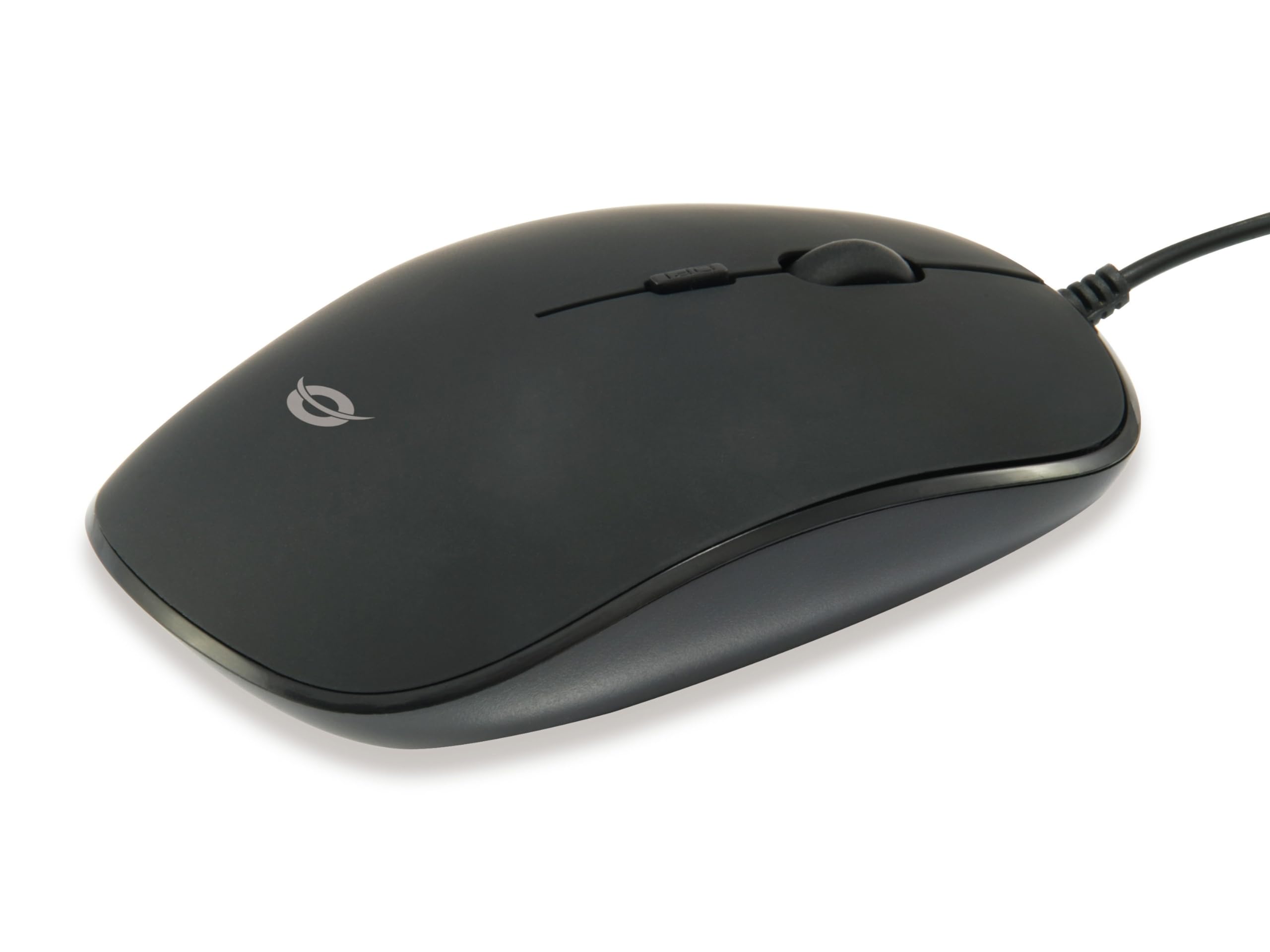
Image: Top view of the Conceptronic REGAS01B Optical Desktop Mouse, showcasing its ergonomic black design.
Package Contents
Ensure all items are present in the package:
- Conceptronic REGAS01B Optical Desktop Mouse
- User Manual (this document)
- Note: This is a wired USB mouse and does not require external batteries for operation, despite some generic product data indicating otherwise.
Features
- DPI Switch: Adjustable sensitivity (800/1000/1200 DPI) for precise control.
- Plug and Play: Easy installation without the need for additional drivers.
- Ambidextrous Design: Comfortable for both left and right-handed users.
- Rubberized Surface: Provides enhanced grip and comfort during extended use.
- Optical Tracking: Reliable and accurate cursor movement.
- USB Connectivity: Standard wired connection for stable performance.
Setup
- Connect the Mouse: Locate an available USB port on your computer. Insert the USB connector of the Conceptronic REGAS01B mouse into the USB port.
- Automatic Installation: Your operating system (Windows, Linux, etc.) will automatically detect and install the necessary drivers. This process typically takes a few seconds.
- Ready for Use: Once the installation is complete, the mouse is ready for immediate use. No additional software is required.

Image: Close-up view of the mouse's scroll wheel and the DPI switch button, located behind the scroll wheel.
Operating Instructions
Basic Functions
- Left Click: Press the left button to select items, open files, or activate functions.
- Right Click: Press the right button to open context menus or access additional options.
- Scroll Wheel: Roll the scroll wheel up or down to navigate through documents and web pages. The scroll wheel can also be pressed for a middle-click function, depending on software configuration.
Adjusting DPI Sensitivity
The Conceptronic REGAS01B mouse features a DPI switch to adjust cursor sensitivity on the fly. This allows you to quickly change between different tracking speeds for various tasks, such as precise editing or fast-paced gaming.
- DPI Switch Button: Located behind the scroll wheel.
- Sensitivity Levels: Press the DPI switch button to cycle through 800, 1000, and 1200 DPI settings.
- Selection: Each press will change the sensitivity, allowing you to find the optimal speed for your current activity.
Maintenance
- Cleaning: Use a soft, dry cloth to clean the mouse surface. For stubborn dirt, slightly dampen the cloth with water or a mild cleaning solution. Avoid harsh chemicals or abrasive materials.
- Optical Sensor: Keep the optical sensor on the underside of the mouse clean and free from dust or debris to ensure accurate tracking.
- Storage: When not in use, store the mouse in a clean, dry environment.
- Avoid Liquids: Do not expose the mouse to excessive moisture or immerse it in liquids.
Troubleshooting
Mouse Not Responding
- Check USB Connection: Ensure the USB cable is securely plugged into a working USB port on your computer. Try a different USB port.
- Restart Computer: Sometimes a simple computer restart can resolve connectivity issues.
- Test on Another Computer: If possible, test the mouse on another computer to determine if the issue is with the mouse or your computer's setup.
Inaccurate Cursor Movement
- Clean Optical Sensor: Ensure the optical sensor on the bottom of the mouse is clean and free of dust or debris.
- Mouse Pad/Surface: Use the mouse on a clean, non-reflective, and uniform surface. Avoid highly reflective or transparent surfaces.
- Adjust DPI: Experiment with the DPI switch to find a sensitivity setting that provides accurate tracking for your needs.
Specifications
| Feature | Detail |
|---|---|
| Brand | Conceptronic |
| Model Name | REGAS01B |
| Color | Black |
| Connectivity Technology | USB (Wired) |
| Movement Detection Technology | Optical |
| DPI Settings | 800 / 1000 / 1200 DPI (Adjustable) |
| Button Quantity | 3 (Left, Right, Scroll Wheel/Middle Click) + DPI Switch |
| Hand Orientation | Ambidextrous |
| Compatible Devices | Personal Computer |
| Operating System Compatibility | Linux, Windows 7, Windows XP (and newer versions) |
| Item Weight | 61 Grams |
| Special Features | Ergonomic Design, Rubberized Surface, Plug & Play |
| Manufacturer Part Number | REGAS01B |
| GTIN (UPC) | 04015867208526 |
Warranty and Support
For warranty information and technical support, please refer to the official Conceptronic website or contact your local retailer. Keep your proof of purchase for warranty claims.
- Online Support: Visit www.conceptronic.net (Note: This is a placeholder URL, please replace with the actual support URL if available.)
- Contact: Refer to the contact information provided on the product packaging or the Conceptronic website for customer service.


