1. Product Overview
The LENTION USB 3.0 Type A to Gigabit Ethernet Adapter provides a stable and high-speed wired network connection for devices lacking an Ethernet port or requiring a more reliable connection than Wi-Fi. It converts a USB-A 3.0 port into an RJ45 Gigabit Ethernet port, supporting speeds up to 1000Mbps.

Image 1.1: The LENTION USB 3.0 Type A to Gigabit Ethernet Adapter, showcasing its compact design and USB 3.0 Type-A connector.
Key Features:
- USB 3.0 LAN Adapter: Adds an RJ45 Ethernet port to your USB-A enabled device, providing full 10/100/1000Mbps Gigabit Ethernet performance.
- Driver-Free Operation: Supports plug-and-play functionality for Nintendo Switch, Windows 10/8.1/8.
- LED Indicator: Features a green LED for proper connection and a yellow LED for network communication status.
- Stable Driver 3.0 Certified: Ensures non-interference between ports, sufficient power supply, and operation within reasonable temperature ranges.
- Wide Compatibility: Compatible with various operating systems including Mac OS (before 11.x Big Sur), Linux Kernel 3.x/7 2.6, and Windows 7/Vista/XP (requires driver installation).
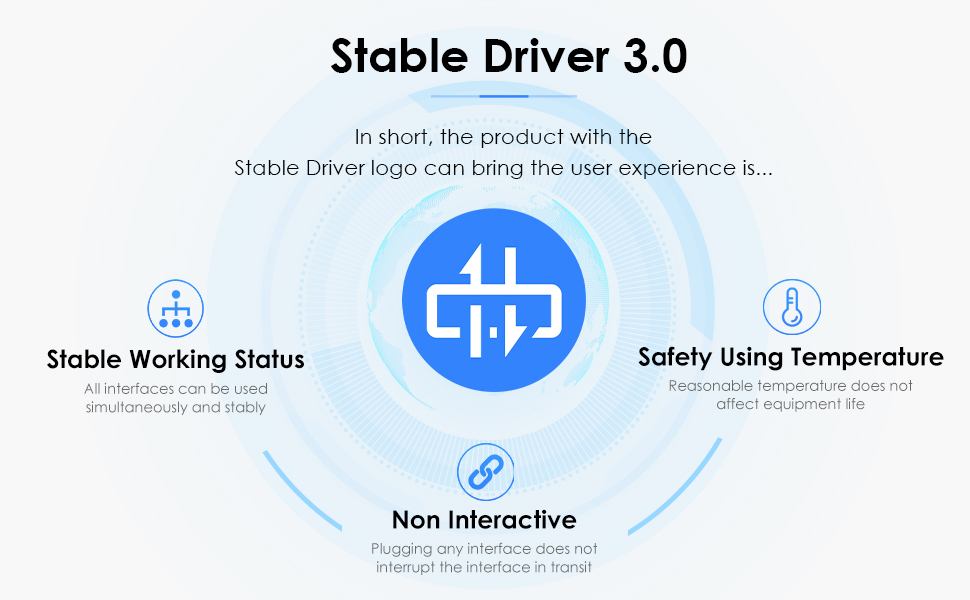
Image 1.2: Explanation of LENTION's Stable Driver 3.0 certification, highlighting stable working status, safety using temperature, and non-interactive design.
2. Setup Guide
2.1 Connecting the Adapter
- Locate an available USB 3.0 Type-A port on your computer, laptop, or compatible device.
- Plug the USB-A connector of the LENTION adapter into the USB 3.0 port on your device.
- Connect an Ethernet cable (RJ45) from your router, modem, or network switch into the RJ45 port on the LENTION adapter.

Image 2.1: The LENTION adapter connected to a laptop's USB 3.0 port, with an Ethernet cable plugged into the adapter's RJ45 port.
2.2 Driver Installation
- For Nintendo Switch, Windows 10/8.1/8: The adapter is typically plug-and-play, requiring no additional driver installation.
- For Windows 7/Vista/XP, Mac OS (before 11.x Big Sur), Linux Kernel 3.x/7 2.6: Easy driver installation may be required. Please refer to the LENTION support website for the latest drivers if your system does not automatically install them.
- Note: This adapter does not support Windows RT, Android, or Mac OS 11.x (Big Sur) and later versions.
3. Operating Instructions
3.1 Network Connection Status
The adapter features LED indicators to show the connection status:
- A green LED indicates a proper physical connection to the network.
- A yellow LED indicates active network communication (data transfer).

Image 3.1: Close-up view of the RJ45 port on the adapter, showing the green and yellow LED indicators for connection and activity.
3.2 Usage with Nintendo Switch
This adapter is compatible with the Nintendo Switch, providing a stable wired connection for online gaming.
- Connect the LENTION adapter to an available USB-A port on the Nintendo Switch dock.
- Connect an Ethernet cable from your network to the RJ45 port on the adapter.
- Ensure your Nintendo Switch is docked and powered on. The system should automatically detect the wired connection.

Image 3.2: The LENTION adapter providing a wired Ethernet connection to a Nintendo Switch console via its dock.

Image 3.3: A promotional banner highlighting the adapter's compatibility and suitability for the Nintendo Switch.
3.3 General Usage
Once connected and drivers are installed (if necessary), your device should automatically prioritize the wired Ethernet connection over Wi-Fi, providing a faster and more stable internet experience for activities such as data transfer, video streaming, and online gaming.
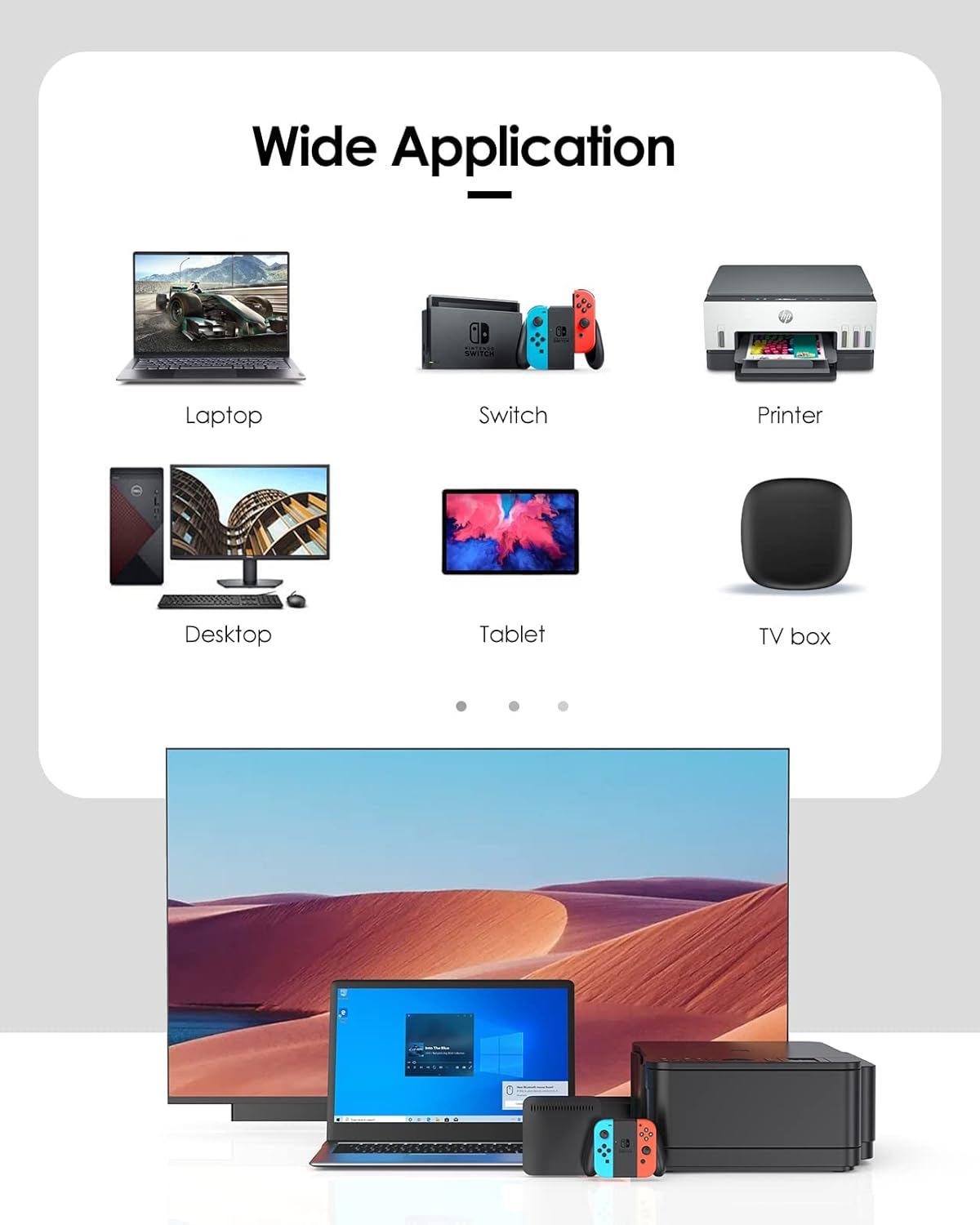
Image 3.4: A visual representation of the adapter's wide application, including laptops, Nintendo Switch, printers, desktops, tablets, and TV boxes.
4. Maintenance
To ensure the longevity and optimal performance of your LENTION USB 3.0 Type A to Gigabit Ethernet Adapter, follow these maintenance guidelines:
- Keep the adapter clean by wiping it with a soft, dry cloth. Avoid using liquid cleaners or solvents.
- Store the adapter in a cool, dry place away from direct sunlight and extreme temperatures.
- Avoid bending or twisting the cable excessively, as this can damage internal wires.
- Do not expose the adapter to water or high humidity.
5. Troubleshooting
If you encounter issues with your LENTION USB 3.0 Type A to Gigabit Ethernet Adapter, please refer to the following common troubleshooting steps:
- No Network Connection:
- Ensure the adapter is securely plugged into a USB 3.0 port on your device.
- Verify that the Ethernet cable is firmly connected to both the adapter and your router/modem.
- Check the LED indicators on the adapter. If no green light is present, there might be an issue with the physical connection or the Ethernet cable.
- Restart your computer and network equipment (router/modem).
- For Windows 7/Vista/XP, Mac OS (before 11.x), or Linux, ensure the correct drivers are installed.
- Slow Network Speed:
- Confirm that your device's USB port is indeed USB 3.0. Connecting to a USB 2.0 port will limit speeds.
- Ensure your Ethernet cable is rated for Gigabit speeds (Cat5e or higher).
- Check your internet service provider's speed and your router's capabilities.
- Verify that your operating system's network settings are configured correctly.
- Adapter Not Recognized:
- Try plugging the adapter into a different USB port on your device.
- Test the adapter on another compatible device if possible to rule out a device-specific issue.
- Ensure your operating system is supported (e.g., not Windows RT, Android, or Mac OS 11.x and later).
6. Specifications
| Feature | Detail |
|---|---|
| Brand | LENTION |
| Model | CB-HU404GE |
| Hardware Interface | Ethernet, USB 3.0 |
| Data Link Protocol | Gigabit Ethernet, USB |
| Data Transfer Rate | 1000 Megabytes Per Second (Mbps) |
| Compatible Devices | Desktop, Laptop, Nintendo Switch |
| Color | White |
| Item Weight | 0.81 ounces |
| Package Dimensions | 8 x 3.6 x 0.6 inches |

Image 6.1: The compact size of the LENTION adapter, illustrating its portability with dimensions of 2.30 inches (58.5cm) in length and 0.94 inches (2.4cm) in width.
7. Official Product Video
Video 7.1: An official LENTION product video demonstrating the features and usage of the LENTION HU404GE USB A to Gigabit Ethernet Adapter.
8. Warranty and Support
LENTION products are designed for reliability and performance. For specific warranty information, please refer to the product packaging or the official LENTION website. If you require technical assistance or have questions regarding your adapter, please contact LENTION customer support through their official channels.
You can visit the LENTION Store for more information and support: LENTION Official Store


