1. Introduction
This manual provides essential instructions for the safe and efficient use of your Ricoh P 800 Monochrome Laser Printer. It covers setup, operation, maintenance, and troubleshooting to ensure optimal performance.
The Ricoh P 800 is designed for high-speed, black-and-white printing, offering crisp output at resolutions up to 1200 x 1200 dpi and speeds up to 57 pages per minute (ppm). It supports robust monthly print volumes and features automatic duplex printing.
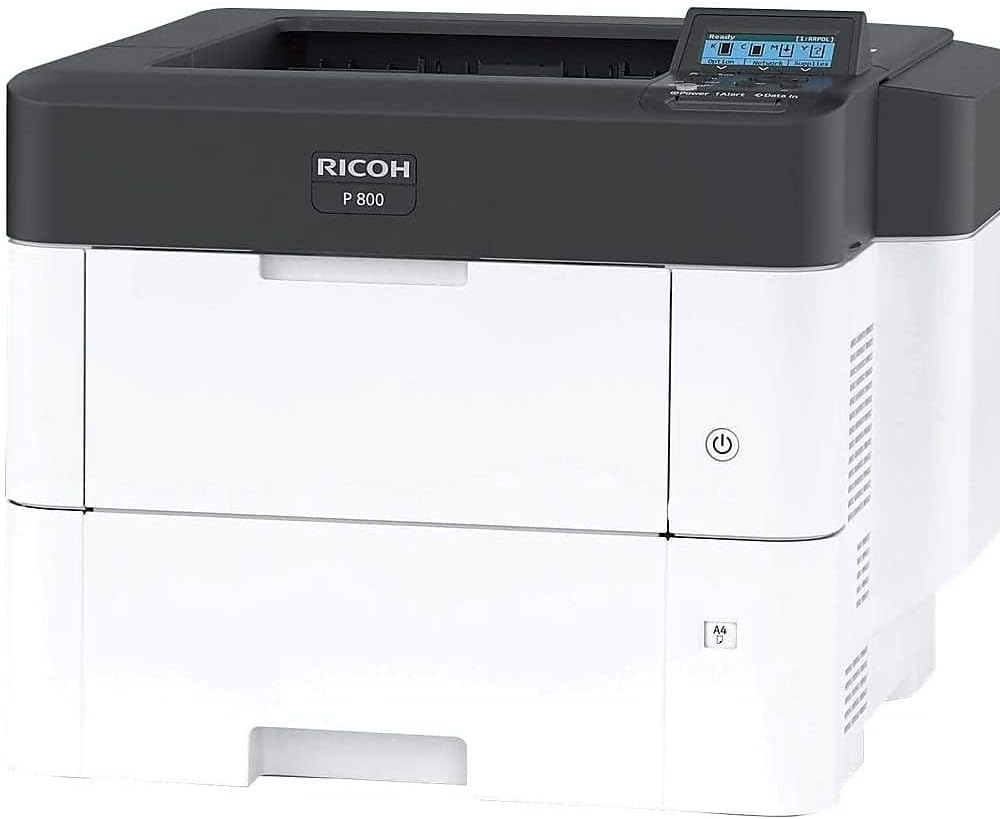
Figure 1: Ricoh P 800 Monochrome Laser Printer, front view. This image displays the white and dark gray printer with the Ricoh logo and 'P 800' model name on the front panel. The control panel with a small display is visible on the top right, and a power button is located on the right side of the front panel.
2. Safety Information
Please read all safety instructions before using the printer to prevent injury or damage. Keep this manual for future reference.
- Ensure the printer is placed on a stable, level surface.
- Do not block ventilation openings.
- Use only the specified power supply and voltage.
- Keep hands clear of moving parts during operation.
- Do not attempt to service the printer yourself, refer to qualified personnel.
3. Setup
3.1 Unpacking the Printer
Carefully remove the printer from its packaging. The printer weighs approximately 50.6 pounds (22.95 kg) and measures 22 x 22.4 x 18.7 inches (55.9 x 56.9 x 47.5 cm). It is recommended to have two people for lifting and positioning the printer.
3.2 Connecting the Printer
The Ricoh P 800 supports both Ethernet and USB connectivity. Choose the appropriate connection method for your environment.
- Ethernet Connection: Connect an Ethernet cable from your network router or switch to the printer's Ethernet port.
- USB Connection: Connect a USB cable from your computer to the printer's USB port.
3.3 Loading Paper
The printer has a maximum input sheet capacity of 2600 pages. It supports various paper sizes, including standard 8.5 x 14 inch media.
- Open the paper tray.
- Adjust the paper guides to match the size of the paper you are loading.
- Load the paper stack into the tray, ensuring it is flat and below the maximum fill line.
- Close the paper tray.
3.4 Installing Toner
The Ricoh P 800 uses black toner cartridges. Refer to the printer's display for instructions on when to replace the toner.
- Open the front cover of the printer.
- Remove the empty toner cartridge by pulling it out.
- Unpack the new black toner cartridge and gently shake it to distribute the toner.
- Insert the new toner cartridge into the slot until it clicks into place.
- Close the front cover.
4. Operating the Printer
4.1 Basic Printing
Once the printer is connected and drivers are installed on your computer, you can print documents from any application.
- Open the document you wish to print.
- Select "Print" from the application's menu (e.g., File > Print).
- Choose the Ricoh P 800 from the list of available printers.
- Adjust print settings as needed (e.g., number of copies, paper size, duplex printing).
- Click "Print".
4.2 Control Panel Overview
The control panel, located on the top right of the printer, features a display and several buttons for navigating menus and checking printer status. The display shows current status, error messages, and options for configuration.
4.3 Automatic Duplex Printing
The Ricoh P 800 supports automatic duplex (two-sided) printing. To enable this feature, select the duplex option in your printer driver settings before sending a print job.
5. Maintenance
5.1 Replacing Toner Cartridge
When the toner level is low, a message will appear on the control panel. Follow the steps outlined in Section 3.4 for installing a new toner cartridge.
5.2 Cleaning the Printer
Regular cleaning helps maintain print quality and extends the life of your printer.
- Exterior: Wipe the exterior surfaces with a soft, damp, lint-free cloth. Do not use abrasive cleaners.
- Interior: Periodically open the front cover and gently remove any loose paper dust or debris using a dry, lint-free cloth. Avoid touching the drum unit.
6. Troubleshooting
This section provides solutions to common printer issues.
- Printer Not Responding:
- Check power connections.
- Ensure the printer is online and not in an error state (check control panel display).
- Verify network or USB cable connection.
- Restart the printer and your computer.
- Paper Jams:
- Open all covers and trays to locate jammed paper.
- Gently pull the paper in the direction of the paper path.
- Ensure paper is loaded correctly and not creased or damaged.
- Poor Print Quality:
- Check toner cartridge level.
- Ensure you are using appropriate paper for laser printing.
- Clean the printer's interior as described in Section 5.2.
For more complex issues, refer to the official Ricoh support website or contact customer service.
7. Specifications
| Feature | Detail |
|---|---|
| Brand | Ricoh |
| Model Name | P 800 |
| Item Model Number | 418469 |
| Printing Technology | Laser |
| Printer Output | Monochrome |
| Max Print Speed Monochrome | 57 ppm |
| Maximum Black and White Print Resolution | 1200 x 1200 dpi |
| Duplex Printing | Automatic |
| Max Input Sheet Capacity | 2600 pages |
| Maximum Media Size | 8.5 x 14 inch |
| Connectivity Technology | Ethernet, USB |
| Item Weight | 50.6 pounds (22.95 kg) |
| Product Dimensions | 22 x 22.4 x 18.7 inches (55.9 x 56.9 x 47.5 cm) |
| Included Components | Laser printer |
| UPC | 026649184697 |
8. Warranty and Support
The Ricoh P 800 Monochrome Laser Printer comes with a limited warranty. Please refer to the warranty documentation included with your purchase for specific terms and conditions.
For technical assistance, troubleshooting, or to inquire about service, please visit the official Ricoh support website or contact their customer service department. You can often find support resources, driver downloads, and FAQs online.
Online Support: Visit the Ricoh Store on Amazon


