
1. Product Overview
The Acer Predator Cestus 310 is a gaming mouse designed for precision and comfort. Its ergonomic design supports a palm grip, reducing strain during extended use. Key features include adjustable DPI settings, durable mechanical switches, and customizable LED backlighting.
Key Features
- Adjustable DPI: On-the-fly switching between 800, 1600, 2600, and 4200 DPI for varied gaming performance.
- LED Backlighting: Features 4 colored LED breath lights in the scroll wheel and logo.
- Durable Switches: Mechanical switches rated for up to 10 million clicks.
- Ergonomic Design: Optimized for a comfortable palm grip.
- Wired Connection: USB connection with a 5.9-foot braided cable.
Mouse Layout

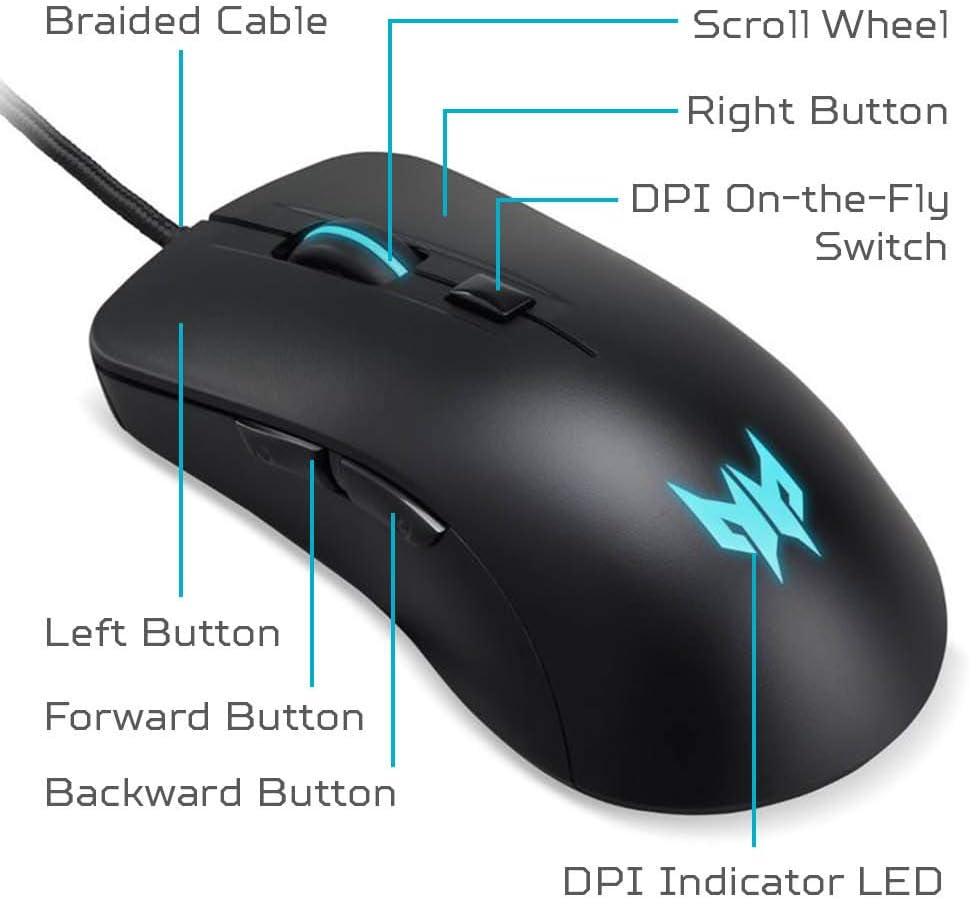
The image above illustrates the main components of the Cestus 310 mouse, including the braided USB cable, scroll wheel, left and right click buttons, DPI on-the-fly switch, forward and backward side buttons, and the DPI indicator LED.
2. Setup
Connecting the Mouse
- Locate an available USB port on your computer.
- Plug the USB connector of the Acer Predator Cestus 310 Gaming Mouse into the USB port.
- The operating system (Windows or Mac) will automatically detect and install the necessary drivers. No additional software installation is required for basic functionality.
- Once installed, the mouse is ready for use. The LED backlighting will illuminate.
Ensure the USB cable is securely connected to your computer for optimal performance.
3. Operating Instructions
DPI Adjustment
The Acer Predator Cestus 310 features an on-the-fly DPI switch located behind the scroll wheel. Press this button to cycle through four preset DPI (Dots Per Inch) sensitivity levels:
- 800 DPI: Suitable for precise movements.
- 1600 DPI: Standard sensitivity for general use.
- 2600 DPI: Increased sensitivity for faster cursor movement.
- 4200 DPI: Highest sensitivity for rapid movements in gaming.

The DPI indicator LED will change color or pattern to reflect the current DPI setting, though specific color mapping is not user-configurable.
Button Functions
- Left Button: Primary click function.
- Right Button: Secondary click function (context menu).
- Scroll Wheel: Scrolls content up or down. Can also be pressed for middle-click functionality.
- DPI On-the-Fly Switch: Cycles through preset DPI levels.
- Forward Button (Side): Navigates forward in web browsers or file explorers.
- Backward Button (Side): Navigates backward in web browsers or file explorers.
LED Lighting
The mouse features a breathing LED backlight in the scroll wheel and the Predator logo. The lighting cycles through 4 different colors. There is no software control for customizing the LED colors or effects; they operate automatically.

The LED lighting provides visual feedback and enhances the aesthetic of the mouse during operation.
4. Maintenance
Cleaning and Care
- Cleaning the Surface: Use a soft, dry, lint-free cloth to wipe the surface of the mouse. For stubborn dirt, slightly dampen the cloth with water. Avoid harsh chemicals or abrasive cleaners.
- Cleaning the Optical Sensor: Periodically inspect the optical sensor on the underside of the mouse for dust or debris. Use a cotton swab or compressed air to gently clean the sensor area.
- Cable Care: Avoid sharply bending or twisting the USB cable to prevent internal damage. Store the mouse with the cable neatly coiled.
- Storage: When not in use, store the mouse in a clean, dry environment away from extreme temperatures.
5. Troubleshooting
If you encounter issues with your Acer Predator Cestus 310 Gaming Mouse, refer to the following common problems and solutions:
| Problem | Possible Solution |
|---|---|
| Mouse is not responding. |
|
| Cursor movement is erratic or jumpy. |
|
| LED lights are not working. |
|
| Buttons are not clicking properly. |
|
6. Technical Specifications
| Feature | Detail |
|---|---|
| Brand | Acer |
| Model Name | PMW910 (Cestus 310) |
| Connectivity Technology | Wired USB |
| Cable Length | 5.9 feet (approximately 1.8 meters) |
| Movement Detection Technology | Optical (Pixart 3519 Sensor) |
| DPI Sensitivity | 800 / 1600 / 2600 / 4200 DPI (On-the-fly adjustable) |
| Tracking Speed | 48 IPS (Inches Per Second) |
| Button Quantity | 6 (Left, Right, Scroll Click, DPI Switch, Forward, Backward) |
| Switch Durability | Up to 10 million clicks |
| Hand Orientation | Ambidextrous |
| Special Features | Breathing Backlit LED (4 colors), Ergonomic Grip |
| Color | Black |
| Item Weight | 133 Grams |
| Compatible Operating Systems | Windows, Mac |
| Power Source | USB Powered (No batteries required) |
| Manufacturer Part Number | NP.MCE11.00U |
| UPC | 193199246387 |
7. Warranty and Support
Warranty Information
The Acer Predator Cestus 310 Gaming Mouse comes with a 1-year parts and labor limited warranty from the date of purchase. Please retain your proof of purchase for warranty claims. This warranty covers manufacturing defects and workmanship under normal use.
For full warranty terms and conditions, please refer to the warranty card included with your product or visit the official Acer support website.
Customer Support
For technical assistance, troubleshooting beyond this manual, or warranty service, please contact Acer customer support. You can find contact information and additional resources on the official Acer website:
Acer Official Website: www.acer.com/support
When contacting support, please have your product model (PMW910) and serial number (if applicable) ready.


