
Introduction
Welcome to the ZTE Blade A5 2020 Smartphone user manual. This guide provides essential information for setting up, operating, maintaining, and troubleshooting your device. Please read this manual carefully to ensure proper use and to maximize the performance of your smartphone.
Safety Information
General Safety
- Do not use the phone while driving. Always prioritize road safety.
- Turn off the phone in aircrafts or hospitals where electronic devices are restricted.
- Use only approved accessories (charger, battery, cables) to prevent damage and ensure safety.
- Avoid exposing the device to extreme temperatures, direct sunlight, or wet conditions.
Battery Safety
- Do not disassemble, crush, or puncture the battery.
- Avoid exposing the battery to high temperatures (above 60°C / 140°F) or direct sunlight.
- Dispose of batteries properly according to local regulations. Do not dispose of batteries in fire.
Package Contents
Before You Begin
Ensure all items are present in your package. If any item is missing or damaged, please contact your retailer.
- ZTE Blade A5 2020 Smartphone
- Charger
- USB Cable
- Quick Start Guide
- SIM Ejector Tool
Device Overview
Front View
The ZTE Blade A5 2020 features a 6.09-inch HD+ display with a waterdrop notch for the front camera, providing an immersive viewing experience.

Image: Front view of the ZTE Blade A5 2020 Smartphone, showing the display with time and date.
Rear View
The rear of the device houses the dual camera system and the ZTE branding, designed for a comfortable grip.
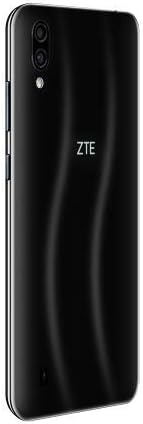
Image: Rear view of the ZTE Blade A5 2020 Smartphone, showing the dual cameras and ZTE logo.
Buttons and Ports
- Power Button: Located on the right side, used to turn the device on/off or wake/sleep the screen.
- Volume Buttons: Located on the right side, used to adjust media and call volume.
- USB Port: Located at the bottom, for charging and data transfer.
- Headphone Jack: Typically located on the top or bottom edge, for connecting wired headphones.
- SIM/SD Card Slot: Located on the left side, for inserting SIM cards and a microSD card.
Setup
Inserting SIM and SD Card
- Locate the SIM tray on the left side of the phone.
- Insert the SIM ejector tool into the small hole next to the tray to open it.
- Place your Nano-SIM card(s) and/or microSD card into the tray, ensuring correct orientation as indicated on the tray.
- Gently push the tray back into the slot until it clicks into place and is flush with the phone's side.
Initial Power On and Setup Wizard
- Press and hold the Power button until the ZTE logo appears on the screen.
- Follow the on-screen instructions to select your language, connect to Wi-Fi, set up your Google account, and configure other initial settings such as date and time.
Charging the Battery
Connect the USB cable to the phone's USB port and the other end to the charger. Plug the charger into a standard power outlet. The battery icon on the screen will indicate charging status. For optimal battery life, use the provided charger and cable.
Operating Your Device
Basic Navigation
The ZTE Blade A5 2020 runs on Android 9.0. You can navigate using gestures or the navigation bar at the bottom of the screen. Swipe up from the bottom for the app drawer, and swipe down from the top for notifications and quick settings.
Making Calls
Open the Phone app, enter the desired number using the dial pad, and tap the call icon. To answer an incoming call, swipe up on the green icon. To reject a call, swipe down on the red icon.
Sending Messages
Open the Messages app, tap the new message icon (usually a plus sign or a speech bubble), enter the recipient's number or select from your contacts, type your message, and tap send.
Connecting to Wi-Fi
Go to Settings > Network & internet > Wi-Fi. Turn on Wi-Fi, select your desired network from the list, and enter the password if prompted. Tap Connect.
Using the Camera
Open the Camera app. Tap the shutter button to take a photo. Swipe left/right on the screen to switch between photo, video, and other available modes. Tap the camera switch icon to toggle between the front and rear cameras.
Facial Recognition
The device supports facial recognition for convenient unlocking. To set it up, go to Settings > Security & location > Face unlock and follow the on-screen instructions to register your face.
Maintenance
Cleaning Your Device
Use a soft, lint-free cloth to gently clean the screen and body of the phone. For stubborn smudges, slightly dampen the cloth with water. Avoid using harsh chemicals, abrasive materials, or aerosol sprays, as these can damage the device's finish.
Software Updates
Regularly check for software updates to ensure optimal performance, security, and access to new features. Go to Settings > System > System update to check for and install available updates. Ensure your device is sufficiently charged and connected to Wi-Fi before updating.
Battery Care
To prolong battery life, avoid exposing your device to extreme temperatures (hot or cold). Do not let the battery completely drain frequently. It is recommended to keep the battery charge between 20% and 80% for long-term health. Always use the original charger and cable provided with your device.
Troubleshooting
Phone Not Turning On
Ensure the battery is sufficiently charged. Connect the charger and wait a few minutes before attempting to power on again. If it still doesn't turn on, perform a forced restart by holding the Power button for approximately 10-15 seconds until the device vibrates or the logo appears.
Apps Crashing or Freezing
Close the problematic app and reopen it. If the issue persists, go to Settings > Apps & notifications > App info > [App Name] > Storage & cache, then tap Clear cache and Clear data (note: clearing data will delete app settings and login info). If the issue continues, restart the phone.
Poor Call Quality
Check your network signal strength. Move to an area with better reception. Ensure nothing is blocking the microphone or speaker. Restart the device. If the problem persists, contact your network provider.
Wi-Fi Connection Issues
Toggle Wi-Fi off and on in Quick Settings or Settings. Restart your Wi-Fi router. On your phone, forget the network (Settings > Network & internet > Wi-Fi > [Network Name] > Forget) and then reconnect. Ensure you are within range of the Wi-Fi signal.
Specifications
| Feature | Detail |
|---|---|
| Brand | ZTE |
| Model Name | ZTE Blade A5 |
| Model Number | SMTPHA520NE |
| Operating System | Android 9.0 |
| Screen Size | 6.09 Inches |
| RAM | 2 GB |
| Internal Storage | 32 GB |
| Rear Camera | 13 MP + 2 MP |
| Front Camera | 8 MP |
| Battery Capacity | 3200 mAh |
| Processor | Octa Core |
| Cellular Technology | 4G |
| Color | Black |
Warranty and Support
Warranty Information
Your ZTE Blade A5 2020 Smartphone comes with a standard manufacturer's warranty. Please refer to the warranty card included in your package for specific terms and conditions, including the warranty period and coverage details. It is important to keep your proof of purchase (receipt or invoice) as it will be required for any warranty claims.
Customer Support
For further assistance, technical support, or warranty inquiries, please visit the official ZTE support website or contact their customer service. Contact details, including phone numbers and email addresses, can usually be found on the ZTE official website (www.zte.com.cn/global/) or in the quick start guide provided with your device. Please have your model number and serial number ready when contacting support.


