
ZTE MU5001
ZTE MU5001 Wireless Router User Manual
Model: MU5001
Introduction
The ZTE MU5001 is the world's first Wi-Fi 6 and 5G CAT 20 mobile router, designed to provide high-speed internet connectivity wherever you go. Its compact and premium design makes it an ideal travel companion, offering robust performance powered by the Qualcomm SDX55 platform. This device supports Wi-Fi 6 AX1800 and features a 2.4-inch touchscreen for easy user interaction. With a powerful 4500 mAh battery, it ensures extended operation and can create a stable Wi-Fi hotspot for up to 32 devices.
Image: ZTE MU5001 5G Mini Router banner highlighting its high performance and 5G capabilities.
Safety Information
- Do not expose the device to extreme temperatures, direct sunlight, or high humidity.
- Use only the charger and accessories provided or approved by ZTE.
- Avoid dropping or subjecting the device to severe impact.
- Keep the device away from water and other liquids.
- Do not attempt to disassemble or modify the device. This will void the warranty.
- Dispose of the device and battery responsibly according to local regulations.
Package Contents
Please check the package contents upon unboxing to ensure all items are present:
- 1 x ZTE MU5001 Wireless Router (Black)
- 1 x Charger
- 1 x Data Cable
- 1 x Battery (4500 mAh)
- 1 x SIM Card Pin
- 1 x Charging Notice
- 1 x User Guide
Product Overview
Familiarize yourself with the ZTE MU5001's components and features.

Image: Front view of the ZTE MU5001 router, showcasing its 2.4-inch touchscreen display with data usage and settings icons.
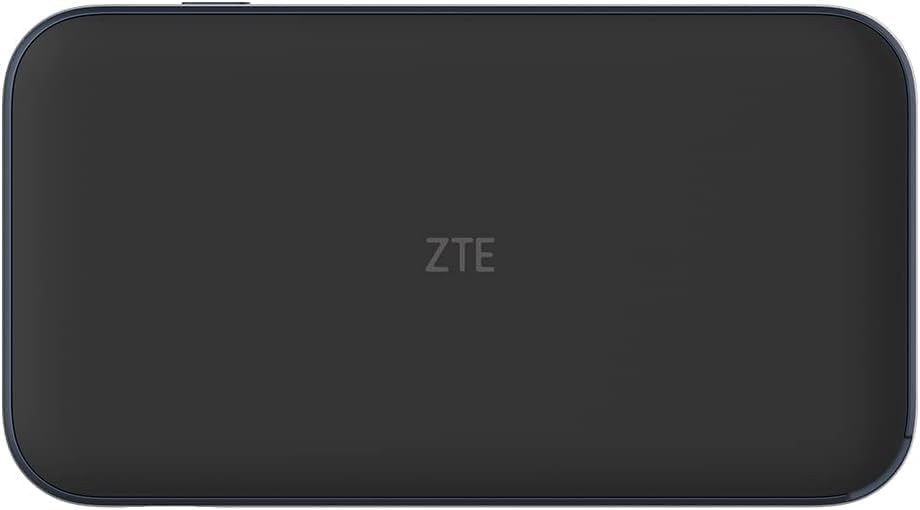
Image: Back view of the ZTE MU5001 router, showing the ZTE logo.

Image: The ZTE MU5001 router with its touchscreen display active, showing network status and data usage, emphasizing its two-color design.
Key Features:
- 2.4-inch Touchscreen Display: Provides easy access to device status, settings, and data usage.
- SIM Card Slot: For inserting your mobile network SIM card.
- USB-C Port: For charging and data transfer.
- Power Button: To turn the device on/off and wake/sleep the screen.
- Gigabit Ethernet Port (Optional): For wired network connections.
Setup
1. Inserting the SIM Card
- Ensure the device is powered off.
- Locate the SIM card slot on the side of the device.
- Use the provided SIM card pin to open the SIM tray.
- Carefully place your Nano-SIM card into the tray with the gold contacts facing down.
- Gently push the SIM tray back into the slot until it clicks into place.
2. Charging the Device
- Connect the provided data cable to the USB-C port on the router.
- Connect the other end of the data cable to the charger.
- Plug the charger into a power outlet.
- The battery indicator on the screen will show charging status. Allow the device to fully charge before first use.

Image: The ZTE MU5001 router held in a hand, illustrating its compact size and highlighting its 4500mAh quick-charge battery capable of lasting up to 9 hours.
3. Initial Power On
- Press and hold the Power button until the ZTE logo appears on the screen.
- The device will boot up and attempt to connect to the mobile network.
- Once connected, the network status will be displayed on the screen.
Operating Instructions
1. Connecting Devices via Wi-Fi
- On the MU5001's touchscreen, navigate to the Wi-Fi information screen to find the Wi-Fi Name (SSID) and Password.
- On your device (smartphone, laptop, tablet), open the Wi-Fi settings.
- Select the Wi-Fi Name (SSID) displayed on the MU5001's screen.
- Enter the Wi-Fi Password when prompted.
- Your device should now be connected to the internet through the MU5001.

Image: An illustration showing the ZTE MU5001 router providing Wi-Fi 6 and 5G connectivity to multiple devices, indicating its capability to support up to 32 connections.
2. Using the Touchscreen Interface
The 2.4-inch touchscreen allows for easy navigation and management of the router's functions:
- Swipe Left/Right: To navigate between different information screens (e.g., data usage, connected devices, settings).
- Tap: To select an option or enter a menu.
- Data Usage: Monitor your current data consumption.
- Settings: Access advanced configurations such as network mode, Wi-Fi settings, and device information.
3. Advanced Settings (via Web Interface)
For more detailed configuration, you can access the router's web management interface:
- Connect your device to the MU5001's Wi-Fi network.
- Open a web browser and enter the router's IP address (usually 192.168.0.1 or 192.168.1.1, check the device's screen or user guide for the exact address).
- Enter the administrator username and password (default credentials are often admin/admin or found on a sticker inside the device/packaging).
- From the web interface, you can manage network settings, security, parental controls, and more.
Maintenance
1. Cleaning the Device
- Use a soft, dry, lint-free cloth to clean the device's exterior and touchscreen.
- Do not use liquid cleaners, aerosols, or abrasive solvents.
2. Battery Care
- To prolong battery life, avoid fully discharging the battery frequently.
- Store the device in a cool, dry place if not used for extended periods.
- Do not expose the battery to high temperatures.
3. Software Updates
- Periodically check for firmware updates through the device's settings or web interface.
- Updates can improve performance, add new features, and enhance security.
- Ensure the device is sufficiently charged before performing an update.
Troubleshooting
| Problem | Possible Cause | Solution |
|---|---|---|
| No network connection | SIM card not inserted correctly, no signal, or data plan issue. | Reinsert SIM card, move to an area with better signal, contact your service provider. |
| Cannot connect to Wi-Fi | Incorrect Wi-Fi password, device too far from router, or Wi-Fi disabled. | Verify password, move closer to the router, ensure Wi-Fi is enabled on both devices. |
| Slow internet speed | Weak signal, too many connected devices, or network congestion. | Check signal strength, reduce number of connected devices, try restarting the router. |
| Device not turning on | Battery is drained or device malfunction. | Charge the device for at least 30 minutes. If still unresponsive, contact support. |
Specifications

Image: The ZTE MU5001 router alongside a smartphone, illustrating its compact size and highlighting its Snapdragon X55 chipset for download speeds up to 3.8 Gbps.
- Model: MU5001
- Chipset: Qualcomm SDX55 + QCA6391
- Network Support: 5G NR (NSA&SA), LTE EN-DC, Sub6G FDD (n1/3/7/8/20/28), TDD (n77/78/41/40/38), 4G LTE FDD & TDD (CAT 20)
- Wi-Fi Standard: Wi-Fi 6 (802.11ax), AX1800
- Display: 2.4-inch Touchscreen (320 x 240 mm)
- Battery: 4500 mAh (Lithium-ion), with fast charging
- Operating Time: Up to 8 hours
- Dimensions: 133 mm x 73 mm x 18.5 mm
- Weight: 200 g (device only)
- Max Connected Devices: Up to 32 Wi-Fi compatible devices
- Connectivity: Wi-Fi, Bluetooth, Ethernet (optional Gigabit port)
Warranty and Support
The ZTE MU5001 Wireless Router comes with a 2-year warranty provided by Livewire/eFones®.
For technical support, warranty claims, or further assistance, please contact your retailer or the manufacturer's authorized service center. Refer to the contact information provided in your purchase documentation or visit the official ZTE website.
Please retain your proof of purchase for warranty purposes.
Usage Scenarios

Image: A person walking in a modern subway station, illustrating the router's suitability for on-the-go connectivity in urban environments.

Image: A group of people sitting together, all engaged with their smartphones, demonstrating the router's ability to provide internet for multiple users simultaneously.

Image: A couple relaxing outside a camper van, highlighting the router's portability and utility for travel and outdoor activities.

Image: A person walking down a road with a suitcase, emphasizing the router's role as an ideal travel companion for continuous connectivity.

Image: People running into the ocean on a beach, suggesting the router's versatility for use in various outdoor and recreational settings.
Related documentsMU5001


Ask a question about this manual
Ask about setup, troubleshooting, compatibility, parts, safety, or missing instructions. Manuals+ will review the question and use this page’s manual context to help answer it.