
Introduction
The ZTE MF17T WLAN Router is designed to provide high-speed internet access, making it ideal for streaming, browsing, and staying connected. This compact and lightweight device offers top speeds for both home and travel use, ensuring a seamless online experience.
Key Features:
- LTE up to 150 Mbps Download / 50 Mbps Upload speeds.
- WLAN 802.11 b/g/n with WPA2-PSK security.
- Supports up to 10 connected devices simultaneously.
- Compact and lightweight design (140.2 grams, 101 x 101 x 74.6 mm).
Setup Guide
Follow these steps to set up your ZTE MF17T WLAN Router for the first time.
- Unpack the Device: Carefully remove the router and all accessories from the packaging.
- Insert SIM Card: Locate the SIM card slot on the device. Insert your active Nano-SIM card into the slot until it clicks into place. Ensure the SIM card is inserted correctly according to the diagram on the device.
- Plug in the Router: Connect the router directly to a standard power outlet. The device is designed to plug directly into the wall.
- Power On: The router should automatically power on once plugged in. Observe the indicator lights for status.
- Connect to Wi-Fi: On your device (smartphone, laptop, tablet), search for available Wi-Fi networks. Select the network name (SSID) displayed on the router's label or packaging. Enter the Wi-Fi password (Key) provided on the same label.

Figure 1: Front view of the ZTE MF17T WLAN Router, showing the ZTE logo and indicator light.
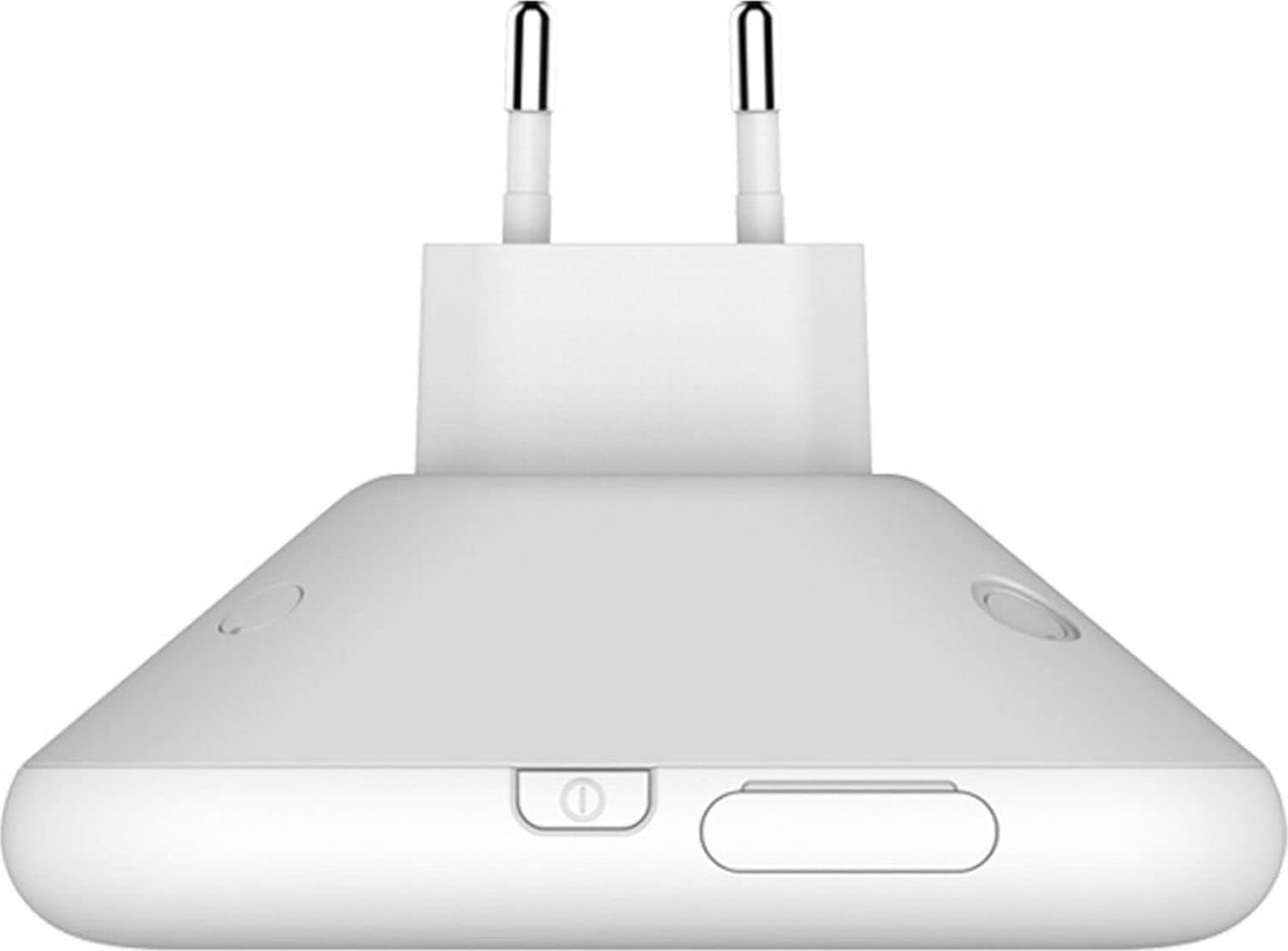
Figure 2: Side view of the router, illustrating the integrated power plug and the location of the SIM card slot and power button.

Figure 3: Bottom view of the router, detailing the retractable plug mechanism for easy storage and portability.
Operating Instructions
Once set up, your ZTE MF17T WLAN Router is ready for use. Here are some operational guidelines:
- Indicator Lights: Familiarize yourself with the LED indicators on the device. These lights typically show power status, network connection status (LTE/3G/2G), and Wi-Fi activity. Refer to the quick start guide for specific light patterns.
- Connecting Multiple Devices: The router supports up to 10 devices simultaneously. Simply connect each device to the Wi-Fi network using the provided SSID and password.
- Web Management Interface: For advanced settings (e.g., changing Wi-Fi name/password, checking data usage), open a web browser on a connected device and enter the router's default IP address (usually 192.168.0.1 or 192.168.1.1). Log in using the default username and password (often 'admin' for both, check the device label).
- Power Off: To turn off the router, simply unplug it from the power outlet.
Maintenance and Care
Proper maintenance ensures the longevity and optimal performance of your router.
- Cleaning: Use a soft, dry cloth to clean the exterior of the router. Do not use liquid cleaners or aerosols.
- Ventilation: Ensure the router is placed in a well-ventilated area, away from direct sunlight or heat sources, to prevent overheating.
- Firmware Updates: Periodically check the ZTE official website for firmware updates. Keeping your router's firmware up-to-date can improve performance, security, and add new features.
- Storage: If storing the router for an extended period, unplug it and keep it in a cool, dry place.
Troubleshooting
If you encounter issues with your ZTE MF17T WLAN Router, refer to the common problems and solutions below.
| Problem | Possible Cause / Solution |
|---|---|
| No Internet Connection |
|
| Slow Internet Speed |
|
| Cannot Connect to Wi-Fi |
|
| Router Overheating |
|
Technical Specifications
| Feature | Specification |
|---|---|
| Model Number | MF17T |
| Manufacturer | ZTE |
| LTE Download Speed | Up to 150 Mbit/s |
| LTE Upload Speed | Up to 50 Mbit/s |
| WLAN Standard | 802.11 b/g/n |
| WLAN Security | WPA2-PSK |
| Max Connected Devices | 10 |
| Dimensions (L x W x H) | 101 x 101 x 74.6 mm |
| Weight | 140.2 grams |
| ASIN | B07VKNGH5D |
| First Available on Amazon.de | December 13, 2021 |
Warranty and Support
Your ZTE MF17T WLAN Router comes with a standard manufacturer's warranty. Please refer to the warranty card included in your product packaging for specific terms and conditions, including warranty period and coverage details.
For technical support, troubleshooting assistance beyond this manual, or warranty claims, please contact ZTE customer service. You can typically find contact information on the official ZTE website or through the retailer where you purchased the device.
For more information, you may visit the ZTE Store on Amazon.


