
iStorage datAshur PRO2
iStorage datAshur PRO2 128 GB Secure Flash Drive User Manual
Model: datAshur PRO2
1. Introduction
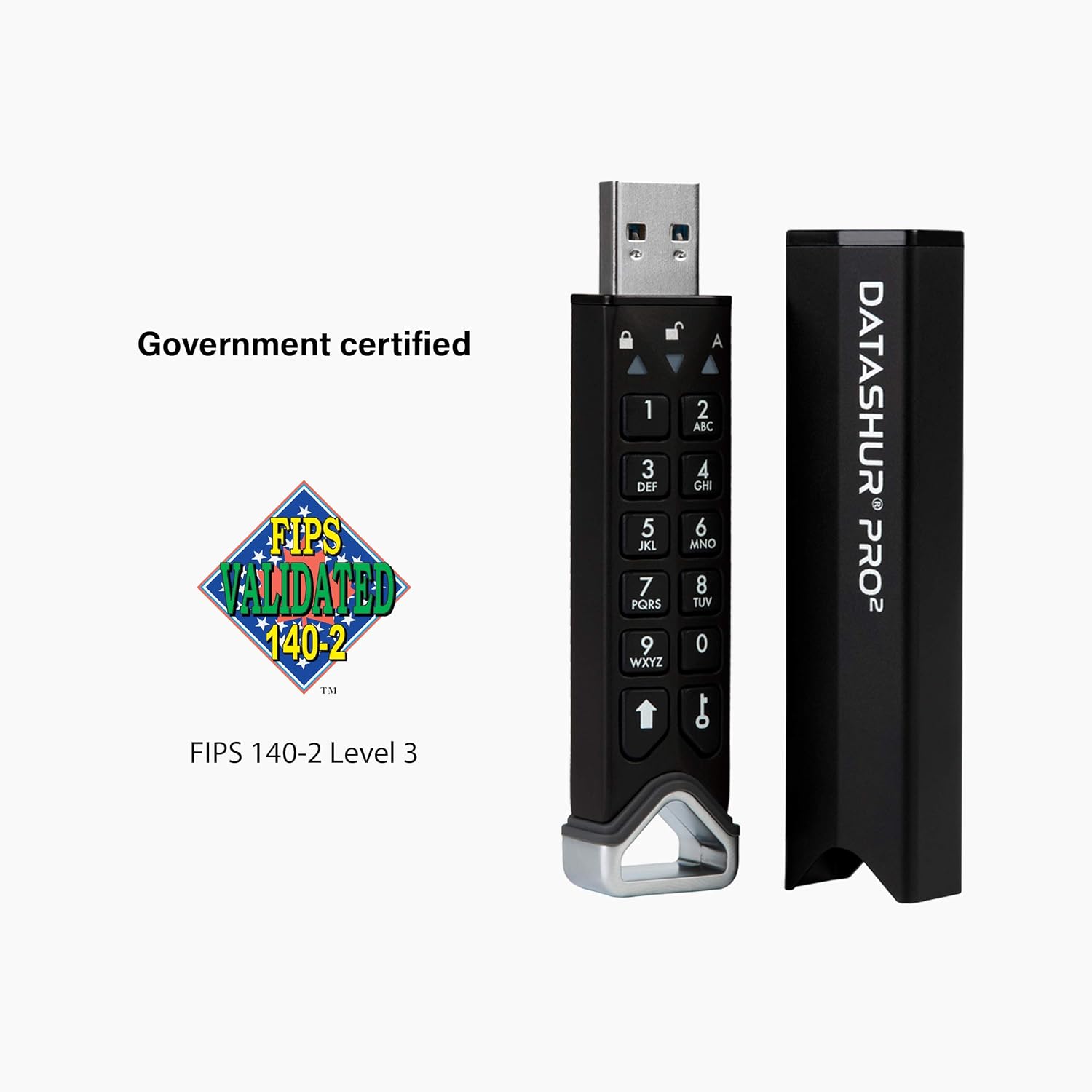
This manual provides comprehensive instructions for the iStorage datAshur PRO2 128 GB secure flash drive. The datAshur PRO2 is a PIN-authenticated, hardware-encrypted USB 3.2 flash drive designed to protect your digital assets with FIPS 140-2 Level 3 certification. It encrypts all data in real-time using AES-XTS 256-bit hardware encryption, requiring no software installation.
2. Key Features
- PIN Authenticated Security: Access the drive by entering a 7-15 digit PIN directly on the device's keypad.
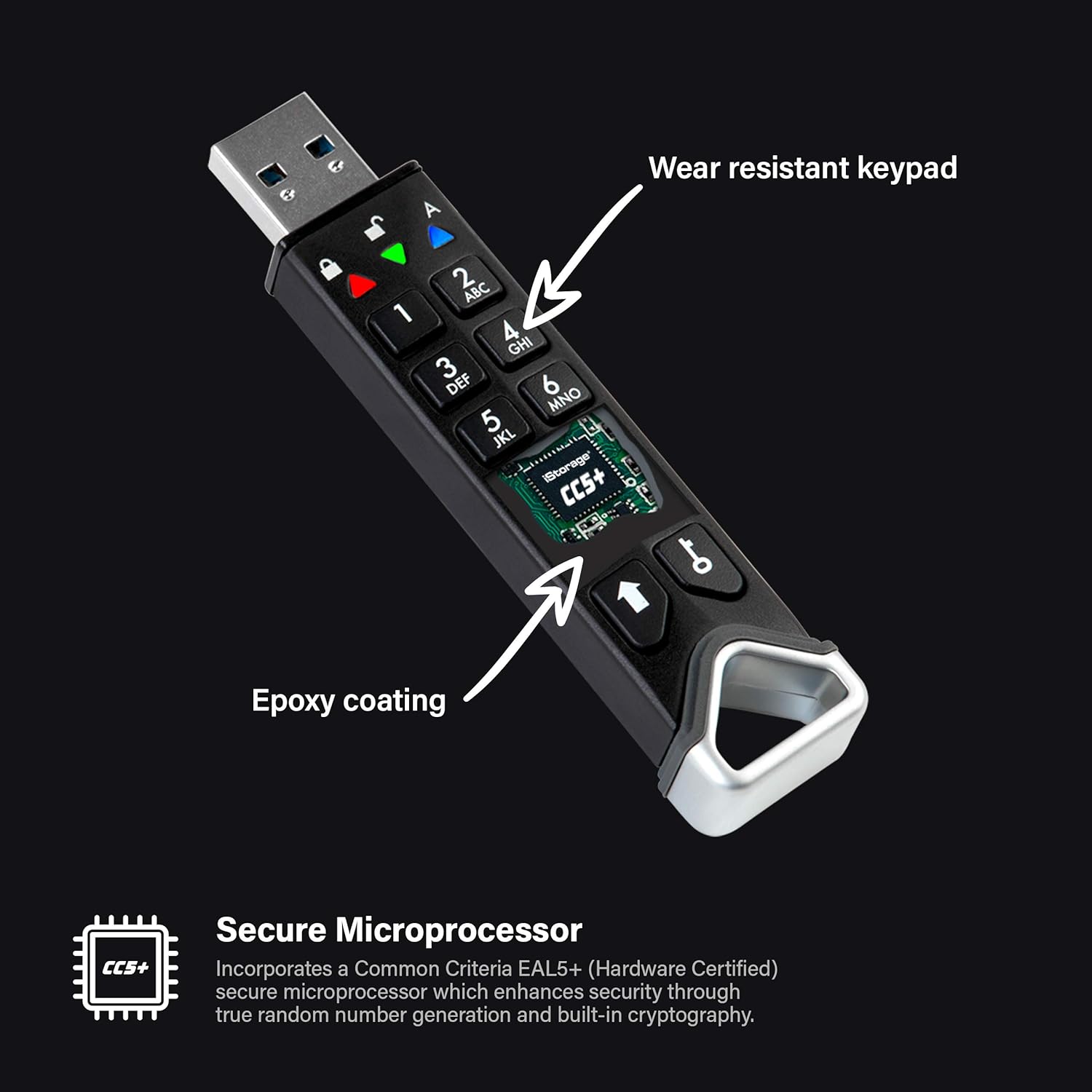
- Hardware Encryption: All data is encrypted using AES-XTS 256-bit hardware encryption, independent of the host operating system.
- Universal Compatibility: Operates on any device with a USB port, without requiring software. Compatible with MS Windows, macOS, Linux, Chrome, Android, Thin Clients, Zero Clients, Embedded Systems, Citrix, and VMware.
- Government Certified: FIPS 140-2 Level 3 certified, aiding compliance with data regulations such as GDPR, CCPA, and HIPAA.
- Durability: Portable, rugged, and IP68 certified for dust and water resistance.
- High-Speed Data Transfer: Features USB 3.2 connectivity with read speeds up to 168MB/s and write speeds up to 116MB/s.



3. Setup Instructions
Before using your datAshur PRO2, it is essential to perform the initial setup, which includes setting up an Administrator PIN and optionally User PINs. For detailed step-by-step instructions, always refer to the complete user manual available on the iStorage website.
3.1 Initial Administrator PIN Setup
- Charge the device: Ensure the internal battery is sufficiently charged by connecting the drive to a powered USB port for at least 30 minutes.
- Power on the device: Press the SHIFT button. The RED and GREEN LEDs will illuminate.
- Set Admin PIN: Follow the on-screen prompts or specific instructions in the full manual to create your Administrator PIN (7-15 digits). This PIN is crucial for managing the device.
- Confirm Admin PIN: Re-enter your Administrator PIN to confirm.
Important: The Administrator PIN is critical. If the Administrator PIN is entered incorrectly 10 consecutive times, the drive will perform a crypto-erase, permanently deleting all data and resetting the device to factory defaults. This counter is cumulative and does not reset without data loss.
3.2 Creating User PINs (Optional)
The Administrator can create one or more User PINs, which can be configured for read-only or read/write access. Refer to the full manual for detailed steps on creating and managing User PINs.
4. Operating the datAshur PRO2
4.1 Unlocking the Drive
- Connect the datAshur PRO2 to a USB port.
- Press the SHIFT button.
- Enter your Administrator or User PIN.
- Press the UNLOCK button (key icon).
Upon successful PIN entry, the GREEN LED will illuminate, indicating the drive is unlocked and ready for use. If the PIN is incorrect, the RED LED will flash.
4.2 Data Transfer
Once unlocked, the datAshur PRO2 functions like a standard USB flash drive. You can drag and drop files, copy, paste, and delete data as usual. All data transferred to the drive is automatically encrypted in real-time.
4.3 Locking the Drive
To secure your data, always lock the drive when not in use. The drive will automatically lock when:
- It is safely ejected from the host computer.
- It is disconnected from the USB port.
- The inactivity timeout period expires (configurable by the Administrator).
When locked, the RED LED will illuminate, and the drive will not be detected by any computer until unlocked again with a valid PIN.
5. Maintenance
5.1 Physical Care
The datAshur PRO2 is designed to be rugged and is IP68 certified for dust and water resistance. While it can withstand submersion in 1.5m of water for up to 30 minutes, it is recommended to keep the drive clean and dry. Avoid exposing it to extreme temperatures or harsh chemicals.

5.2 Battery Management
Critical: The datAshur PRO2 contains a rechargeable battery. If the battery charge becomes too low, the device is designed to perform a crypto-erase, permanently deleting all data to prevent unauthorized access. To prevent data loss, ensure the drive is regularly connected to a powered USB port to maintain its charge, especially if stored for extended periods.
6. Troubleshooting
- Drive Not Detected: If the drive is plugged into a USB port but not detected by the computer, ensure you have entered the correct PIN and the GREEN LED is illuminated. The drive will not be recognized by the operating system until it is successfully unlocked.
- Data Loss After Multiple Incorrect PIN Entries: The datAshur PRO2 features a self-destruct mechanism. If the Administrator PIN is entered incorrectly 10 times (cumulative), or a User PIN is entered incorrectly a set number of times (configurable by Admin), the drive will perform a crypto-erase, deleting all data and resetting to factory defaults. This is a security feature and data cannot be recovered. Exercise extreme caution when entering PINs.
- Drive Not Powering On: If the drive does not respond when pressing the SHIFT button, the internal battery may be depleted. Connect the drive to a powered USB port for at least 30 minutes to charge it.
- Unstable Button Presses: Ensure firm and deliberate presses on the keypad buttons. If button presses or firmware behavior seem inconsistent, ensure the device is fully charged. If issues persist, contact iStorage support.
7. Specifications
- Model Number:
- IS-FL-DP2-256-128
- Memory Storage Capacity:
- 128 GB
- Read Speed:
- Up to 168 MB/s
- Write Speed:
- Up to 116 MB/s
- Connectivity Technology:
- USB 3.2 (backwards compatible)
- Hardware Interface:
- USB Type A
- Color:
- Black
- Dimensions (LxWxH):
- 3.44 x 0.76 x 0.53 inches
- Item Weight:
- 1.31 ounces
- Special Features:
- Hardware Encrypted, Water Resistant (IP68)
- Certifications:
- FIPS 140-2 Level 3
- Battery:
- 1 Lithium Polymer battery (included)
8. Warranty Information
iStorage products typically come with a manufacturer's warranty. For specific details regarding the warranty period, coverage, and terms and conditions for your datAshur PRO2, please refer to the warranty documentation included with your purchase or visit the official iStorage website. Keep your proof of purchase for warranty claims.
9. Customer Support
For further assistance, detailed user guides, firmware updates, or technical support, please visit the official iStorage website. You can also find additional resources and contact information through the iStorage brand store on Amazon: iStorage Amazon Store.
Related documentsdatAshur PRO2


Ask a question about this manual
Ask about setup, troubleshooting, compatibility, parts, safety, or missing instructions. Manuals+ will review the question and use this page’s manual context to help answer it.