
MoKo B07VK5T12X
MoKo WiFi Smart Plug Instruction Manual
Model: B07VK5T12X
Product Overview
The MoKo WiFi Smart Plug is a compact smart outlet designed to provide remote control and scheduling capabilities for your electronic devices. It integrates seamlessly with popular smart home ecosystems like Amazon Alexa, Google Home, and SmartThings, allowing for convenient control via a smartphone application or voice commands.

Image: Front view of the MoKo WiFi Smart Plug, showing the standard US three-prong plug and the power button on the side.

Image: Diagram highlighting the multifunctional features of the MoKo Smart Plug, including APP remote control, Alexa/Google Home compatibility, 2.4GHz WiFi control, free & cycle timing, and custom schedules.
Key Features
- Compatibility: Works with Amazon Alexa, Google Home, and SmartThings. Requires Android 4.4+ or iOS 8+.
- Remote Control: Turn electronics on/off from anywhere using the "Smart Life" APP.
- Protection: Provides charging protection and prevents overcharging.
- Smart Timing: Schedule automatic on/off times for connected devices to save energy.
- Easy Installation: No hub required. Simple plug-in and WiFi connection.
- Safety: FCC certified with over-voltage protection, made from premium PC flame retardant material.
Setup Guide
1. Initial Device Preparation
- Plug the MoKo WiFi Smart Plug into a standard electrical outlet.
- Press and hold the power button on the side of the smart plug until the indicator light begins to blink rapidly. This indicates the device is in pairing mode.

Image: A MoKo Smart Plug inserted into a wall outlet, with a hand pressing the side button to initiate pairing mode, indicated by a blinking blue light.
2. App Installation and Connection
- Download the "Smart Life" application from your smartphone's app store (available for Android 4.4+ and iOS 8+).
- Open the "Smart Life" app and log in or create a new account.
- Tap the "+" icon in the top right corner of the app to add a new device.
- Select "Electrical Engineer" > "Socket (WiFi)" or use the "Auto Scan" feature.
- Confirm that the indicator light on the smart plug is blinking fast. If not, reset the device by pressing and holding the button for 5 seconds.
- Enter your 2.4GHz WiFi network password. Note: The smart plug only supports 2.4GHz WiFi networks.
- Wait for the app to connect to the smart plug. Ensure your phone, router, and the device are as close as possible during this process.
- Once connected, the device will be added successfully. You can rename the device for easier identification (e.g., "Living Room Lamp").
Video: A step-by-step guide demonstrating the setup process for the MoKo WiFi Smart Plug using the "Smart Life" application, including plugging in the device, initiating pairing mode, and connecting via the app.
Operating Instructions
1. Remote Control via App
After successful setup, you can control your connected appliances from anywhere using the "Smart Life" app.
- Open the "Smart Life" app.
- On the main screen, tap on the smart plug you wish to control.
- Tap the large power icon to toggle the connected device ON or OFF.

Image: A person using the "Smart Life" app on a smartphone to remotely control various smart home devices, including the MoKo Smart Plug.
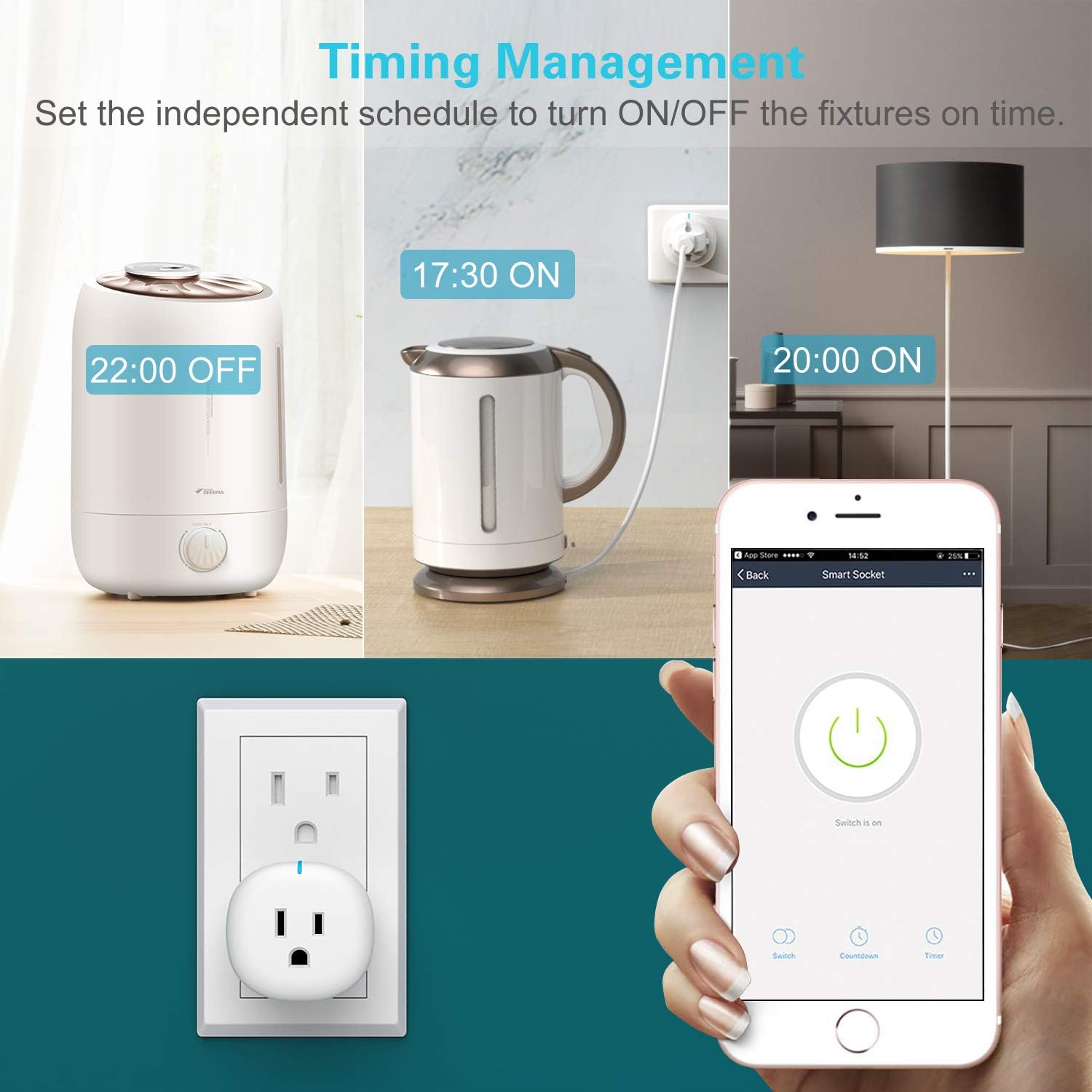
Image: A close-up of the "Smart Life" app interface showing the power toggle for a smart socket, along with options for countdown timer and scheduling.
2. Voice Control Integration
The MoKo Smart Plug is compatible with Amazon Alexa and Google Home for hands-free voice control.
- Ensure your smart plug is successfully connected to the "Smart Life" app.
- Link your "Smart Life" account to your Amazon Alexa or Google Home app (refer to their respective app instructions for linking third-party services).
- Once linked, you can use voice commands such as:
- "Alexa, turn on [device name]."
- "Hey Google, turn off [device name]."

Image: A living room setting demonstrating voice control of a lamp using Amazon Alexa and Google Home devices, indicating compatibility with the MoKo Smart Plug.
3. Scheduling and Timer Functions
Automate your devices with custom schedules and countdown timers.
- Countdown Timer: In the device control interface within the "Smart Life" app, select the "Left time" or "Countdown" option to set a timer for the device to turn off automatically after a specified duration.
- Scheduling: Select the "Schedule" option to set specific times for the device to turn on or off daily, weekly, or on custom days. This is useful for lights, coffee makers, or other routine appliances.

Image: A visual representation of the timing management feature, showing a humidifier turning off at 22:00, an electric kettle turning on at 17:30, and a lamp turning on at 20:00, all controlled by the smart plug.
4. Smart Scenes and Groups
Organize multiple smart plugs and devices into groups or create smart scenes for simultaneous control.
- Create Groups: Group multiple MoKo Smart Plugs together to control them all with a single command (e.g., "All Living Room Lights").
- Smart Scenes: Set up custom scenes that trigger multiple devices based on conditions like time of day, weather, or other smart home device statuses.
Image: An illustration of the "Smart Scene/Groups" feature within the app, allowing users to create scenes or groups for multiple WiFi plugs and control them conveniently.
5. Device Sharing
Share control of your smart plugs with family members.
- In the "Smart Life" app, navigate to the device settings.
- Select "Share Device" and add family members by their account details.
- This allows multiple users to control the same smart plug from their own devices.

Image: A family sharing control of smart devices through the "Smart Life" app, demonstrating the device sharing feature.
Maintenance
- Keep the smart plug clean by wiping it with a dry, soft cloth. Do not use liquid cleaners or aerosols.
- Ensure the smart plug is used within its specified electrical ratings (10A Resistive Max, 1250W). Overloading can cause damage or safety hazards.
- Avoid exposing the device to extreme temperatures, humidity, or direct sunlight.
- Regularly check for firmware updates within the "Smart Life" app to ensure optimal performance and security.
Troubleshooting
| Problem | Possible Cause | Solution |
|---|---|---|
| Device cannot connect to WiFi. | Incorrect WiFi password; Not a 2.4GHz network; Weak WiFi signal; Device not in pairing mode. | Verify WiFi password. Ensure your router is broadcasting a 2.4GHz network. Move the smart plug closer to the router. Reset the smart plug and re-enter pairing mode (blinking light). |
| Device is offline in the app. | Loss of WiFi connection; Power outage; Router issues. | Check your home WiFi network. Restart your router. Unplug and replug the smart plug. If the issue persists, try re-pairing the device. |
| Voice control not working. | Smart Life account not linked to Alexa/Google Home; Incorrect device name; Voice assistant not recognizing command. | Ensure your Smart Life account is correctly linked in the Alexa/Google Home app. Verify the device name in both apps. Try rephrasing your voice command. |
| Connected appliance not turning on/off. | Appliance not properly plugged into smart plug; Smart plug overloaded; Smart plug malfunction. | Ensure the appliance is securely plugged into the smart plug. Check the appliance's power requirements against the smart plug's specifications (10A/1250W max). Test the smart plug with a different, lower-power appliance. |
Specifications
| Feature | Detail |
|---|---|
| Model | B07VK5T12X |
| Brand | MoKo |
| Current Rating | 10 Amps (Resistive Max) |
| Operating Voltage | 240 Volts (Note: Product images show US plug, typically 110-120V. User should verify actual voltage compatibility for their region.) |
| Wattage | 1250 Watts |
| Connectivity Protocol | Wi-Fi (2.4GHz only) |
| Controller Type | Amazon Alexa, Android, Google Assistant, SmartThings, iOS |
| Control Method | Voice, App |
| Item Dimensions (LxWxH) | 2.44 x 2.2 x 2.2 inches |
| Item Weight | 2.12 ounces |
| Material | Copper (internal contacts), PC Flame Retardant (housing) |
| Certifications | FCC certified |
| UPC | 840034621570 |
Warranty and Support
For warranty information and customer support, please refer to the official MoKo website or contact their customer service directly. The product documentation (PDF user manual) is also available for download:
You can also visit the MoKo Store on Amazon for more product information and support resources.
Related documentsB07VK5T12X


Ask a question about this manual
Ask about setup, troubleshooting, compatibility, parts, safety, or missing instructions. Manuals+ will review the question and use this page’s manual context to help answer it.