
MoKo B07VJGFWNV
MoKo Smart LED Light Bulb User Manual
Model: B07VJGFWNV
1. Introduction
The MoKo Smart LED Light Bulb offers advanced lighting control for your home. This 9W E26 dimmable RGB warm white light bulb integrates seamlessly with smart home systems like Alexa Echo, Google Home, and SmartThings, providing convenient voice and remote control capabilities. It operates on a 2.4GHz Wi-Fi network, eliminating the need for a separate hub. Enjoy customizable lighting with 16 million colors and adjustable brightness to create the perfect ambiance for any occasion.
2. Safety Information
Please read and understand all safety instructions before using this product. Failure to follow these instructions may result in electric shock, fire, or other hazards.
- For indoor use only. Do not expose to water or moisture.
- Ensure the power is off before installation or removal.
- Do not disassemble or modify the bulb.
- Use only in suitable fixtures and environments.
- This device is not intended for use with standard dimmers. Dimmable functionality is controlled via the app or voice commands.
- Keep out of reach of children.
3. Package Contents
- 1 x MoKo Smart LED Light Bulb (E26, 9W)
- 1 x User Manual
4. Setup Guide
4.1 Pre-installation Checklist
- Ensure your Wi-Fi network is 2.4GHz. The bulb is not compatible with 5GHz networks.
- Have your Wi-Fi network name (SSID) and password ready.
- Download the "Smart Life" app from your smartphone's app store (iOS or Android).
- Install the bulb into a standard E26 light socket.
4.2 App Installation and Account Creation
- Search for "Smart Life" in the App Store (iOS) or Google Play Store (Android) and install the app.
- Open the Smart Life app and register a new account if you don't have one, or log in with an existing account.
4.3 Device Pairing
Before pairing, ensure the bulb is blinking rapidly. If it's not, turn the bulb ON-OFF-ON-OFF-ON (with 2-second intervals) until it starts blinking rapidly.
- With the bulb blinking rapidly, open the Smart Life app.
- Tap the "+" icon in the top right corner to add a device.
- Select "Lighting" or "Light Source (Wi-Fi)" from the device list.
- Confirm that the indicator light is blinking rapidly.
- Enter your 2.4GHz Wi-Fi network password and tap "Next".
- The app will begin connecting to the bulb. This may take a few moments.
- Once successfully added, you can rename the device and assign it to a room.
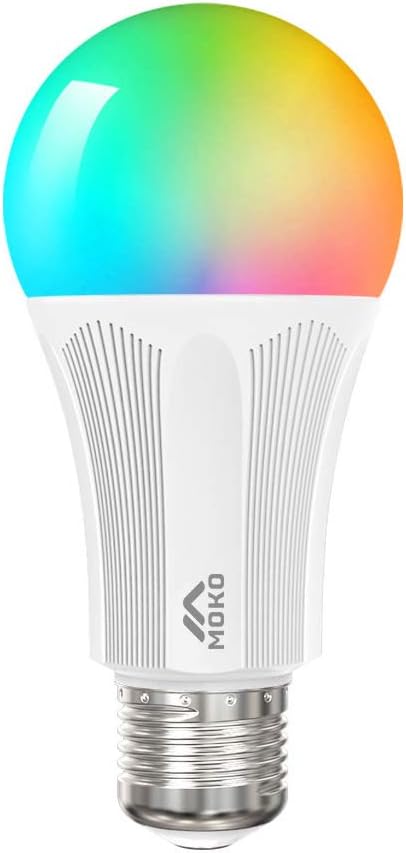
Figure 1: MoKo Smart LED Light Bulb
5. Operating Instructions
5.1 App Remote Control
Control your smart bulb from anywhere using the Smart Life app on your smartphone or tablet.
- Turn On/Off: Tap the power icon in the app to toggle the light.
- Dimming & Color Adjustment: Adjust brightness and choose from 16 million colors, including warm white (3500K), to create your desired lighting effects.
- Scene Selection: Select from various pre-set scenes (e.g., Night, Reading, Party, Leisure) or create custom scenes to match different moods and occasions.

Figure 2: App interface for stepless dimming and color conditioning.

Figure 3: App interface for selecting various illumination ambiances.

Figure 4: Remote control functionality via smartphone app.
5.2 Timing Management (Scheduling)
Set schedules for your bulb to automatically turn on or off at specific times, enhancing convenience and energy efficiency.
- In the Smart Life app, navigate to the bulb's control interface.
- Look for the "Schedule" or "Timer" option.
- Add new schedules, specifying the time, days of the week, and desired action (on/off, specific color/brightness).

Figure 5: Scheduling light operation for specific times.
5.3 Voice Control
Integrate your MoKo Smart LED Light Bulb with Amazon Alexa, Google Home Assistant, or SmartThings for hands-free voice control.
- Ensure your smart assistant device (e.g., Amazon Echo, Google Home) is set up and connected to the same Wi-Fi network as your bulb.
- In the Alexa or Google Home app, enable the "Smart Life" skill/service.
- Discover devices. Your MoKo Smart LED Light Bulb should appear.
- You can now use voice commands such as:
- "Alexa, turn on the [Bulb Name]."
- "Hey Google, dim the [Bulb Name] to 50%."
- "Alexa, change [Bulb Name] to blue."

Figure 6: Hands-free control with Amazon Alexa and Google Assistant.
5.4 Group Control
Control multiple smart bulbs simultaneously by creating groups within the Smart Life app.
- In the Smart Life app, select one of your smart bulbs.
- Tap the "..." or "Settings" icon.
- Look for "Create Group" or "Group Management".
- Select the bulbs you wish to include in the group and name the group (e.g., "Living Room Lights").
- You can now control all bulbs in that group with a single command or tap.

Figure 7: Controlling multiple bulbs with group master switch.
5.5 Device Sharing
Share control of your smart bulbs with family members, allowing everyone in the household to manage the lighting.
- In the Smart Life app, go to the device settings.
- Select "Share Device" or "Device Sharing".
- Enter the Smart Life account (email or phone number) of the person you wish to share with.
- The invited user will receive a notification and can accept the sharing invitation.
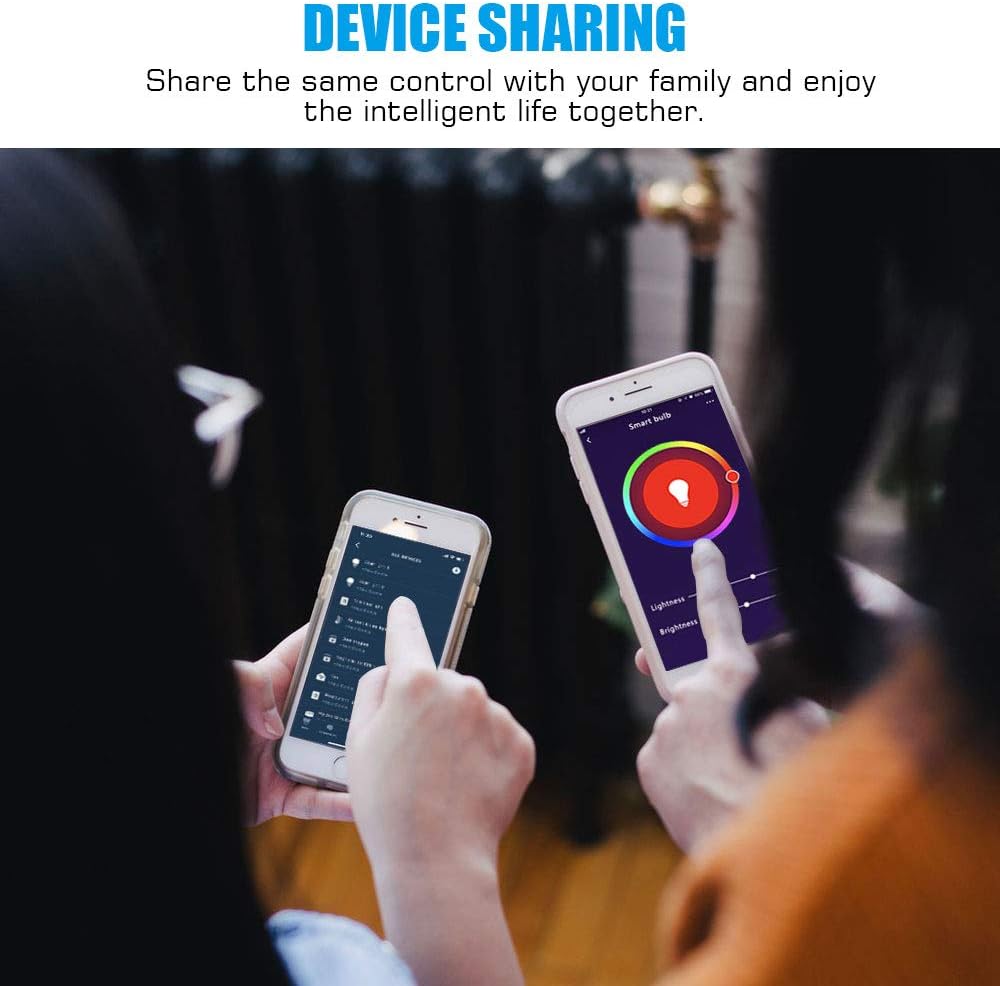
Figure 8: Sharing control of smart devices with family members.
6. Maintenance
To ensure optimal performance and longevity of your MoKo Smart LED Light Bulb, follow these simple maintenance guidelines:
- Cleaning: Disconnect power before cleaning. Use a soft, dry cloth to wipe the bulb. Do not use liquid or aerosol cleaners.
- Storage: If storing the bulb for an extended period, keep it in a cool, dry place away from direct sunlight and extreme temperatures.
- Handling: Handle the bulb with care to avoid dropping or physical damage.
7. Troubleshooting
| Problem | Possible Cause | Solution |
|---|---|---|
| Bulb not turning on. | No power; loose connection; bulb faulty. | Check power supply. Ensure bulb is screwed in tightly. Test bulb in another working socket. |
| Bulb not connecting to Wi-Fi. | Incorrect Wi-Fi band (5GHz); weak Wi-Fi signal; incorrect password; bulb not in pairing mode. | Ensure you are on a 2.4GHz Wi-Fi network. Move bulb closer to router. Double-check Wi-Fi password. Reset bulb to pairing mode (ON-OFF-ON-OFF-ON). |
| Voice control not working. | Smart Life skill not enabled; device not discovered by smart assistant; internet connectivity issues. | Ensure "Smart Life" skill is enabled in your Alexa/Google Home app. Re-discover devices in the smart assistant app. Check internet connection. |
| App control is unresponsive. | Poor Wi-Fi signal; app glitch; bulb offline. | Check Wi-Fi signal strength. Restart the Smart Life app. Verify the bulb is connected to Wi-Fi. |
8. Specifications
| Feature | Detail |
|---|---|
| Brand | MoKo |
| Model | B07VJGFWNV |
| Light Type | LED |
| Wattage | 9 watts |
| Incandescent Equivalent | 60 Watts |
| Bulb Shape Size | A19 |
| Bulb Base | E26 |
| Light Color | RGB Warm White (16 million colors) |
| Connectivity Technology | Wi-Fi (2.4GHz only) |
| Controller Type | Google Assistant, Amazon Alexa, SmartThings |
| Indoor/Outdoor Usage | Indoor |
| Power Source | Corded Electric |
| Voltage Frequency | 100-240V, 50-60Hz |
| Product Dimensions | 4.1"W x 7.1"H |
| Item Weight | 2.39 ounces |
| Certifications | CE, FCC, RoHS |
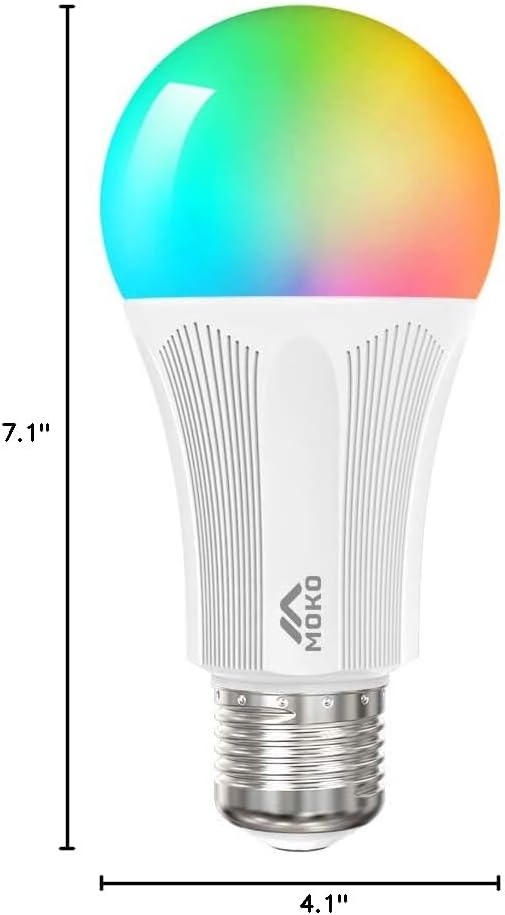
Figure 9: Product Dimensions.
9. Warranty and Support
MoKo products are designed and manufactured to the highest quality standards. For information regarding warranty coverage, technical support, or customer service, please refer to the contact information provided on the product packaging or visit the official MoKo website.
For further assistance, you may also contact your retailer.
Ask a question about this manual
Ask about setup, troubleshooting, compatibility, parts, safety, or missing instructions. Manuals+ will review the question and use this page’s manual context to help answer it.