
1. Introduction
Thank you for choosing the Redragon K511 PRO RGB Gaming Keyboard. This keyboard is designed for gamers and users seeking a responsive, customizable, and visually appealing input device. Featuring 104 quiet membrane keys, vibrant RGB backlighting, and on-the-fly macro programming, the K511 PRO enhances your gaming and productivity experience. Please read this manual carefully to ensure proper setup and operation.
2. Package Contents
- Redragon K511 PRO RGB Gaming Keyboard
- USB Cable (integrated)
- User Manual (this document)
3. Product Features
- 104-Key Layout: Full-size keyboard with a numeric keypad.
- Quiet Membrane Switches: Designed for silent operation and comfortable typing.
- Dynamic RGB Backlighting: Multiple lighting modes, colors, and brightness levels.
- Programmable Macros: On-the-fly macro recording without software.
- Durable Construction: Built for longevity and stability during intense gaming sessions.
- Wired USB Connectivity: Reliable and responsive connection.
4. Setup
Follow these steps to set up your Redragon K511 PRO RGB Gaming Keyboard:
- Unpack the Keyboard: Carefully remove the keyboard and its components from the packaging.
- Connect to Computer: Plug the integrated USB cable from the keyboard into an available USB port on your computer.
- Driver Installation: Your operating system (Windows, macOS, etc.) should automatically detect and install the necessary drivers. No additional software installation is typically required for basic functionality.
- Placement: Position the keyboard comfortably on your desk.
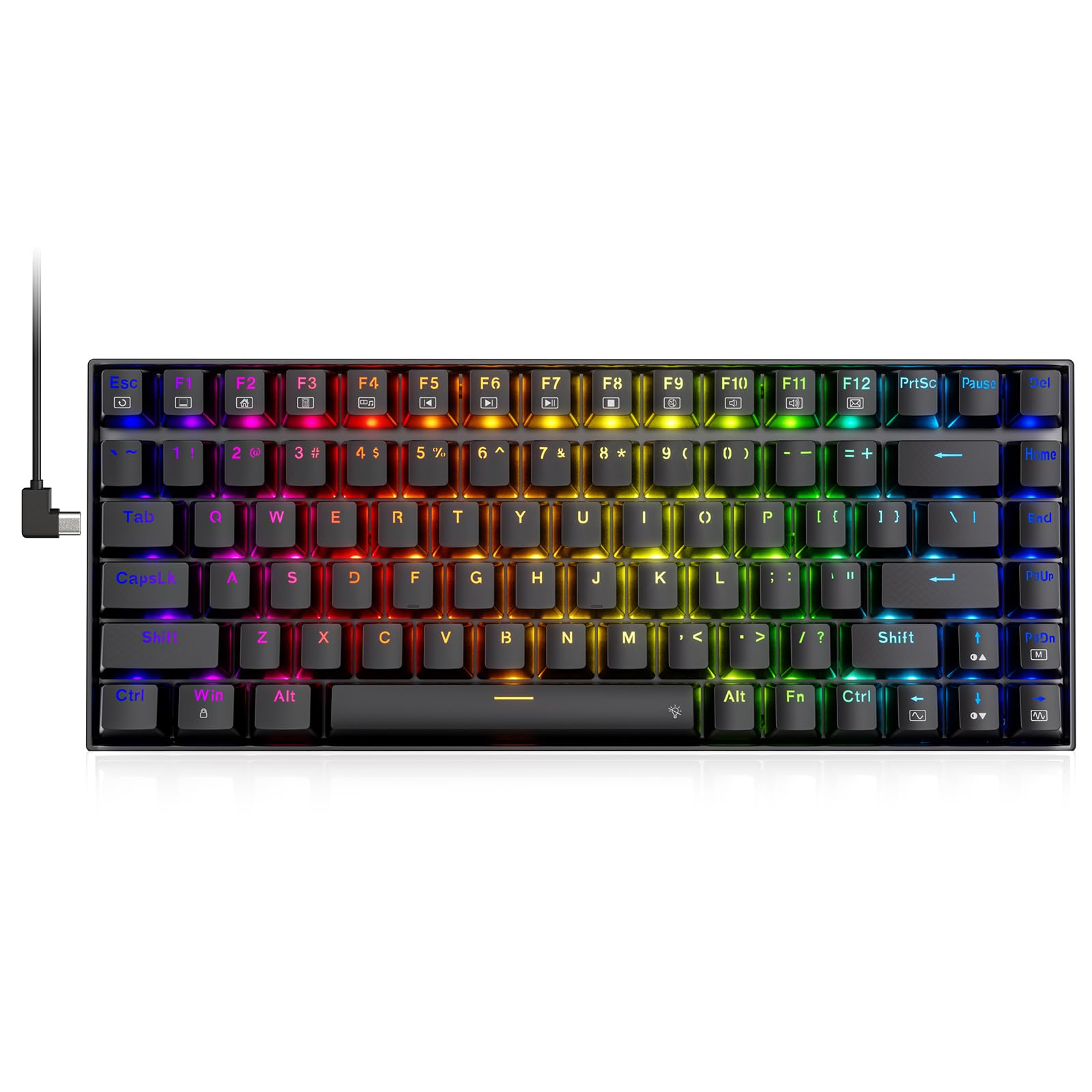
Image 1: The Redragon K511 PRO RGB Gaming Keyboard connected via USB. This image shows the full keyboard layout with its RGB backlighting, ready for use.
5. Operating Instructions
5.1 Basic Keyboard Functions
The Redragon K511 PRO functions as a standard 104-key keyboard for typing and general computer use. All keys are plug-and-play compatible with most operating systems.
5.2 RGB Lighting Control
The keyboard features dynamic RGB backlighting. Use the following key combinations to control the lighting effects:
- FN + Scroll Lock: Cycle through various RGB lighting modes.
- FN + Print Screen: Adjust lighting brightness (typically 5 levels).
- FN + Pause Break: Change lighting colors within certain modes.
- FN + Arrow Keys (Up/Down): Adjust lighting speed or direction for dynamic modes.
5.3 Macro Programming
The K511 PRO supports on-the-fly macro recording without the need for software. This allows you to record a sequence of keystrokes and assign them to a single key.
To record a macro:
- Press FN + Home to enter macro recording mode. The indicator light will flash.
- Press the key you wish to assign the macro to (e.g., G1-G5, or any other programmable key if available).
- Type the sequence of keys you want to record.
- Press FN + Home again to save the macro. The indicator light will stop flashing.
To use a macro: Simply press the assigned key, and the recorded sequence will execute.
To clear a macro:
- Press FN + Home to enter macro recording mode.
- Press the key from which you want to clear the macro.
- Press FN + Home again. The macro will be cleared from that key.
5.4 Multimedia Keys
Access multimedia functions using the FN key in combination with the F-keys (F1-F12). Refer to the keycap legends for specific functions such as volume control, media playback, and more.
6. Maintenance
Proper maintenance ensures the longevity and performance of your keyboard:
- Cleaning: Use a soft, dry cloth to wipe the surface of the keyboard. For deeper cleaning, use a can of compressed air to remove dust and debris from between the keys. Avoid using harsh chemicals or abrasive materials.
- Spills: In case of liquid spills, immediately unplug the keyboard from your computer, turn it upside down to drain excess liquid, and allow it to dry completely before reconnecting.
- Storage: Store the keyboard in a cool, dry place away from direct sunlight and extreme temperatures when not in use for extended periods.
7. Troubleshooting
If you encounter issues with your Redragon K511 PRO keyboard, refer to the following common solutions:
- Keyboard Not Responding:
- Ensure the USB cable is securely plugged into both the keyboard and the computer.
- Try plugging the keyboard into a different USB port on your computer.
- Restart your computer.
- If specific keys are not working, try removing and reinstalling the keyboard drivers via your operating system's device manager.
- RGB Lighting Not Working/Incorrect:
- Ensure the keyboard is powered on and connected.
- Cycle through lighting modes and brightness levels using the FN key combinations (FN + Scroll Lock, FN + Print Screen).
- Macros Not Saving/Executing:
- Ensure you are following the macro recording steps correctly (FN + Home to start/end recording).
- Verify that the macro was assigned to the intended key.
- Keys Typing Incorrect Characters:
- Check your operating system's keyboard language settings.
- As a last resort, try uninstalling and reinstalling the keyboard from your computer's device manager, then restart your computer.
8. Specifications
| Feature | Detail |
|---|---|
| Model Number | RG-K511P-RGB |
| Keyboard Type | Membrane |
| Key Count | 104 Keys |
| Connectivity | Wired USB |
| Backlighting | RGB |
| Product Dimensions | 17.4 x 6.56 x 1.4 inches (44.3 x 16.7 x 3.5 cm) |
| Item Weight | 2.57 pounds (1.17 kg) |
| Recommended Use | Gaming |
| Color | Black |
9. Warranty and Support
Redragon products are designed for reliability and performance. For warranty information, technical support, or customer service inquiries, please refer to the official Redragon website or contact your local retailer. Keep your purchase receipt for warranty claims.


