
1. Introduction
This manual provides essential instructions for setting up, operating, and maintaining your Motorola COMFORT85 Connect Video Baby Monitor. Please read this manual thoroughly before using the product to ensure safe and optimal performance. Keep this guide for future reference.

Image: Overview of Motorola COMFORT85 Connect features including the parent unit and baby unit.
2. Package Contents
Verify that all items are present in your package:
- Baby Unit (Camera)
- Parent Unit (Monitor)
- Power Adapter x 2
- Quick Start Guide
3. Product Overview
3.1 Parent Unit (Monitor)
The parent unit features a 5-inch HD color display for clear viewing of your baby. It is rechargeable for portable use within your home. Controls for pan, tilt, zoom, and two-way talk are located on the unit.
3.2 Baby Unit (Camera)
The baby unit includes a camera with infrared night vision, a microphone, and a speaker for two-way communication. It also features a multi-color mood light and can play lullabies. The unit monitors room temperature.

Image: The Motorola COMFORT85 Connect Parent Unit and Baby Unit.
4. Setup
4.1 Powering On
- Connect one power adapter to the Baby Unit and plug it into an electrical outlet.
- Connect the second power adapter to the Parent Unit and plug it into an electrical outlet.
- Press and hold the Power button on the Parent Unit until the screen turns on.
4.2 Initial Pairing (if necessary)
The Baby Unit and Parent Unit are pre-paired at the factory. If they are not connected, refer to the troubleshooting section or the full user manual for pairing instructions.
4.3 Wi-Fi Connectivity and Hubble App Setup
To enable Wi-Fi viewing and access advanced features, download the Hubble for Motorola Monitors app on your smartphone or tablet.
- Download the "Hubble for Motorola Monitors" app from your device's app store.
- Follow the in-app instructions to create an account and connect your Baby Unit to your home Wi-Fi network.
- Ensure your Wi-Fi network is 2.4 GHz for optimal compatibility.

Image: Remote monitoring via the Hubble app on a smartphone.
5. Operation
5.1 Basic Monitoring
Once powered on and connected, the Parent Unit will display the live video feed from the Baby Unit. Adjust the volume using the dedicated buttons on the Parent Unit.
5.2 Two-Way Talk
To speak to your baby, press and hold the Talk button on the Parent Unit. Your voice will be transmitted through the Baby Unit's speaker. Release the button to hear your baby.

Image: Using the two-way talk feature to communicate with your baby.
5.3 Remote Pan, Tilt, and Zoom
Use the directional buttons on the Parent Unit to remotely pan (move horizontally) and tilt (move vertically) the Baby Unit camera. The digital zoom feature allows you to get a closer view of your baby.

Image: Remote pan, tilt, and zoom functionality of the baby unit camera.
5.4 Infrared Night Vision
The Baby Unit automatically activates infrared night vision in low-light conditions, providing a clear black-and-white image on the Parent Unit and Hubble app.
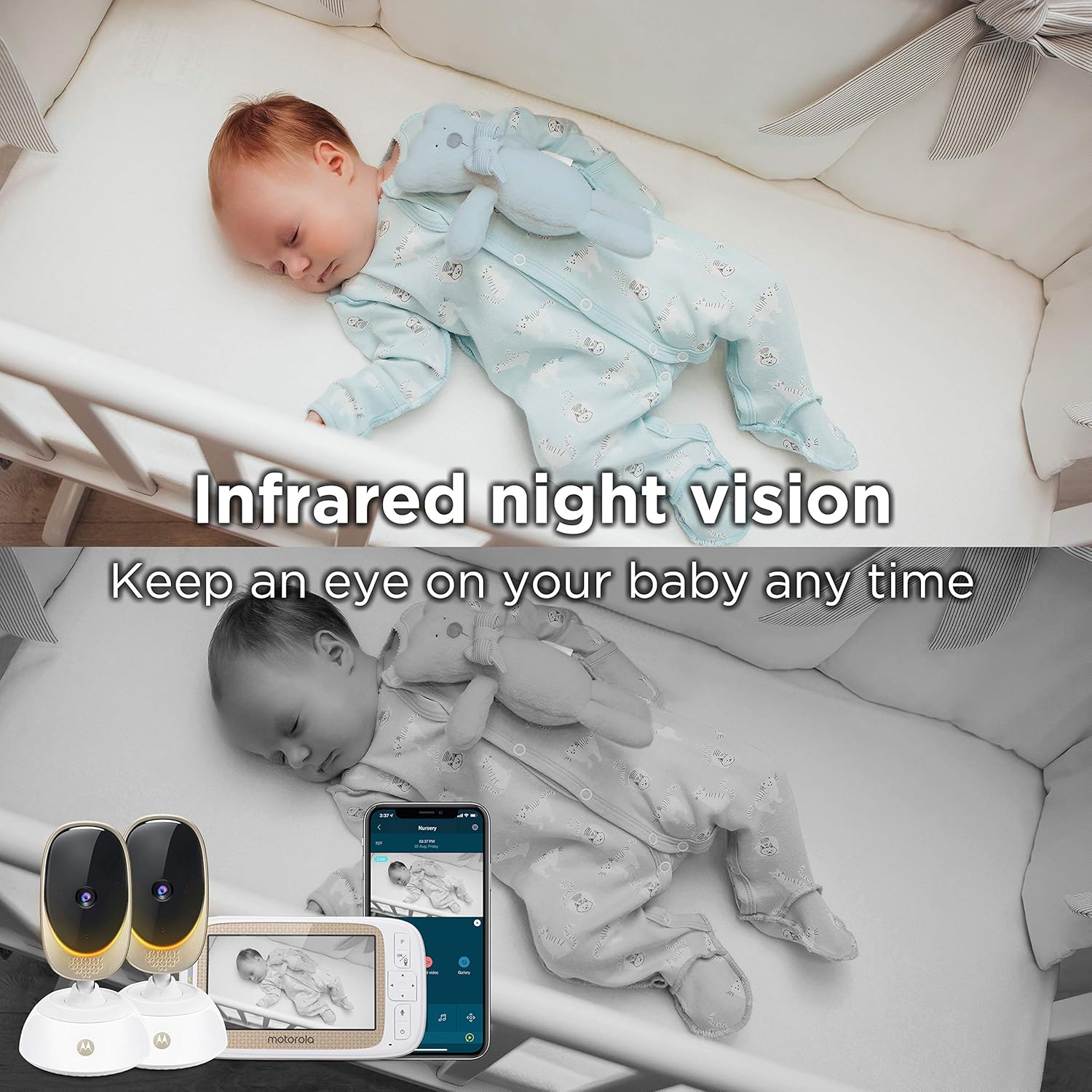
Image: Comparison of day vision and infrared night vision.
5.5 Mood Lighting and Lullabies
The Baby Unit features a multi-color mood light and can play preloaded lullabies to soothe your baby. These features can be controlled from the Parent Unit or through the Hubble app.

Image: Multi-color mood light feature controlled via the Hubble app.
5.6 Room Temperature Monitoring
The Baby Unit includes a temperature sensor that displays the room temperature on the Parent Unit screen and in the Hubble app, helping you ensure a comfortable environment for your baby.

Image: Room temperature monitoring displayed on the parent unit.
5.7 Hubble App Advanced Features
The Hubble app offers additional functionalities:
- Growth and Development Tracker: Log and track your baby's milestones.
- Sleep and Parenting Tips: Access a library of articles and videos for guidance.
- Video Recording & Cloud Storage: Capture moments and store them (subscription may be required).
- Daily Video Summary: Get a quick overview of your baby's activity (subscription may be required).
- Split-Screen Viewing: Monitor up to four cameras simultaneously on one device (additional cameras sold separately).
Video: An official product video demonstrating various features of the Motorola COMFORT85 Connect, including Wi-Fi connectivity, two-way talk, remote pan/tilt/zoom, mood lighting, room temperature monitoring, multi-camera split-screen viewing, lullabies, video recording, cloud storage, daily video summary, voice assistance, and growth tracking via the Hubble app.
5.8 Voice Assistance Enabled
The Motorola COMFORT85 Connect is compatible with Amazon Alexa and Google Assistant. You can use voice commands to control certain features, such as playing lullabies or checking the nursery temperature, through your voice assistant device.
6. Maintenance
6.1 Cleaning
- Wipe the surfaces of the Baby Unit and Parent Unit with a soft, lint-free cloth.
- Do not use cleaning sprays or liquid cleaners directly on the units.
6.2 Battery Care (Parent Unit)
- To preserve battery life, fully charge the Parent Unit before first use and when the low battery indicator appears.
- Avoid extreme temperatures, which can affect battery performance.
7. Troubleshooting
If you experience issues with your Motorola COMFORT85 Connect, refer to the following common problems and solutions:
| Problem | Possible Solution |
|---|---|
| No image/sound on Parent Unit or App | Ensure both units are powered on and within range. Check Wi-Fi connection for app viewing. Re-pair units if necessary (refer to full manual). |
| Poor image quality / Night Vision unclear | Ensure the camera lens is clean. Check for obstructions. Adjust camera position for optimal viewing angle. Ensure sufficient ambient light for color vision, or proper darkness for infrared night vision. |
| Connectivity issues / Frequent disconnections | Move the Baby Unit and Parent Unit closer to each other or to your Wi-Fi router. Reduce interference from other electronic devices. Ensure your Wi-Fi network is stable and 2.4 GHz. |
| Parent Unit battery drains quickly | Reduce screen brightness. Turn off features like continuous video if not needed. Ensure the unit is fully charged before use. Battery life varies with usage. |
| Inaccurate room temperature reading | Ensure the Baby Unit is not placed near heat sources, vents, or direct sunlight, which can affect sensor accuracy. |
| Loud beeping from Parent Unit | This often indicates a lost connection between the Parent Unit and Baby Unit. Refer to 'Connectivity issues' above. |
| Bright blue LED on Baby Unit | The blue LED indicates power/status and cannot be turned off while the unit is operating. Consider repositioning the camera if the light is disruptive. |
| Cannot change Wi-Fi settings in Hubble App | If you change your Wi-Fi password or network, you may need to delete the camera from the app and re-add it, going through the initial Wi-Fi setup process again. |
| Sound on Parent Unit is too low | Increase the volume on the Parent Unit. Ensure the Baby Unit's microphone is not obstructed. |
8. Specifications
| Feature | Detail |
|---|---|
| Model Name | Comfort85 Connect |
| Connectivity Technology | Wireless (Wi-Fi) |
| Parent Unit Display | 5" HD Display |
| Video Capture Resolution | 480p |
| Night Vision | Infrared (Night Color) |
| Special Features | Digital Tilt and Zoom, Remote Pan Scan, Two-Way Talk, Mood Lighting, Lullabies, Room Temperature Monitoring |
| Compatible Devices | Smartphone (via Hubble App) |
| Control Method | App, Remote Control (Parent Unit) |
| Indoor Outdoor Usage | Indoor |
| Power Source | AC/DC |
| Item Weight | 12.3 Ounces |
| UPC | 816479017247 |
9. Warranty and Support
Your Motorola COMFORT85 Connect Video Baby Monitor comes with a limited warranty. For detailed warranty information, technical support, or to purchase accessories, please visit the official Motorola Baby website or contact their customer service. Keep your proof of purchase for warranty claims.


