
1. Introduction
The Redragon M801 Wireless Gaming Mouse is designed for high-performance gaming, offering advanced features such as ultra-fast wireless connectivity, customizable RGB backlighting, and programmable buttons. This manual provides essential information for setting up, operating, maintaining, and troubleshooting your gaming mouse to ensure an optimal user experience.
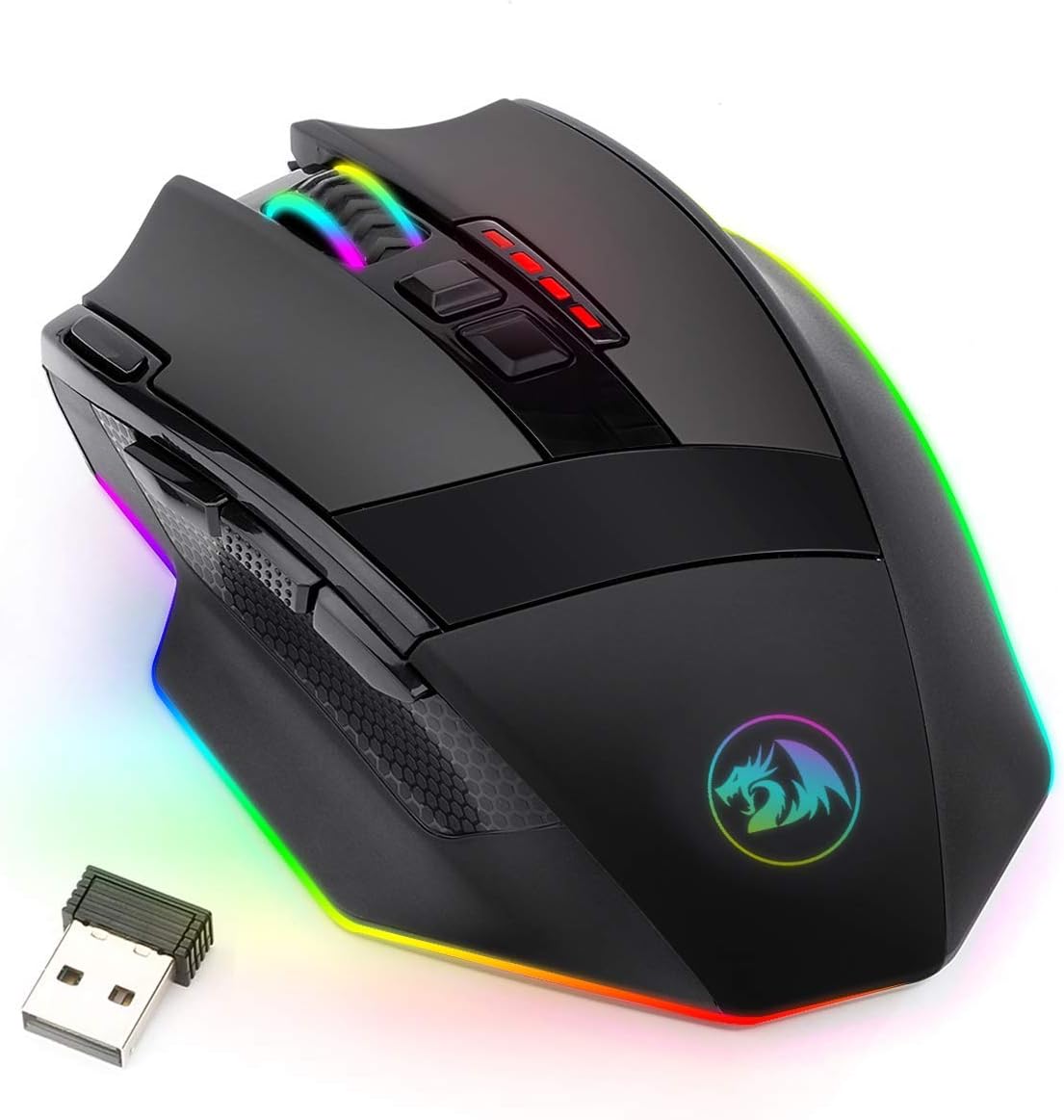
Image: The Redragon M801 Wireless Gaming Mouse, showcasing its ergonomic design, RGB lighting, and the included USB receiver.
2. Setup
2.1. What's in the Box
- Redragon M801 Wireless Gaming Mouse
- USB Wireless Receiver
- Detachable USB-C Cable
- User Manual (this document)
2.2. Connecting Your Mouse
The Redragon M801 offers both wireless and wired connectivity options.
- Wireless Connection:
- Insert the USB Wireless Receiver into an available USB port on your computer.
- Turn on the mouse using the power switch located on the bottom. The mouse should automatically connect to the receiver.
- Wired Connection:
- Connect the detachable USB-C cable to the mouse and the other end to an available USB port on your computer.
- The mouse will function as a wired mouse and will also charge its internal battery.

Image: The Redragon M801 mouse demonstrating its wired and wireless connectivity options, showing the USB-C cable and the USB receiver.
2.3. Charging the Mouse
The mouse features a rechargeable Lithium Polymer battery. To charge, connect the mouse to your computer using the provided USB-C cable. The battery life is approximately 35 hours with RGB LED on, and up to 70 hours with RGB LED off.
3. Operating Instructions
3.1. Programmable Buttons
The M801 mouse features 9 programmable buttons that can be customized to suit your gaming style. These buttons can be remapped and equipped with 5 memory profiles for different game settings or user preferences. Refer to the Redragon software (downloadable from the official Redragon website) for detailed customization options.

Image: An illustration of the Redragon M801 mouse, pointing out its 9 programmable buttons designed for gaming customization.
3.2. DPI Adjustment
The mouse offers adjustable DPI sensitivity ranging from 1000 to 16000 DPI. Use the dedicated DPI buttons (usually located near the scroll wheel) to cycle through preset DPI levels. An indicator will show the current DPI setting, allowing for quick adjustments to match your in-game needs or desktop tasks. The high-precision sensor ensures pinpoint accuracy and responsiveness.

Image: A visual representation of the Redragon M801 mouse's adjustable DPI settings, indicating different DPI levels from 1000 to 16000.
3.3. RGB Backlighting
The M801 features dynamic RGB backlighting with 8 lighting effects and 10 brightness levels, including breathing modes. The backlight can be disabled to conserve battery life. Use the Redragon software to customize lighting effects and colors to personalize your gaming setup.

Image: The Redragon M801 mouse displaying its dynamic RGB backlighting, illuminating the logo and side edges.
3.4. General Usage
The mouse is designed for comfortable and precise control during PC gaming or computer editing. It features an anti-skid scroll wheel and durable smooth TEFLON feet pads for enhanced control. The advanced gaming chips ensure ultra-fast, lag-free performance.

Image: A cutaway view of the Redragon M801 mouse, highlighting its high-speed sensor and robust micro switches for precise control.
4. Maintenance
4.1. Cleaning
To maintain optimal performance, regularly clean your mouse. Use a soft, dry cloth to wipe down the surface. For stubborn dirt, a slightly damp cloth can be used, but ensure no moisture enters the internal components. Avoid using harsh chemicals or abrasive materials.
4.2. Battery Care
To prolong battery life, avoid fully discharging the mouse frequently. Charge the mouse when the battery indicator shows low power. If storing the mouse for an extended period, charge it to about 50% and store it in a cool, dry place.
5. Troubleshooting
5.1. Mouse Not Responding
- Check Power: Ensure the mouse is turned on and has sufficient battery charge.
- Wireless Connection: Verify the USB wireless receiver is securely plugged into a working USB port. Try a different USB port.
- Wired Connection: If using wired mode, ensure the USB-C cable is properly connected to both the mouse and the computer.
- Re-pairing: If the wireless connection is lost, try re-pairing the mouse with the receiver (refer to Redragon software or specific instructions if available).
5.2. Lag or Disconnection Issues
- Interference: Move the mouse closer to the USB receiver. Avoid placing the receiver near other wireless devices that might cause interference.
- Surface: Ensure you are using the mouse on a suitable, non-reflective surface.
- Drivers: Ensure your mouse drivers are up to date. Visit the Redragon website for the latest software and drivers.
5.3. RGB Lighting Not Working
- Software Settings: Check the Redragon software to ensure RGB lighting is enabled and configured correctly.
- Battery Level: Low battery might cause lighting to dim or turn off. Charge the mouse.
6. Specifications
| Feature | Detail |
|---|---|
| Model Number | M801P |
| Connectivity Technology | Wireless (2.4GHz USB), Wired (USB-C) |
| DPI Range | Up to 16000 adjustable DPI |
| Programmable Buttons | 9 |
| Acceleration | 40G |
| RGB Backlighting | 8 Lighting Effects, 10 Brightness Levels |
| Battery Type | 1 Lithium Polymer (included) |
| Battery Life (approx.) | 35 hours (RGB on), 70 hours (RGB off) |
| Product Dimensions | 4.78 x 3.28 x 0.04 inches |
| Item Weight | 4.2 ounces |
| Compatibility | Windows 10, 8, 7, Vista, XP; Limited Mac OS support |
7. Warranty and Support
Redragon products typically come with a manufacturer's warranty. For specific warranty terms, registration, and technical support, please visit the official Redragon website or contact their customer service directly. Keep your purchase receipt as proof of purchase.
Redragon Official Website: www.redragonusa.com


