
IMILAB CMSXJ16A
IMILAB 1080P Wireless Smart Home Camera User Manual
Model: CMSXJ16A
Brand: IMILAB
Introduction
This user manual provides detailed instructions for the IMILAB 1080P Wireless Smart Home Camera, Model CMSXJ16A. This device is designed for indoor surveillance, offering features such as 1080P high-definition video, 2.4Ghz Wi-Fi connectivity, two-way audio communication, advanced night vision, and pan/tilt capabilities for comprehensive area coverage. It is suitable for monitoring babies, pets, or general home security.
Product Overview
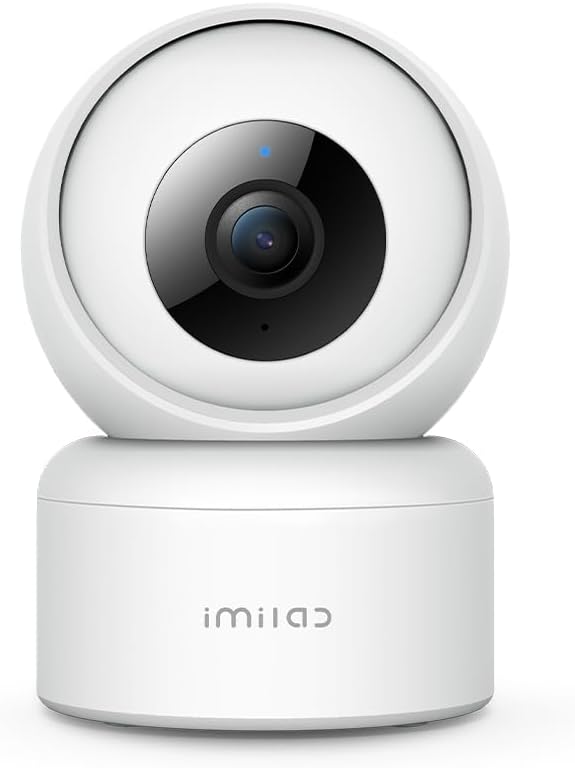
The IMILAB Smart Home Camera is a compact, dome-shaped device designed for discreet placement within your home. It features a high-resolution lens, infrared LEDs for night vision, a microphone, and a speaker for two-way audio. The camera base allows for pan and tilt movements, controlled remotely via the companion mobile application.

Setup
Follow these steps to set up your IMILAB Smart Home Camera:
- Power On: Connect the camera to a power source using the provided AC/DC adapter. The camera will initiate its startup sequence.
- Download App: Download the MiHome app from your smartphone's app store (available for Android and iOS).
- Add Device: Open the MiHome app and follow the on-screen instructions to add a new device. Select the IMILAB camera model.
- Wi-Fi Connection: Ensure your smartphone is connected to a 2.4Ghz Wi-Fi network. The camera only supports 2.4Ghz Wi-Fi; 5Ghz networks are not supported. Ensure your Wi-Fi password does not contain special characters, as this may cause connection issues.
- Scan QR Code: The app will display a QR code. Position your smartphone so the camera lens can scan the entire QR code. Move the phone forward or backward as needed until the camera successfully scans the code. A voice prompt from the camera will confirm successful connection.
- Placement: Place the camera on a flat surface or use the included wall mount for elevated installation. If placed on a horizontal surface, be aware that the camera may not be able to look directly downwards from its own position; wall mounting can resolve this for wider vertical coverage.
Operating Instructions
Once set up, you can control and monitor your camera using the MiHome app:
- Live View: Access the live video feed from your camera anytime, anywhere via the app.
- Pan/Tilt Control: Drag your finger across the live view screen in the app to remotely control the camera's pan (horizontal) and tilt (vertical) movements, providing a 360-degree full view of the monitored area.
- Two-Way Audio: Use the microphone and speaker functions within the app to communicate with individuals near the camera. This is ideal for talking to pets or family members.

- Night Vision: The camera automatically switches to infrared night vision in low-light conditions, providing clear monochrome video up to 30 feet.

- Motion Detection & Alerts: Configure motion detection sensitivity in the app. When motion is detected, the camera can send push notifications to your phone and record video clips.
- Crying Detection: For baby monitoring, the camera features crying detection, alerting you when a baby's cry is detected.

- Video Storage: The camera supports local storage via a microSD card (not included) for continuous recording or event-triggered clips. It also offers 7 days of rolling cloud storage at no additional cost.

Maintenance
To ensure optimal performance and longevity of your IMILAB camera:
- Cleaning: Gently wipe the camera lens and body with a soft, dry cloth. Avoid using liquid cleaners or abrasive materials that could damage the lens or surface.
- Firmware Updates: Periodically check the MiHome app for available firmware updates. Keeping the camera's firmware updated ensures access to the latest features, security enhancements, and bug fixes.
- Environmental Conditions: Ensure the camera is used indoors within its specified operating temperature and humidity ranges. Avoid exposing it to extreme temperatures, direct sunlight, or high moisture.
Troubleshooting
If you encounter issues with your IMILAB camera, refer to the following common problems and solutions:
| Problem | Possible Cause / Solution |
|---|---|
| Camera fails to connect to Wi-Fi. | Ensure your Wi-Fi is 2.4Ghz. Check that your Wi-Fi password does not contain special characters. Move the camera closer to the router. Restart the camera and your router. |
| Too many motion detection notifications. | Adjust the motion detection sensitivity settings within the MiHome app. Reduce the detection area if applicable. |
| Camera cannot look directly downwards. | This is a design characteristic when placed on a horizontal surface. Consider mounting the camera on a wall or ceiling using the provided mount to achieve a wider vertical viewing angle. |
| Video quality is poor. | Ensure a stable Wi-Fi connection. Check the resolution settings in the app (1080P is available). Clean the camera lens. |
| Two-way audio is not working. | Check microphone and speaker permissions for the MiHome app on your phone. Ensure volume levels are adequate. |
For further assistance, consult the help section within the MiHome app or refer to the official user manual PDF available online.
Specifications
Key technical specifications for the IMILAB 1080P Wireless Smart Home Camera:
| Feature | Detail |
|---|---|
| Model Number | CMSXJ16A |
| Video Capture Resolution | 1080p, 720p |
| Connectivity Technology | Wireless (Wi-Fi) |
| Wireless Communication Technology | Wi-Fi (2.4Ghz only) |
| Power Source | AC/DC (5 Volts, 3 watts) |
| Night Vision Range | 30 Feet |
| Frame Rate | 25 fps |
| Mounting Type | Wall Mount |
| Controller Type | Android (via MiHome app) |
| Item Dimensions L x W x H | 4.2 x 2.9 x 2.9 inches |
| Item Weight | 12.6 ounces |
| Indoor/Outdoor Usage | Indoor |
| Special Features | Motion Sensor, Night Vision, Two-Way Audio, Pan/Tilt |
Warranty and Support
For information regarding product warranty, please refer to the documentation included with your purchase or visit the official IMILAB website. If you require technical support or have questions not covered in this manual, please contact IMILAB customer service through their official channels. You can also find additional resources, including a detailed user manual PDF, at this link.
Related documentsCMSXJ16A


Ask a question about this manual
Ask about setup, troubleshooting, compatibility, parts, safety, or missing instructions. Manuals+ will review the question and use this page’s manual context to help answer it.