
1. Introduction
Thank you for choosing the ELEPHAS YG420 Mini Beamer Projector. This projector is designed to provide a high-quality visual experience for home entertainment, gaming, and outdoor movie nights. With its native 720P HD resolution (supporting 1080P), 4500 lumens brightness, and a 2000:1 contrast ratio, it delivers clear and vibrant images. The long-lasting LED lamp offers up to 50,000 hours of life, ensuring extended use. Its compact and lightweight design makes it highly portable, allowing you to enjoy a large screen experience anywhere.

The ELEPHAS YG420 Projector delivers native 720P HD resolution with 4500 lumens brightness for clear and vivid images.
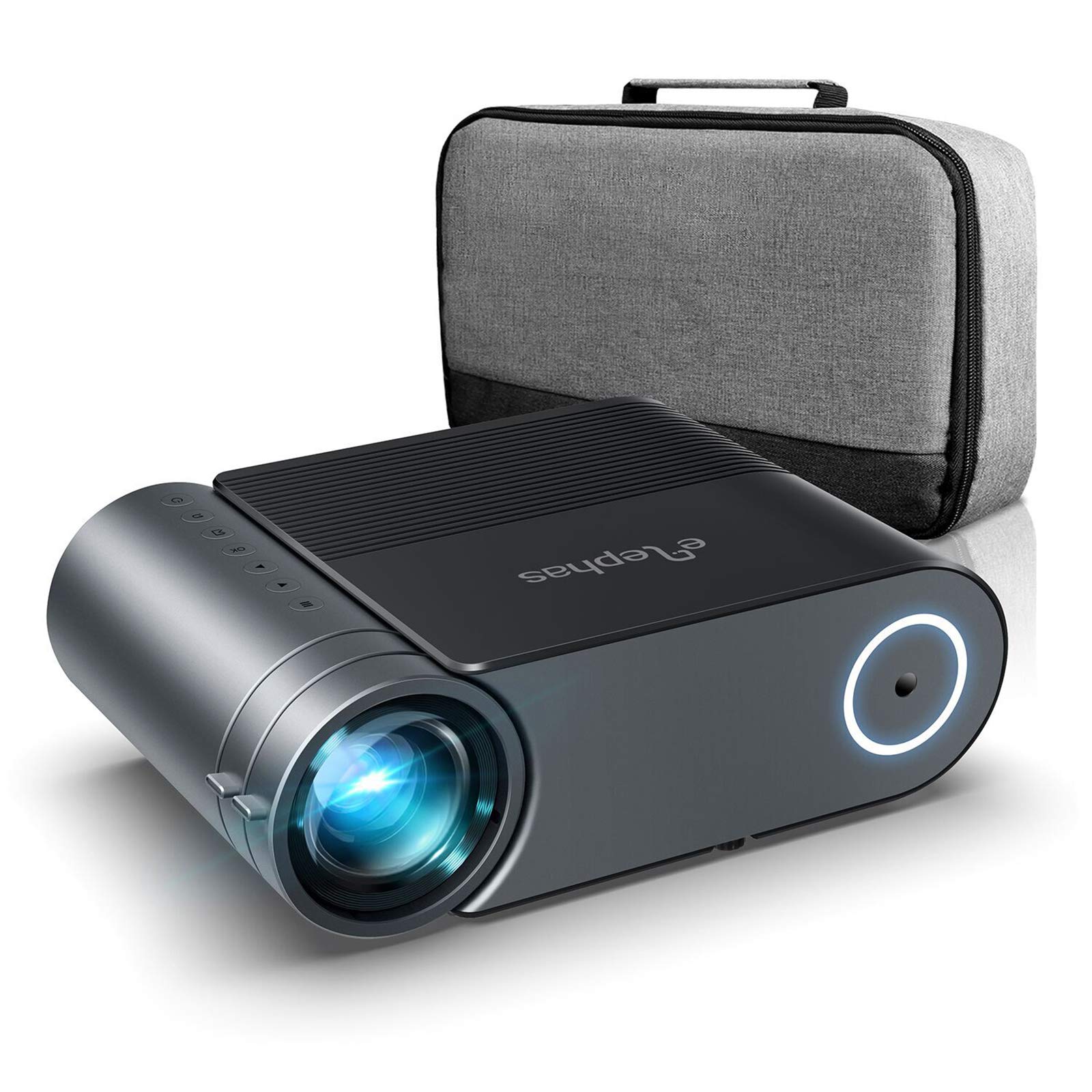
Experience superior brightness and balanced colors with the ELEPHAS YG420 projector.
2. Safety Instructions
- Read all instructions before using the projector.
- Do not block the ventilation openings. Ensure adequate space around the projector for proper airflow.
- Do not look directly into the projector lens when the lamp is on.
- Avoid placing the projector in direct sunlight, near heat sources, or in environments with high humidity or dust.
- Use only the power adapter supplied with the projector.
- Unplug the projector from the power outlet during lightning storms or when unused for long periods.
- Do not attempt to repair this product yourself. Refer all servicing to qualified service personnel.
3. Package Contents
Please check the package contents upon unboxing to ensure all items are present:
- ELEPHAS YG420 Projector
- Remote Control
- Power Cable
- HDMI Cable
- AV Cable
- User Manual
4. Product Overview
4.1 Projector Ports and Controls
The ELEPHAS YG420 projector features a variety of ports for versatile connectivity and intuitive controls for easy operation.
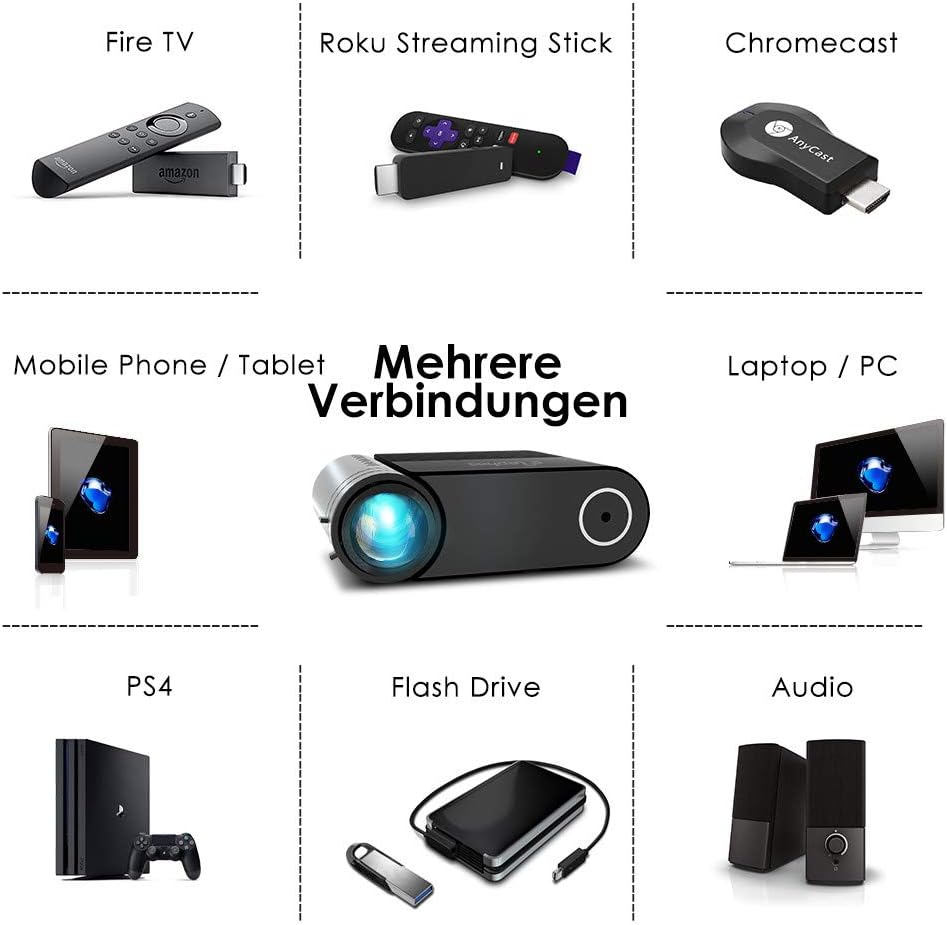
The projector offers multiple interfaces for connecting various devices.
4.2 Remote Control
The included remote control allows for convenient operation of the projector from a distance. It provides access to power on/off, input source selection, menu navigation, volume control, and other settings.
5. Setup
5.1 Placement
Position the projector on a stable, flat surface. For optimal viewing, ensure the projector is aligned directly with the projection surface. The recommended projection distance ranges from 1.5 meters to 4.5 meters, allowing for an image size between 44 inches and 200 inches.

The projector supports flexible display sizes from 44 to 200 inches, depending on the projection distance.
5.2 Power Connection
- Connect the power cable to the projector's power input port.
- Plug the other end of the power cable into a power outlet.
5.3 Connecting Input Devices
The YG420 supports multiple input sources including HDMI, VGA, USB, Micro SD, and AV. Choose the appropriate cable for your device.

Connect a wide range of devices including streaming sticks, gaming consoles, and computers.
- HDMI: Connect to laptops, gaming consoles (PS3/PS4), streaming devices (Fire TV, Roku, Chromecast), or DVD/VCD players.
- VGA: Connect to older computers or laptops.
- USB: Insert a USB flash drive or external hard drive to play media files directly.
- Micro SD: Insert a Micro SD card to play media files.
- AV: Connect to older video devices using the included AV cable.
Note: For connecting smartphones or tablets, an appropriate adapter (not included) may be required.

Some devices, like smartphones, require an adapter for connection (not supplied).
5.4 Focus and Keystone Adjustment
- Focus: Rotate the focus ring on the projector lens until the image appears sharp and clear.
- Keystone: Use the keystone correction dial to adjust the vertical distortion of the image if the projector is not perfectly perpendicular to the screen. The projector supports vertical keystone correction up to 15 degrees.
6. Operating Instructions
6.1 Powering On/Off
- Power On: Press the power button on the projector or the remote control. The projector will start up quickly.
- Power Off: Press the power button again. The projector will shut down immediately without a cool-down phase.
6.2 Selecting Input Source
After powering on, use the 'Source' button on the remote control or the projector's control panel to cycle through available input sources (HDMI1, HDMI2, VGA, USB, Micro SD, AV) and select the one corresponding to your connected device.
6.3 Adjusting Picture Settings
Access the projector's menu using the remote control to adjust settings such as brightness, contrast, color, and aspect ratio to optimize your viewing experience.
6.4 Adjusting Audio Settings
The projector features enhanced stereo-dual speakers. You can adjust the volume using the remote control. For a more immersive audio experience, you can connect external speakers via the audio output port.

The projector includes built-in stereo-dual speakers for clear audio.
7. Maintenance
7.1 Cleaning the Lens
Use a soft, lint-free cloth or lens cleaning paper to gently wipe the projector lens. Avoid using abrasive cleaners or excessive force, which can scratch the lens.
7.2 Cleaning the Air Filter/Vents
Regularly check and clean the air vents to prevent dust buildup, which can affect cooling performance. Use a soft brush or a vacuum cleaner with a brush attachment to remove dust from the vents. The projector features an advanced cooling system to maintain optimal performance.

The advanced cooling system helps maintain the projector's performance and extends its lifespan.
7.3 Storage
When not in use, store the projector in a cool, dry place, away from direct sunlight and extreme temperatures. If possible, use the original packaging or a protective case to prevent dust and damage.
8. Troubleshooting
If you encounter issues with your projector, refer to the following common problems and solutions:
| Problem | Possible Solution |
|---|---|
| No image on screen | Ensure the power cable is securely connected. Check if the correct input source is selected. Verify the input device is powered on and sending a signal. |
| Image is blurry | Adjust the focus ring on the lens. Ensure the projection distance is within the recommended range. |
| Image is distorted (trapezoid shape) | Adjust the keystone correction dial. Ensure the projector is placed as perpendicular to the screen as possible. Note that slight blurriness at the edges may occur with keystone correction. |
| No sound | Check the projector's volume settings and ensure it's not muted. Verify the audio output settings on your connected device. If using external speakers, ensure they are properly connected and powered on. |
| Remote control not working | Check the batteries in the remote control. Ensure there are no obstructions between the remote and the projector's IR receiver. |
9. Specifications
| Feature | Specification |
|---|---|
| Brand | ELEPHAS |
| Model Name | YG420 |
| Item Number | kk-10 |
| Recommended Uses | Home entertainment, gaming, outdoor movie viewings |
| Connectivity Technology | HDMI, USB, VGA |
| Display Resolution (Native) | 1280 x 720 |
| Maximum Display Resolution | 1920 x 1080 |
| Display Type | LCD |
| Brightness | 4500 Lumens |
| Image Contrast Ratio | High (2000:1 mentioned in feature bullets) |
| Light Source Life | 50,000 Hours |
| Maximum Image Size | 200 inches |
| Minimum Throw Distance | 1.5 Meters |
| Maximum Throw Distance | 4.5 Meters |
| Product Dimensions (L x W x H) | 24.5L x 16.6W x 8.1H centimeters |
| Item Weight | 1.25 Kilograms |
| Wattage | 15 watts |
| Controller Type | Remote Control |
| Compatible Devices | PC, DVD/VCD players, speakers, USB hard drives, TV, PS3/PS4 |
10. Warranty and Support
The ELEPHAS YG420 Projector comes with lifetime service and 24 months of technical support. If you have any questions, suggestions, or require assistance, please do not hesitate to contact our customer support team. We are committed to enriching your daily life with our products and providing a satisfactory shopping experience.

