
1. Introduction
This manual provides detailed instructions for the installation, operation, and maintenance of your Antec NX210 Mid-Tower ATX Computer Cabinet. Please read this manual thoroughly before beginning assembly or use to ensure proper functionality and safety.
The Antec NX210 is designed to accommodate ATX, Micro-ATX, and ITX motherboards, offering ample space for components and efficient cooling with pre-installed ARGB fans.
2. Safety Information
Observe the following safety precautions during installation and operation:
- Always disconnect the power supply from the wall outlet before installing or removing any components to prevent electric shock.
- Handle components with care to avoid damage from static electricity. Consider using an anti-static wrist strap.
- Keep the cabinet away from direct sunlight, heat sources, and moisture.
- Ensure proper ventilation to prevent overheating. Do not block air vents.
- Keep small parts and tools out of reach of children.
3. Package Contents
Verify that all items are present in the package:
- Antec NX210 Mid-Tower ATX Computer Cabinet
- 4 x 120mm ARGB Fans (3 pre-installed in front, 1 pre-installed in rear)
- Accessory Box (screws, cable ties, etc.)
- User Manual (this document)
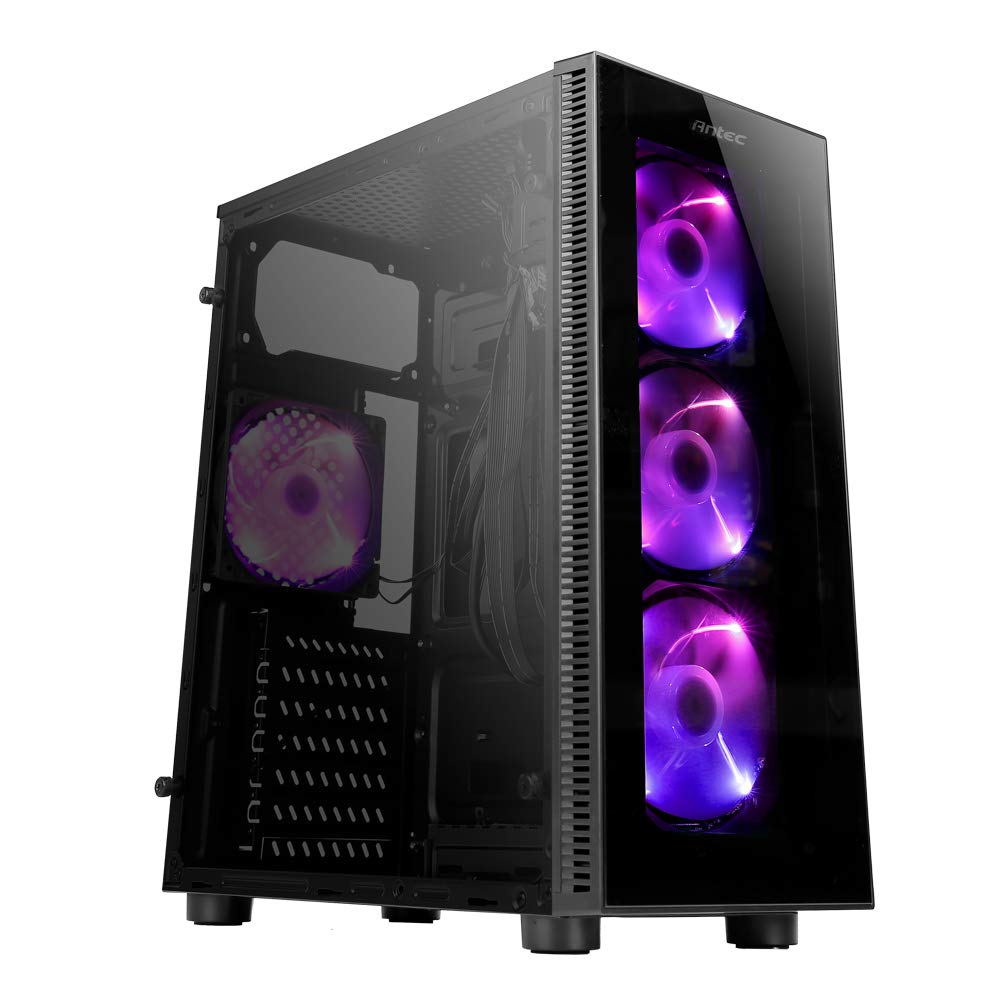
Image: Antec NX210 Mid-Tower ATX Computer Cabinet, showcasing its tempered glass side panel and front ARGB fans.
4. Product Features and Layout
4.1 External Views

Image: Front and back views of the Antec NX210 cabinet, highlighting the tempered glass front panel with ARGB fans and the rear I/O panel layout.

Image: Left side (tempered glass) and right side (solid panel) views of the Antec NX210 cabinet.
4.2 Top I/O Panel
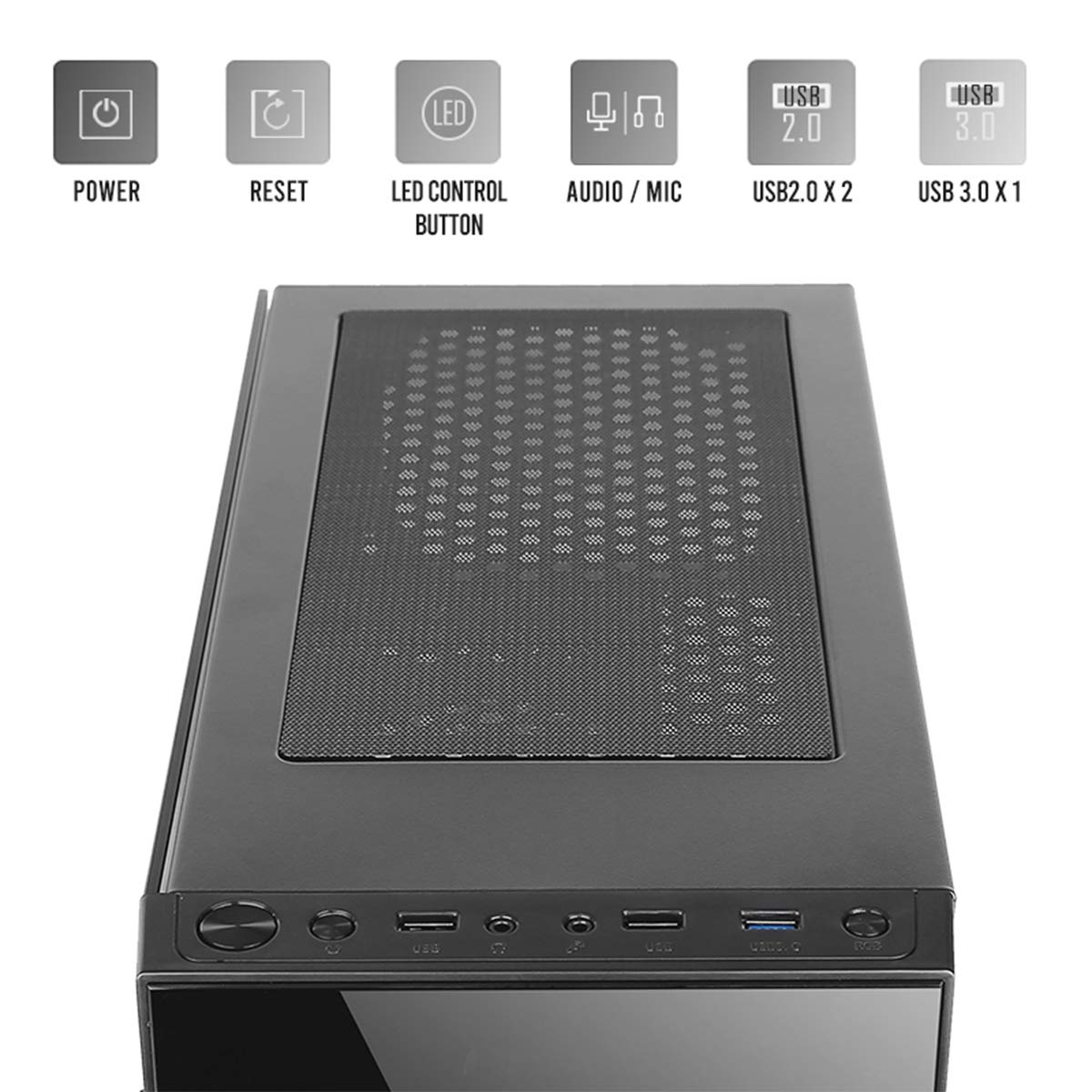
Image: Close-up of the top I/O panel, showing the Power button, Reset button, LED Control button, Audio/Mic jacks, 2x USB 2.0 ports, and 1x USB 3.0 port.
- Power Button: To turn the system on or off.
- Reset Button: To restart the system.
- LED Control Button: To cycle through ARGB lighting effects for the pre-installed fans.
- Audio / Mic Jacks: For connecting headphones and microphones.
- USB 2.0 Ports (x2): For connecting USB 2.0 devices.
- USB 3.0 Port (x1): For connecting USB 3.0 devices, offering faster data transfer speeds.
4.3 Internal Layout and Component Support

Image: Diagram illustrating the internal layout of the Antec NX210, indicating locations for motherboard, SSDs, HDDs, GPU, CPU cooler, and PSU.
- Motherboard Support: Up to ATX (also supports Micro-ATX, ITX).
- 2.5" SSD Support: 3 drive bays.
- 3.5" HDD Support: 1 drive bay.
- Graphics Card Support: Up to 310mm in length.
- CPU Cooler Support: Up to 155mm in height.
- PSU Support: Up to 220mm in length (top-mounted).
4.4 Cooling System

Image: Diagram showing fan and radiator mounting options for the Antec NX210, including pre-installed fans.
- Pre-installed Fans: 4 x 120mm ARGB fans (3 in front, 1 in rear).
- Front Fan Support: 3 x 120mm.
- Rear Fan Support: 1 x 120mm.
- Radiator Support: Front up to 240mm, Rear up to 120mm.
5. Setup and Installation
Follow these general steps for installing components into your Antec NX210 cabinet. Specific component manuals should be consulted for detailed installation instructions.
5.1 Preparing the Cabinet
- Place the cabinet on a stable, flat surface.
- Remove the tempered glass side panel by unscrewing the thumbscrews at the rear and carefully pulling the panel away.
- Remove the right-side metal panel by unscrewing the thumbscrews at the rear.
5.2 Motherboard Installation
- Install the I/O shield into the rear opening of the cabinet.
- Align your motherboard with the standoffs inside the cabinet. Ensure the standoffs match your motherboard's form factor (ATX, Micro-ATX, ITX).
- Secure the motherboard with the provided screws.
5.3 Power Supply Unit (PSU) Installation
- The Antec NX210 supports a top-mounted ATX PS2 power supply.
- Slide the PSU into the designated top compartment from the rear of the cabinet.
- Secure the PSU with screws from the rear of the cabinet.
5.4 Storage Drive Installation (HDD/SSD)
- 3.5" HDD: Locate the 3.5" drive bay. Slide the HDD into the bay and secure it with screws.
- 2.5" SSD: Locate the 2.5" SSD mounting points behind the motherboard tray. Secure the SSDs with screws.
5.5 Graphics Card (GPU) Installation
- Remove the necessary PCIe slot covers from the rear of the cabinet.
- Insert the graphics card into the appropriate PCIe slot on the motherboard.
- Secure the graphics card with screws.
5.6 Cable Management
Utilize the cable routing cutouts and tie-down points behind the motherboard tray to manage cables. This improves airflow and aesthetics.
5.7 Connecting Front Panel Cables
Connect the front panel cables (Power SW, Reset SW, HDD LED, Power LED, USB 2.0, USB 3.0, HD Audio) to the corresponding headers on your motherboard. Refer to your motherboard manual for exact pin layouts.
6. Operating Instructions
6.1 Powering On
After all components are installed and cables connected, close both side panels. Connect the power cable to the PSU and a wall outlet. Press the Power button on the top I/O panel to turn on your system.
6.2 ARGB Fan Control
The pre-installed ARGB fans are connected to an internal controller. Use the LED Control Button on the top I/O panel to cycle through various lighting modes and effects. The fans will display a default lighting effect upon initial power-up.
7. Maintenance
Regular maintenance helps ensure optimal performance and longevity of your computer cabinet.
- Dust Filters: The Antec NX210 features a dust filter on the top panel. Regularly remove and clean this filter to prevent dust buildup and maintain good airflow.
- Interior Cleaning: Periodically open the side panels and use compressed air to remove dust from internal components and fan blades. Ensure the system is powered off and unplugged before cleaning.
- Exterior Cleaning: Wipe the exterior surfaces with a soft, damp cloth. Avoid abrasive cleaners or solvents.
8. Troubleshooting
If you encounter issues, consider the following basic troubleshooting steps:
- No Power:
- Ensure the PSU is properly connected to the wall outlet and the power switch on the PSU is in the 'ON' position.
- Verify that the front panel Power button cable is correctly connected to the motherboard header.
- Check all internal power connections (24-pin ATX, 8-pin CPU, PCIe power for GPU).
- Fans Not Spinning / ARGB Not Working:
- Ensure all fan power cables are securely connected to the motherboard or fan controller.
- Verify ARGB cables are correctly connected to the internal controller and the controller is powered.
- Try pressing the LED Control Button on the top I/O panel to cycle effects.
- USB Ports Not Functioning:
- Check that the USB 2.0 and USB 3.0 front panel cables are correctly connected to the corresponding headers on your motherboard.
For more complex issues, consult the manuals for your individual components or seek professional assistance.
9. Specifications

Image: Diagram showing the physical dimensions of the Antec NX210 cabinet.
| Feature | Detail |
|---|---|
| Model | NX210 |
| Case Type | Mid Tower |
| Dimensions (L x W x H) | 43.99 x 38.99 x 21.01 cm (approx. 395 x 210 x 445 mm) |
| Material | SPCC, Tempered Glass |
| Motherboard Support | ATX, Micro-ATX, ITX |
| Expansion Slots | 7 |
| Drive Bays | 1 x 3.5" HDD, 3 x 2.5" SSD |
| Front I/O Ports | Power, Reset, LED Control Button, MIC/Audio, 2 x USB 2.0, 1 x USB 3.0 |
| Pre-installed Fans | 4 x 120mm ARGB fans (3 front, 1 rear) |
| Fan Support (Front) | 3 x 120mm |
| Fan Support (Rear) | 1 x 120mm |
| Radiator Support (Front) | Up to 240mm |
| Radiator Support (Rear) | Up to 120mm |
| Max GPU Length | 310mm |
| Max CPU Cooler Height | 155mm |
| PSU Support | ATX PS2 (Top Mounted), Max length 220mm |
| Dust Filter | Top |
| Item Weight | 4.8 kg |
10. Warranty and Support
The Antec NX210 Computer Cabinet comes with a 1 Year Warranty from the date of purchase. Please retain your proof of purchase for warranty claims.
For technical support or warranty inquiries, please contact Antec customer service or your local distributor.
Manufacturer: Antec Inc. 8F, No 107, Jhouzih St, Neihu District, Taipei City 114, Taiwan
Importer (India): Acro Engineering Company, Khasra No 522/1, Village Jonapur, Delhi - 110 030
You can find more information and support resources on the official Antec Store on Amazon.


