
1. Introduction
This user manual provides comprehensive instructions for the i-Life ZedAir X Laptop, model IL.1303.4120GB.BCAEGR. It covers setup, operation, maintenance, and troubleshooting to ensure you get the most out of your device. The i-Life ZedAir X is a stylish and portable laptop designed for everyday tasks, offering reliable performance and long-lasting battery life for browsing, streaming, and staying connected.
Key Features:
- 13.3-inch Full HD IPS Display for clear and vibrant visuals.
- Slim metallic chassis, providing a sleek and durable design.
- 120 GB SSD storage for faster boot times and application loading.
- Preloaded with MS Office (English-USA) for productivity.
- Equipped with versatile ports including Type-C data, 2 x USB 3.0, and a Micro SD card slot.
2. Product Overview
Familiarize yourself with the components and features of your i-Life ZedAir X laptop.
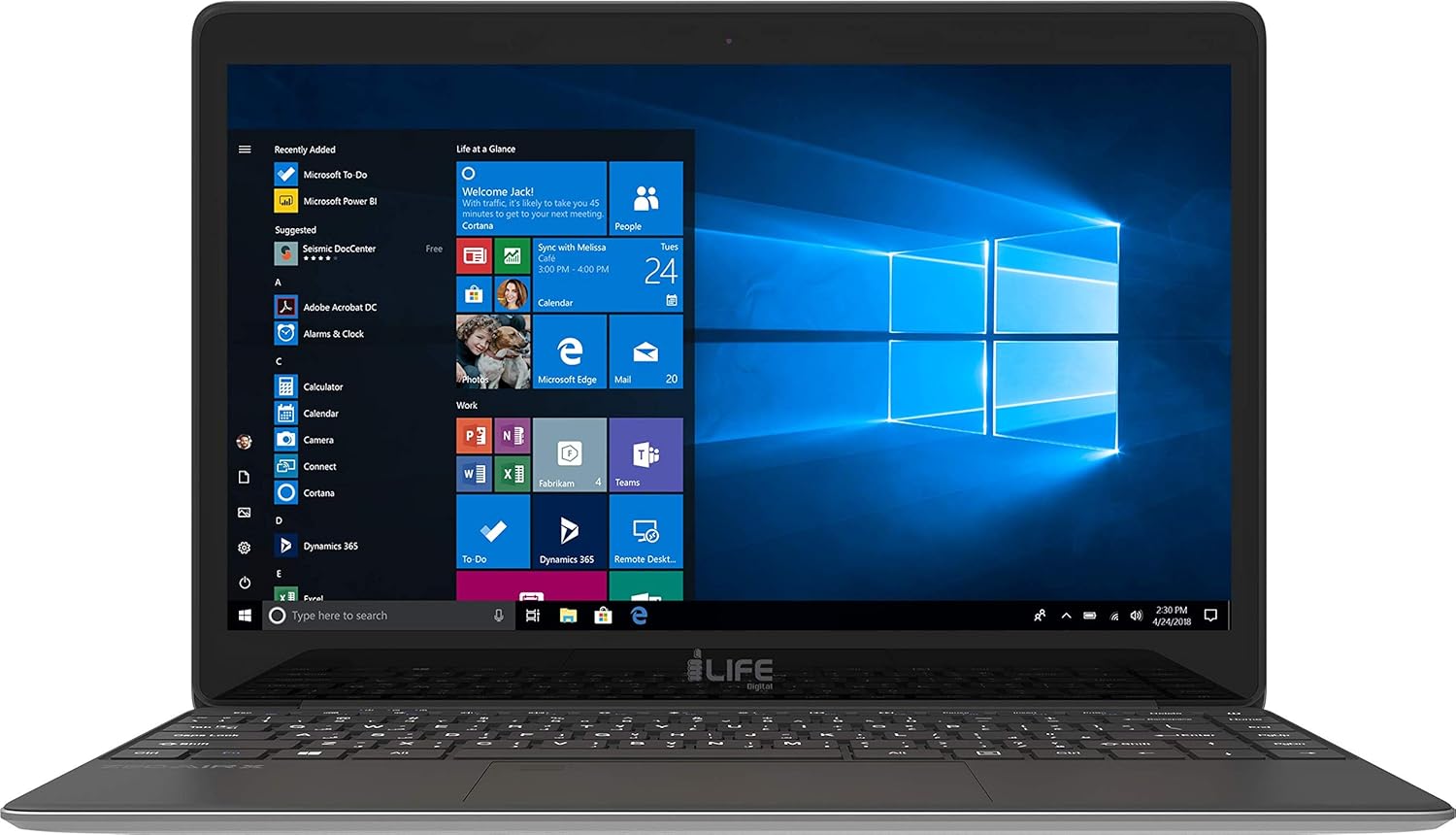
Figure 2.1: Front View of i-Life ZedAir X Laptop. This image shows the laptop open, displaying the 13.3-inch Full HD screen with the Windows 10 operating system desktop. The keyboard and touchpad are visible below the screen, and the i-Life logo is centrally placed below the display.

Figure 2.2: Top-Down View of Keyboard and Touchpad. This image provides a clear view of the full-sized keyboard with Arabic and English key legends, and the large precision touchpad located below the spacebar. Function keys (F1-F12) are visible at the top row, along with dedicated media and system control keys.

Figure 2.3: Side View of i-Life ZedAir X Laptop. This image highlights the slim profile of the laptop and shows some of the available ports on the side, including a USB port and possibly the power input or other connectivity options.

Figure 2.4: Rear View of i-Life ZedAir X Laptop. This image displays the back of the laptop with the lid closed, showcasing its sleek grey metallic finish and the i-Life logo centrally placed on the lid.
Additional Features:
- Fingerprint Reader: An embedded fingerprint reader provides quick and secure access without a password.
- SSD Storage: The Solid State Drive (SSD) ensures less noise, faster operation, and improved reliability, making programs run smoother and faster.
- McAfee LiveSafe™: Protect your device with pre-installed McAfee LiveSafe™ security software.
3. Setup
3.1 Unboxing and Initial Inspection
Carefully remove the laptop and all accessories from the packaging. Check for any visible damage. The package should contain the i-Life ZedAir X laptop, a power adapter, and this user manual.
3.2 Charging the Battery
Before first use, it is recommended to fully charge the laptop's battery. Connect the power adapter to the charging port on the laptop and then plug it into a power outlet. The charging indicator light will illuminate. A full charge typically takes a few hours. You can use the laptop while it is charging.
3.3 First-Time Setup (Windows 10)
Upon first powering on your laptop, you will be guided through the Windows 10 setup process. Follow the on-screen prompts to:
- Select your region and language.
- Connect to a Wi-Fi network.
- Accept the Microsoft License Terms.
- Create or sign in with a Microsoft account.
- Set up a PIN or password for login.
- Configure privacy settings.
Once the setup is complete, the Windows 10 desktop will appear, and your laptop will be ready for use.
4. Operating Instructions
4.1 Powering On and Off
- To Power On: Open the laptop lid and press the power button, usually located on the top right of the keyboard or side.
- To Shut Down: Click the Start button (Windows icon) in the bottom-left corner of the screen, then click the Power icon, and select Shut down.
- To Restart: Follow the same steps as Shut Down, but select Restart.
- To Sleep: Follow the same steps as Shut Down, but select Sleep, or simply close the laptop lid.
4.2 Using the Keyboard and Touchpad
The i-Life ZedAir X features a full-sized keyboard and a multi-touch touchpad.
- Keyboard: Standard QWERTY layout with function keys (F1-F12) that can be used in combination with the Fn key for special functions (e.g., volume control, screen brightness).
- Touchpad: Supports multi-touch gestures for navigation.
- Tap: Single tap for left-click, two-finger tap for right-click.
- Scroll: Drag two fingers up or down to scroll.
- Zoom: Pinch two fingers together or spread them apart to zoom in or out.
4.3 Connecting Peripherals
Your laptop is equipped with various ports for connecting external devices:
- USB 3.0 Ports: For connecting USB devices such as external hard drives, flash drives, mice, and keyboards.
- Type-C Data Port: A versatile port for data transfer with compatible Type-C devices.
- Micro SD Card Slot: Insert a Micro SD card to expand storage or transfer files from cameras and other devices.
- Headphone Jack: Connect headphones or external speakers.
4.4 Connecting to Wi-Fi
To connect to a wireless network:
- Click the Network icon (looks like a Wi-Fi signal) in the bottom-right corner of the taskbar.
- A list of available Wi-Fi networks will appear. Select your desired network.
- If prompted, enter the network security key (password) and click Next or Connect.
- Once connected, the icon will change to indicate an active connection.
5. Maintenance
5.1 Cleaning Your Laptop
- Screen: Use a soft, lint-free cloth specifically designed for electronics. Dampen the cloth slightly with water or a screen cleaner solution (do not spray directly onto the screen).
- Chassis and Keyboard: Use a soft, dry cloth. For stubborn dirt, a slightly damp cloth can be used. Avoid harsh chemicals or abrasive materials.
- Ports: Use compressed air to gently clear dust from ports. Do not insert objects into the ports.
5.2 Battery Care
To maximize battery lifespan:
- Avoid extreme temperatures.
- Do not let the battery completely drain frequently.
- If storing the laptop for an extended period, ensure the battery is charged to about 50-60%.
5.3 Software Updates
Regularly update your Windows operating system and drivers to ensure optimal performance, security, and compatibility. Windows updates are typically managed automatically, but you can manually check by going to Settings > Update & Security > Windows Update.
6. Troubleshooting
This section addresses common issues you might encounter with your i-Life ZedAir X laptop.
6.1 Laptop Does Not Power On
- Ensure the power adapter is securely connected to both the laptop and a working power outlet.
- Check if the power outlet is functional by plugging in another device.
- Allow the laptop to charge for at least 30 minutes before attempting to power it on again.
- Try a hard reset: Disconnect the power adapter, press and hold the power button for 15-20 seconds, then reconnect the adapter and try to power on.
6.2 Wi-Fi Connectivity Issues
- Ensure Wi-Fi is enabled on your laptop (check the Network icon in the taskbar).
- Restart your Wi-Fi router and modem.
- Forget the network and reconnect: Go to Settings > Network & Internet > Wi-Fi, select your network, and choose "Forget". Then, reconnect.
- Update your Wi-Fi drivers (refer to i-Life support website if needed).
6.3 Slow Performance
- Close unnecessary applications running in the background.
- Check for and install any pending Windows updates.
- Run a disk cleanup to remove temporary files.
- Scan for malware or viruses using your antivirus software (e.g., McAfee LiveSafe™).
- Consider restarting the laptop regularly.
7. Specifications
| Feature | Specification |
|---|---|
| Brand | i-Life |
| Model Name | ZedAir |
| Item Model Number | IL.1303.4120GB.BCAEGR |
| Color | Grey |
| Product Dimensions | 21.5 x 31.5 x 1 cm |
| Item Weight | 1.35 Kilograms |
| Screen Size | 13.3 Inches |
| Screen Resolution | 1920 x 1080 pixels (Full HD) |
| Processor Brand | Intel |
| Processor Type | Celeron |
| Processor Speed | 2.4 GHz |
| RAM Size | 4 GB |
| Computer Memory Type | DDR3 SDRAM |
| Hard Drive Size | 120 GB |
| Hard Disk Description | Solid State Drive (SSD) |
| Graphics Chipset Brand | Intel |
| Graphics Card Interface | Integrated |
| Operating System | Windows 10 Home |
| Connectivity Type | Wi-Fi (802.11bgn) |
| Batteries | 1 Lithium Polymer battery (included) |
| Lithium Battery Energy Content | 30.4 Watt Hours |
8. Safety Information
Please read the following safety guidelines carefully to prevent damage to your device or injury to yourself:
- Do not expose the laptop to extreme temperatures, direct sunlight, or high humidity.
- Avoid placing the laptop near strong magnetic fields.
- Do not spill liquids on the laptop. In case of accidental spills, immediately power off the device and disconnect the power adapter.
- Do not attempt to disassemble or repair the laptop yourself. Refer to qualified service personnel.
- Use only the original power adapter provided with the laptop.
- Ensure proper ventilation when using the laptop to prevent overheating. Do not block the ventilation openings.
- Avoid dropping or subjecting the laptop to strong impacts.
9. Warranty and Support
i-Life products are designed and manufactured to the highest quality standards. For information regarding your product's warranty, please refer to the warranty card included in your product packaging or visit the official i-Life website. If you encounter any issues that cannot be resolved using the troubleshooting guide, please contact i-Life customer support for assistance. Have your model number (IL.1303.4120GB.BCAEGR) and serial number ready when contacting support.