
Introduction
This manual provides detailed instructions for the installation, operation, and maintenance of your Dasaita 10.2" Double Din Android Car Stereo. This head unit features a 10.2-inch QLED display, a powerful Hexa-core PX6 CPU with 4GB RAM and 64GB ROM, and runs on the Android 11 operating system. It supports wireless Apple CarPlay and Android Auto, offering a safer and smarter way to use your smartphone in the car. Enjoy high-fidelity sound quality with built-in DSP options and access to a wide range of entertainment and navigation features.
What's in the Box
Carefully unpack your Dasaita 10.2" Double Din Android Car Stereo and ensure all components are present:
- Headunit
- Audio Output Cable
- AUX In & Cam In Cable
- Single USB Cable
- Dual USB Cable
- WiFi Antenna
- GPS Antenna
- Microphone
- Power Cable
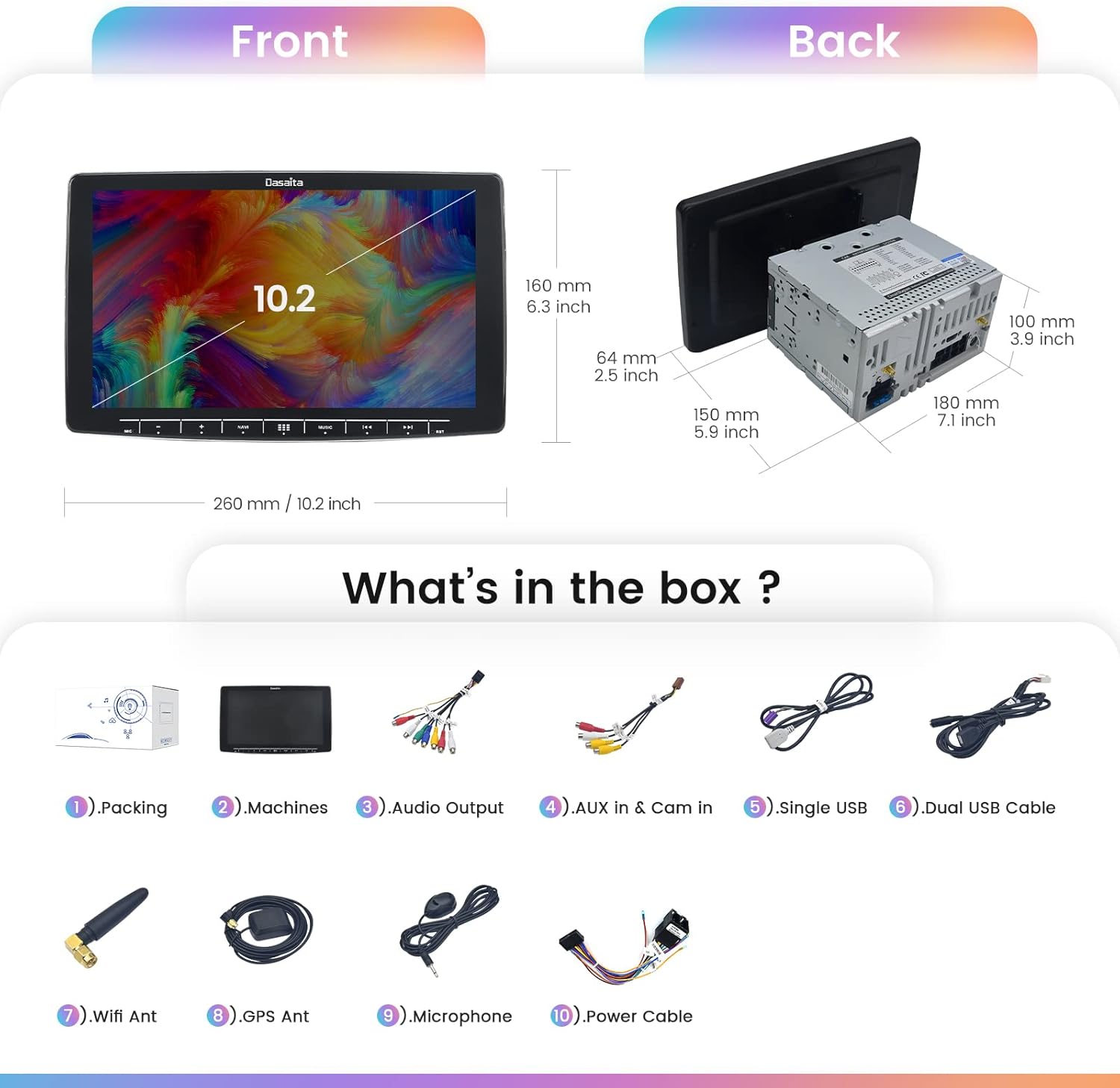
Image: Included components of the Dasaita 10.2" Double Din Android Car Stereo.
Setup and Installation
The Dasaita 10.2" head unit is designed for double din OEM CD dash or 178x100mm size double din dash kits. The 10.2-inch screen panel is removable for easier installation. It comes with a standard ISO port power cable for straightforward wiring or connection to refitting cables.
Screen Panel Mounting Steps:
- First: Remove 4 flush head screws from the top and bottom of the main unit.
- Second: Install The Display Unit Position: Remove the 2 angle adjustment screws fixing the left and right sides of the Display unit and pull the top of the display forward, adjust the angle of the display.
- Third: Fix the display unit to the slider of the main unit using 5 screws (M4x5).
- Fourth: Mount the display panel using 4 screws (M3x4).
Ensure the POWER PLATE is attached; otherwise, the display will not turn on.

Image: Detailed mounting steps for the display unit.
Operating Instructions
Dasaita Vivid Launcher
The Dasaita Vivid launcher offers a personalized in-car theme with convenient features for daily driving. It is designed for clarity and beauty, with internet connectivity enabling software updates and new features via over-the-air updates.

Image: Customizable wallpaper and UI styles.
Apple CarPlay & Android Auto
Connect your smartphone for a safer way to use your phone in the car. This unit supports both wired and wireless connections. Use voice commands (Siri/Hey Google) or the display to get directions, make calls, listen to music, and send/receive texts. To activate wireless CarPlay, connect your phone's Bluetooth to 'CAR-KIT', then connect your iPhone's Wi-Fi to the 'Android' AP, and launch the Zlink app.

Image: Android Auto and Apple CarPlay interfaces.
Music and Video Playback
The head unit supports various audio and video formats, including MP3, WMA, WAV, AC3, FLAC for audio, and 4K video formats like RMVB, AVI, MPG, MPEG, VOB, MOV, ASF, FLV, 3GP, MP4. Enjoy your media directly from USB, SD card, or streaming services.

Image: Music, Video, Radio, and Phone Call functions.
Radio
Tune into your favorite AM/FM stations. The unit supports RDS (Radio Data System) to display station information and allows for automatic or manual channel selection.
Bluetooth Connectivity
Utilize Bluetooth 5.0 for hands-free calling and A2DP music streaming. Connect your smartphone to make and receive calls directly from the head unit's display and stream audio wirelessly.
GPS Navigation
The head unit includes GPS navigation with North America maps. Connect to a Wi-Fi hotspot or 3G dongle to use online maps like Google Maps, or install offline navigation apps.
Google Play Store & Internet
With internet connectivity (via Wi-Fi or tethering), you can download millions of apps, games, music, and movies from the Google Play Store. Use the built-in Chrome browser to surf the internet.
Digital Sound Processor (DSP)
The built-in DSP with multiple customizable options allows you to adapt the audio experience to your liking. The TDA7850 amplifier (23 watts RMS/50 peak x 4 channels) ensures clear sound even at high volumes.

Image: HD IPS Screen and DSP features.
Steering Wheel Control
The unit is compatible with existing steering wheel controls, allowing you to manage volume, tracks, and other functions without taking your hands off the wheel. Configuration may be required in the settings menu.
Split Screen Functionality
For enhanced multitasking, the head unit supports split-screen mode (1280x720 resolution only), allowing you to run two applications simultaneously, such as navigation and video playback.
Maintenance
- Cleaning: Use a soft, dry cloth to clean the screen and unit. Avoid abrasive cleaners or solvents.
- Software Updates: The Dasaita Vivid system supports regular over-the-air (OTA) software updates to improve performance and add new features. Ensure your unit is connected to the internet to receive these updates.
- Storage Management: Periodically clear cache and unnecessary files to maintain optimal performance of the 64GB ROM.
Troubleshooting
- Screen Glare: Adjust the screen angle to minimize glare. The rotatable display allows for flexible positioning.
- Touchscreen Responsiveness: If the touchscreen is unresponsive, ensure it is clean and free from moisture. A system reboot may also resolve minor software glitches.
- Bluetooth Connectivity Issues: Ensure your phone's Bluetooth is discoverable and the head unit is in pairing mode. Try forgetting and re-pairing the device.
- No Sound: Check all audio connections and ensure the volume is not muted. Verify DSP settings are correctly configured.
- Steering Wheel Controls Not Working: Access the 'Factory Settings' menu (passcode 126) and navigate to 'CANBUS' to ensure the correct CANBUS option is selected for your vehicle.
- Random Reboots: Ensure all power connections are secure. If the issue persists, contact customer support.
Specifications
| Feature | Detail |
|---|---|
| Model Number | HA2186 |
| Screen Size | 10.2 Inches |
| Operating System | Android 11 |
| CPU | Hexa-core PX6, 64Bit |
| RAM | 4GB |
| ROM | 64GB |
| Display Type | QLED with Capacitive Touchscreen |
| Connectivity Technology | Auxiliary, Bluetooth, Cellular, USB, Wi-Fi |
| Bluetooth Version | 5.0 |
| Amplifier | TDA7850 (23 watts RMS/50 peak x 4 channels) |
| Map Type | North America |
| Item Weight | 8.82 pounds |
| Package Dimensions | 17.17 x 12.36 x 7.95 inches |
Optional Accessories
The Dasaita head unit supports various optional accessories to enhance your driving experience. These are sold separately:
- TPMS (Tire Pressure Monitoring System): External or Internal sensors available.
- DTV (Digital TV): For receiving digital television broadcasts.
- Car DVR (Digital Video Recorder): For recording driving footage.
- Rearview Camera: For assistance with parking and reversing.
- DAB (Digital Audio Broadcasting): For enhanced radio quality in supported regions.
Warranty and Support
For warranty information, technical support, or any inquiries regarding your Dasaita product, please contact the Dasaita Official Store directly. They are committed to providing excellent customer service and resolving any issues you may encounter.

Image: How to contact Dasaita support.
Official Product Overview
Watch this official video from Dasaita to see the HA2186 car stereo in action, demonstrating its features and user interface.
Video: Dasaita Car Stereo Radio with GPS Navigation, showcasing various functions like music, radio, video, Bluetooth, navigation, and settings.


