
1. Introduction
This manual provides detailed instructions for the installation, operation, and maintenance of your GAMDIAS Aeolus M2-1204R RGB Fan. This 120mm fan is designed to enhance cooling performance and aesthetics within your computer enclosure. Please read this manual thoroughly before installation and use to ensure proper function and longevity of the product.
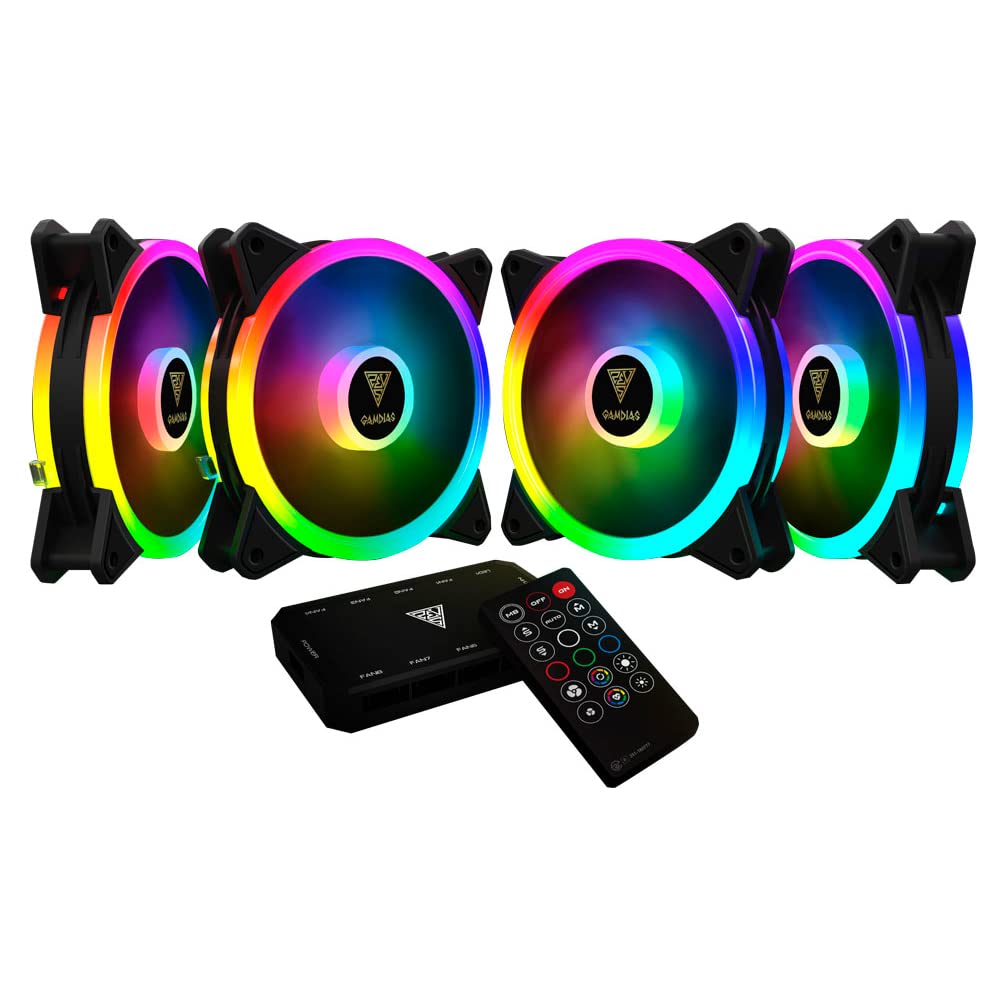
Image 1.1: Front view of the GAMDIAS Aeolus M2-1204R RGB Fan, showcasing its vibrant RGB lighting.
2. Safety Information
Observe the following safety guidelines to prevent damage to the product or injury to yourself:
- Ensure your computer system is powered off and disconnected from the main power supply before installation or maintenance.
- Handle the fan by its frame to avoid touching the blades, which can be delicate.
- Do not attempt to modify the fan or its components. Unauthorized modifications may void the warranty and pose safety risks.
- Keep the fan away from liquids and excessive moisture.
- Ensure all cables are properly connected and routed to avoid interference with moving parts or other components.
3. Package Contents
Verify that all items are present in your package:
- GAMDIAS Aeolus M2-1204R RGB Fan (1 unit)
- Mounting Screws
- User Manual (this document)
4. Setup and Installation
Follow these steps to properly install your GAMDIAS Aeolus M2-1204R RGB Fan:
4.1 Physical Installation
- Prepare your PC: Power off your computer and unplug it from the wall outlet. Open your computer case.
- Identify mounting location: Locate an available 120mm fan mounting position in your PC case (e.g., front, rear, top, or bottom).
- Position the fan: Place the fan in the desired mounting location, ensuring the airflow direction is correct. Typically, fans are installed to draw cool air into the case or exhaust hot air out. Arrows on the fan frame usually indicate airflow direction.
- Secure the fan: Use the provided mounting screws to secure the fan to the case. Tighten screws evenly but do not overtighten to avoid stripping or damaging the fan frame.
4.2 Wiring Connections
- Connect Power: Locate the 4-pin power connector on the fan cable. Connect this to an available 4-pin fan header on your motherboard or a fan controller. Ensure the connector is oriented correctly before pushing it firmly into place.
- Connect RGB (if applicable): The Aeolus M2-1204R features RGB lighting. Connect the RGB cable from the fan to a compatible RGB header on your motherboard (e.g., 5V 3-pin addressable RGB header) or to a dedicated GAMDIAS RGB controller. Refer to your motherboard or controller manual for specific RGB connection instructions.
- Cable Management: Route all cables neatly to prevent interference with other components and to maintain good airflow within the case.

Image 4.1: Various views of the GAMDIAS Aeolus M2-1204R RGB Fan, illustrating its design and connection points.
5. Operating Instructions
Once installed, the GAMDIAS Aeolus M2-1204R fan will begin operating when your computer is powered on. Its primary function is to provide airflow for cooling your PC components.
5.1 Fan Speed Control
If connected to a 4-pin PWM (Pulse Width Modulation) fan header on your motherboard, the fan speed can be controlled via your motherboard's BIOS/UEFI settings or through compatible software provided by your motherboard manufacturer. This allows for dynamic adjustment of fan speed based on system temperature, optimizing for either performance or quiet operation.
5.2 RGB Lighting Control
The RGB lighting of the Aeolus M2-1204R can be controlled in one of two ways, depending on your setup:
- Motherboard Software: If connected to a compatible addressable RGB header on your motherboard, you can use your motherboard's RGB synchronization software (e.g., ASUS Aura Sync, MSI Mystic Light Sync, Gigabyte RGB Fusion, ASRock Polychrome Sync) to customize lighting effects and colors.
- Dedicated Controller: If you are using a GAMDIAS RGB controller (often included with multi-fan packs or sold separately), the lighting can be controlled via the controller's buttons or remote control. Refer to the controller's specific manual for detailed instructions.
6. Maintenance
Regular maintenance helps ensure optimal performance and extends the lifespan of your fan.
6.1 Cleaning
- Frequency: It is recommended to clean your fan every 3-6 months, or more frequently in dusty environments.
- Procedure:
- Power off your computer and disconnect it from the power supply.
- Carefully open your computer case.
- Use compressed air to blow dust off the fan blades and frame. Hold the fan blades gently to prevent them from spinning rapidly during cleaning, which can damage the bearings.
- For stubborn dust, use a soft, dry cloth or a cotton swab to wipe the blades and frame. Do not use liquid cleaners.
- Ensure the fan is completely dry before closing the case and powering on the computer.
6.2 General Care
- Avoid placing your computer in excessively dusty or humid environments.
- Ensure adequate space around your computer case for proper airflow.
7. Troubleshooting
If you encounter issues with your GAMDIAS Aeolus M2-1204R fan, refer to the following common problems and solutions:
| Problem | Possible Cause | Solution |
|---|---|---|
| Fan not spinning | No power connection Faulty fan header Fan failure | Check if the 4-pin power connector is securely plugged into the motherboard/controller. Try connecting the fan to a different fan header on the motherboard. If still not spinning, the fan may be faulty. |
| RGB lighting not working | Incorrect RGB connection Software issue Faulty RGB component | Ensure the RGB cable is correctly connected to a compatible 5V 3-pin addressable RGB header or controller. Verify that your motherboard's RGB software or dedicated controller is properly configured and running. Check for any physical damage to the RGB cable or LEDs. |
| Fan making unusual noise | Obstruction Loose mounting screws Bearing issue | Power off and check for any cables or objects obstructing the fan blades. Ensure all mounting screws are tightened securely. If the noise persists and there are no obstructions, the fan bearings may be worn. Consider replacement. |
8. Specifications
Key technical specifications for the GAMDIAS Aeolus M2-1204R RGB Fan:
- Model: AEOLUS M2-1204R
- Fan Dimensions: 120mm x 120mm x 25mm (4.72"L x 2.36"W x 4.72"H)
- Material: Polycarbonate
- Power Connector: 4-Pin PWM
- Voltage: 12 Volts
- Wattage: 13.2 watts
- Cooling Method: Air
- Maximum Rotational Speed: 2000 RPM
- Air Flow Capacity: 56 Cubic Feet Per Minute (CFM)
- Noise Level: 20 Decibels (dB)
- Compatible Devices: Desktop
- Item Weight: 5.6 ounces

Image 8.1: Side view of the GAMDIAS Aeolus M2-1204R RGB Fan, highlighting its profile.
9. Warranty and Support
9.1 Warranty Information
The GAMDIAS Aeolus M2-1204R RGB Fan comes with a manufacturer's warranty. Please refer to the warranty card included with your product or visit the official GAMDIAS website for detailed warranty terms and conditions. Keep your proof of purchase for warranty claims.
9.2 Technical Support
For technical assistance, troubleshooting beyond this manual, or warranty inquiries, please contact GAMDIAS customer support through their official website or the retailer from whom you purchased the product. Provide your product model number (AEOLUS M2-1204R) and a detailed description of the issue when seeking support.


