
Introduction
Welcome to the user manual for your Picun Elite P80S Wireless Headset. This guide provides detailed instructions for setup, operation, maintenance, and troubleshooting to ensure you get the most out of your device. Please read this manual thoroughly before using the headset.
Package Contents
- Picun Elite P80S Headset
- Detachable AUX Microphone
- USB Charging Cable
- AUX Cable for Wired Transmission

Image: Picun Elite P80S Wireless Headset with detachable microphone, showcasing its design and included microphone.
Product Overview
Headset Components and Controls
The Picun Elite P80S headset features an ergonomic design with easy-to-access media buttons for various functions. These include controls for music playback, call management, vibration mode, LED light display, and volume adjustments.

Image: The Picun Elite P80S Wireless Headset shown in its folded configuration, highlighting its portable design.

Image: The Picun Elite P80S Wireless Headset displayed on a stand, providing a clear view of its over-ear design, earcups, and adjustable headband.
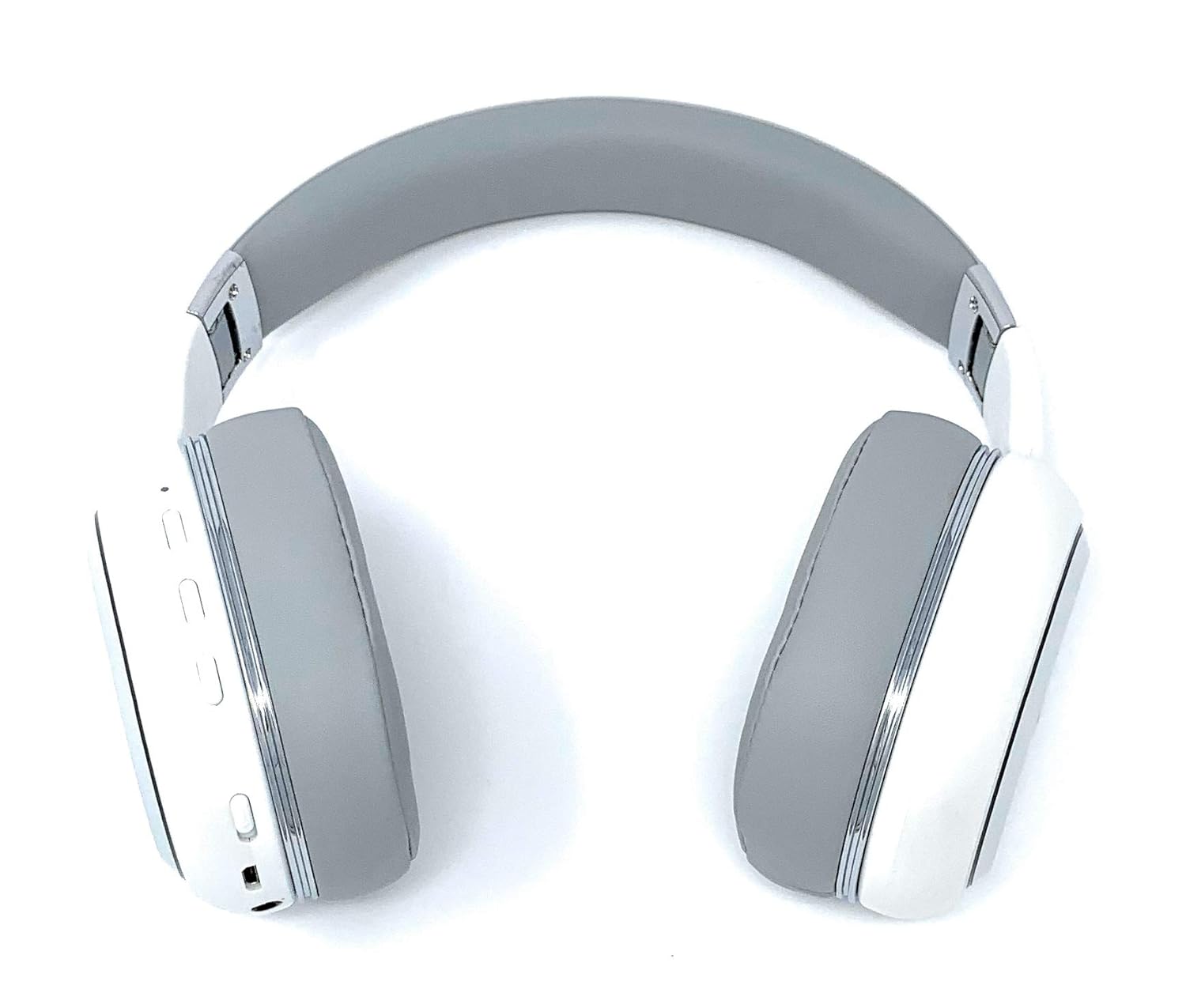
Image: A rear perspective of the Picun Elite P80S Wireless Headset, illustrating the placement of control buttons on the earcup.

Image: A detailed close-up of the right earcup hinge and the 'R' indicator on the Picun Elite P80S Wireless Headset, showing construction details.
Setup
Charging the Headset
Before initial use, fully charge the headset. Use the provided USB charging cable with any compatible USB adapter or device.
- Connect the USB charging cable to the headset's charging port.
- Connect the other end of the USB cable to a power source.
- A full charge provides approximately 40 hours of game time or 60 hours of music/media playback in wireless mode.
Bluetooth Pairing
To connect your headset wirelessly:
- Ensure the headset is powered off.
- Press and hold the power button until the LED indicator flashes, indicating pairing mode.
- On your device (smartphone, tablet, computer), enable Bluetooth and search for available devices.
- Select "Picun P80S" from the list of found devices.
- Once connected, the LED indicator will show a steady light or flash slowly.
Wired Connection
For a wired connection, use the provided AUX cable:
- Connect one end of the AUX cable to the headset's AUX port.
- Connect the other end to your audio device's 3.5mm audio jack.
- The headset can be used indefinitely in wired mode, regardless of battery charge.
Attaching the Microphone
The headset includes a detachable microphone for clear communication:
- Locate the microphone port on the headset.
- Gently insert the detachable microphone into the port until it clicks into place.
- The microphone is designed to reduce ambient noise for high-definition vocals.
Operating Instructions
Power On/Off
- Power On: Press and hold the power button for a few seconds until the LED indicator lights up.
- Power Off: Press and hold the power button for a few seconds until the LED indicator turns off.
Music Playback
- Play/Pause: Press the Play/Pause button once.
- Next Track: Press and hold the 'Volume Up' button.
- Previous Track: Press and hold the 'Volume Down' button.
Call Management
- Answer/End Call: Press the Multi-function button once.
- Reject Call: Press and hold the Multi-function button for 2 seconds.
Dual Shock/Vibration Mode
This mode enhances audio with deep bass and vibrations, ideal for music, movies, and gaming.
- Activate/Deactivate: Use the dedicated 'Vibration/Dual Shock Mode On-Off toggle switch' on the headset.
LED Light Display
The headset features an LED light display.
- Turn On/Off: Use the dedicated 'LED Light Display On-Off button' on the headset.
Volume Control
- Increase Volume: Press the 'Volume Up' button.
- Decrease Volume: Press the 'Volume Down' button.
Maintenance
Cleaning
- Wipe the headset with a soft, dry cloth.
- Do not use abrasive cleaners or solvents.
- Keep the charging port and audio jacks free of dust and debris.
Storage
- Store the headset in a cool, dry place away from direct sunlight and extreme temperatures.
- When not in use for extended periods, ensure the headset is fully charged before storing.
Troubleshooting
No Power
- Ensure the headset is fully charged.
- Verify the charging cable and power source are functioning correctly.
No Sound
- Check the volume levels on both the headset and your connected device.
- If using Bluetooth, ensure the headset is properly paired and connected.
- If using a wired connection, ensure the AUX cable is securely plugged into both the headset and the audio source.
- Test with a different audio source or device.
Bluetooth Pairing Issues
- Ensure the headset is in pairing mode (LED flashing).
- Turn off and on Bluetooth on your device.
- Clear previous Bluetooth connections on your device and try pairing again.
- Ensure the headset is within the effective range of your Bluetooth device.
Specifications
| Feature | Description |
|---|---|
| Model Name | Elite P80S |
| Connectivity Technology | Bluetooth |
| Wireless Communication Technology | Bluetooth |
| Included Components | Headset, Detachable AUX Microphone, USB Charging Cable, AUX Cable for Wired Transmission |
| Age Range (Description) | Adult |
| Material | Faux Leather |
| Control Type | Volume Control, Remote |
| Cable Feature | Detachable |
| Item Weight | 820 g (0.82 Kilograms) |
| Number of Items | 1 |
| Special Feature | Noise Cancellation |
| Manufacturer | Picun |
| Hardware Platform | Gaming Console |
| Microphone format | Built-In, Detachable AUX Microphone |
| Batteries Required | No (Internal rechargeable battery) |
| Form Factor | Over Ear |
| Colour | White |
| Noise Control | Active Noise Cancellation |
| Headphones Jack | 3.5 mm Jack |
Warranty Information
The Picun Elite P80S Wireless Headset is covered by a manufacturer's warranty. For specific details regarding warranty terms, duration, and claims process, please refer to the warranty policy provided at the time of purchase or contact Picun customer support.
Customer Support
If you encounter any issues not covered in this manual or require further assistance, please contact Picun customer support through their official website or the contact information provided with your product packaging. Please have your product model (P80S) and purchase details ready when contacting support.


