
Introduction
This manual provides essential information for the setup, operation, maintenance, and troubleshooting of your iRobot Roomba 677 Robot Vacuum. Please read these instructions carefully to ensure optimal performance and longevity of your device.
Setup
1. Unboxing and Initial Placement
Your Roomba 677 may arrive in non-retail packaging. Carefully remove all contents. Place the Home Base charging station on a level surface against a wall, ensuring there are no obstacles for at least 1.5 feet (0.5 meters) on either side and 4 feet (1.2 meters) in front. Plug the power cord into a wall outlet.
2. Charging the Battery
Place your Roomba onto the Home Base. The battery indicator will pulse amber while charging. A full charge typically takes approximately 3 hours. The indicator will turn solid green when fully charged. The Roomba 677 operates for up to 90 minutes on a single charge before automatically returning to its Home Base for recharging.
3. Connecting to Wi-Fi and iRobot Home App
Download the iRobot Home App from your device's app store. Follow the in-app instructions to connect your Roomba 677 to your home Wi-Fi network. This enables smart features such as scheduling, cleaning preferences, and voice assistant integration.
4. Voice Assistant Integration (Alexa, Google Home)
Once connected to the iRobot Home App, you can link your Roomba to compatible voice assistants like Amazon Alexa or Google Home. Refer to the respective voice assistant app for specific instructions on enabling the iRobot skill or service.
Operating Your Roomba 677
1. Starting a Cleaning Cycle
Press the CLEAN button on the robot or use the iRobot Home App to start a cleaning cycle. The robot will automatically navigate and clean your floors. You can also initiate cleaning using voice commands if integrated with a voice assistant.
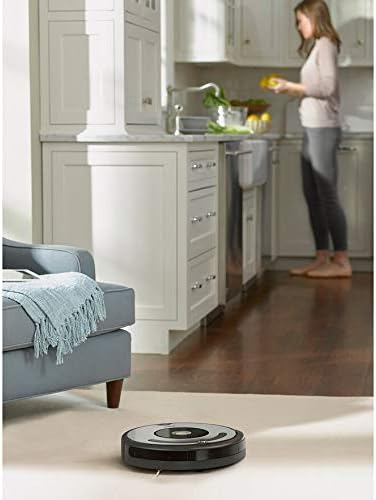 Image: The iRobot Roomba 677 robot vacuum operating in a home environment, transitioning from carpet in a living room to hard flooring in a kitchen.
2. Cleaning Technology
- 3-Stage Cleaning System: The Roomba 677 utilizes a 3-stage system to loosen, lift, and suction dirt, dust, and debris.
- Dual Multi-Surface Brushes: These brushes are designed to grab dirt from both carpets and hard floors, adjusting automatically to maintain contact.
- Edge-Sweeping Brush: A specialized brush sweeps debris from corners and wall edges into the robot's cleaning path.
- Dirt Detect Sensors: The robot uses acoustic and optical sensors to identify concentrated areas of dirt, prompting it to clean those spots more thoroughly.
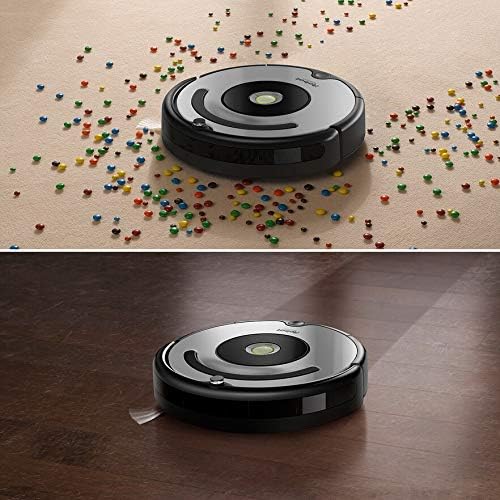 Image: The iRobot Roomba 677 demonstrating its cleaning capability by picking up scattered cereal pieces from a carpeted floor.
3. Navigation and Obstacle Avoidance
A full suite of advanced sensors allows the Roomba to navigate under and around furniture, as well as along edges. Cliff Detect sensors prevent the robot from falling down stairs or off ledges.
 Image: The iRobot Roomba 677 robot vacuum cleaning underneath a sofa, illustrating its ability to navigate under furniture.
4. Scheduling and Personalized Cleaning
Through the iRobot Home App, you can set personalized cleaning schedules. The robot learns your cleaning habits and can suggest extra cleaning sessions based on factors like high pollen counts or pet shedding seasons.
Maintenance
Regular maintenance ensures your Roomba 677 operates efficiently. Perform these tasks regularly, especially if you have pets.
1. Emptying the Dust Bin
The dust bin should be emptied after each cleaning cycle, or more frequently depending on usage and debris levels. Press the bin release button and slide out the bin. Open the bin door and discard the contents. The bin is washable; rinse it with water and allow it to air dry completely before reinserting.
2. Cleaning the Filter
The High-Efficiency Filter traps 99% of cat and dog allergens. Remove the filter from the dust bin and tap it against a trash can to remove debris. Replace the filter every 2-3 months, or as needed. Do not wash the filter.
3. Cleaning the Brushes
Hair and debris can accumulate on the Dual Multi-Surface Rubber Brushes and the Edge-Sweeping Brush. It is recommended to clean these brushes after every 1-2 cleaning cycles, especially in homes with pets, to maintain optimal vacuuming performance.
- To clean the main brushes, open the brush frame by lifting the yellow tabs. Remove the brushes and use the included cleaning tool to remove hair and debris.
- To clean the Edge-Sweeping Brush, use a small screwdriver to remove the screw holding it in place, then pull off the brush and remove any tangled hair.
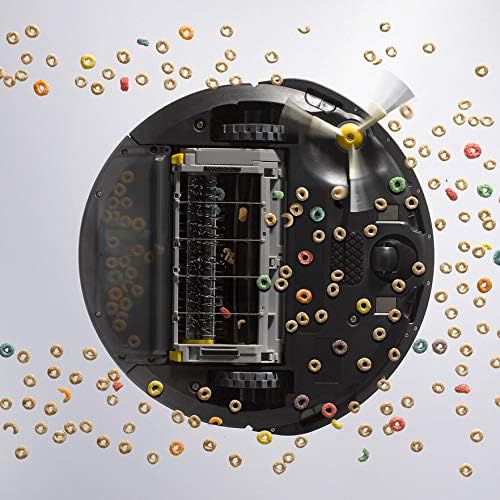 Image: The underside of the iRobot Roomba 677, displaying the dual multi-surface rubber brushes and the edge-sweeping brush, surrounded by debris, indicating areas requiring regular cleaning.
4. Cleaning Sensors and Charging Contacts
Wipe the robot's sensors and charging contacts with a clean, dry cloth. This includes the cliff sensors on the bottom and the charging contacts on the robot and Home Base.
Troubleshooting
If your Roomba 677 encounters an issue, consult the following common solutions:
- Robot Not Charging: Ensure the Home Base is plugged in and the robot is properly docked with its charging contacts aligned. Clean the charging contacts on both the robot and the Home Base.
- Robot Gets Stuck: Clear the cleaning area of excessive clutter, loose cables, or small objects that might entangle the robot. The robot's sensors help it navigate, but some obstacles may still cause it to get stuck.
- Poor Cleaning Performance: Empty the dust bin, clean the filter, and remove any tangled hair or debris from the main brushes and edge-sweeping brush. A clogged filter or brushes can significantly reduce suction power.
- Wi-Fi Connectivity Issues: Ensure your Wi-Fi router is on and within range. Restart your router, then restart your Roomba. Re-attempt the connection process through the iRobot Home App.
- Robot Not Responding: Press and hold the CLEAN button for 10 seconds to perform a soft reset. If the issue persists, ensure the battery is charged.
Specifications
| Model Name | Roomba 677 |
| Brand | iRobot |
| Item Model Number | Roomba 677 |
| Package Dimensions | 18 x 17.5 x 5 inches |
| Item Weight | 11 pounds |
| Power Source | Battery Powered |
| Battery Type | Lithium Polymer |
| Battery Life | Up to 90 minutes |
| Surface Recommendation | Carpet, Hard Floors |
| Filter Type | Disk (High-Efficiency) |
| Controller Type | App Control, Voice Control |
| Compatible Devices | Amazon Echo, Google Home |
| Included Components | Robot, Home Base, Power Cord, Dust Bin, Filter, Edge-Sweeping Brush, Dual Multi-Surface Brushes |
Note: The Roomba 677 features a washable dust bin for manual emptying. This model does not include an automatic self-emptying base.
Warranty and Support
Information regarding specific warranty details and customer support contacts for the iRobot Roomba 677 is not available in the provided product data. For warranty claims or technical assistance, please refer to the official iRobot website or contact iRobot customer service directly.


