
1. Product Overview
The TP-Link Deco M4 is a Whole Home Mesh Wi-Fi System designed to provide fast and stable internet coverage throughout your home. A single Deco M4 unit offers coverage up to 2,000 sq. ft. For larger homes or extended coverage, additional Deco units can be added to form a unified mesh network. This system utilizes TP-Link Mesh Technology to ensure seamless roaming, allowing your devices to automatically switch between Deco units as you move, maintaining the fastest possible speeds.
The Deco M4 operates as a Dual Band Gigabit Wireless Router, supporting AC1200 high-speed internet (300Mbps on 2.4GHz + 867Mbps on 5GHz). It incorporates advanced features such as Beamforming and MU-MIMO technology for efficient data transmission to multiple devices simultaneously. The system also includes IPv6 support and robust Parental Controls, enabling users to manage online time and block inappropriate websites for family members.

Image 1.1: A single TP-Link Deco M4 unit.

Image 1.2: Coverage area of a single Deco M4 unit.
2. Setup Guide
Setting up your TP-Link Deco M4 system is designed to be straightforward using the dedicated Deco app. Follow these steps for initial installation:
- Connect Deco: Connect one Deco unit to your cable modem using the provided Ethernet cable. Ensure both the Deco unit and the modem are powered on.
- Download the Deco App: Download and install the TP-Link Deco app on your Android or iOS device. The app is available on the Google Play Store and Apple App Store.
- Follow In-App Instructions: Launch the Deco app and follow the step-by-step instructions to configure your Deco system. The app will guide you through creating your Wi-Fi network name (SSID) and password.
For multi-pack systems, the app will also guide you on how to add additional Deco units to expand your mesh network. Once configured, devices will automatically switch between Deco units for optimal performance.

Image 2.1: Simplified setup process using the Deco app.
3. Operating Your Deco M4 System
The Deco M4 system creates a unified network with a single Wi-Fi name, simplifying connectivity. Your devices will automatically connect to the Deco unit providing the strongest signal as you move around your home, ensuring seamless roaming without interruptions.
Key Features:
- Seamless Roaming: Devices automatically switch between Deco units for continuous, fast Wi-Fi.
- MU-MIMO Technology: Allows the router to communicate with multiple devices simultaneously, improving network efficiency and speed for all connected devices.
- Parental Controls: Manage internet access for family members. You can set time limits, block specific websites, and create profiles for each user directly from the Deco app.
- Guest Network: Easily create a separate Wi-Fi network for guests to ensure the security of your main network. This can be turned on/off using the Deco app or via Alexa voice commands.
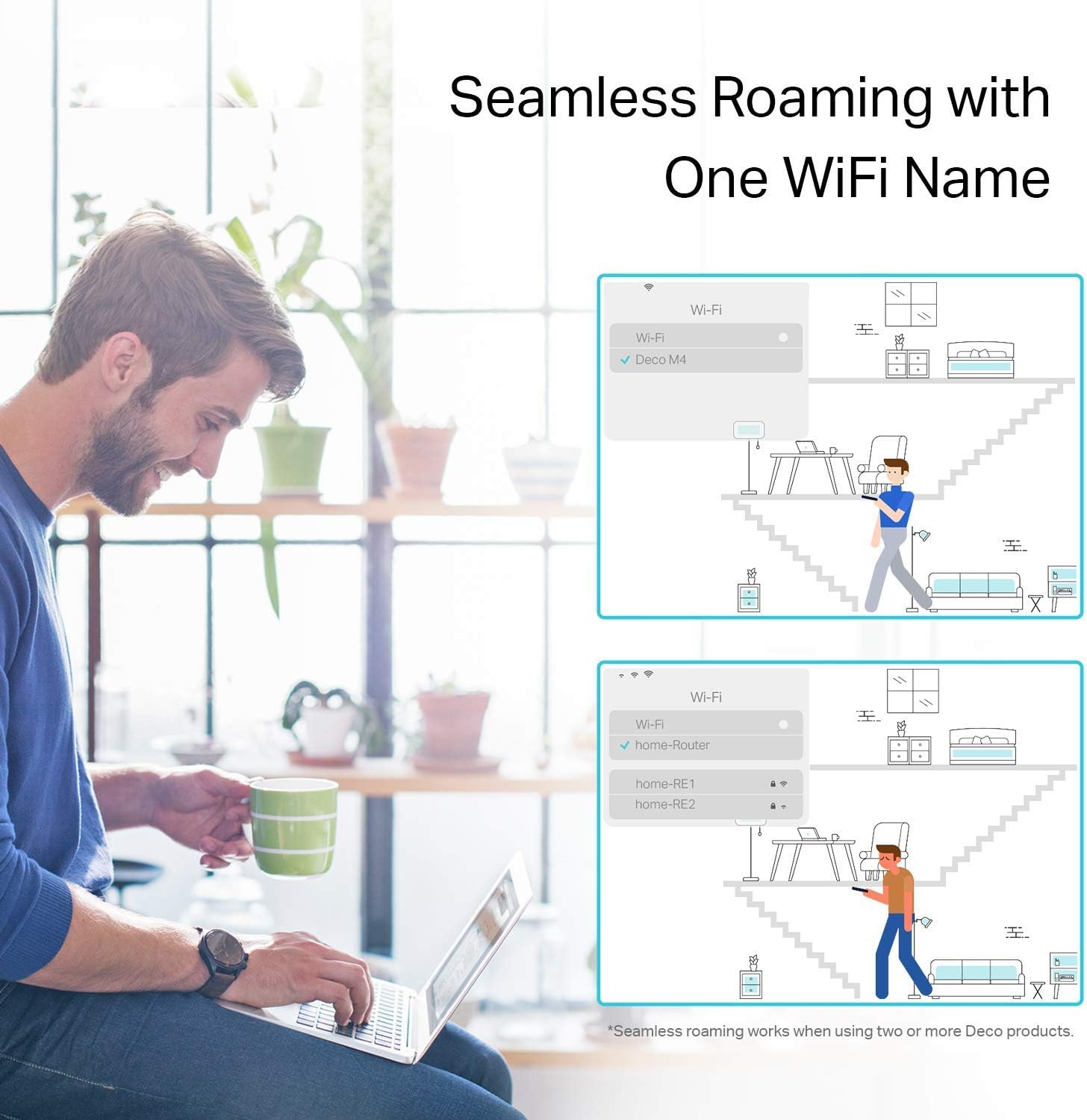
Image 3.1: Seamless roaming experience with one Wi-Fi name.

Image 3.2: Multiple Deco units working together to form a mesh network.
4. Maintenance
To ensure optimal performance and longevity of your TP-Link Deco M4 system, consider the following maintenance tips:
- Firmware Updates: Regularly check for and install firmware updates via the Deco app. Updates often include performance improvements, security patches, and new features.
- Placement: Ensure Deco units are placed in open areas, away from obstructions like large metal objects, thick walls, or other electronic devices that may cause interference.
- Cleaning: Keep the Deco units clean and free from dust. Use a soft, dry cloth to wipe the exterior. Avoid using liquid cleaners or abrasive materials.
- Restarting: If you experience network issues, try restarting your Deco units and modem. This can often resolve minor connectivity problems.
5. Troubleshooting
If you encounter issues with your Deco M4 system, refer to the following common troubleshooting steps:
- No Internet Connection:
- Verify that your modem is working correctly and has an active internet connection.
- Ensure the Ethernet cable connecting the main Deco unit to the modem is securely plugged in.
- Restart both your modem and the main Deco unit.
- Weak Wi-Fi Signal:
- Relocate Deco units to minimize physical obstructions and maximize coverage.
- Add more Deco units if your coverage area is larger than the current system can handle.
- Check for sources of interference (e.g., microwaves, cordless phones) and move Deco units away from them.
- Deco Unit Not Connecting:
- Ensure the Deco unit is powered on and within range of another active Deco unit.
- Use the Deco app to re-add the unit if it was previously removed or reset.
- Perform a factory reset on the problematic Deco unit (refer to the app for instructions) and try setting it up again.
- App Connectivity Issues:
- Ensure your smartphone is connected to the Deco Wi-Fi network.
- Update the Deco app to the latest version.
- Restart your smartphone.
For more detailed troubleshooting or persistent issues, please contact TP-Link customer support.
6. Specifications
| Brand | TP-Link |
| Model Name | AC1200 Gigabit Ethernet (Deco M4) |
| Wireless Type | 802.11ac, 802.11n |
| Frequency Band Class | Dual-Band (2.4GHz and 5GHz) |
| Connectivity Technology | Ethernet, Wi-Fi |
| Item Dimensions (LxWxH) | 3.57 x 3.57 x 7.48 inches |
| Item Weight | 1.76 pounds |
| Color | White |
| Operating System | Android (for app control) |
| Special Feature | WPS (Wi-Fi Protected Setup) |
| Included Components | Product body, Power Supply, Network Cable, Quick Installation Guide (QIG) |
7. Warranty and Support
The TP-Link Deco M4 system comes with an industry-leading 2-year warranty. For any technical assistance or support inquiries, TP-Link offers 24/7 technical support. Please refer to the official TP-Link website or the Deco app for contact information and further details regarding your warranty and support options.


