
1. Introduction
This document provides essential instructions for the installation, operation, maintenance, and troubleshooting of the Cisco A9K-MPA-8X10GE ASR 9000 8 Port 10 Gigabit Ethernet Modular Port Adapter. This adapter is designed to expand the network connectivity capabilities of Cisco ASR 9000 Series Aggregation Services Routers by providing eight 10 Gigabit Ethernet ports. It is crucial to read and understand all instructions before proceeding with any procedures.
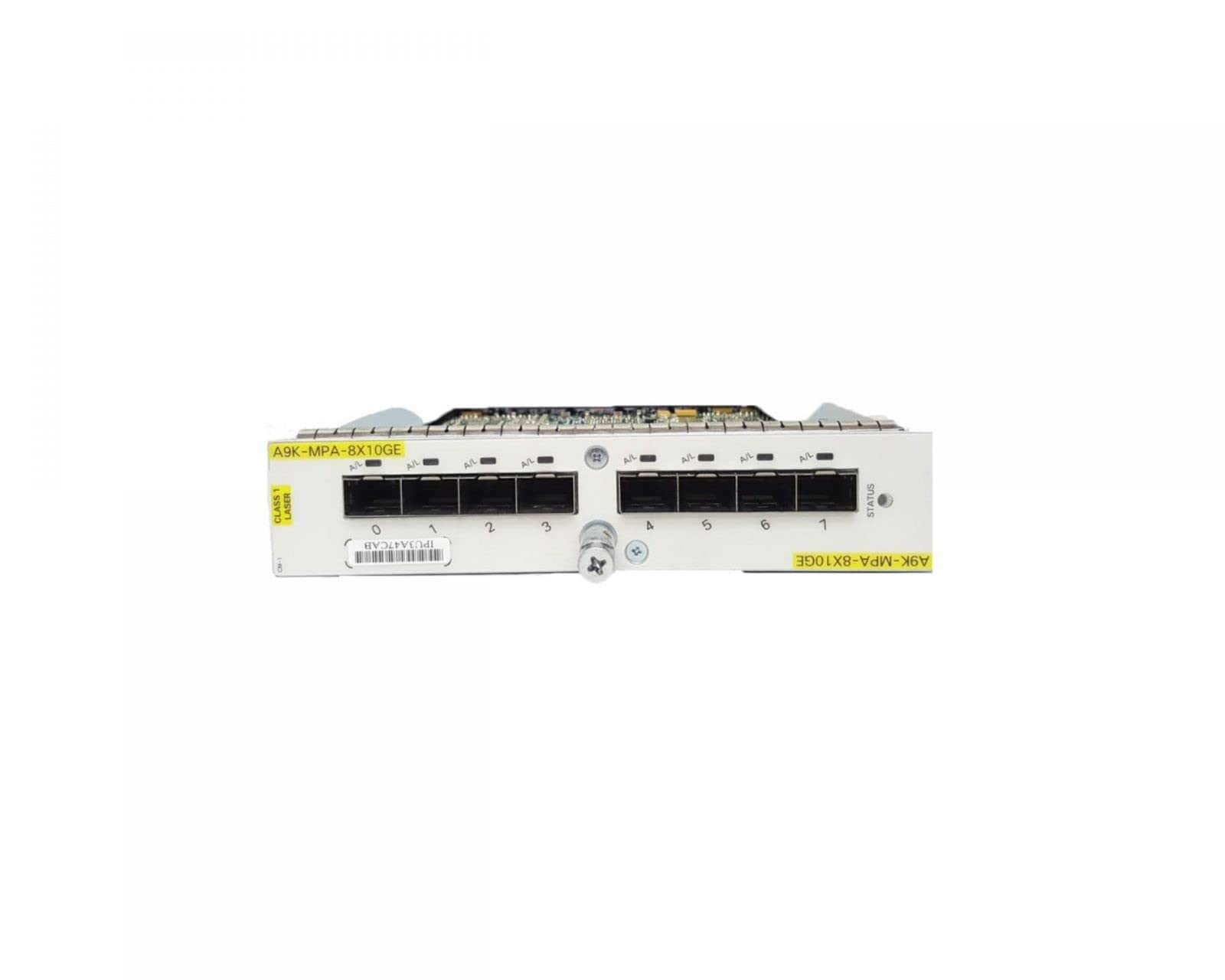
Figure 1: Cisco A9K-MPA-8X10GE Modular Port Adapter. This image displays the front view of the modular port adapter, highlighting its eight 10 Gigabit Ethernet ports and general form factor for installation into a compatible chassis.
2. Setup and Installation
2.1 Safety Precautions
- Ensure the chassis is powered off and disconnected from the power source before installation or removal of the module.
- Wear an ESD-preventive wrist strap connected to a grounded surface to prevent electrostatic discharge damage.
- Handle the module by its edges; avoid touching components on the circuit board.
- Refer to the Cisco ASR 9000 Series Aggregation Services Router Hardware Installation Guide for detailed chassis-specific safety information.
2.2 Physical Installation
- Identify an available modular port adapter slot in the Cisco ASR 9000 chassis.
- Remove any blank filler panels from the chosen slot.
- Align the A9K-MPA-8X10GE module with the slot guides.
- Gently slide the module into the slot until it is fully seated. Ensure the module engages with the backplane connector.
- Secure the module in place using the captive screws or ejector levers provided on the module faceplate.
- Connect appropriate 10 Gigabit Ethernet cables (e.g., SFP+ transceivers and fiber optic cables) to the module's ports.
2.3 Initial Power-Up and Verification
After physical installation, power on the ASR 9000 chassis. The system will detect and initialize the new module. Observe the module's status LEDs (if present) for proper operation. Refer to the Cisco IOS XR documentation for commands to verify module status and configure the 10 Gigabit Ethernet interfaces.
3. Operating Instructions
The Cisco A9K-MPA-8X10GE module functions as a high-speed data forwarding interface within the ASR 9000 router. Once installed and recognized by the system, its operation is primarily managed through the Cisco IOS XR operating system.
3.1 Interface Configuration
To enable and utilize the 10 Gigabit Ethernet ports, they must be configured using the Cisco IOS XR command-line interface (CLI). This includes assigning IP addresses, configuring routing protocols, setting link parameters, and applying quality of service (QoS) policies. Consult the Cisco IOS XR Interface and Hardware Component Configuration Guide for detailed configuration procedures.
3.2 LED Indicators
The module may feature LED indicators on its faceplate to provide visual status feedback for each port and the module itself. Common LED states include:
- Green (Solid): Link established and active.
- Green (Flashing): Activity on the port (data transmission/reception).
- Amber/Orange: Link issue, fault, or module initialization in progress.
- Off: No link, port disabled, or module not powered.
Refer to the specific hardware documentation for your ASR 9000 chassis and module for precise LED behavior descriptions.
4. Maintenance
Regular maintenance helps ensure the longevity and optimal performance of the A9K-MPA-8X10GE module.
4.1 Cleaning
- Keep the module's faceplate and ports free from dust and debris. Use a soft, lint-free cloth for cleaning.
- For optical ports, use specialized fiber optic cleaning tools and procedures to clean SFP+ transceivers and fiber connectors. Contaminated optical connectors can significantly degrade performance.
- Ensure the operating environment is clean and free of excessive dust.
4.2 Firmware and Software Updates
Periodically check the Cisco support website for updated firmware for the A9K-MPA-8X10GE module and the Cisco IOS XR software for your ASR 9000 router. Keeping software up-to-date can provide performance enhancements, new features, and security patches. Always follow Cisco's recommended upgrade procedures.
4.3 Environmental Considerations
Ensure the module operates within the specified temperature and humidity ranges as outlined in the ASR 9000 Series documentation. Proper airflow within the chassis and server rack is critical for cooling.
5. Troubleshooting
This section provides basic troubleshooting steps for common issues.
5.1 Module Not Detected or Initializing
- Verify the module is fully seated in its slot. Remove and re-insert the module firmly.
- Check the chassis power supply status.
- Consult the ASR 9000 chassis documentation for slot compatibility.
- Use Cisco IOS XR commands (e.g.,
show platform) to check module status.
5.2 No Link on 10 Gigabit Ethernet Port
- Ensure the SFP+ transceiver is correctly inserted and compatible.
- Verify the fiber optic cable is properly connected and not damaged. Clean optical connectors if necessary.
- Check the link status on the connected device.
- Confirm the interface is administratively enabled in Cisco IOS XR (
no shutdowncommand). - Verify speed and duplex settings (though 10 Gigabit Ethernet is typically fixed).
5.3 Performance Issues
- Check for interface errors or discards using Cisco IOS XR commands (e.g.,
show interfaces). - Verify cable quality and length are within specifications for 10 Gigabit Ethernet.
- Ensure the connected device is capable of 10 Gigabit Ethernet speeds.
For advanced troubleshooting, refer to the Cisco ASR 9000 Series Troubleshooting Guide or contact Cisco Technical Assistance Center (TAC).
6. Specifications
| Feature | Description |
|---|---|
| Model Number | A9K-MPA-8X10GE |
| Product Dimensions | 7 x 7 x 2 inches |
| Item Weight | 1.75 pounds |
| Hardware Interface | Ethernet |
| Compatible Devices | Desktop (referring to the ASR 9000 chassis as a desktop-like component in a rack environment) |
| Data Link Protocol | Ethernet |
| UPC | 786513901170 |
7. Warranty and Support
7.1 Amazon Renewed Guarantee
This product is sold as an Amazon Renewed item. It is backed by the Amazon Renewed Guarantee, which provides for a replacement or refund within 90 days of purchase if you are not satisfied. For details regarding this guarantee, please refer to the Amazon Renewed program terms and conditions on the Amazon website.
7.2 Technical Support
For technical assistance related to the operation, configuration, or advanced troubleshooting of the Cisco A9K-MPA-8X10GE module within your Cisco ASR 9000 Series router, please contact Cisco Technical Assistance Center (TAC) or refer to the official Cisco documentation available on their support website (www.cisco.com/support). Ensure you have your product serial number and relevant system logs available when contacting support.


